Navigation Button – Buildbox 3 Manual

By |

Navigation Button

Depending on the function you select for the button, add this button to create a Pause, Back, Restart, Reset Settings, or any other button on the screen. Just drag it from the Asset panel to the UI Editor and define the navigation button  attributes as described below.
After you drag the button from the Asset panel to the Editor, an additional output appears in the corresponding UI node on the Mind Map. After you rename the button and customize its options, the name of this output will be updated accordingly.
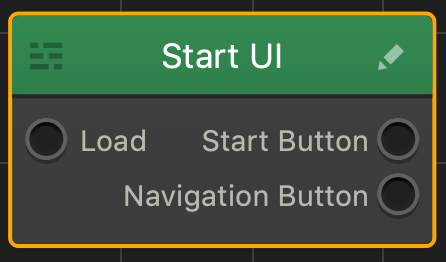
NOTE: You can also add a Navigation button using the Buildbox menu. Go to Add > New Button and select an image you want to be used as a Navigation button.

Name and Transform Attributes
Option Description
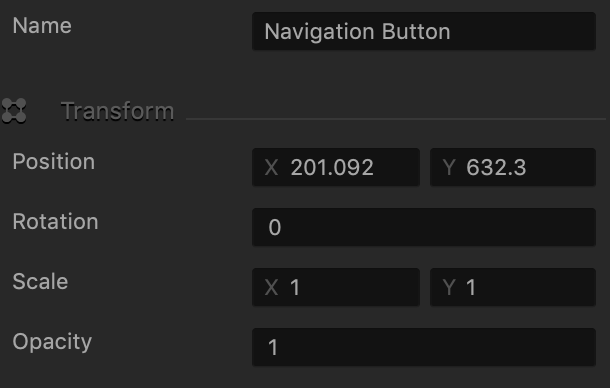
Name Enter a custom name for the button, if needed. It will be displayed in the Outliner.

TIP: Don’t leave this field blank, as you won’t be able to tell what button it is if you hide it.

Position Enter the appropriate values for each axis to specify a precise position for the button on the screen.

TIP: You can also drag the button to the desired location directly in the UI Editor.

Rotation Enter a degree value to specify the rotation angle of the button.
Scale Enter a value for each axis to make the button as proportionally large, or wide or narrow as needed.

TIP: You can also select the button in the UI Editor and drag its corner handles to resize it as needed.

Opacity Enter a value from 0 to 1 to specify the transparency of the button. For example, if you enter .5, the image will be semi-transparent.

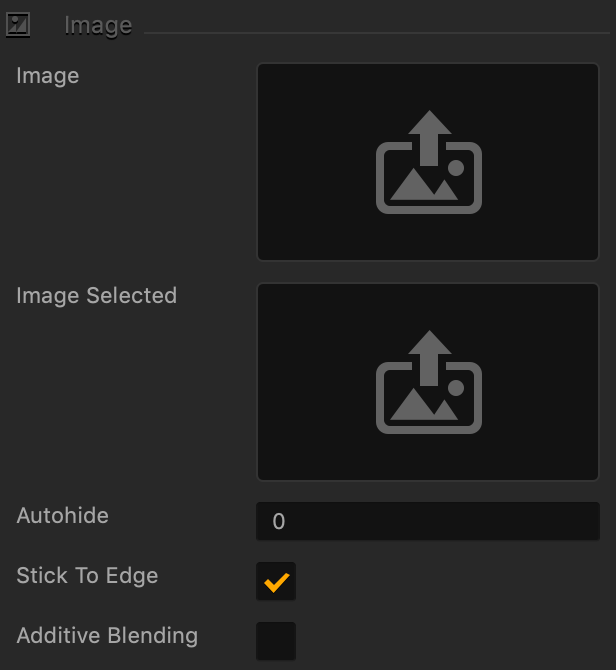
Button Image Attributes

Option Description
Image Drag a PNG image for the button in its inactive state.
Image Selected Drag a PNG image for the button when it is selected.
Autohide If you want the button to appear momentarily and then fade away, specify the number of seconds for the button to be displayed for before disappearing.

To keep the button displayed on the screen, enter 0.

Stick to Edge Select this checkbox to keep the relative size and position of the button when scaling the screen for different sizes.
Additive Blending Select to add a glow effect overlay to any graphics or 3D objects underneath the button.

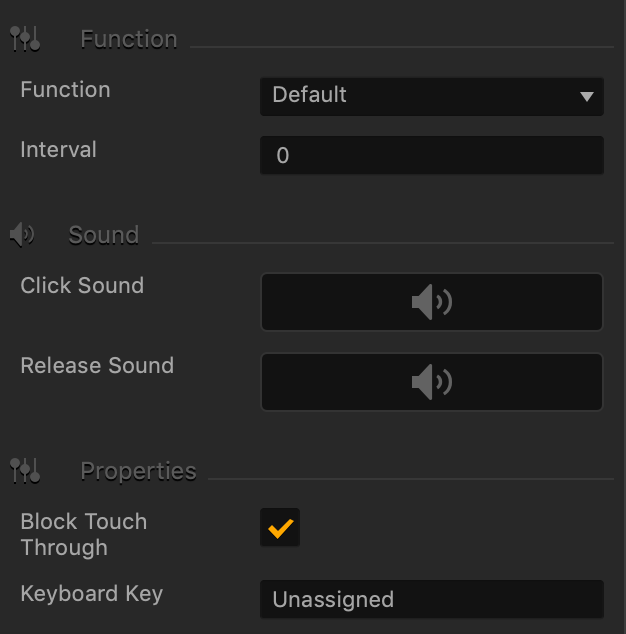
Sound and Other Properties

Option Description
Function Select the appropriate function for the button:

  • Default—
  • Pause—pauses the game.
  • Back—allows the player to go back to the previous world or UI screen.
  • Restart—restarts the game.
  • Review—
  • Share—allows the player to share.
  • Restore Purchase—
  • Game Services—
  • Reset Settings—
  • Fullscreen—Converts the game screen to a full screen view.
  • Windowed—Converts the game screen to a windowed view.
  • Exit— Exits the game
  • Custom—

IMPORTANT: Make sure to connect the output to the appropriate input in the Mind Map.

Interval If you want the button to disappear after the player clicks it, enter the number of seconds, typically 1 or 2, after which the button should disappear.
Click Sound Drag an MP3 file with the sound to be made when the player taps the button. See also Adding Music and Sound Effects.
Release Sound Drag an MP3 file with the sound to be made when the player releases the button.
Block Touch Through If this button happens to be stacked on top of another button, and you don’t want the player to be able to tap the button underneath and trigger its action, select this check box.
Keyboard Key Typically applies to Windows exports. Type a key name that will activate the button when the user presses the specified key. In some scenarios, you may also associate it the Back button on the Android devices.


If Collide Node – Buildbox 3 Manual

By |
If Collide Node

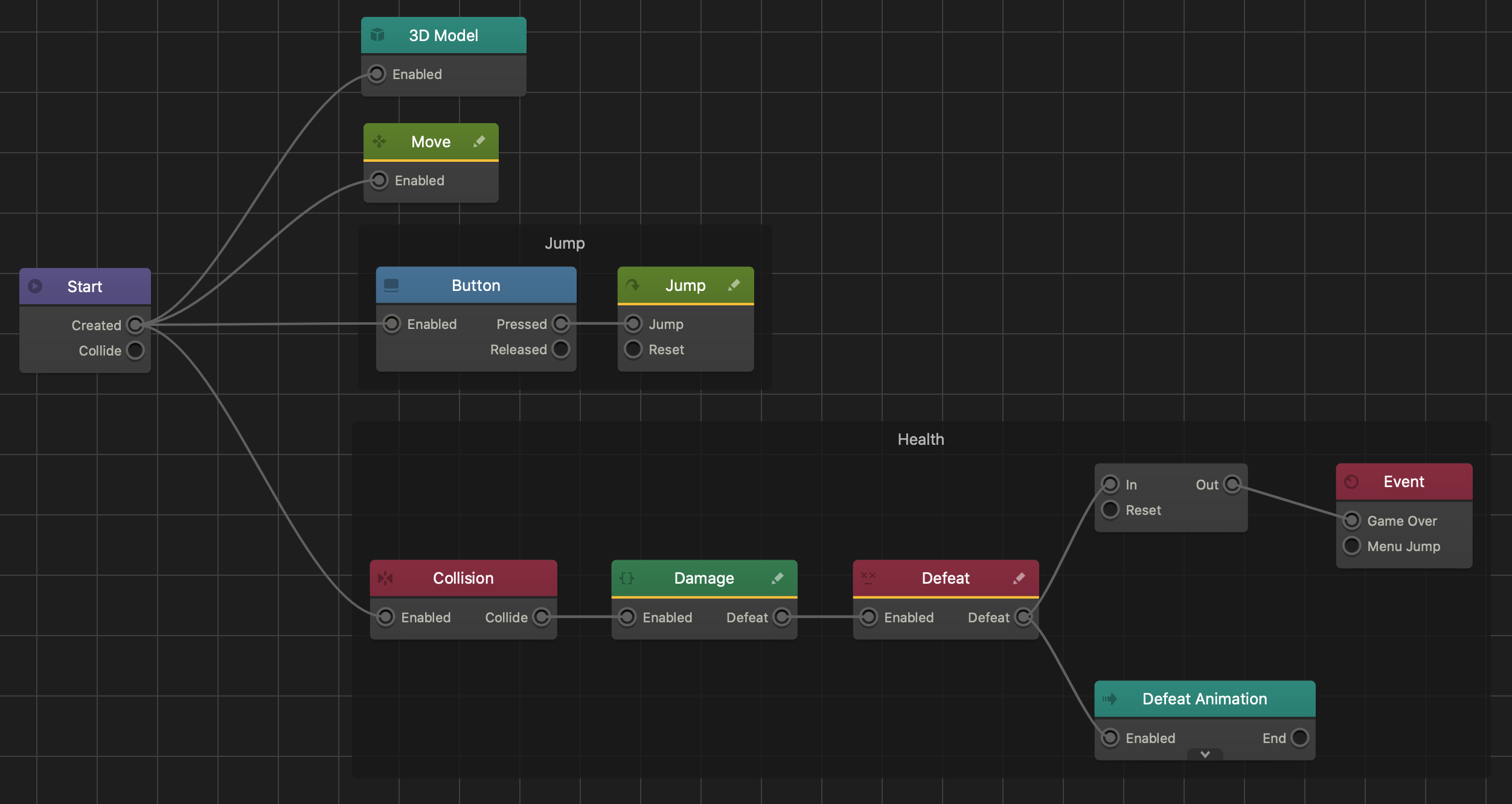
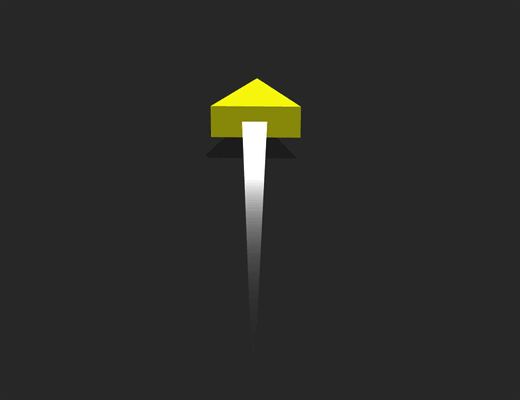
This action node creates a Collision Shape that triggers a reaction when a physics based object makes contact. For a use case example, see Health, Damage, and Defeat.


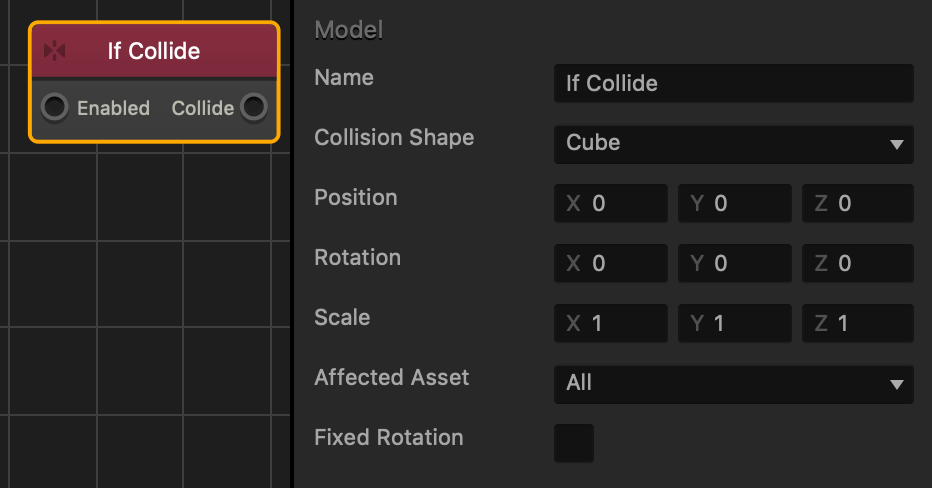
Option Description
Name To create a custom name, replace “3D model” and type another name.
Collision Shape Select the type of shape for the area around the asset that other assets will collide with to trigger the desired outcome.
Position Move the collision shape around the asset by changing the axes values.
Texture Offset Move the texture along the axes by entering different X and Y axis values.
Rotation Rotate the collision shape by entering different axes values.
Scale Change the size of the collision shape by entering different axes values.
Affected Asset Select which asset or type of asset triggers the desired outcome.
Fixed Rotation Prevents the asset from rotating the collision shape despite the asset being rotated in the scene.

Brainboxes – Buildbox 3 Manual

By |
Brainboxes™

Brainboxes allow you to add predefined gameplay features and functionalities such as data, motion, and outcomes to an asset with just a click or two, instead of adding and linking individual nodes and defining the logic.

There are three main categories of Brainboxes:

  • Advanced Platformer—allows the player to control a 3D animated character.
  • Movement—makes an asset move on its own or allow the player to control its movement.
  • Physics—makes an assets move naturally  as if affected by gravity.
  • Other—miscellaneous Brainboxes that, for example, define what happens to an asset when it collides with other objects.

To add a Brainbox to an asset:

  1. In a World workspace, in the Asset panel, select an asset.
  2. In the Options panel, click the Add Brainbox button on the bottom.
  3. Click a Brainbox you want to add.

After you add a Brainbox to an asset, its attributes appear in the Options panel where users can adjust their values as needed.

Each Brainbox also has its own set of nodes that make up its functionality.

  • On the Node Map of an asset, the added Brainbox appears as a group of nodes in a black box.
  • Some of the nodes may have custom scripts written specifically for these Brainboxes.
  • To move a group of nodes that make up a Brainbox, click the black box and drag it to the desired location.

For details on accessing the Node Map and adding nodes to it, see Node Map Workspace.

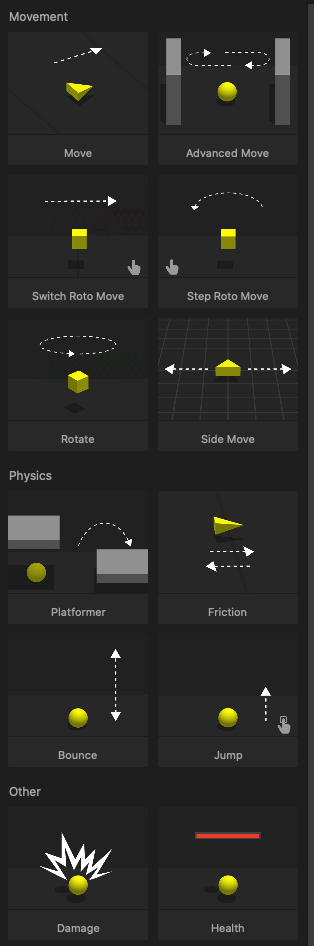
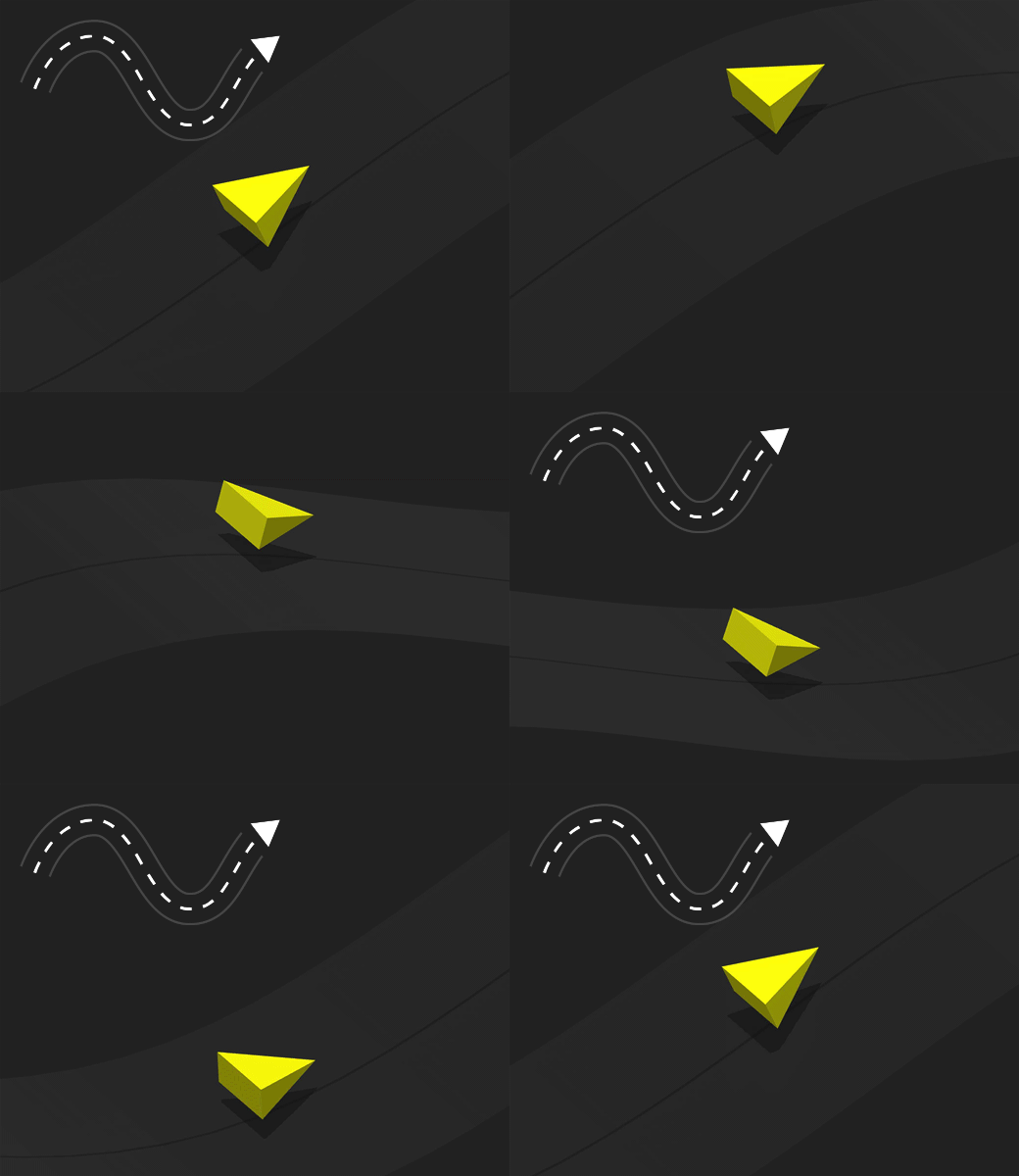
Click any of the sections below to see the Brainboxes in their respective categories. To preview them, hover your mouse over the image. It also lists the nodes that determine their functionality.

Advanced Platformer
Name Image Description Nodes Used
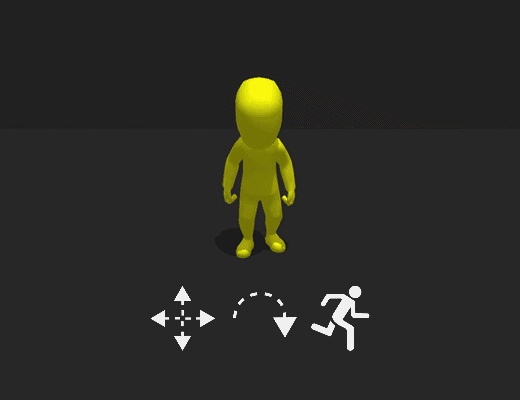
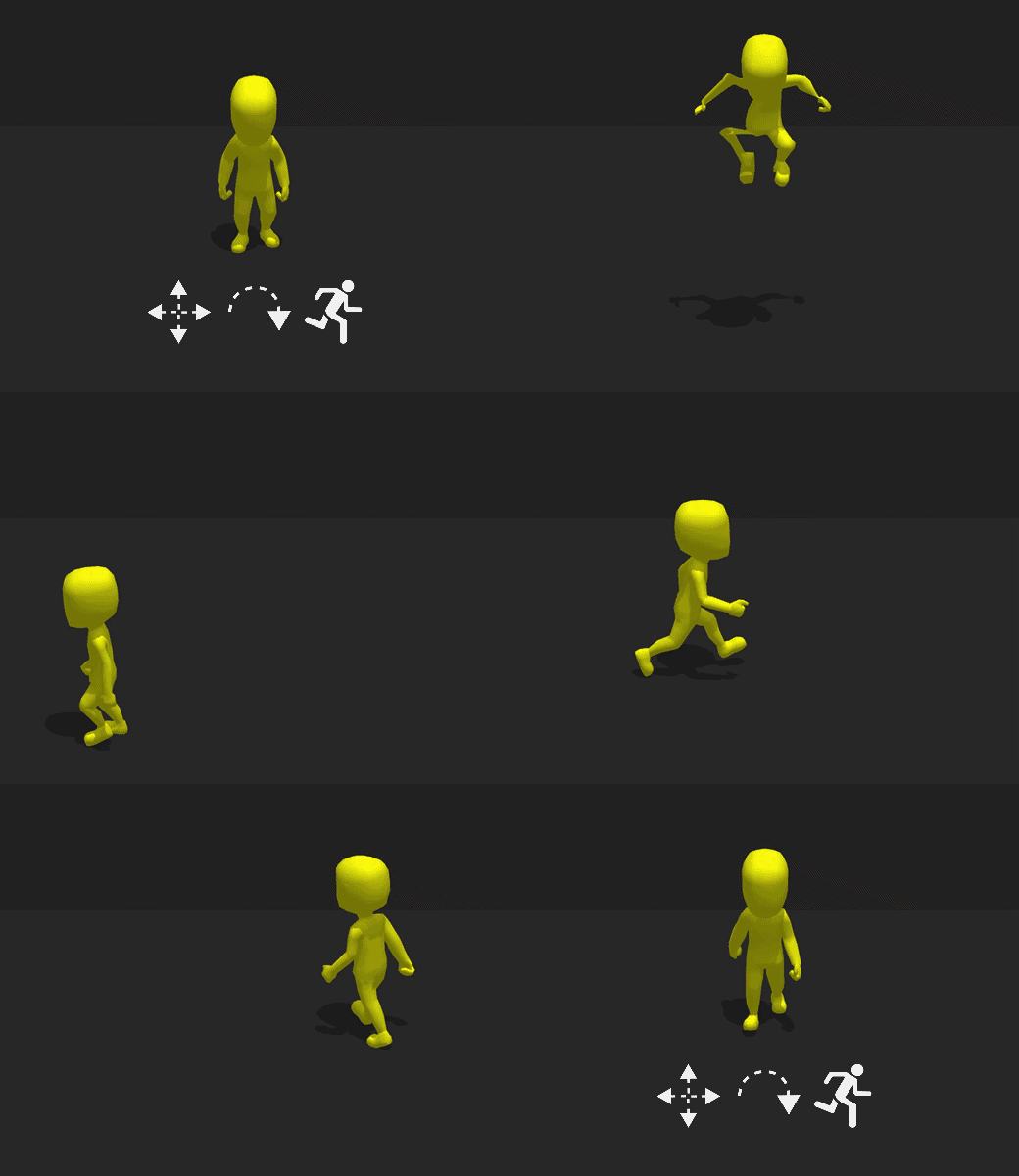
Animated Platformer Provides the asset with a set of 3D animations that play depending on player actions. Also provides a set of movement restrictions as well as determine how high the asset is able to jump.
  • Signal Invert
  • Keyframe Animation
  • Sub Scene
  • Animated 3D Movement (Custom)
  • Falling State Detector (Custom)
  • Advanced Jump (Custom)
  • Advanced Control System (Custom)
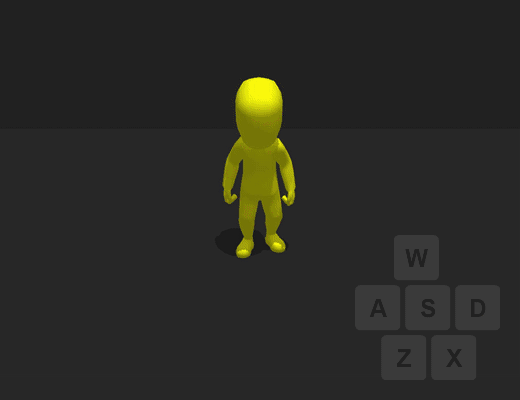
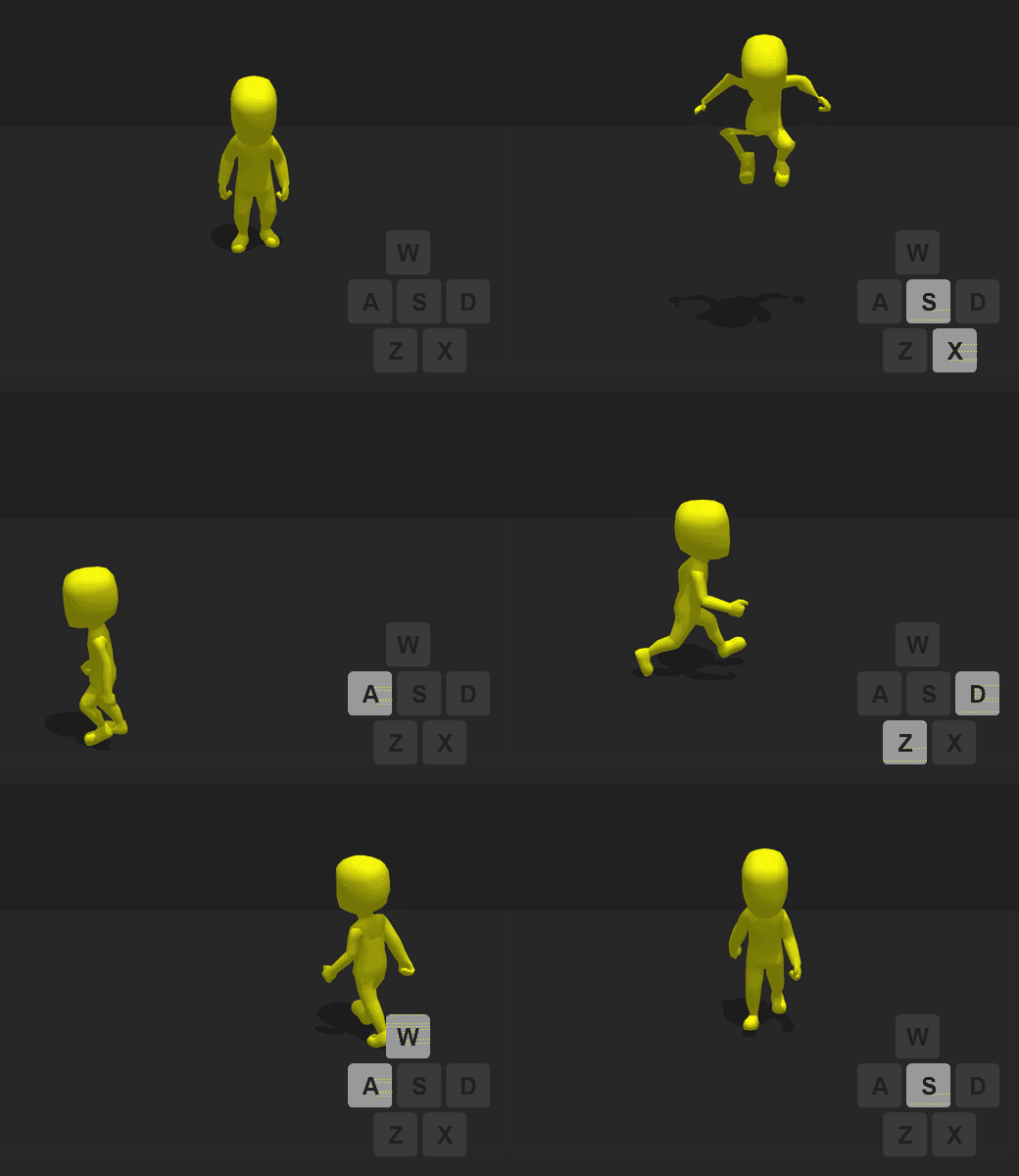
Keyboard Controls Allows the player to move an animated platformer asset with the W, A, S, D and arrow keys on their keyboard.
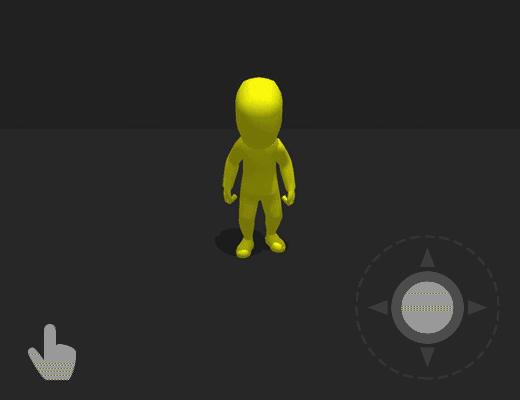
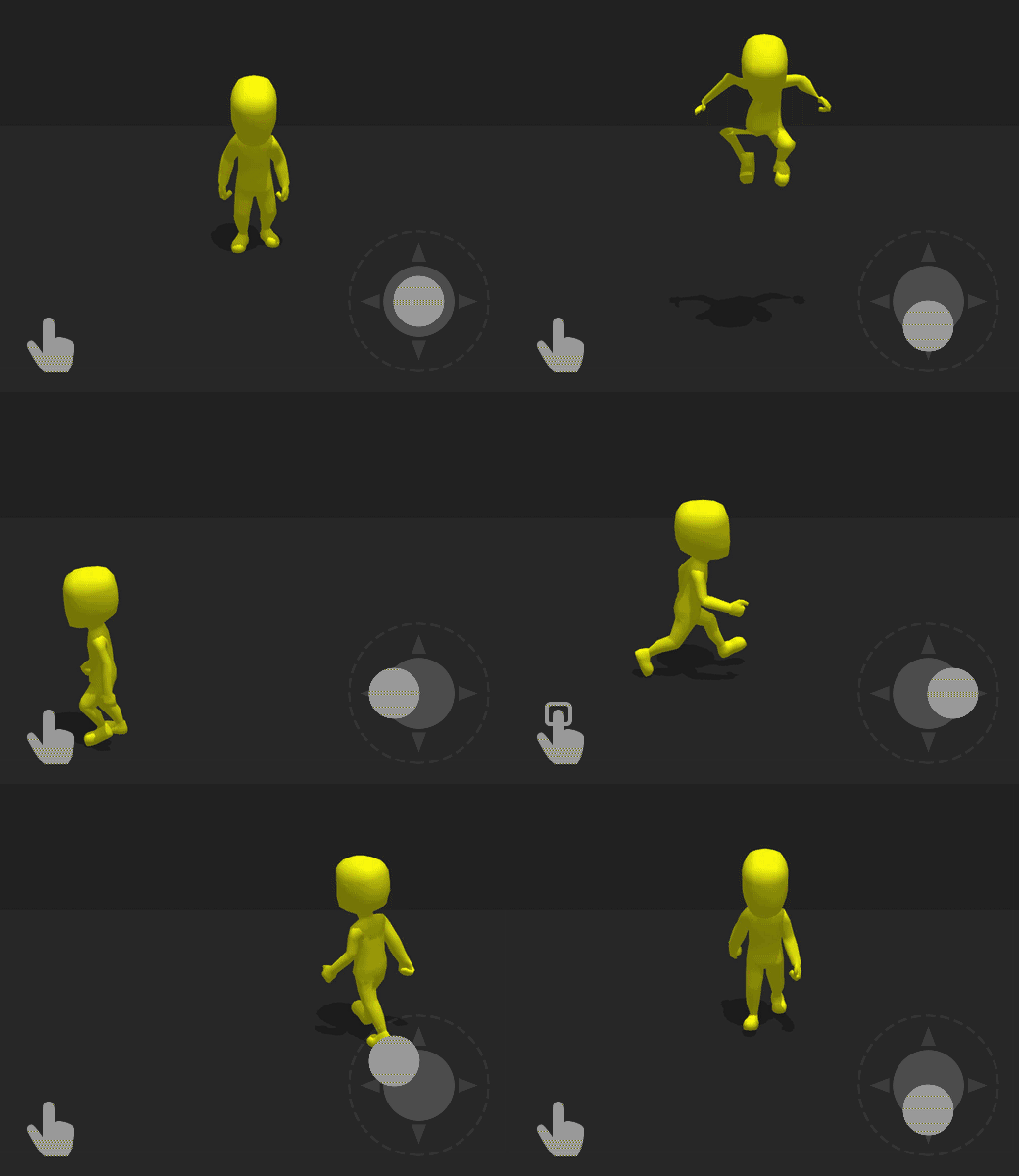
Mobile Controls Allows the player to move an animated platformer asset across a scene using a UI Joystick control.
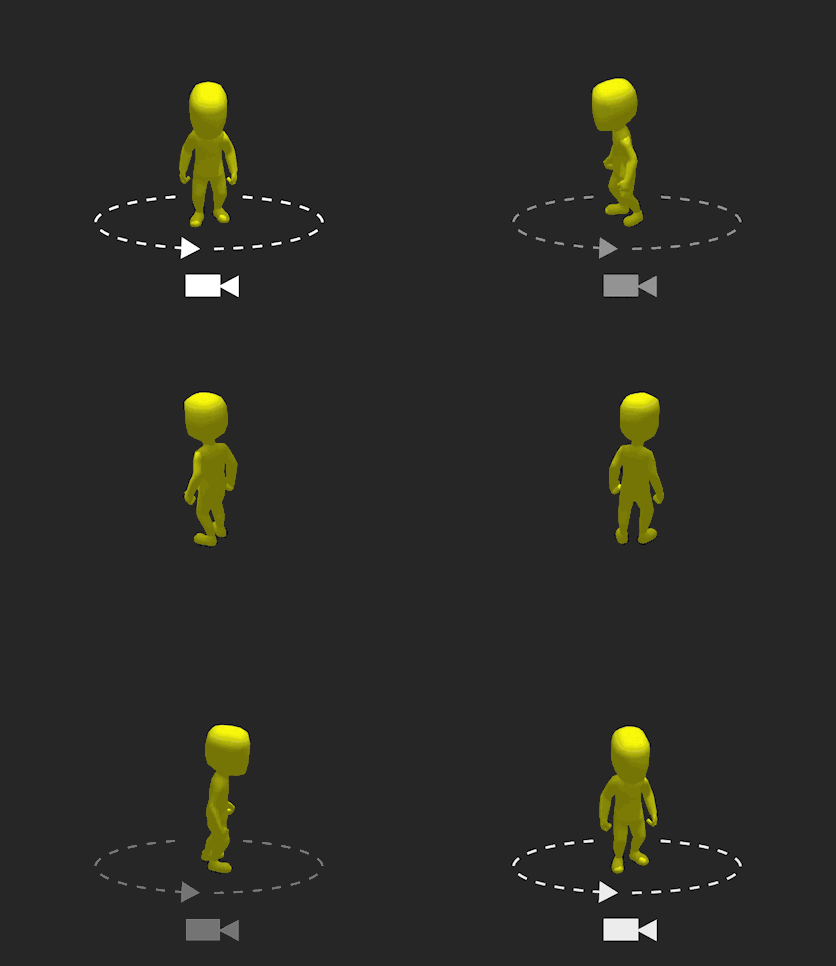
Keyboard Camera Controls Allows the player to rotate the camera around an animated platformer character with the assigned keyboard buttons.
Movement
Name Image Description Nodes Used
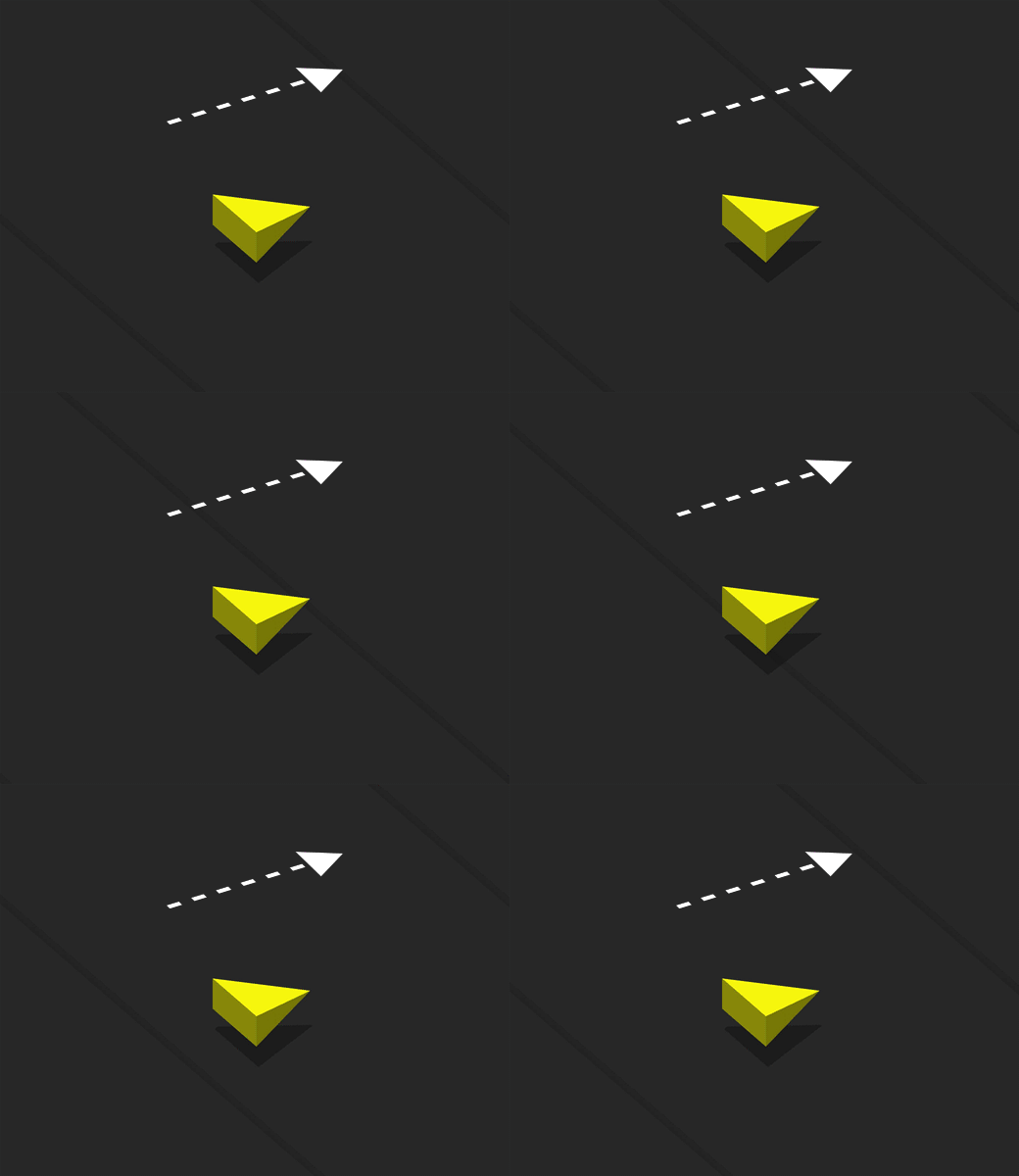
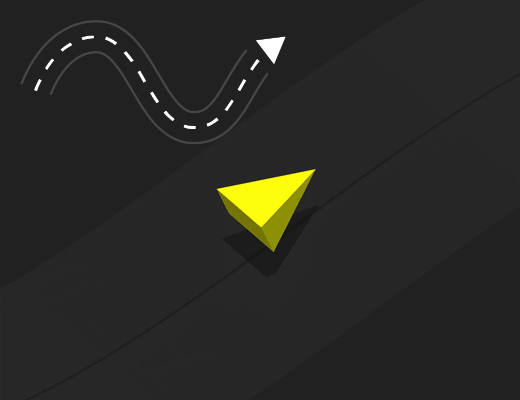
Move Makes an asset move in the specified direction. Move
Advanced Move Makes a static asset move when the player taps or clicks the screen. Or makes a moving asset change direction when colliding with another asset or when the player taps or clicks the screen.
  • Collision (If Collide)
  • Signal Filter
  • Advanced Move (Custom)
Switch Roto Move Makes an asset move and change direction when the user taps or clicks the screen. To specify the directions, use the Linear Velocity and Angular Velocity attributes.
Step Roto Move Moves and rotates an asset in a specified direction when the player taps or clicks the screen.
Rotate Makes an asset rotate in a specified direction.

Rotate

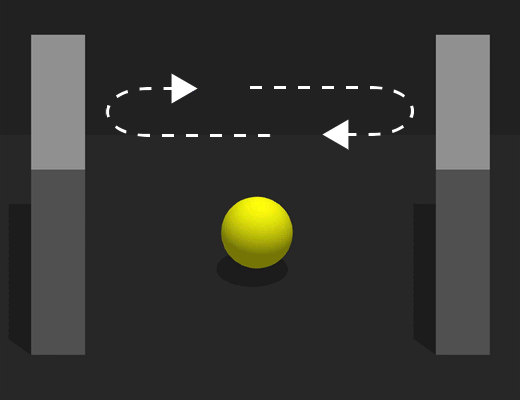
Side Move Allows the player to change the position of the asset by dragging it across the screen with either a finger or mouse. Touch Move
Physics
Name Image Description Nodes Used
Platformer Allows the player to make the asset move and jump with their keyboard. Also provides the asset with animations that play when the asset moves and jumps.
Friction Applies friction or resistance to an asset when it is affected by gravity or moving across a surface. Friction (Custom)
Bounce Makes an asset bounce off a surface.
Jump Allows players make an asset jump when they tap or click the screen.
Other
Name Image Description Nodes Used
Damage Allows an asset to take damage when colliding with an enemy. Damage (Custom)
Health Gives the asset Hit Points, or a health amount that determines when an asset is defeated. Also determines what happens when an asset has been damaged and defeated.
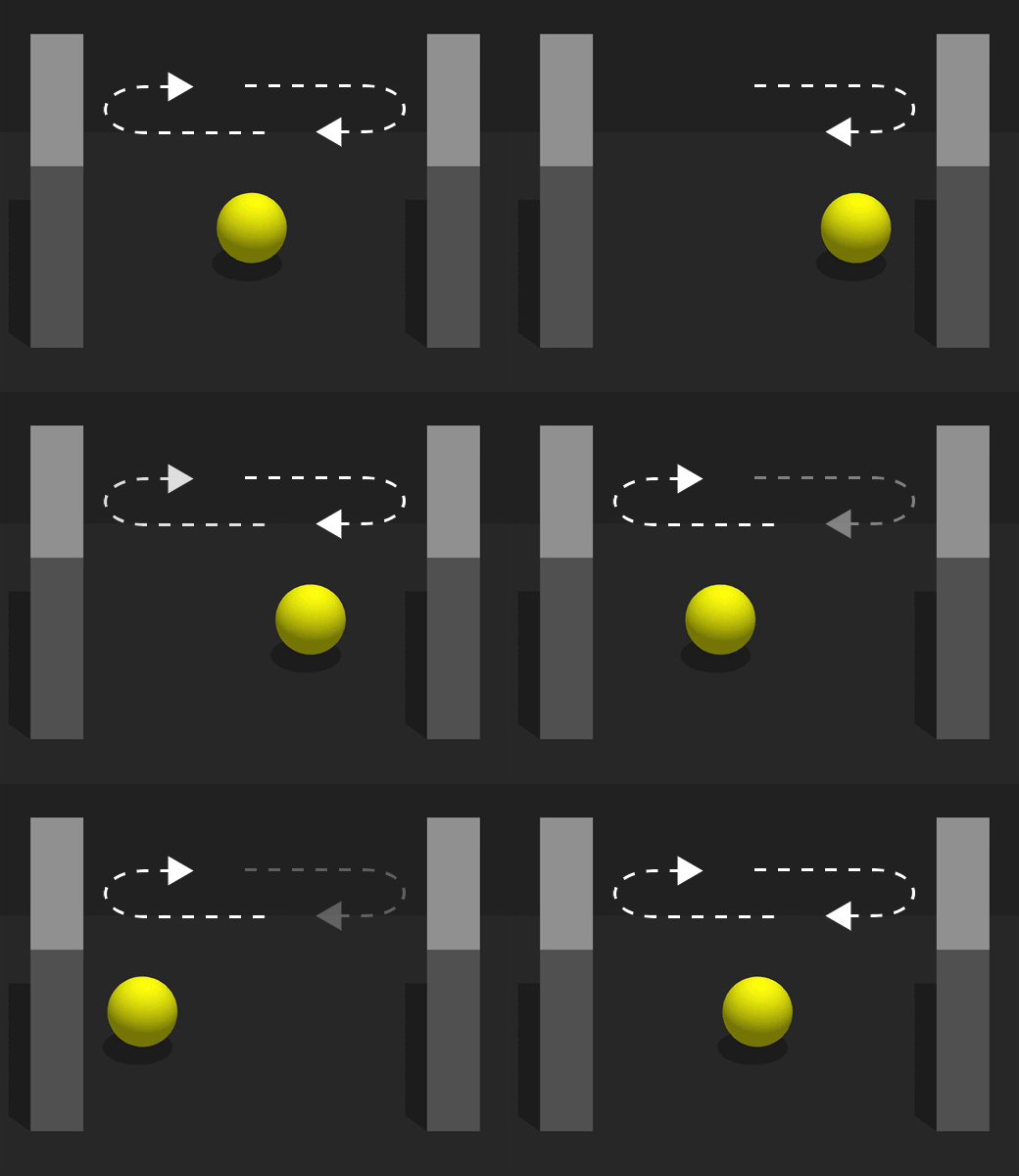
Path Move Makes an asset move along the path determined by the Start and End points.
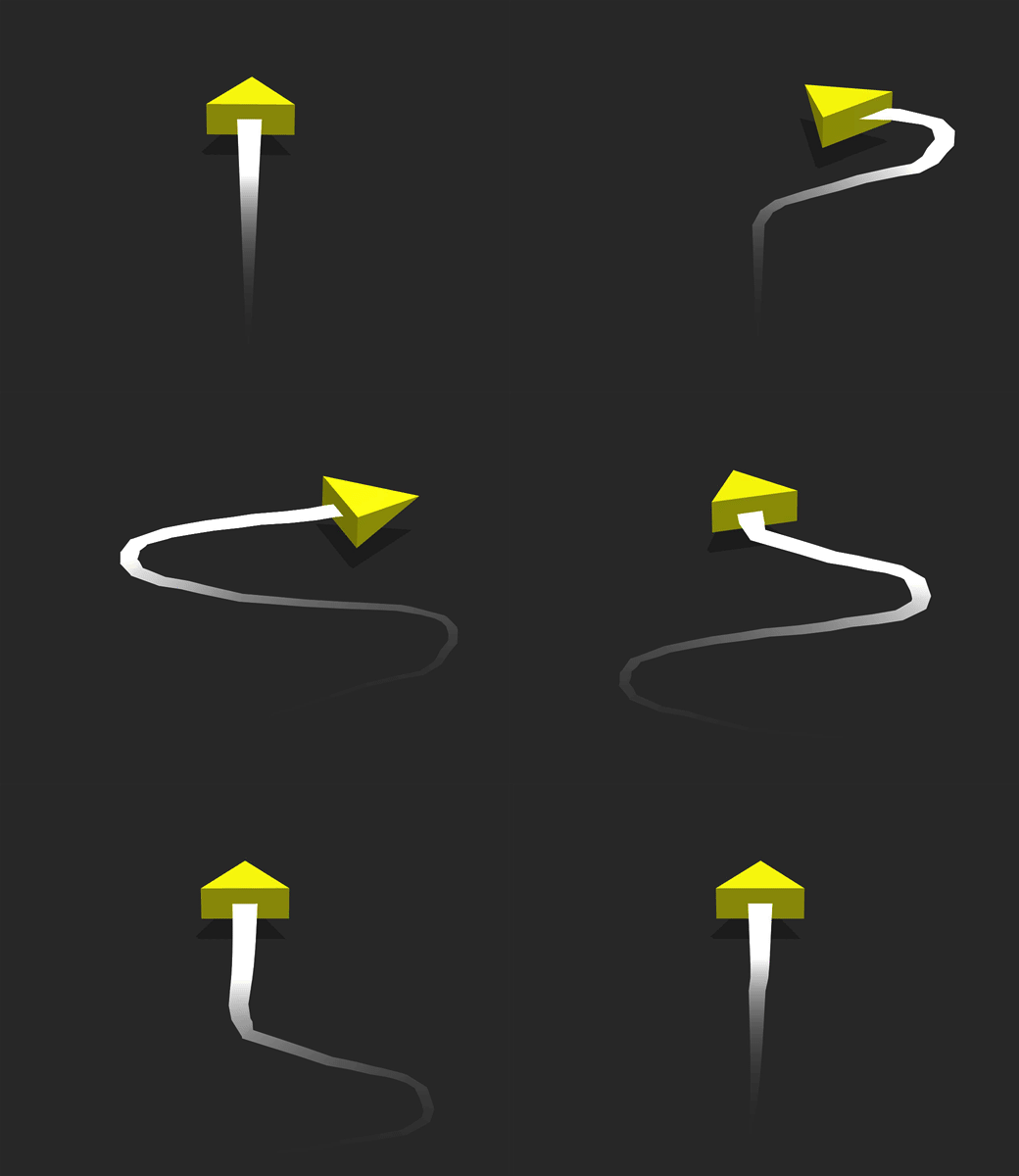
Trail Creates a trail that traces along the asset’s movement path in a scene. Trail

Move Node – Buildbox 3 Manual

By |

Move Node

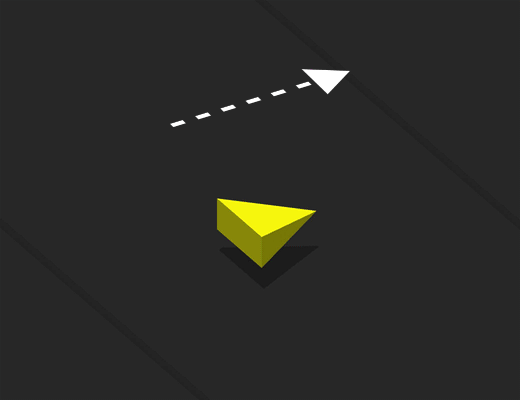
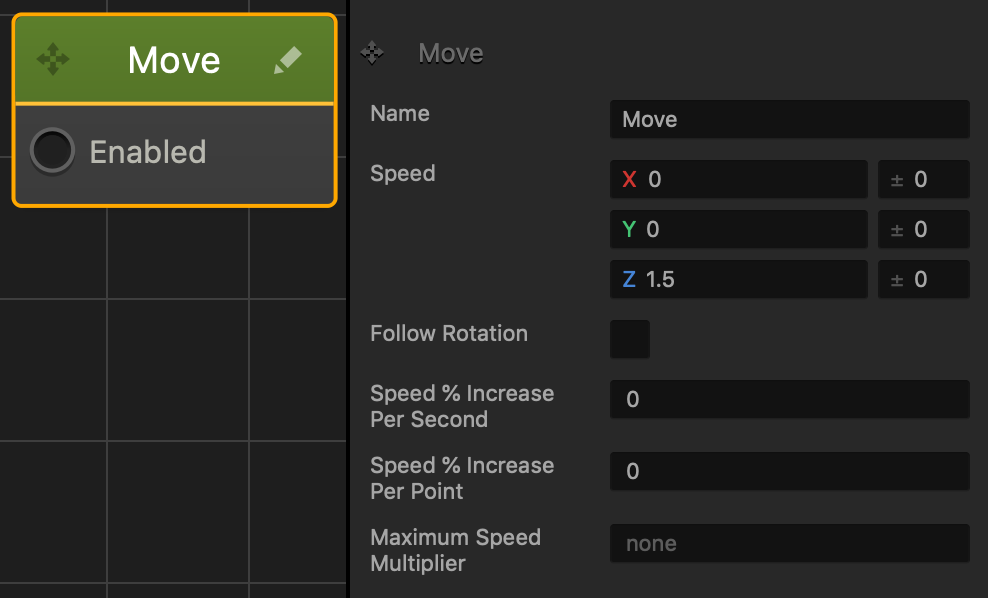
This movement node allows the asset to travel in the direction specified in the axis values. See also Making Characters Jump and Objects Move, and Move Brainbox.

  • Speed
    • Enter a numeric value in any of the axis fields to represent the movement direction and speed.
    • The greater the number, the faster the asset will move.
  • Direction
    • To make an asset move:
      • Forward, enter a positive value in the Z axis field.
      • Backward, enter a negative value in the Z axis field.
      • Right, enter a positive value in the X axis field.
      • left, enter a negative value in the X axis field.
      • Up, enter a positive value in the Y axis field.
      • Down, enter a negative value in the Y axis field.
    • Also depends on which direction the game camera is facing.
  • If you put values in more than one axis, the asset will move in all specified directions.
    • For example, if the Z and X axis fields contain values, the asset will move in a diagonal direction.
  • Range
    • To make the asset pick a random axis value, enter a value in any of the range fields to the right.
    • The range value is both added and subtracted to create a minimum and maximum of possible outcomes.
    • For example, if you enter a value of 100 in the Y axis field and 50 in its range value field, a value between 50 and 150 will be selected during gameplay.
      |50———-100———-150|
    If you don’t want the asset to rotate in a specific direction, delete the value in any of the axis fields.

The table below shows sample values in the X, Y, and Z axis with their speed and direction.

X Y Z
Sample Value 10 -50 20
Speed Slow Fast Medium
Direction Right Down Forward

Node Attributes

Option Description
Name Enter a custom name for this node, if needed.
Speed Enter a numeric value in the axis fields to specify the speed and direction the asset will move in. The higher the number, the faster the asset will move. Enter a range value on the right to make the asset pick a random axis value.

If there is no value in an axis field, then other nodes can affect this asset in those axes. This is useful when adding a Jump node to an asset.
Follow Rotation To make the asset always face the direction it is moving, select this option.
Speed % Increase per second Enter the percentage value to multiply the speed by a percentage after every second.

For example, if you enter the following values:

  • Speed—2
  • Speed % Increase Per Second—50

After every second, the speed will increase by 50% of its value or 1 in this example.

Speed % Increase per point
Enter the percentage of the speed value to multiply the speed for every point score in total.

For example, if you enter the following values:

  • Speed—3
  • Speed % Increase Per Point—50
  • Total Point score—5

For ever total point, the Speed will multiply by 50% or 1.5 in this example. With a Total Point score of 5, the speed will be increased 5 times to a total speed value of 10.5

Maximum Speed Multiplier Enter the maximum amount of times you want the speed to multiply by the Speed % attributes. If you don’t want a maximum speed multiplier, delete the value from the field until None is displayed.

For example, if you enter the following values:

  • Speed—3
  • Speed % Increase Per Point—50
  • Total Point score—100
  • Maximum Speed Multiplier—20

The speed will stop increasing after the score reaches a value of 20.

If needed, you can also customize this node. For details, see Customizing Nodes.

UI Screen Workspace – Buildbox 3 Manual

By |

UI Screen Workspace

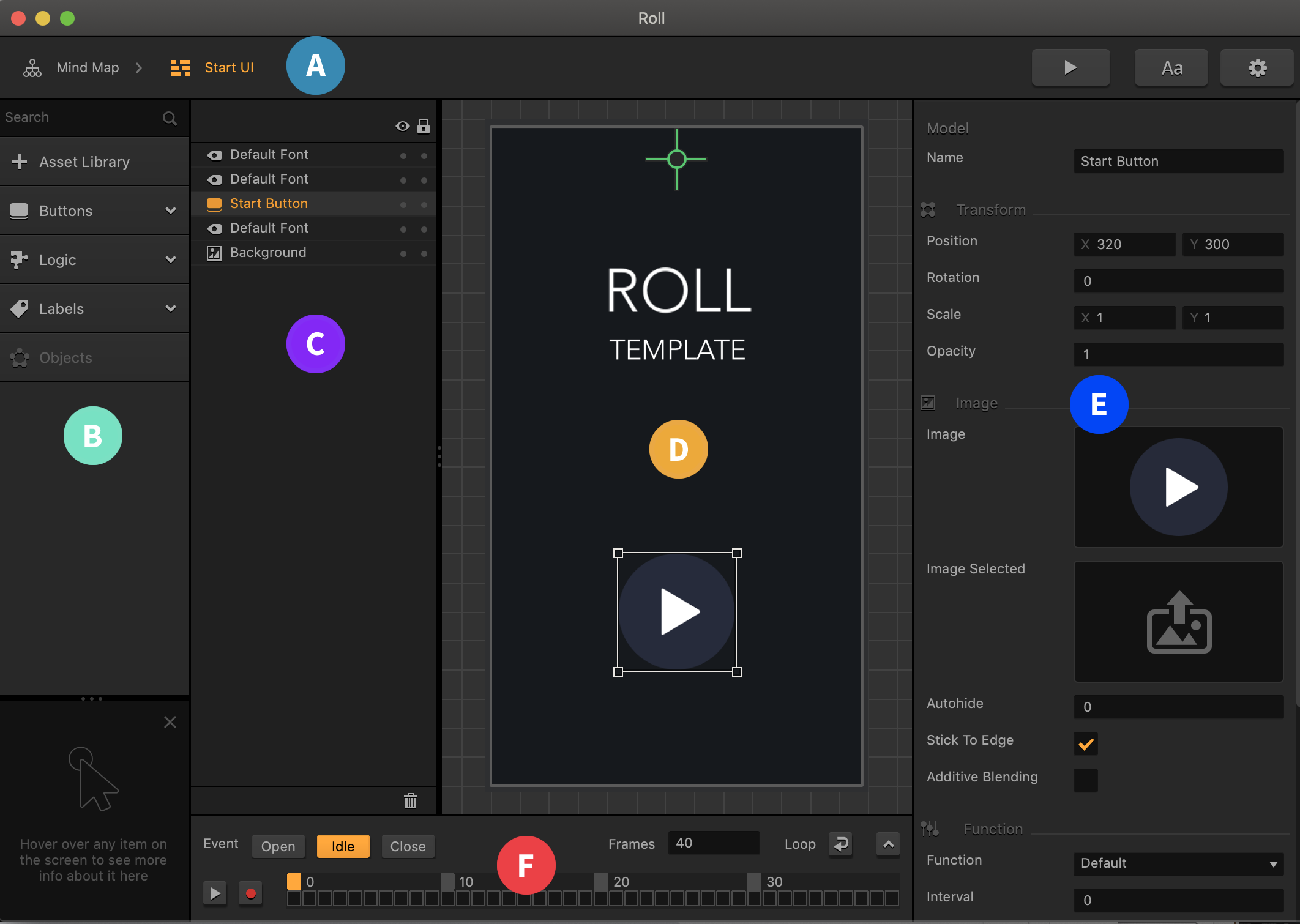
To create a UI, you need to add a UI node on the Mind Map, then go inside the UI node. To open a UI workspace, double-click the corresponding UI node on the Mind Map or click the Edit icon in the top right corner of the node.

Inside a UI node, you can add the necessary UI elements like buttons, logic, and text labels.

A World workspace consists of the following parts:

To add an asset to a UI screen, expand the respective category in the Asset panel and drag the item to the Editor.

To add an image to the UI, see Adding Images.

Trail 3D Node – Buildbox 3 Manual

By |

Trail 3D Node

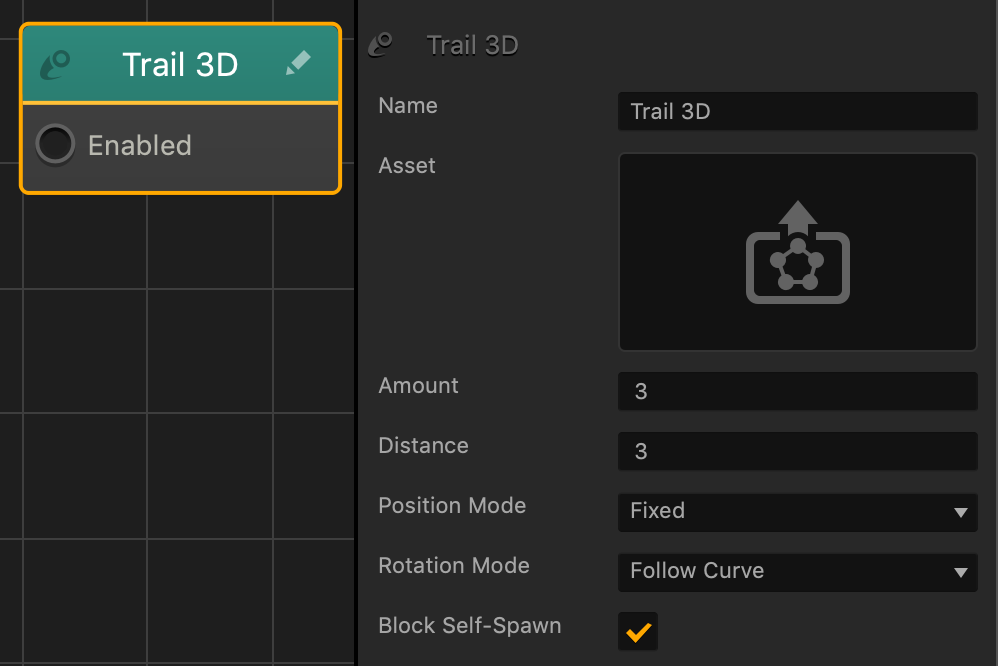
This content node spawns multiple specified assets that follow behind the controlling asset in a trail.

Option Description
Asset Click the edit icon to specify which asset will follow the controlling asset.
Amount Enter the amount of assets that that will follow the controlling asset.
Distance Enter the distance between each asset that spawns in the trail.
Position Mode Select to determine how the controlling asset leaves the trail behind.

  • Fixed—leaves the specified asset behind as a stationary trail.
  • Smooth—the specified asset will follow the controlling asset.
Rotation Mode Select to determine how the specified asset rotates in the trail.

  • Follow Curve—the specified asset will rotate so that it always faces the controlling asset’s movement path.
  • Match Entity—the specified asset will match the controlling asset’s rotation.
Block Self Spawn Select to prevent the controlling asset from spawning in the trail.

If needed, you can also customize this node. For details, see Customizing Nodes.

Set UI Text Node – Buildbox 3 Manual

By |

Set UI Text Node

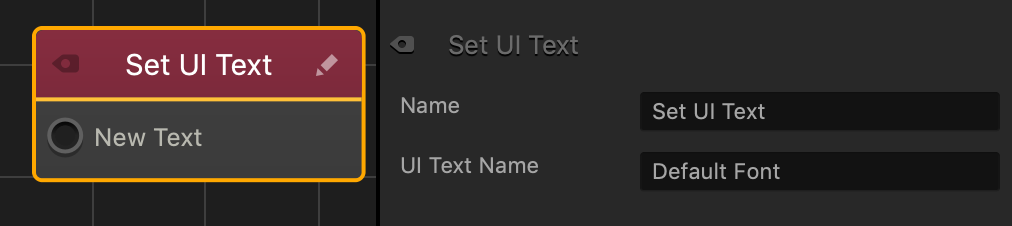
This action node changes the text on a specified UI Label.

The New Text input receives information from a connected node and displays it on the UI Label specified by the UI Text Name.

Currently, this node only functions with the Speedometer node.

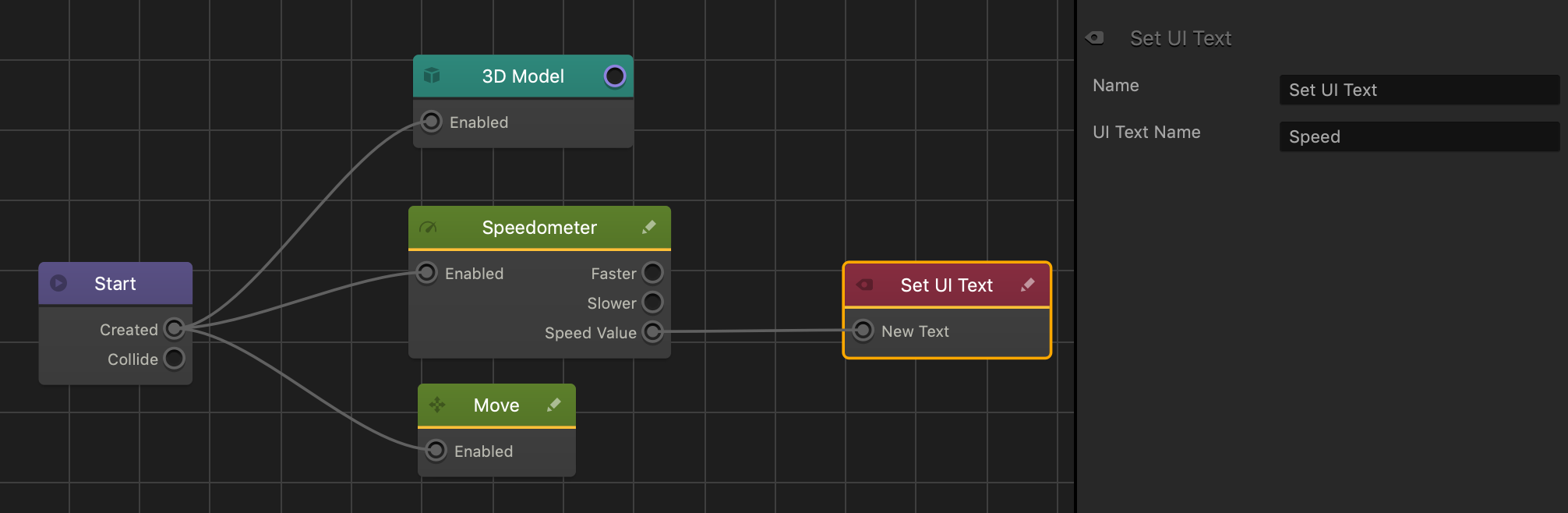
The following is an example of a Set UI Text node displaying the asset’s movement speed on the UI Label located in a UI Screen node.

  • On the Speedometer node, the Speed Value output keeps track of the asset’s movement speed and sends it as a numeric value to the connected Set UI Text node.
  • The New Text input receives the Speed Value and displays it on the Speed UI label located on a UI Screen node.
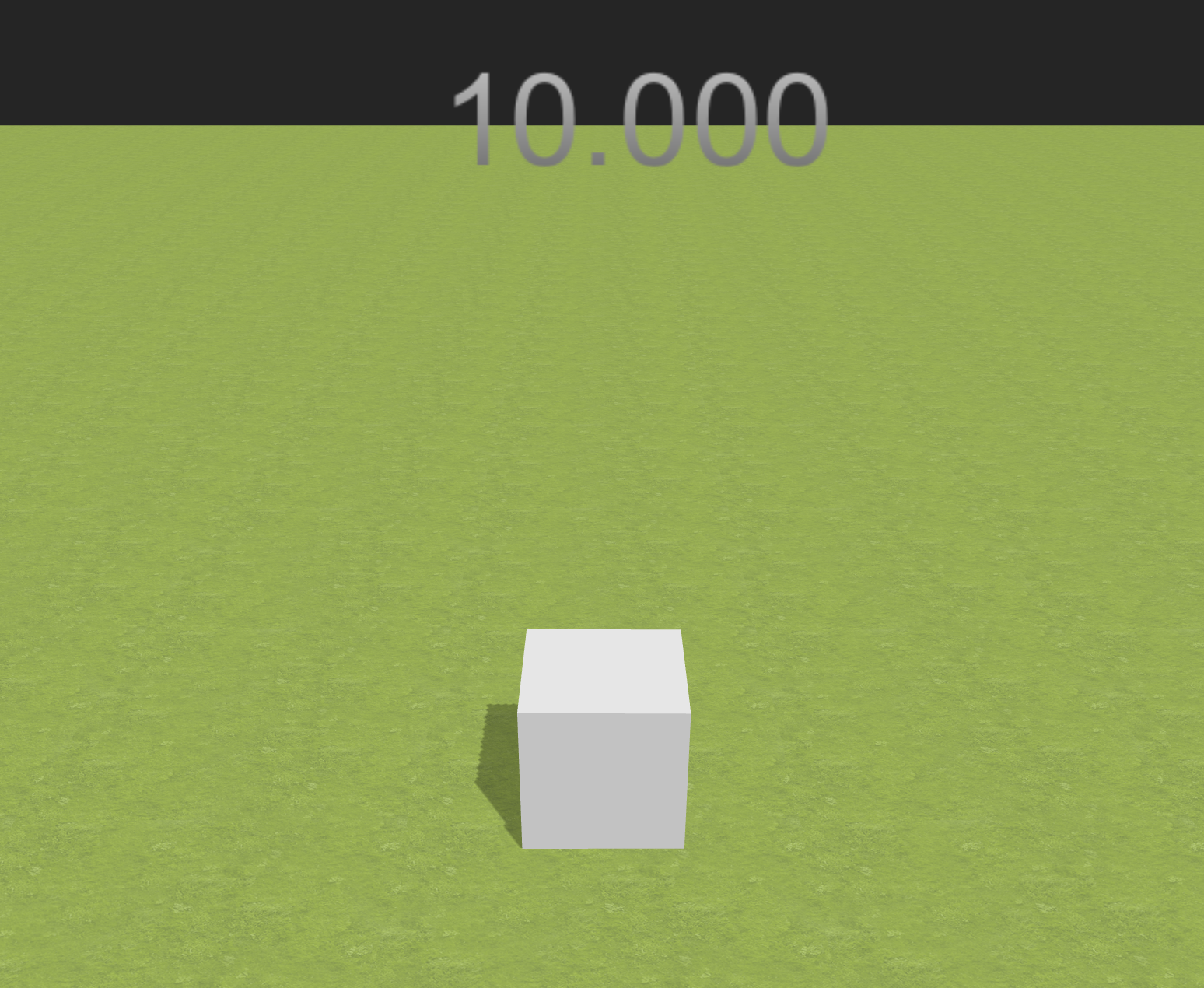
  • The image below displays the asset moving across the scene at a speed value of 10.

Node Attributes

Option Description
Name Type a custom name for this node, if needed.
UI Text Name Enter the name of a UI Label as it appears on the UI Screen node.

Speedometer Node – Buildbox 3 Manual

By |

Speedometer Node

This movement node tracks how fast an asset is moving in a scene when affected by physics or other Movement nodes and Brainboxes.

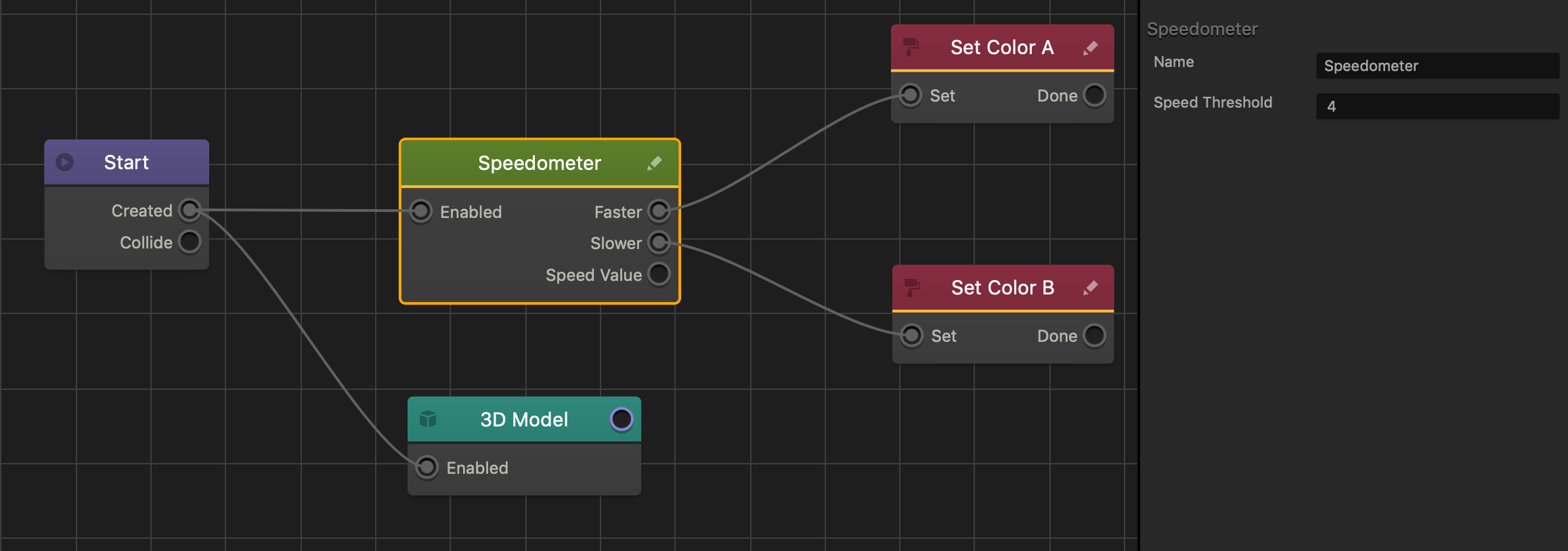
  • To enable this node, connect its Enabled input to the output of another desired node such as the Start, If Collide, or control nodes.
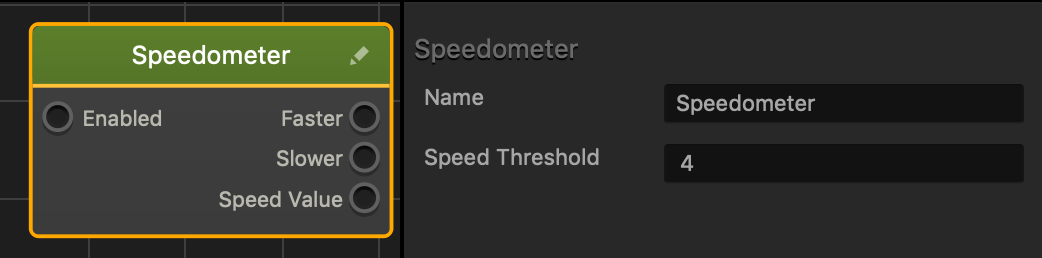
  • The Faster and Slower outputs of the Speedometer node activate connected nodes when the asset moves faster or slower than the Speed Threshold value specified in the Options panel.
  • The Speed Value output sends a numeric value that represents the assets current speed to a Set UI Text node.

The following is an example of an asset changing color if it moves faster or slower than a speed of 4. If the asset moves faster than a speed of 4, its color changes to A. If it moves slower, its color changes to B.

Node Attributes

Option Description
Name Type a custom name for this node, if needed.
Speed Threshold Enter a numeric value to specify a midpoint that determines when an asset is moving faster or slower.

If needed, you can also customize this node. For details, see Customizing Nodes.

Sound Nodes – Buildbox 3 Manual

By |

Sound Node

This content node plays an MP3 file.

Option Description
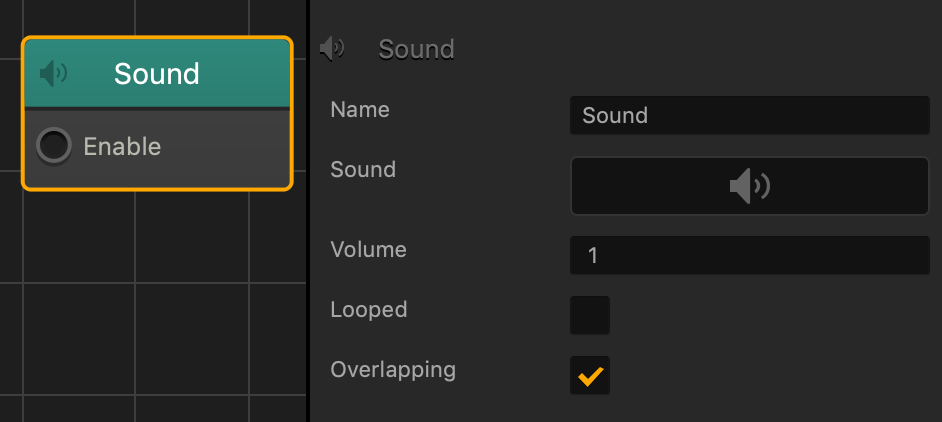
Name Type a custom name for this node, if needed.
Sound To add a sound file:

  • Drag an MP3 file from your computer here.
  • Mouse over the field, click the Edit icon , and select the sound file.

See also Add Music and Sound Effects.

Volume Enter a decimal value from 0-1 to change the sound volume.
Looped
  • Select to play the sound continuously.
  • Unselect to make the sound play once and stop.
Overlapping
  • Select to play this sound without stopping any other sounds.
  • Unselect to make this sound stop all other sounds before playing.

Sound – API Reference

By |

Sound

The Sound Node plays an mp3 file.

Function Description
isPlaying()

Returns true if the sound is currently playing, false if not.

setVolume(value)

Sets the volume of the sound, from 0-1. The sound must already be playing before you set the sound with this function, and must be looped or non-overlapping.

volume()

Returns the volume of the sound if it is playing, from 0-1.


isPlaying()

Returns true if the sound is currently playing, false if not.

Returns

boolean – true if the sound is playing, false if not

↑ Back to top


setVolume(value)

Sets the volume of the sound, from 0-1. The sound must already be playing before you set the sound with this function, and must be looped or non-overlapping.

Parameters

number value – the volume of the sound

↑ Back to top

let fadein = false;
let mySound;
let volume = 0;

function start() {
	// start the fade in at the start of the scene
	fadein = true;
	mySound = this.entity().component("My Sound");
}

function update(dt) {
	// stops adjusting volume once volume goes over 1
	if (fadein && volume <= 1) {
		// check if the sound is playing
		if (mySound.isPlaying()) {
			// set the volume, and then increase the volume for the next update loop
			mySound.setVolume(volume);
			volume += 0.001;
		}
	}
}

volume()

Returns the volume of the sound if it is playing, from 0-1.

Returns

number - the volume of the sound

↑ Back to top

Did you find this page useful?

Please give it a rating:

Please provide some feedback!

This is very helpful to us.

Tell us how we can improve this post?