Switch Node – Buildbox 3 Manual

By |

Switch Node

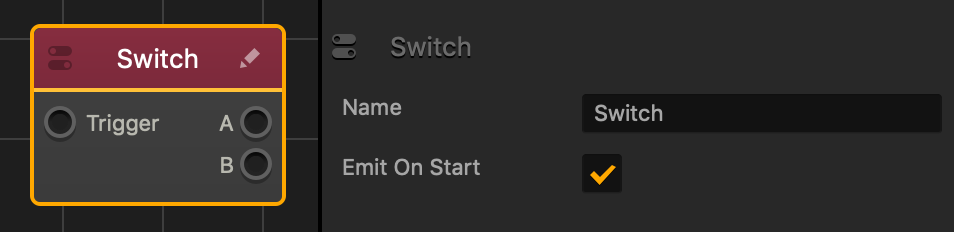
This action node alternates between two different outputs when activated. When the signal from output A is true, output B will be false.

Option Description
Name Type a custom name for this node, if needed.
Emit on Start Select to make Output A becomes active when the asset is created or spawned in the game.

If needed, you can also customize this node. For details, see Customizing Nodes.

Point Light Options – Buildbox 3 Manual

By |

Point Light Attributes

A point light is an additional source of light in a game that projects light within a given range or diameter.

A scene can only have a maximum of 7 lights.

To view the point light attributes in the Options panel:

  1. Inside a World, drag the point light from the Lights section in the Asset panel to the Scene Editor.
  2. Click the point light in the Scene Editor or select it in the Outliner.

Option Description
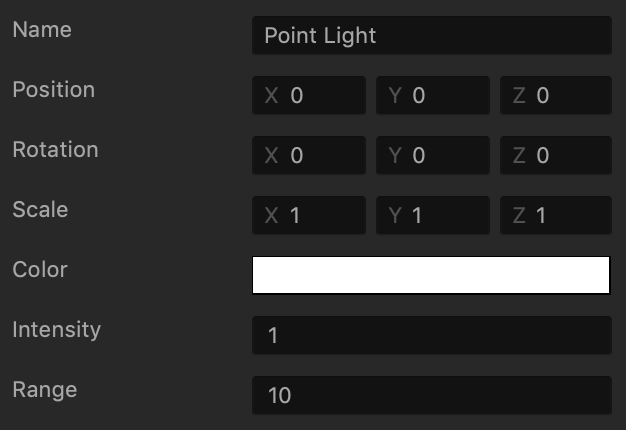
Name Change the name of the light object, only if needed.
Position Enter the appropriate numeric values for each axis to define the location of the light. Alternatively, drag the arrow axis handles to the desired location in the Scene Editor. If needed, for details, see Tools.
Rotation Enter the appropriate numeric values for each axis to define the angle of the light. Alternatively, click the Rotation Tool button and drag the circle axis handles to set the desired angle for the light in the Scene Editor. If needed, for details, see Tools.
Scale Enter the appropriate numeric values for each axis to define the size of the light. Alternatively, click the Scale Tool button and drag the cube axis handles to set the desired size for the light in the Scene Editor. If needed, for details, see Tools.
Color Click this field, select the desired light color from the several options provided in the Colors window, and click OK.
Intensity Enter a numeric to specify the strength or amount of light produced by the light source. The higher the number, the more light will be shed.
Range Enter a numeric value to specify how far the light should be projected.

Spotlight Options – Buildbox 3 Manual

By |

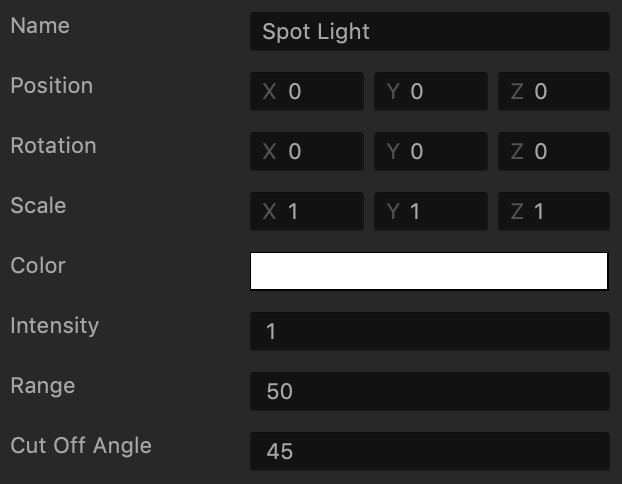
Spot Light Attributes

A spot light is an additional source of light in a game that projects a focused beam of light of a smaller diameter.

A scene can only have a maximum of 7 lights.

To view the spot light attributes in the Options panel:

  1. Inside a World, drag the spot light from the Lights section in the Asset panel to the Scene Editor.
  2. Click the spot light in the Scene Editor or select it in the Outliner.

Option Description
Name Change the name of the light object, only if needed.
Position Enter the appropriate numeric values for each axis to define the location of the light. Alternatively, drag the arrow axis handles to the desired location in the Scene Editor. If needed, for details, see Tools.
Rotation Enter the appropriate numeric values for each axis to define the angle of the light. Alternatively, click the Rotation Tool button and drag the circle axis handles to set the desired angle for the light in the Scene Editor. If needed, for details, see Tools.
Scale Enter the appropriate numeric values for each axis to define the size of the light. Alternatively, click the Scale Tool button and drag the cube axis handles to set the desired size for the light in the Scene Editor. If needed, for details, see Tools.
Color Click this field, select the desired light color from the several options provided in the Colors window, and click OK.
Intensity Enter a numeric to specify the strength or amount of light produced by the light source. The higher the number, the more light will be shed.
Range Enter a numeric value to specify how far the light should be projected.
Cut Off Angle Enter a numeric degree value from 0 to 180 to specify the angle of the light beam.

3D Model Node – Buildbox 3 Manual

By |

3D Model Node

This content node defines a 3D mesh that provides a shape to your character or object.

If a 3D model contains more than 50,000 polygons, some polygons will not be displayed.

Option Description
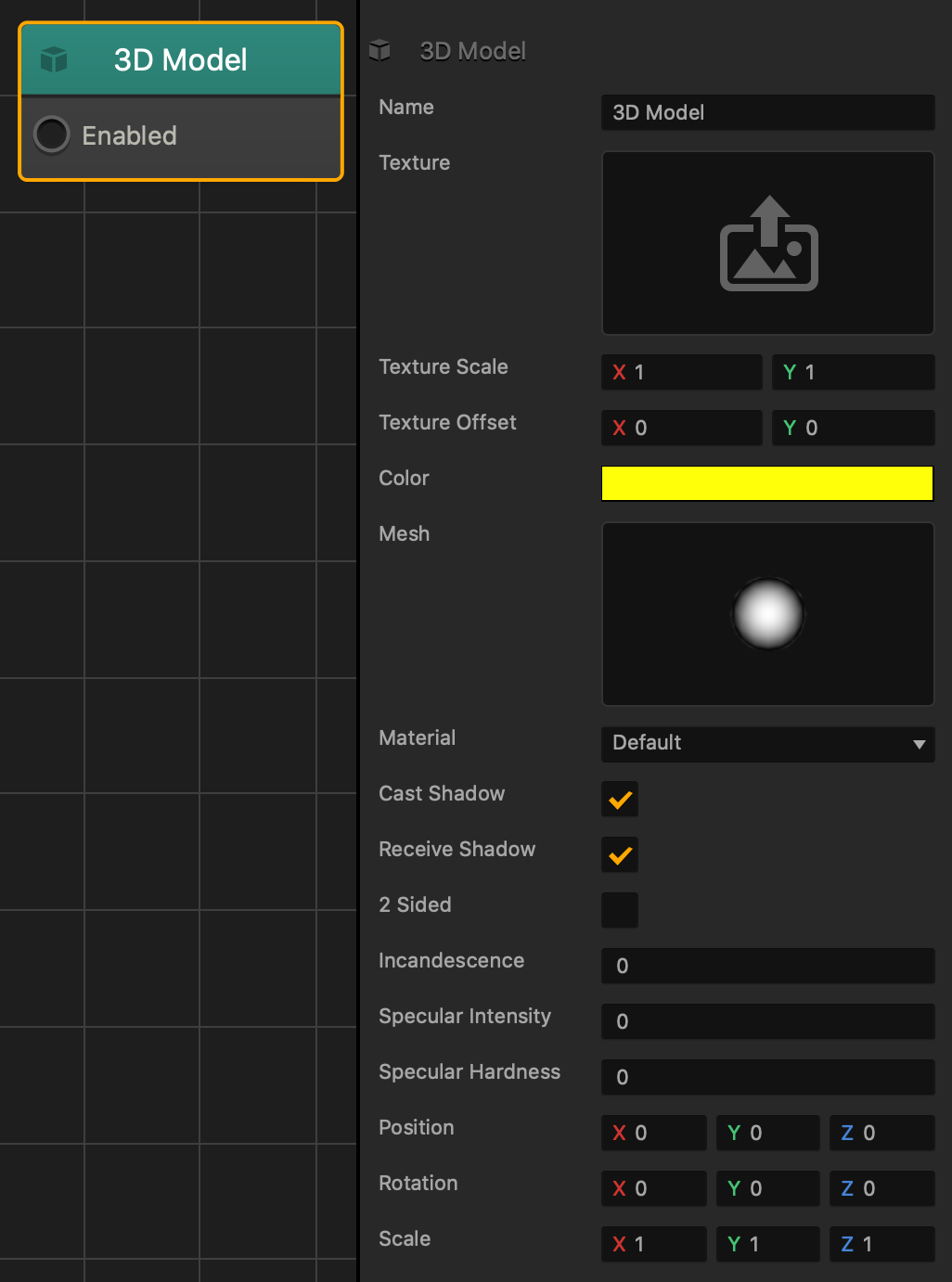
Name To create a custom name, type it here.
Texture To apply an image to the surface of a 3D model, drag a JPG or PNG image file into the texture area.

To edit the image attributes, mouse over the field, click the Edit icon , and use the Sprite Editor.

Texture Scale To adjust the size of the texture, enter different X and Y axis values.
Texture Offset To move and offset the texture in a specified direction, enter different X and Y axis values.
Color To apply a color to the mesh, click the color bar. In the Colors window, select a new color and click OK.

If a texture has been applied to the model, the color will be applied on top of the texture based on the Opacity value in the Colors window.
Mesh To apply a different mesh to the 3D model, mouse over the field and click the Edit icon . In the Mesh Manager, select a new mesh from the list and click Save.
Material Choose material for the mesh:

  • Default— allows light to reflect off the surface and contains the Specular Intensity and Specular Hardness attributes, described below.
  • Shadeless—does not interact with light and does not contain any specular attributes.
Blending This option appears when you add a PNG image that has an alpha channel or transparency.

  • Disabled—removes the transparency and fills the empty area with a solid black color.
  • Alpha Premultiplied—makes the alpha affect the entire image and brighten it.
  • Alpha Non Premultiplied—makes the alpha affect only the transparency.
  • Additive—applies a slight transparency to the entire image.
Cast Shadow Click this checkbox to allow the 3D model to cast a shadow on the surface of other 3D models.
Receive Shadow Click this checkbox to allow other 3D models to cast shadows on the surface of this 3D model.
2-Sided Select this checkbox to make each side of the 3D model have 2 sides, making the inside of the model hollow.

For example, by default, a plane has only one visible side, while the other side is completely transparent. This option makes both sides completely visible.
Incandescence Enter a numeric value to specify the brightness of the mesh surface.
Specular Intensity Enter a numeric value to specify how much light is reflected from the surface of the mesh. The higher the value, the more light will be reflected from the mesh surface.
Specular Hardness Enter a numeric value to specify the transparency of the light reflection edges from the mesh.
Position To move and offset the 3D model so that it’s not placed at the center of the asset, enter the appropriate X, Y, or Z axis values.
Rotation To rotate of the 3D model without rotating the entire asset, enter the appropriate X, Y, or Z axis values.
Scale To change the size of the 3D model, enter the appropriate X, Y, or Z axis values.

Creating a 3D Animated Character – Buildbox 3 Manual

By |

Creating a 3D Animated Character

An Animated Character is a 3D model with a skeleton that can perform movements such as run, walk and jump. To create an Animated Character, you need to have multiple FBX files that contain a model, skeleton, and animation. If you want to apply multiple animations to a single character, each FBX file must have the same model and skeleton.

To make an animated character react and move to the the players movement controls, you need to have FBX files that contain an idle, walk, run, and jump animation.

If a 3D model contains more than 50,000 polygons, some polygons will not be displayed.

Set Up Your Character

The following walks you through how to setup a 3D animated character with multiple animations and allow the player to control it in the game.

If you do not have any FBX files, feel free to download the Erik Animation Pack.
1. Import FBX Files

To import the animation FBX files:

  1. Drag all the FBX files you want to use from your computer into the scene and on the dropdown wheel, drop them on Character.
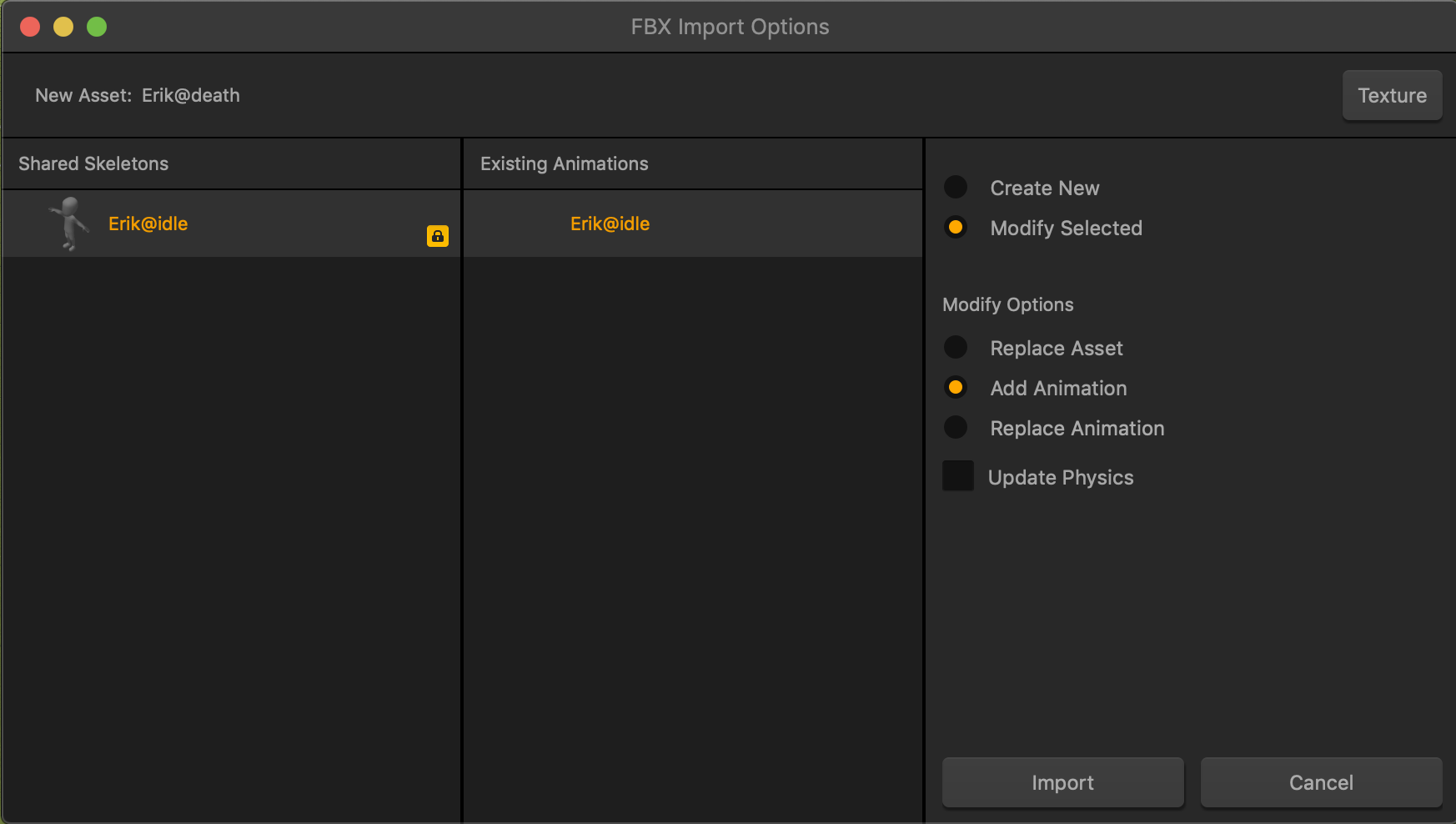
    When you import multiple FBX files, the FBX Import Options window appears where you can add all your animations to a single asset.
  2. In the FBX Import Options window, make sure that the Modify Selected and Add Animation options are selected, then click Import.
2. Set Up Animations

To set up the animations of the character:

  1. In the World workspace and in the Asset panel on the left, click the name of the character asset.
  2. In the Options panel on the right and on the bottom, click Add Brainbox.
  3. At the top, select Animated Platformer. Multiple attributes appear in the options panel.
  4. In the Scene attribute field, click the Edit button .
  5. In the Sub Scene Manager window and on the right, select the name of your idle animation or skeleton and click Save.
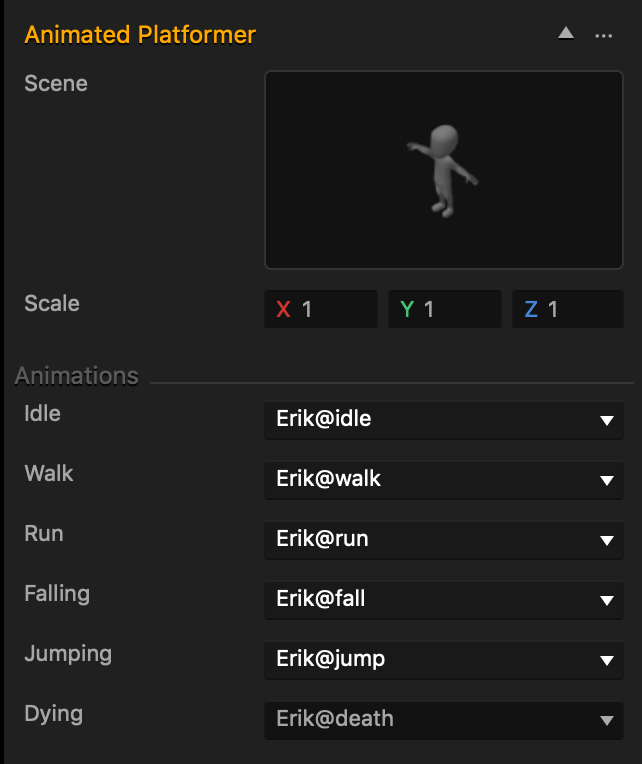
  6. In the Options panel and in each of the Animations attributes, click the dropdown and select the respective animation names.
    The example below displays the attributes with the appropriate Erik Animations.
  7. In the Asset panel, double-click the character to open its Node Map.
  8. If there are any Sub Scene and Keyframe Animation nodes outside the Animated Platformer.
  9. Select any Sub Scene and Keyframe Animation nodes that are not in the Animated Platformer group and press DELETE.
    In the example below you would delete both the Sub Scene and Keyframe Animation nodes labeled as Erik@idle.
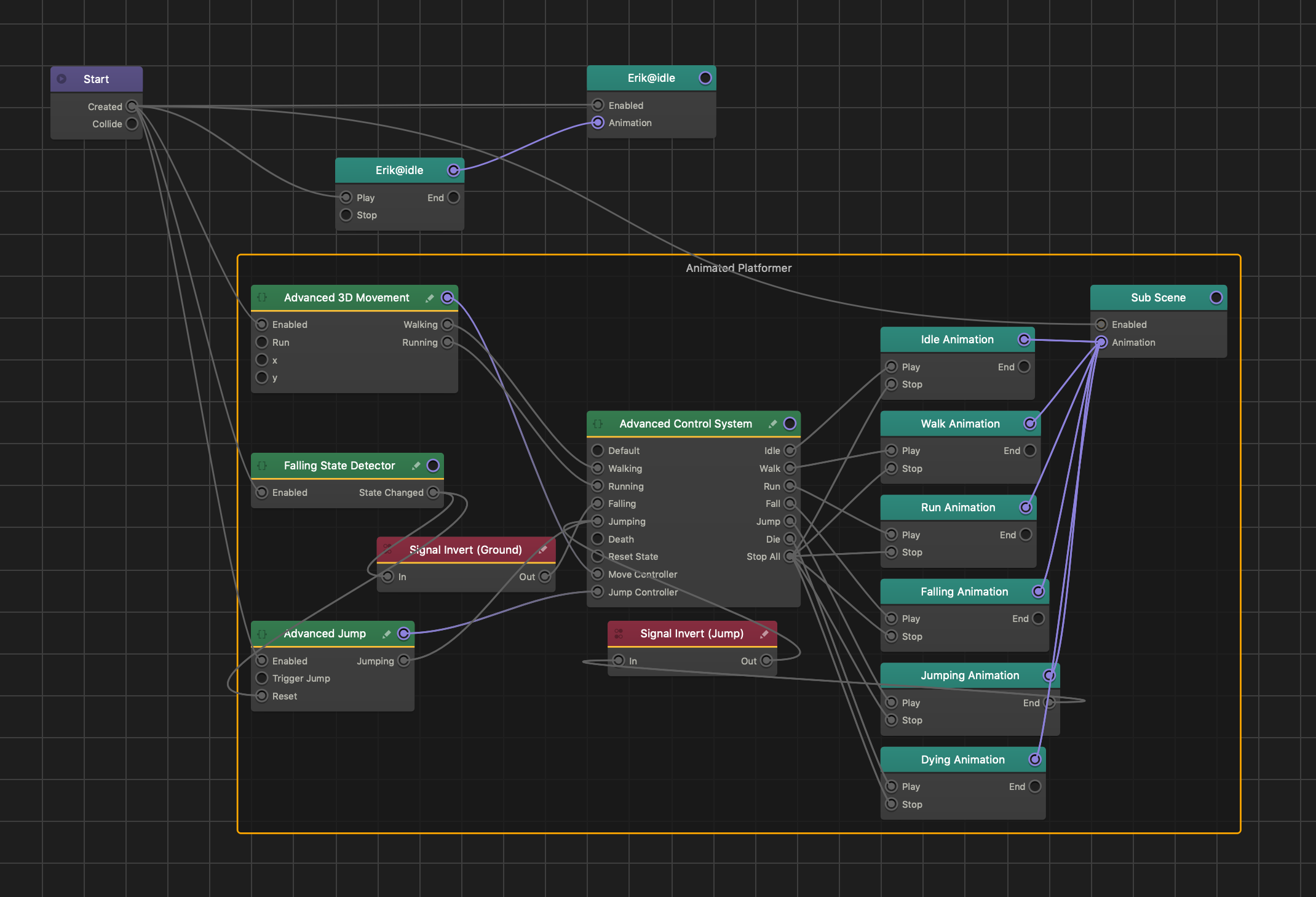
    If you do not delete the Sub Scene outside the Brainbox group, you will see two models attached to the character when you preview your game.
  10. On the Navigation bar at the top, click the name of your 3D World to go back to the Scene Editor.

Add Movement Controls

After your character and animations are set up, add any of the following movement controls.
Keyboard Controls

To add keyboard controls:

  1. In the World workspace and in the Asset panel, click the name of the character asset.
  2. In the Options panel, click Add Brainbox and click Keyboard Controls.
  3. To change the Jump Key and the Run Key, click the field and type the desired key.
  4. Preview your game and use the following keys to move your asset.
    • To move the character, use the W, A, S, D or arrow keys.
    • To make the character run, use the same movement keys while holding the Run Key.
    • To make the character jump, press the Jump Key.
  5. In the Options panel and in the Movement Parameters section, adjust the attributes as desired. For more details, see Animated Platformer.
Mobile Controls

To add a mobile joystick control:

  1. On the Mind Map, drag a UI Node to the grid and connect the Load input to the UI output of a 3D World.
  2. Double-click the UI Node to open the UI editor.
  3. In the Asset Panel, click Asset Library and double-click the Joystick to add it to the Asset panel.
  4. Click Asset Library to go back to the UI Editor.
  5. From the Asset Panel, drag the Joystick to the grid and resize and position it as desired.
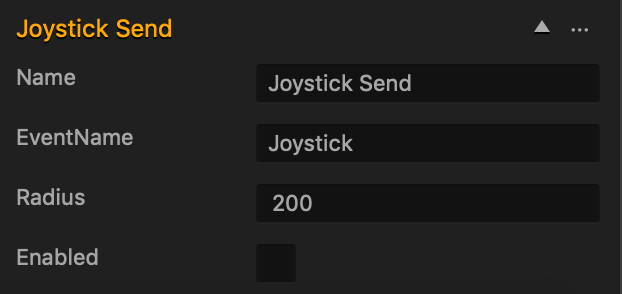
  6. In the Options panel, scroll to the bottom and in the EventName field, delete the default text and type Joystick.
  7. On the Navigation bar at the top, click 3D World or click the Mind Map icon and on the Mind Map, double-click the 3D World node.
  8. In the Asset panel, click the character asset.
  9. In the Options Panel, click Add Brainbox and select Mobile Controls. Its attributes now appear in the Options panel.
  10. In the Event Group delete the default text.
  11. In the Event Name delete the default text and type Joystick.
  12. Preview your game and use your mouse to drag the Joystick in any direction.
Keyboard Camera Controls

To add keyboard controls that rotate the camera around the character:

  1. In a 3D World workspace and in the asset panel, select your character.
  2. In the Options panel, click Add Brainbox and select Keyboard Camera Controls.
  3. To change the speed of the camera rotation, enter a numeric value in the Rotation Amount field.
  4. To change the keys, click the Left Turn Key or Right Turn Key field and type the desired key.

Lock Button Options – Buildbox 3 Manual

By |

Lock Button

This UI Button is locked and inactive when the game starts and allows the player to unlock it by purchase, game progress, or other player actions. To add it to the UI, just drag it from the Asset panel to the UI Editor and define the Lock button  attributes as described below.

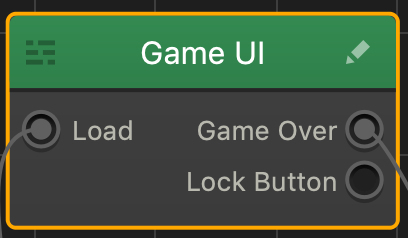
After you drag the button from the Asset panel to the Editor, an additional output appears in the corresponding UI node on the Mind Map. After you rename the button and customize its options, the name of this output will be updated accordingly.

Remember to connect the Lock Button output to the Load output of the World that you want to unlock.

Name and Transform Attributes

Option Description
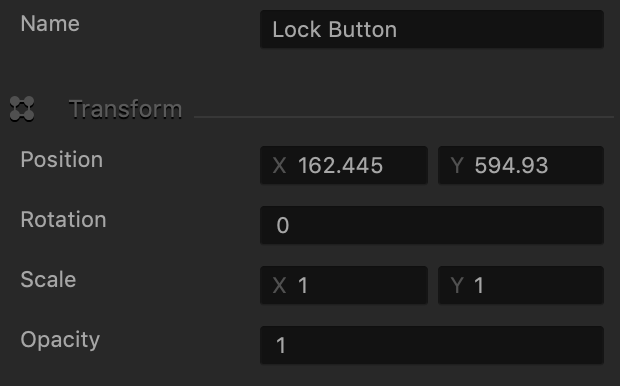
Name Enter a custom name for the button, if needed. It will be displayed in the Outliner.

Don’t leave this field blank, as you won’t be able to tell what button it is if you hide it.
Position Enter the appropriate values for each axis to specify a precise position for the button on the screen.

You can also drag the button to the desired location directly in the UI Editor.
Rotation Enter a degree value to specify the rotation angle of the button.
Scale Enter a value for each axis to make the button as proportionally large, or wide or narrow as needed.

You can also select the button in the UI Editor and drag its corner handles to resize it as needed.
Opacity Enter a value from 0 to 1 to specify the transparency of the button. For example, if you enter .5, the image will be semi-transparent.

Button Image Attributes

Option Description
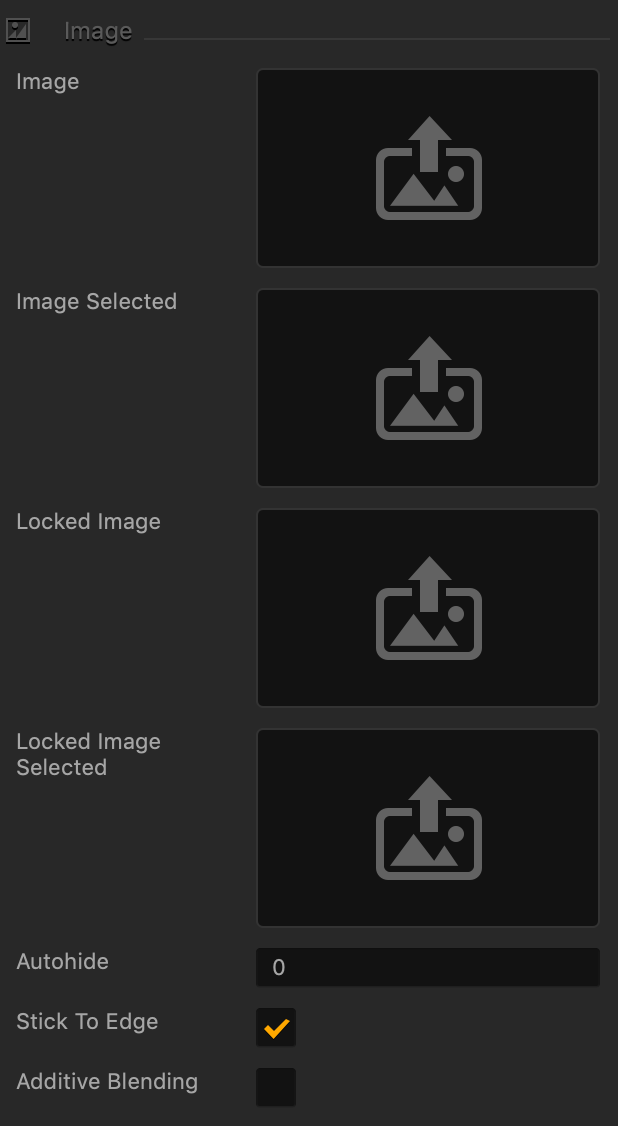
Image Drag a PNG image for the button in its inactive state.
Image Selected Drag a PNG image for the button when it is selected.
Locked Image Drag a PNG file for the button to display when it is locked.
Locked Image Selected Drag a PNG file for the button when it is still locked but tapped by the player.
Autohide If you want the button to appear momentarily and then fade away, specify the number of seconds for the button to be displayed for before disappearing.

To keep the button displayed on the screen, enter 0.

Stick to Edge Select this checkbox to keep the relative size and position of the button when scaling the screen for different sizes.
Additive Blending Select to add a glow effect overlay to any graphics or 3D objects underneath the button.

Sound and Other Properties

You may find this video helpful in understanding how to make the appropriate selections in this section.
Option Description
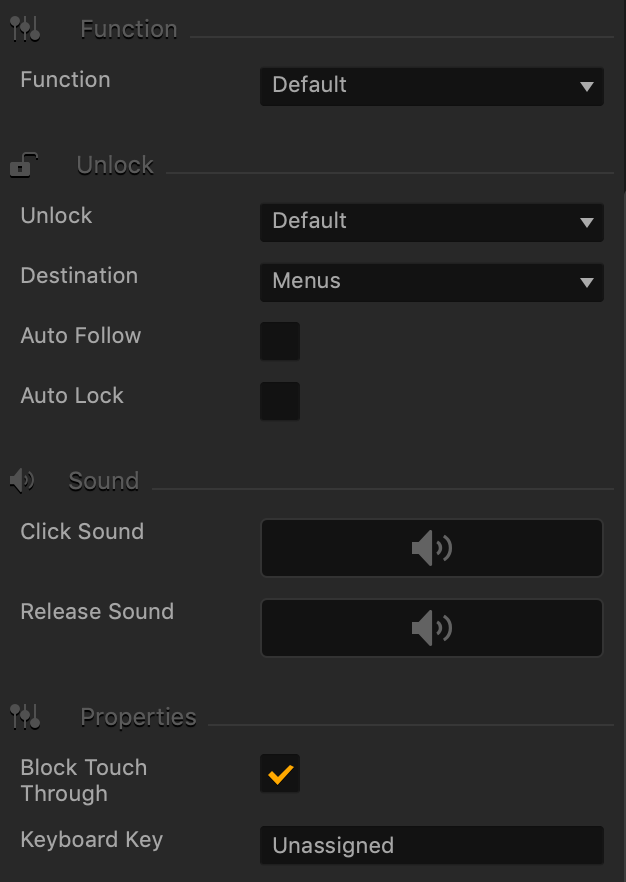
Function Select how the new World or UI screen should be loaded when the selected event occurs and the Event Observer is triggered:

  • Default—load World or UI at the beginning.
  • Start Checkpoint—load World at the point where a player may restart if their character is killed or they lose the game.
Unlock Select a method for players to unlock this button:

  • Default—use an Unlock logic asset.
  • In Game Currency—the player must use game currency to unlock the functionality.
  • In App Purchase—the player must make a purchase in the App Store.

Depending on your selections, additional fields may appear.

Price This field appears when you select In Game Currency in the Unlock list above.

Enter the amount of in-game currency required to unlock the button.

Store Identifier This field appears when you selectIn App Purchase in the Unlock list above.

Enter the App Store ID where the player must make a purchase to unlock the button.

Destination Select where the player should be taken after the button is unlocked:

  • Menus—creates an output that can connect to another UI.
  • Scene—the current scene will remain on the screen.
  • Next Scene—the next scene will be displayed.
Auto Follow Select to automatically take the player to the specified destination as soon as the player unlocks the button.
Auto Lock Select to lock this button every time the game moves to another World or UI Screen.
Click Sound Drag an MP3 file with the sound to be made when the player taps the button. See also Adding Music and Sound Effects.
Release Sound Drag an MP3 file with the sound to be made when the player releases the button.
Block Touch Through If this button happens to be stacked on top of another button, and you don’t want the player to be able to tap the button underneath and trigger its action, select this check box.
Keyboard Key Typically applies to Windows exports. Type a key name that will activate the button when the user presses the specified key. In some scenarios, you may also associate it the Back button on the Android devices.


URL Button Options – Buildbox 3 Manual

By |

URL Button

This UI Button allows the player to go to the web pages specified by the URL. To add this button to the UI Editor, drag it from the asset panel to the grid and enter the URL address in the URL attribute.

Name and Transform Attributes

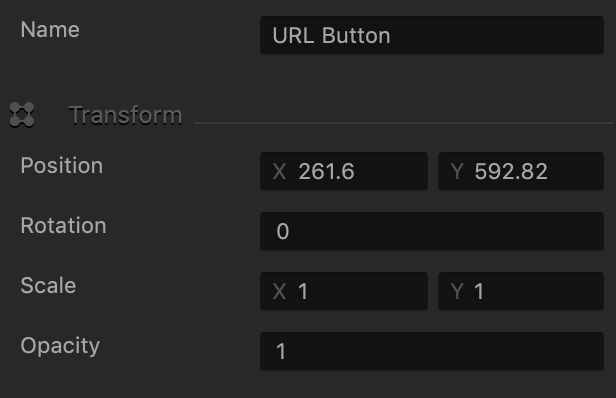
Option Description
Name Enter a custom name for the button, if needed. It will be displayed in the Outliner.

Don’t leave this field blank, as you won’t be able to tell what button it is if you hide it.
Position Enter the appropriate values for each axis to specify a precise position for the button on the screen.

You can also drag the button to the desired location directly in the UI Editor.
Rotation Enter a degree value to specify the rotation angle of the button.
Scale Enter a value for each axis to make the button as proportionally large, or wide or narrow as needed.

You can also select the button in the UI Editor and drag its corner handles to resize it as needed.
Opacity Enter a value from 0 to 1 to specify the transparency of the button. For example, if you enter .5, the image will be semi-transparent.

Button Image Attributes

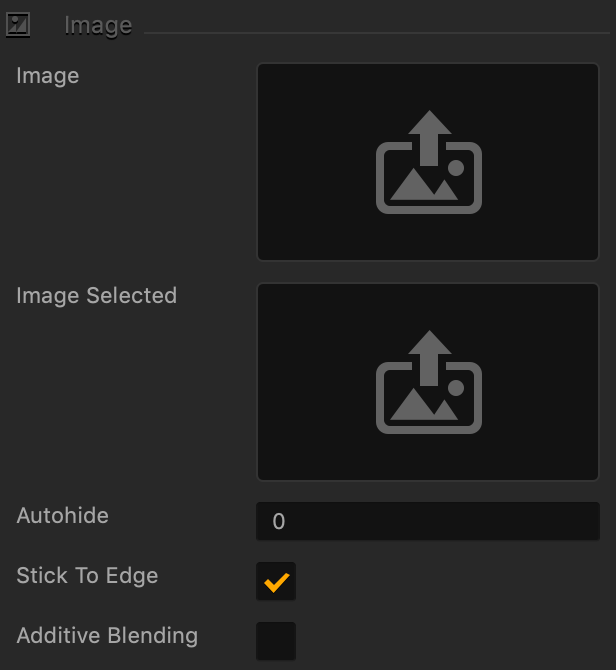
Option Description
Image Drag a PNG image for the button in its inactive state.
Image Selected Drag a PNG image for the button when it is selected.
Autohide If you want the button to appear momentarily and then fade away, specify the number of seconds for the button to be displayed for before disappearing.

To keep the button displayed on the screen, enter 0.

Stick to Edge Select this checkbox to keep the relative size and position of the button when scaling the screen for different sizes.
Additive Blending Select to add a glow effect overlay to any graphics or 3D objects underneath the button.

Sound and Other Properties

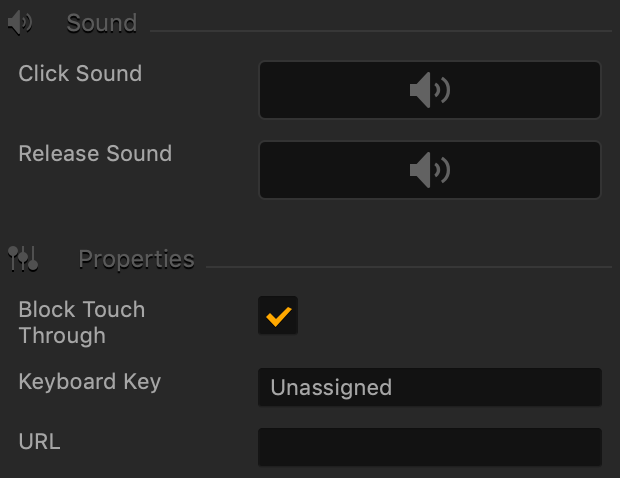
Option Description
Click Sound Drag an MP3 file with the sound to be made when the player taps the button. See also Adding Music and Sound Effects.
Release Sound Drag an MP3 file with the sound to be made when the player releases the button.
Block Touch Through If this button happens to be stacked on top of another button, and you don’t want the player to be able to tap the button underneath and trigger its action, select this check box.
Keyboard Key Typically applies to Windows exports. Type a key name that will activate the button when the user presses the specified key. In some scenarios, you may also associate it the Back button on the Android devices.
URL Enter a complete URL address of the web page or an app in a Store that you want the players to visit when they tap or click this button.


Label Options – Keeping Score – Buildbox 3 Manual

By |

Score Label Attributes

Drag a label to the Scene Editor or UI Editor from the Asset Panel or click one that is already there and use the following attributes to a special text area that will display the player’s score during a game session. See also Adding Score.

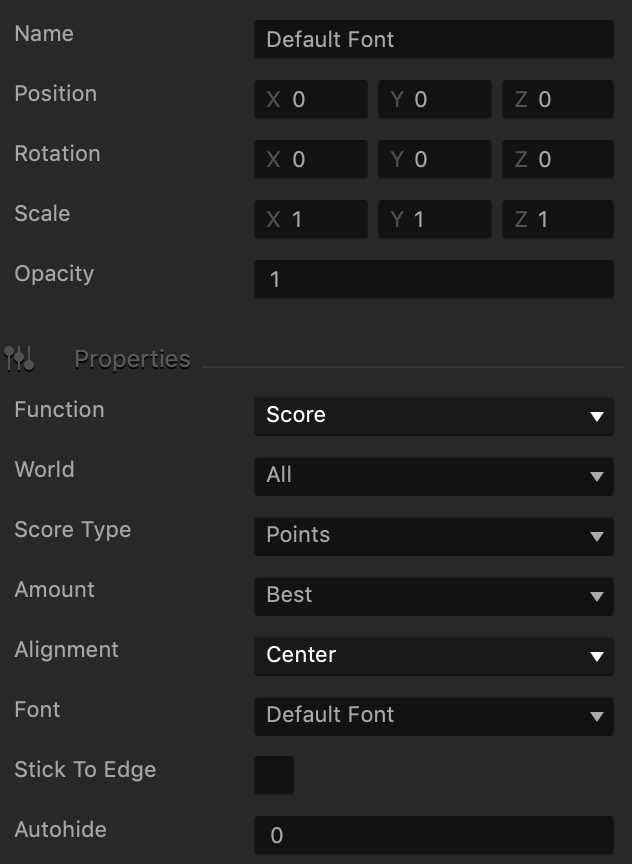
Option Description
Name Change the name of the text area label so that you can identify it in the project, for example, Game Score. By default, it is the name of the font you’ve selected.

To change the actual font type, use the Font field.

Don’t leave this field blank, as you won’t be able to tell what object it is if you hide it in the Outliner.
Position Enter the appropriate numeric values for each axis to define the location of the text area. Alternatively, drag the arrow axis handles to the desired location in the Scene Editor. If needed, for details, see Tools.
Rotation Enter the appropriate numeric values for each axis to define the angle of the text area. Alternatively, click the Rotation Tool button and drag the circle axis handles to set the desired angle for the text area in the Scene Editor. If needed, for details, see Tools.
Scale Enter the appropriate numeric values for each axis to define the size of the text area. Alternatively, click the Scale Tool button and drag the cube axis handles to set the desired size for the text area in the Scene Editor. If needed, for details, see Tools.
Opacity Enter a value from 0 to 1 to specify the transparency of the text on the label, where 1 equals 100% opacity and 0 indicates full transparency.
Function Select a function for the label:

  • User Text—Displays the text you enter on the screen. If you select this option, skip the attributes below and define the rest of the options as described in Text Area Attributes.
  • Score—Displays the game score.
World To have the score displayed throughout all game levels, select All. Otherwise, select the Current World.
Score Type To keep track of collected game points, select Points. If you are using coins in the game, select Coins.

Make sure you have an asset added to your game with the Collision Group attribute set to Coin. See Asset Attributes. See also Adding Score.
Amount Select what amount of collected points or coins to display as the game score:

  • Best
  • Current
  • Total
Alignment Select the score text alignment.
Font Select a font you’ve added using the Font Editor. To add a font, click the Font Editor button on the Navigation bar.
Stick to Edge Select this checkbox to keep the relative size and position of the text when scaling the screen for different sizes.
Autohide If you want the text to appear momentarily and then fade away, specify the number of seconds for the text to be displayed for before disappearing. To keep the text displayed on the screen, enter 0.


Audio Button – Buildbox 3 Manual

By |

Audio Button

Add an audio button to turn on and off the sound in your game. Just drag it from the Asset panel to the UI Editor and define the audio button attributes as described below. See also Adding Music and Sound Effects.

Name and Transform Attributes

Option Description
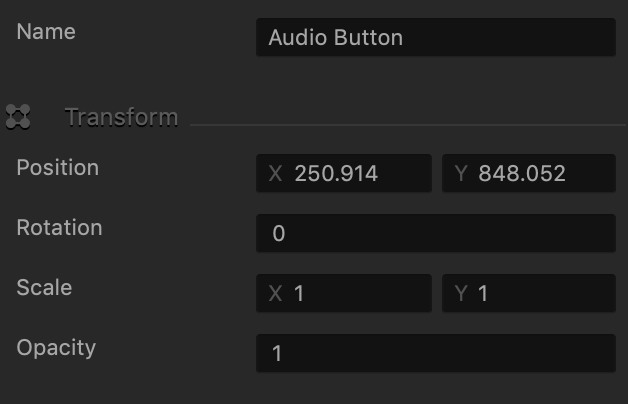
Name Enter a custom name for the button, if needed. It will be displayed in the Outliner.

Don’t leave this field blank, as you won’t be able to tell what button it is if you hide it.
Position Enter the appropriate values for each axis to specify a precise position for the button on the screen.

You can also drag the button to the desired location directly in the UI Editor.
Rotation Enter a degree value to specify the rotation angle of the button.
Scale Enter a value for each axis to make the button as proportionally large, or wide or narrow as needed.

You can also select the button in the UI Editor and drag its corner handles to resize it as needed.
Opacity Enter a value from 0 to 1 to specify the transparency of the button. For example, if you enter .5, the image will be semi-transparent.

Image Attributes

Option Description
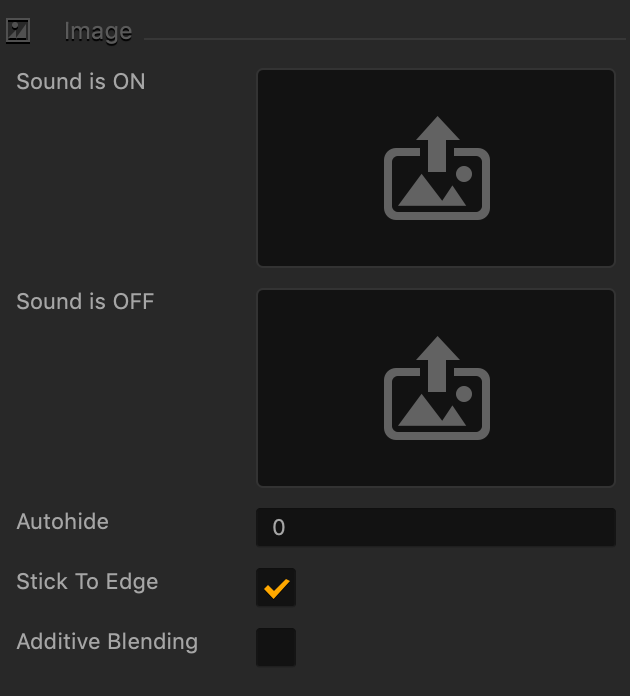
Sound is ON image Drag a PNG file for the button when the sound is on.
Sound is OFF Image Drag a PNG file for the button when the sound is off.
Autohide If you want the button to appear momentarily and then fade away, specify the number of seconds for the button to be displayed for before disappearing.

To keep the button displayed on the screen, enter 0.

Stick to Edge Select this checkbox to keep the relative size and position of the button when scaling the screen for different sizes.
Additive Blending Select to add a glow effect overlay to any graphics or 3D objects underneath the button.

Function and Properties Attributes

Option Description
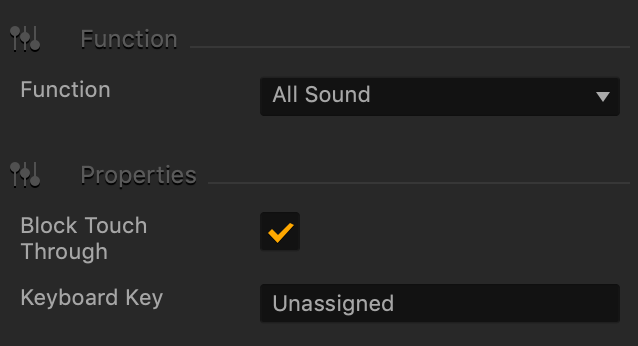
Function Select an option where your sound will take effect:

  • All Sound—All sounds effects and background music in the game.
  • Sound Effects—All sounds that play from the Sound nodes in an object’s Node Map.
  • Background Music—The Music fields associated with the UI nodes where you drop your MP3 files.
Block Touch Through If this button happens to be stacked on top of another button, and you don’t want the player to be able to tap the button underneath and trigger its action, select this check box.
Keyboard Key Typically applies to Windows exports. Type a key name that will activate the button when the user presses the specified key. In some scenarios, you may also associate it the Back button on the Android devices.

Facebook Button – Buildbox 3 Manual

By |

Facebook Button

Add this button to create a like for the logged in user, in their Facebook account. Just drag it from the Asset panel to the UI Editor and define the facebook button attributes as described below.

Name and Transform Attributes

Option Description
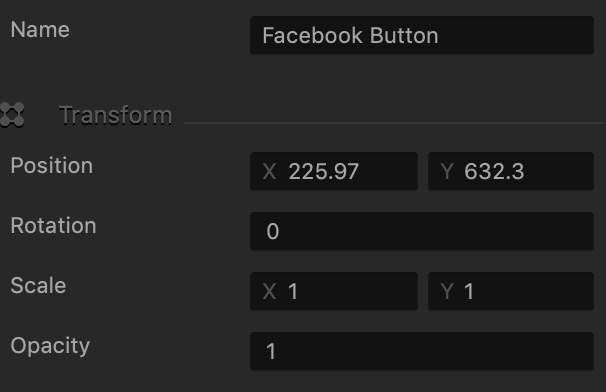
Name Enter a custom name for the button, if needed. It will be displayed in the Outliner.

TIP: Don’t leave this field blank, as you won’t be able to tell what button it is if you hide it.

Position Enter the appropriate values for each axis to specify a precise position for the button on the screen.

TIP: You can also drag the button to the desired location directly in the UI Editor.

Rotation Enter a degree value to specify the rotation angle of the button.
Scale Enter a value for each axis to make the button as proportionally large, or wide or narrow as needed.

TIP: You can also select the button in the UI Editor and drag its corner handles to resize it as needed.

Opacity Enter a value from 0 to 1 to specify the transparency of the button. For example, if you enter .5, the image will be semi-transparent.

Button Image Attributes

Option Description
Image Drag a PNG image for the button in its inactive state.
Image Selected Drag a PNG image for the button when it is selected.
Autohide If you want the button to appear momentarily and then fade away, specify the number of seconds for the button to be displayed for before disappearing.

To keep the button displayed on the screen, enter 0.

Stick to Edge Select this checkbox to keep the relative size and position of the button when scaling the screen for different sizes.
Additive Blending Select to add a glow effect overlay to any graphics or 3D objects underneath the button.

Sound and Other Properties

Option Description
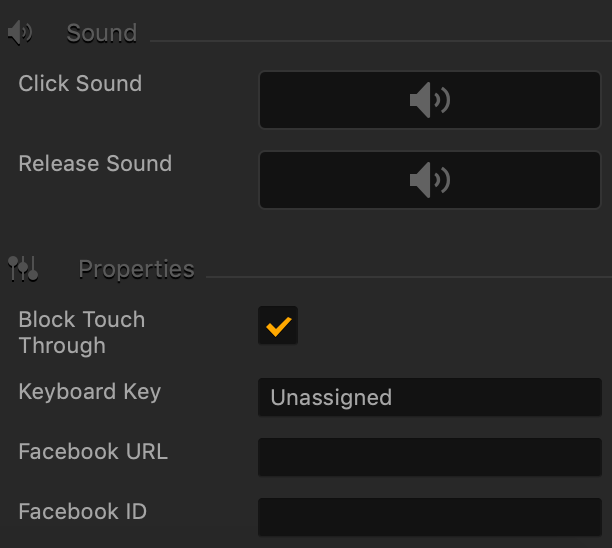
Click Sound Drag an MP3 file that plays when the player taps or clicks the button. See also Adding Music and Sound Effects.
Release Sound Drag an MP3 file that plays when the player releases the button.
Block Touch Through If this button happens to be stacked on top of another button, and you don’t want the player to be able to tap the button underneath and trigger its action, select this check box.
Keyboard Key Typically applies to Windows exports. Type a key name that will activate the button when the user presses the specified key. In some scenarios, you may also associate it the Back button on the Android devices.
Facebook URL Enter your game Facebook URL where a like will be created when the player taps this button.
Facebook ID When you create and register your app through Facebook, you will get a unique App ID. Enter your Facebook App ID here. If necessary, for details, see https://developers.facebook.com/docs/apps.