Advanced Nodes – Buildbox 3 Manual

By |

Advanced Nodes

These nodes add advanced functionality and logic to an asset.

For details on how to add an advanced node to a character or object in a game, see Adding, Editing, and Deleting Nodes.

Node Icon Description
Texture Scroller Applies continuous movement to the textures on the surface of all 3D Models attached to the asset.
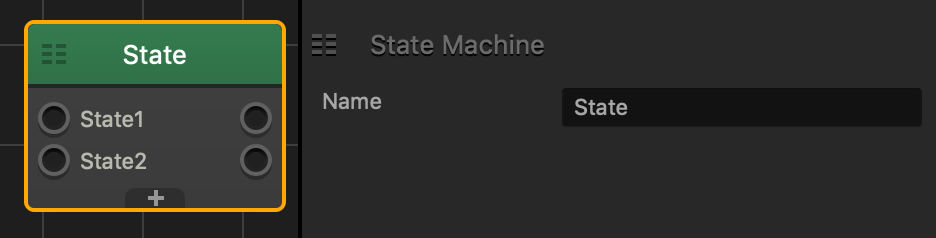
State Machine This node will keep only one input active at a time. Each input and output row represents a single state. When the input of one state is active, the other inputs of other states will immediately become inactive.
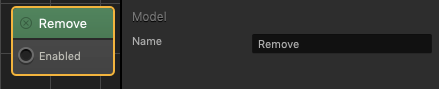
Remove Removes the asset from the World during gameplay.
Script Allows you to create a custom node in JavaScript.
Delay Delays the activation of the next node by the number of seconds specified.
Global Counter Keeps count of how many times this node has been activated, and once it has been activated by the amount of times specified by the Target amount, the Trigger output will activate any connected nodes.
Logger Creates a log entry that could be found in the Script Logs Panel inside the Preview Window.
Stick to Edge Maintains an asset’s position and size in relation to the screen size.

Stick to Edge Node – Buildbox 3 Manual

By |

Stick to Edge Node

This advanced node maintains an asset’s position and size in relation to the screen size.

This node only works with  UI Screens assets and will overwrite the current the asset’s position in the UI Editor.

This node automatically enabled when the asset is created or spawned in the game.

After you add this node to a UI asset, you need to specify the following:

  • Select the Side attribute to specify which side of the screen you want to place the asset, then specify the Horizontal and Vertical Distance depending on which side you chose.
  • The following lists each Side option as well as the Distance attributes you need to specify.
    • Bottom—Vertical
    • BottomLeft—Horizontal & Vertical
    • BottomRight—Horizontal & Vertical
    • Left—Horizontal
    • Right—Horizontal
    • Top—Vertical
    • TopLeft—Horizontal Dist. & Vertical
    • TopRight—Horizontal & Vertical

Node Attributes

Option Description
Name Type a custom name for this node, if needed.
Horizontal Dist. The distance measured from the right or left side of the screen to the asset’s center.
Vertical Dist. The distance measured from the top or bottom side of the screen to the asset’s center.
Side Select the side of the screen that the distance attributes will be measured from.

If needed, you can also customize this node. For details, see Customizing Nodes.

LevelSector – API Reference

By |

LevelSector

The LevelSector class represents a Scene Selector “level” at the bottom of the screen in a 3D World. You can get the LevelSector that an Entity exists in with this.entity().level().

Function Description
isRemoved()

Returns true if the level has been removed, false if not. This can be used to make sure you’re not accessing a level that has been unloaded before you try using it (which would cause errors).

name()

Returns the name of the level.


isRemoved()

Returns true if the level has been removed, false if not. This can be used to make sure you’re not accessing a level that has been unloaded before you try using it (which would cause errors).

Returns

boolean true if the level is removed, false if not

↑ Back to top


name()

Returns the name of the level.

Returns

string the name of the level

↑ Back to top

Did you find this page useful?

Please give it a rating:

Please provide some feedback!

This is very helpful to us.

Tell us how we can improve this post?

Object Start Node – Buildbox 3 Manual

By |

Object or Character Start Node

Just like the Start node on the Mind Map is the root of the game, the Start node on the Node Map is the root node of the selected object or character. This is where you can enable physics for the asset, select its collision shape, define its movement, and so on.

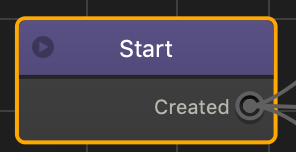
The Start node has only one output, Created, which is always linked to at least one node, a 3D Model node that defines the mesh of the asset.

You may not duplicate or delete the Start node.

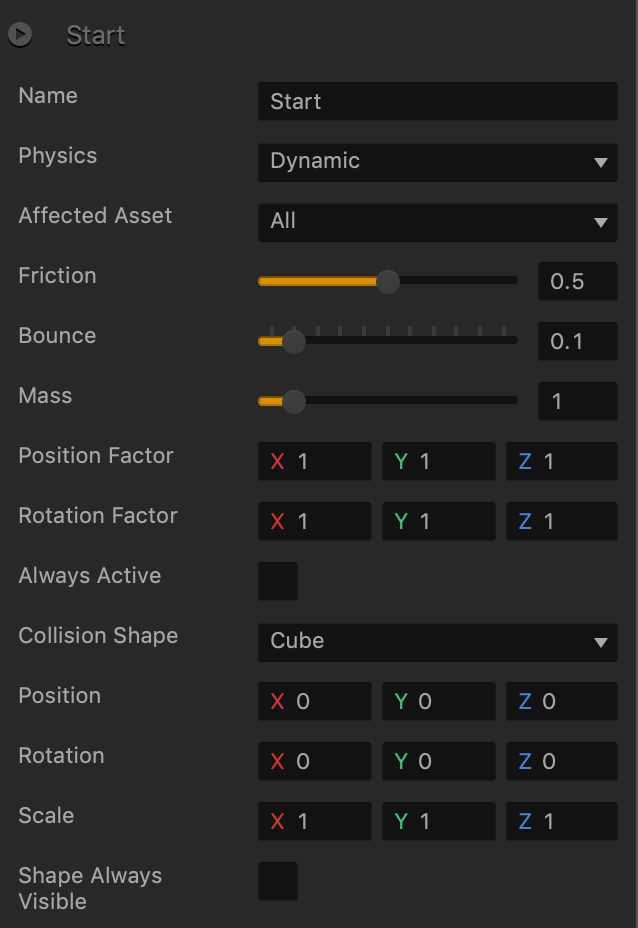
Start Node Attributes

Option Description
Name Change the name of the Start node on the Node Map for the selected asset, if needed.
Physics To apply physics to an asset, select one of the following types of physics:

  • None—the asset will not have physics.
  • Static—allows other objects to collide with this asset like that of a wall. It will not move nor does it adhere to gravity.
  • Dynamic—makes the object or character move naturally, adhering to the laws of gravity.
  • Kinematic—makes the object or character move around and interact with other objects but without considering the laws of gravity or any other physical forces that cause objects to move.
Collision Shape Select the desired collision shape for the asset:

  • Cube
  • Sphere
  • Cylinder
  • Mesh—A sophisticated shape, with outer and inner vertices created to reflect the shape details, such as a hole in a torus, for example, which would let objects go through it during a collision.
  • Hull—A “solid” shape that reflects only the outer frame of the selected shape, without details such as a hole in a torus, for example. No objects can go through a Hull collision shape.

If you select Mesh or Hull, make sure to select a custom shape in the Collision Mesh field below.

Collision Mesh This field appears only if Mesh or Hull is selected as the Collision Shape.

Mouse over the field, click the Edit icon that appears, and select the appropriate shape for the asset in the Mesh Editor. Click Save when done.

Position Enter the appropriate numeric values for each axis to define the location of the collision shape.

Alternatively, you can later click the button in the Scene Editor and drag the arrow axis handles to the desired location. If needed, for details, see Tools.

Rotation Enter the appropriate numeric values for each axis to define the angle of the collision shape.

Alternatively, you can later click the button in the Scene Editor, then click the Rotation Tool button, and drag the circle axis handles to set the desired angle for the collision shape. If needed, for details, see Tools.

Scale Enter the appropriate numeric values for each axis to define the size of the collision shape.

Alternatively, you can later click the button in the Scene Editor, then click the Scale Tool button, and drag the cube axis handles to set the desired size for the collision shape. If needed, for details, see Tools.
Friction Drag the slider or enter a 0-1 decimal value or to specify the amount of movement resistance when the asset is sliding across a surface.
Bounce Drag the slider or enter a 0-1 decimal value to specify the ratio of the relative speed of the asset after and before a collision.
Mass Drag the slider or enter a numeric value to specify the mass of the object.
Position Factor Enter a numeric value of 0 or 1 to limit the movement of the object or character along the axis:

  • 1—The object can move freely.
  • 0—The object will be locked in the selected position.
Rotation Factor Enter a numeric value of 0 or 1 to limit the rotation of the object or character along the axis:

  • 1—The object can rotate freely.
  • 0—The object will be locked in the selected rotation angle.
Always Active As part of Physics calculation optimization, the engine disables game characters if it perceives them as not moving anymore. When the player touches an inactive character disabled by the engine, the character usually “wakes up” and becomes active again. In some cases, however, it will remain inactive.

To prevent this from happening, and to set a character always active, even if it doesn’t move, select this checkbox.

Shape Always Visible Select this checkbox to always show the collision shape in the scene.

Exploring Buildbox – Buildbox 3 Manual

By |

Exploring Buildbox

Aside from starting a new project on your own from scratch, you can explore what Buildbox has to offer in any of the following ways.

Interactive Tutorials

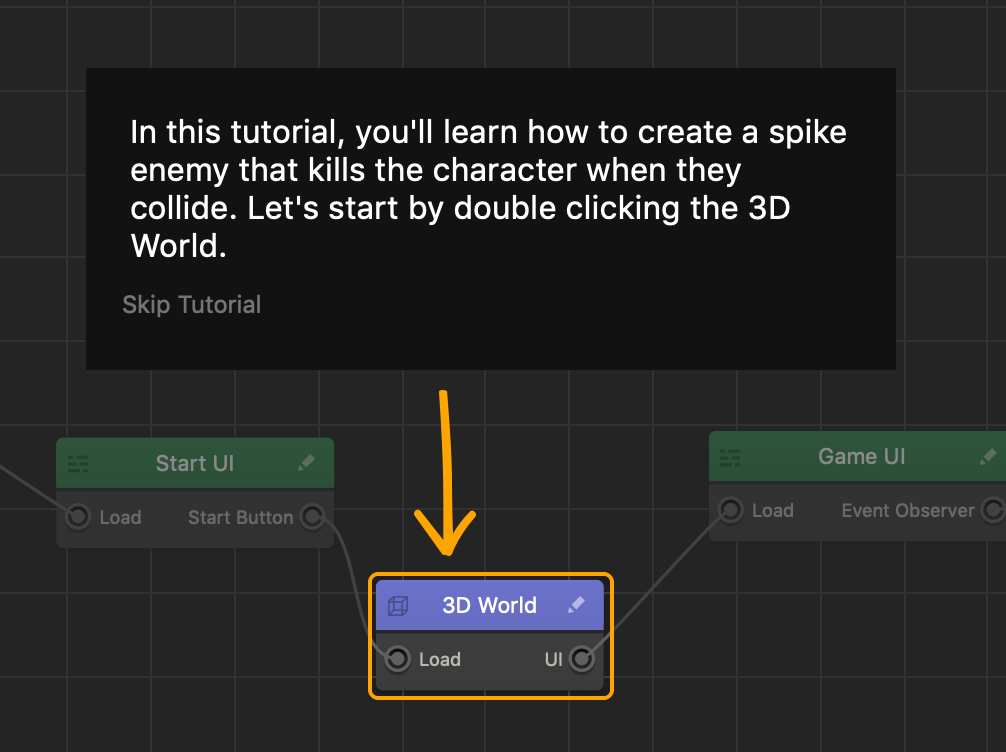
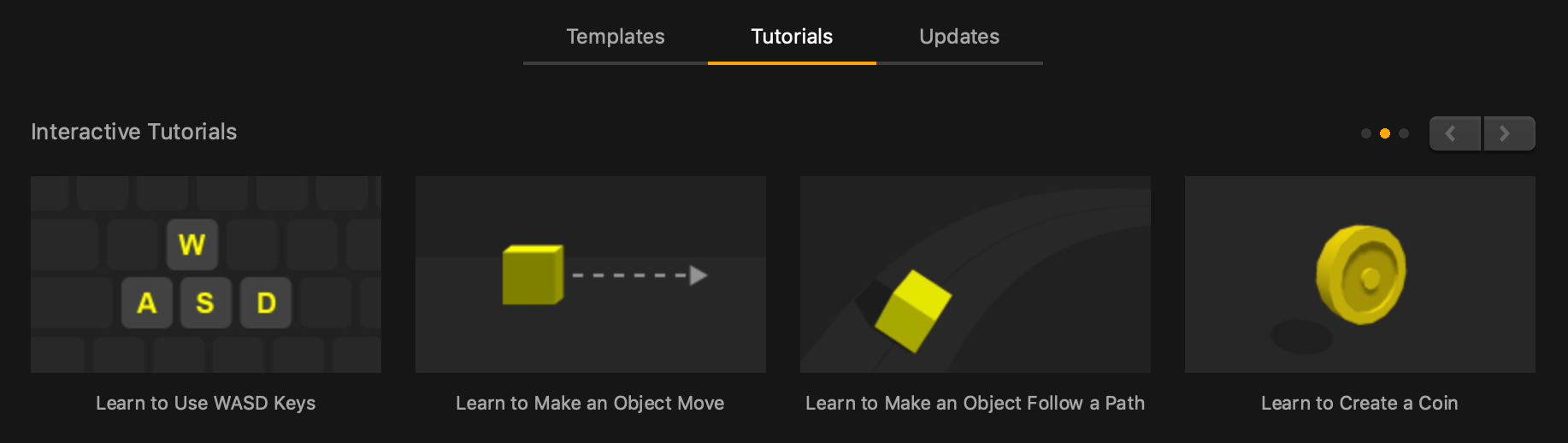
Learn how to create basic elements of a game, such as characters, enemies, UI screens, and more, with a step-by-step guidance at your own pace. This is a great way to learn basic tasks and familiarize yourself with the Buildbox workspaces, features, and tools.

To access these tutorials:

  1. On the Buildbox Welcome Started screen, click the Tutorials tab.
  2. In the Interactive Tutorials category carousel at the top, use the navigation controls at the top right to view the available tutorials.
  3. Click the tutorial you want to do.

    A new Buildbox window opens with the selected project loaded. It may take a few moments.
  4. In the new window, follow the onscreen instructions.

Templates

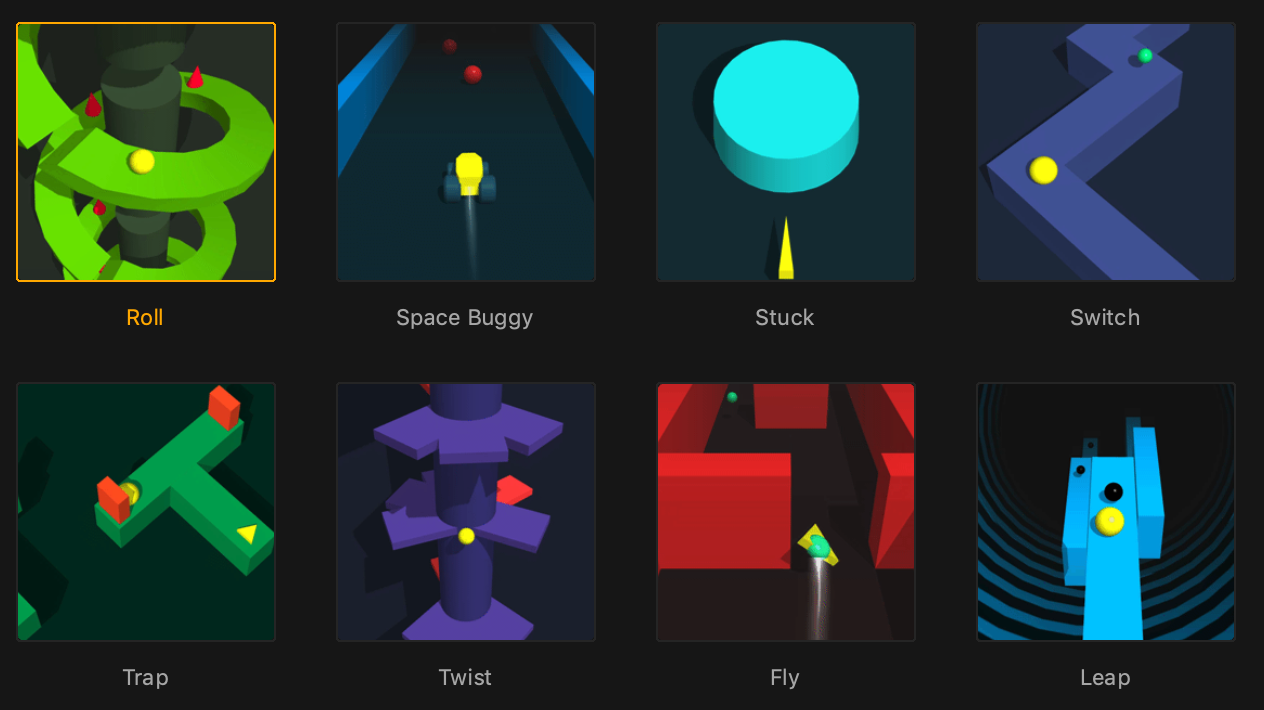
Preview and play prebuilt mini-games, which you can then use as templates for your own games by modifying them as needed.

This will allow you to see how assets and scenes are used to create worlds, how UI screens are designed, and nodes are used to provide desired functionality in a game.

On the Templates tab on the Welcome Started screen, scroll up and down to browse the available templates and hover your mouse over each template to preview it.

  • To load a template, double-click its thumbnail on the Templates tab.
  • To close a selected template and choose another one to explore, on the Buildbox menu bar, select File > New.
    For step-by-step guidance, see Previewing Templates on Your Own.

Video Tutorials

  • Watch the Getting Started video that provides a comprehensive and easy-to follow overview of the software.
  • Make a simple game using video tutorial instructions or simply watch a video tutorial.
  • Explore a variety of videos that explain and demonstrate how you can use different Buildbox tools

To explore all available tutorials and videos, click the Tutorials tab on the Welcome Started screen.

Making a Simple Game from Scratch

Once you have explored the above options or if you want to explore Buildbox by making a game from scratch, follow the series of steps in Making a Simple Game, which consolidate most procedures taught in individual tutorials into a single guide. The result is a complete project and a game.

Image Options – Buildbox 3 Manual

By |

Image Attributes

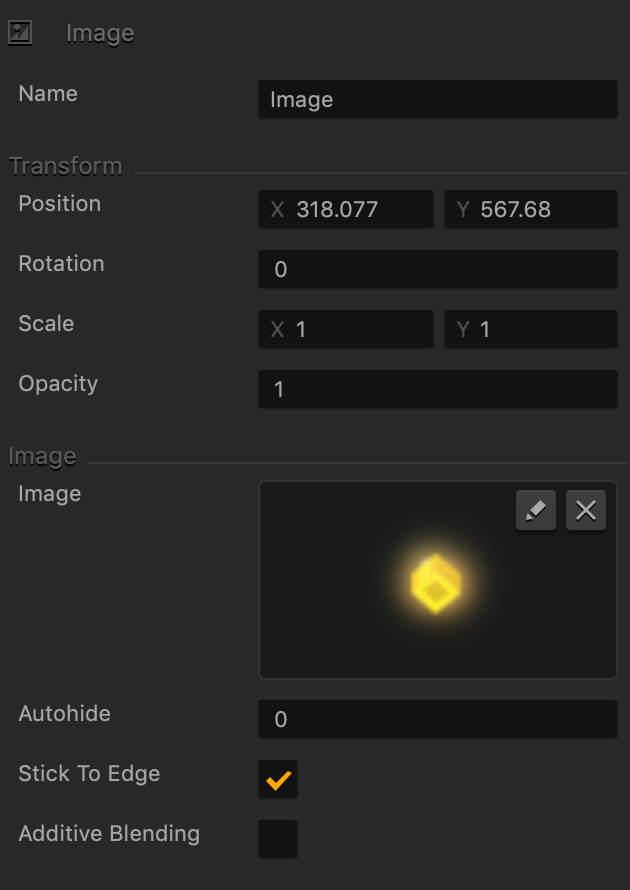
To add an image to a UI screen, see Adding Images. To see the attributes of an image, select it in the UI Editor or the Outliner and use the Options panel on the right.

Option Description
Name Enter a custom name for the image, if needed. It will be displayed in the Outliner.

TIP: Don’t leave this field blank, as you won’t be able to tell what object or image it is if you hide it.

Position Enter the appropriate values for each axis to specify a precise position for the image on the screen.

TIP: You can also drag the image to the desired location directly in the UI Editor.

Rotation Enter a degree value to specify the rotation angle of the image.
Scale Enter a value for each axis to make the image as proportionally large, or wide or narrow as needed.

TIP: You can also select the image in the UI Editor and drag its corner handles to resize it as needed.

Opacity Enter a value from 0 to 1 to specify the transparency of the image. For example, if you enter .5, the image will be semi-transparent.
Image The preview of the image you’ve added. To replace or edit the image, click the Edit icon to display the Sprite Editor.
Autohide If you want the image to appear momentarily and then fade away, specify the number of seconds for the image to be displayed for before disappearing.

To keep the button displayed on the screen, enter 0.

Stick to Edge Select this checkbox to maintain button’s relative size and position when scaling the screen for different sizes.
Additive Blending Select to add a glow effect overlay to any graphics or 3D objects underneath the image.


Control Button – Buildbox 3 Manual

By |

Control Button

Add this button to create a UI button that you can use as a control node. Just drag it from the Asset panel to the UI Editor and define the control button  attributes as described below.

After you add a control button to the UI, you need to associate it with the asset that you want to control. For details, see Add Control Button.

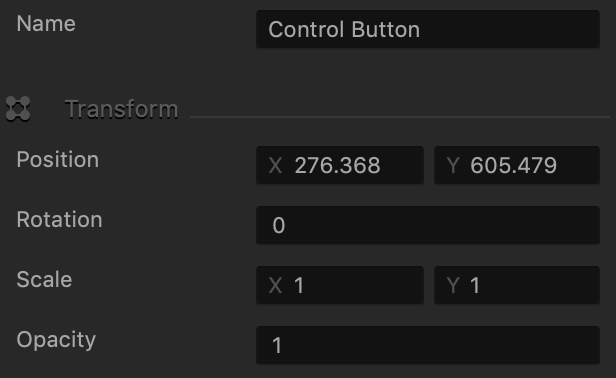
Name and Transform Attributes

Option Description
Name Enter a custom name for the button. It will be displayed in the Outliner and in the list of UI buttons in the control node.

Don’t leave this field blank, as you won’t be able to tell what button it is if you hide it.
Position Enter the appropriate values for each axis to specify a precise position for the button on the screen.

You can also drag the button to the desired location directly in the UI Editor.
Rotation Enter a degree value to specify the rotation angle of the button.
Scale Enter a value for each axis to make the button as proportionally large, or wide or narrow as needed.

You can also select the button in the UI Editor and drag its corner handles to resize it as needed.
Opacity Enter a value from 0 to 1 to specify the transparency of the button. For example, if you enter .5, the image will be semi-transparent.

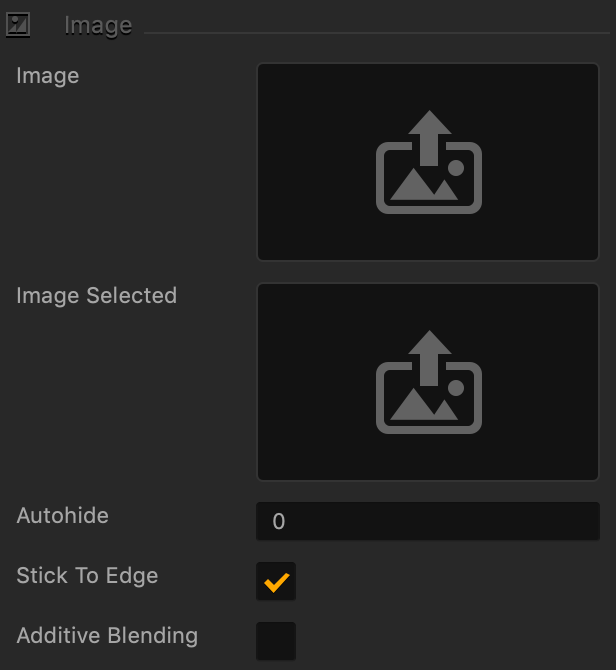
Button Image Attributes

Option Description
Image Drag a PNG image for the button in its inactive state.
Image Selected Drag a PNG image for the button when it is selected.
Autohide If you want the button to appear momentarily and then fade away, specify the number of seconds for the button to be displayed for before disappearing.

To keep the button displayed on the screen, enter 0.

Stick to Edge Select this checkbox to maintain button’s relative size and position when scaling the screen for different sizes.
Additive Blending Select to add a glow effect overlay to any graphics or 3D objects underneath the button.

Sound and Other Properties

Option Description
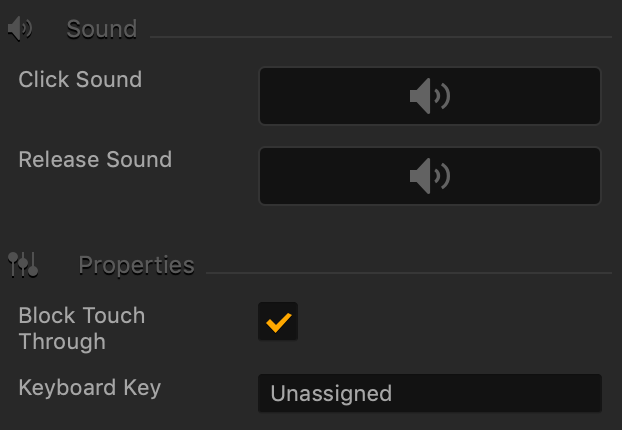
Click Sound Drag an MP3 file with the sound to be made when the player taps the button. See also Adding Music and Sound Effects.
Release Sound Drag an MP3 file with the sound to be made when the player releases the button.
Block Touch Through If this button happens to be stacked on top of another button, and you don’t want the player to be able to tap the button underneath and trigger its action, select this check box.
Keyboard Key Typically applies to Windows exports. Type a key name that will activate the button when the user presses the specified key. In some scenarios, you may also associate it the Back button on the Android devices.


Logger Node – Buildbox 3 Manual

By |

Logger Node

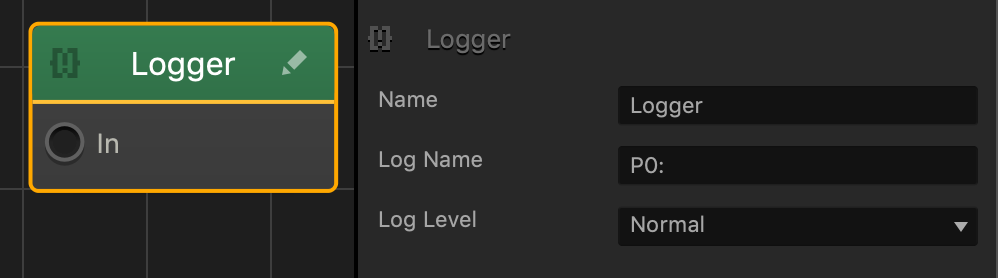
This advanced node creates a log entry that could be found in the Script Logs Panel inside the Preview Window. For details, see Log Panel.

When the IN input activates, this node creates a Log entry in the Log panel the Log panel displays the Log Name text along with the IN‘s activation status as true or false.

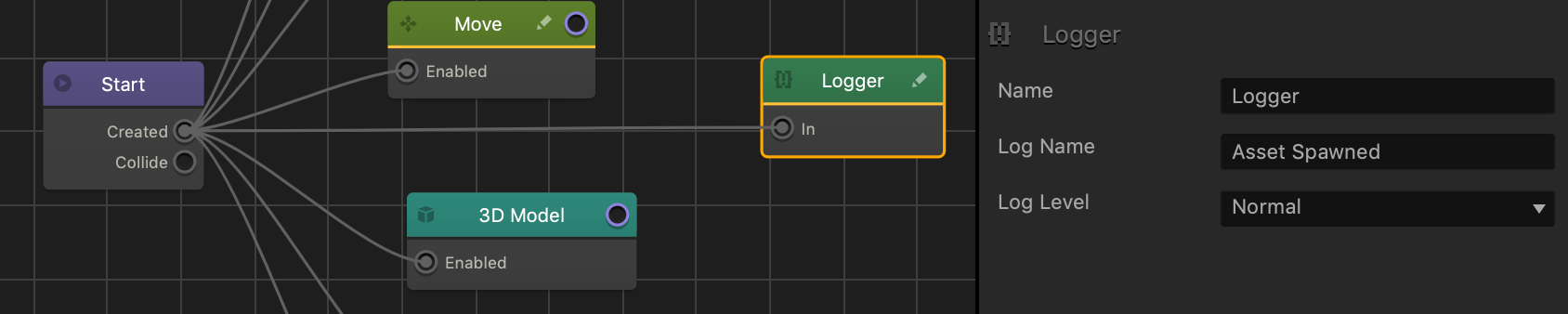
The example below displays the logger node added to the Astronaut 8 asset in the Interstellar Strike template.

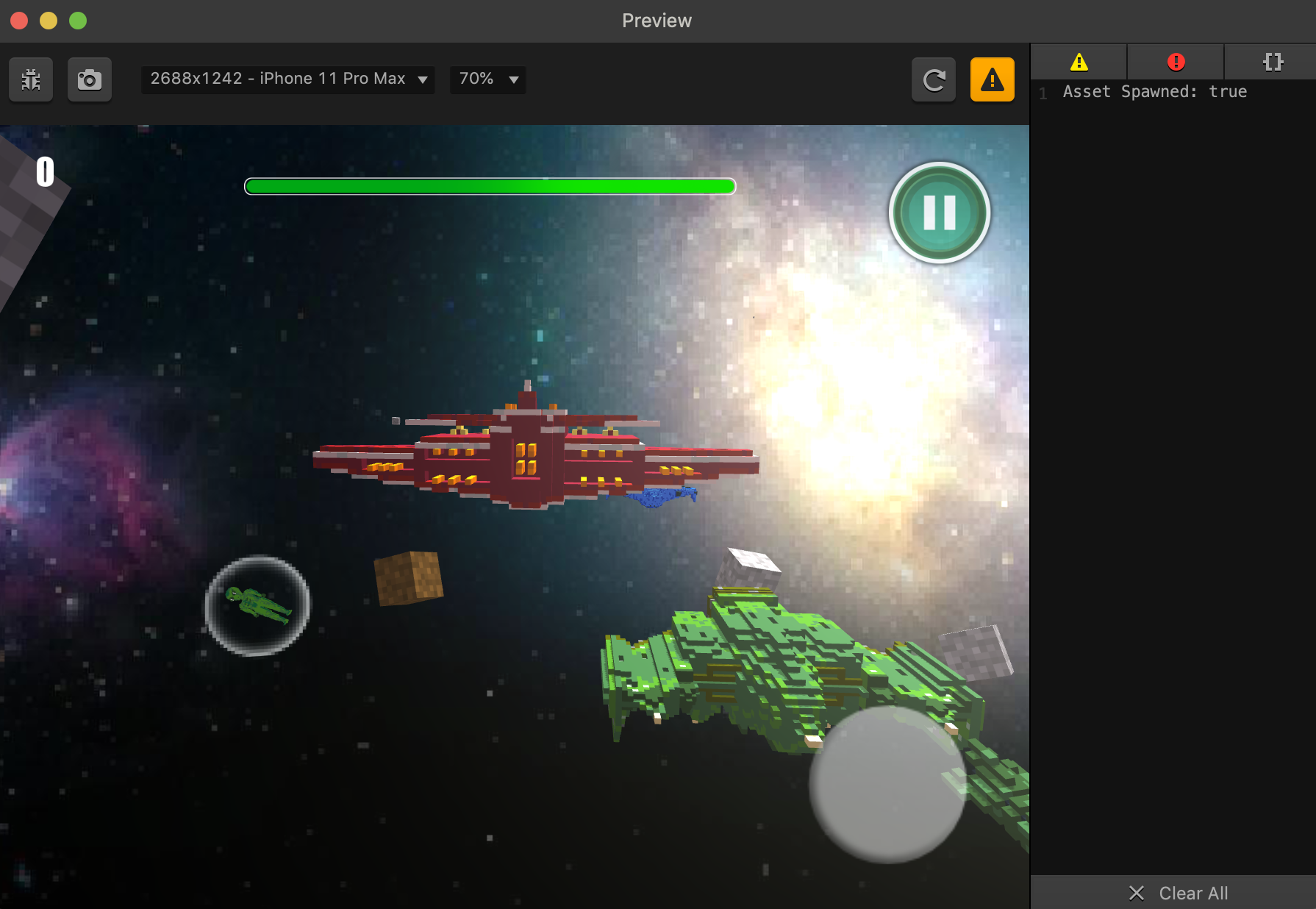
In the gameplay example below, when the green Astronaut 8 asset on the left spawns, an Asset Spawned log entry appears in the Preview log panel. Since the Created output on the Start node of the Astronaut 8 asset is active, it’s value will be true in the Asset Spawned log.

Option Description
Name Type a custom name for this node, if needed.
Log Name Type a custom log entry that will appear in the Log Panel when this node is activated.
Log level Select the type of log message that will appear in the log panel in the preview window.

If needed, you can also customize this node. For details, see Customizing Nodes.

State Machine Node – Buildbox 3 Manual

By |

State Machine Node

This advanced node will keep only one output active at a time. Each input and output row represents a single state. When the input of one state is active, the other inputs of other states will immediately become inactive.

  • To add more states to the state machine, simply click the + icon.
  • To rename a state, click the text next to the input and type a custom name.

In the Name attribute field, type a custom name for this node, if needed.