Set Physics Node – Buildbox 3 Manual

By |

Set Physics Node

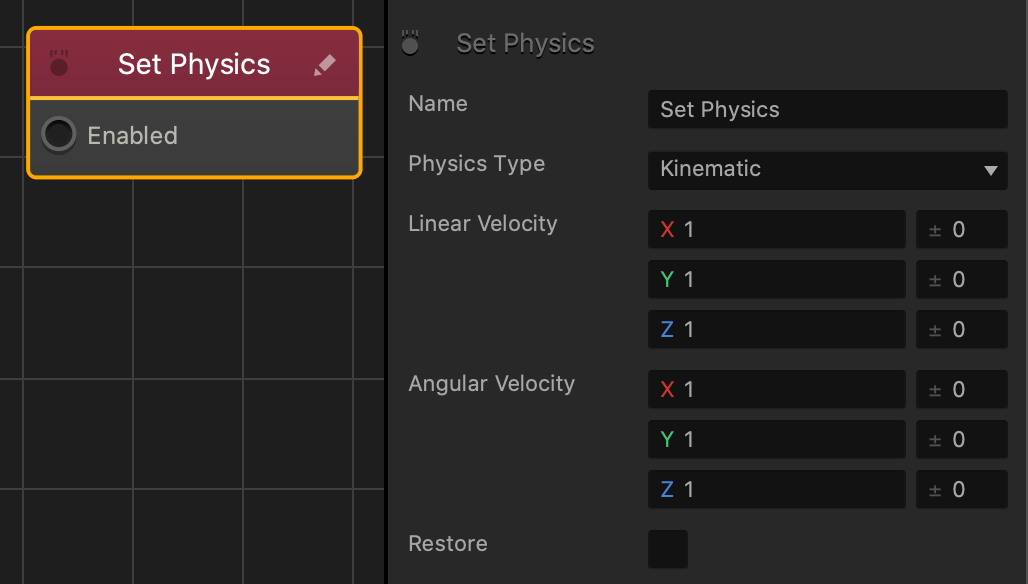
This action node changes the physics settings on an asset. This will override the physics settings on the start node.
Option Description
Name Type a custom name for this node, if needed.
Physics Type Select the type of physics to define the motion of the selected asset and its collision shape:

  • Static—Select to make the asset or character static. It won’t move at all.
  • Dynamic—Select to make the asset or character move naturally, adhering to the laws of gravity.
  • Kinematic—Select to make the asset move when colliding with other objects. It will not be affected by gravity.
Linear Velocity Affects the level of movement along each axis when affected by gravity and colliding with other objects.

Enter a range value on the right to make the asset pick a random axis value.

  • The range value is both added and subtracted to create a minimum and maximum of possible outcomes.
  • For example, if you enter a value of 100 in the Y axis field and 50 in its range value field, a value between 50 and 150 will be selected during gameplay.
    |50———-100———-150|
Angular Velocity Affects the level of rotation along each axis when affected by gravity and colliding with other objects. Enter a range value on the right to make the asset pick a random axis value.
Restore Select to revert the asset back its original physics settings, when this node is no longer active.

If needed, you can also customize this node. For details, see Customizing Nodes.
Signal Threshold Node – Buildbox 3 Manual

By |

Signal Threshold Node

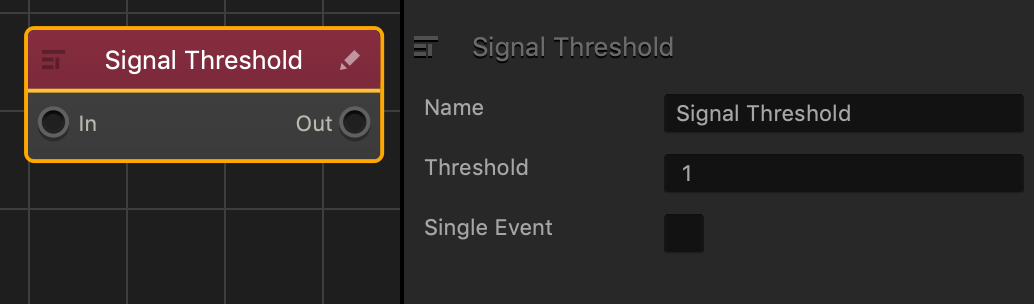
This action node activates any connected node inputs after this node activates the amount of times specified by the Threshold amount.

After you add this node to an asset:

  1. Connect the In input to the desired node’s output.
  2. Connect the Out output to the desired node’s input.
  3. Select this node, and In the options panel, in the Threshold field, enter the amount of times you want the player to activate this node before activating the nodes connected to the Out output.

The following example requires players to press a keyboard button three times to change the asset’s color. Since the Threshold amount is set to 2, the player needs to press the keyboard button twice to fulfill that amount, and once more to activate the Set Color node.

Node Attributes

Option Description
Name Enter a custom name for this node, if needed.
Threshold Enter amount of times you want this node to activate before it can activate any connected nodes.
Single Event Select this checkbox to require the In input to activate by the Threshold amount once. After the Threshold amount has been fulfilled, the Out output will activate any connected nodes when In input activates.

If needed, you can also customize this node. For details, see Customizing Nodes.

Slingshot Node – Buildbox 3 Manual

By |

Slingshot Node

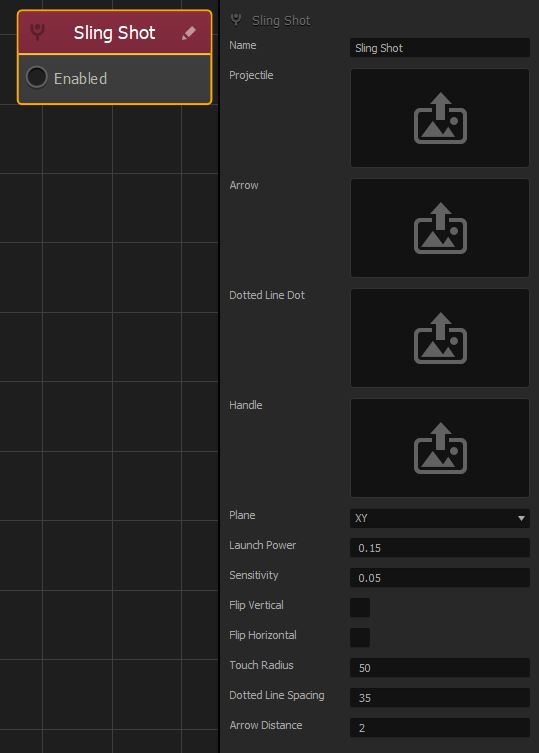
This action node launches a projectile in a given direction based on how far back the player pulls and aims the asset.


Option Description
Name Type a custom name for this node, if needed.
Projectile Click the edit icon  and select an asset that will serve as the projectile launched from the slingshot.

An asset, for example, a 2D image or 3D model of a circle or sphere, that is launched from the

This is a required attribute.
Arrow An asset, for example, an arrow, that will appear when the player pulls the sling. It will show the direction in which the projectile is being aimed.

To select an asset, click the edit icon . When done, click Save in the Asset Manager.

Dotted Line Dot An asset, for example, a dot, that will appear as a series, such as a dotted line, between the projectile and the handle, when the player pulls the sling aiming the projectile.

The farther the player pulls the sling, the more dots appear in the line, spaced out as indicated by the Dotted Line Spacing attribute below.

To select an asset, click the edit icon.

Handle An asset that will represent the handle of the slingshot, typically a Y-shaped fork.

To select an asset, click the edit icon.

Plane Select the plane in which the objects appear and across which the projectile travels.
Launch Power Enter a numeric value to specify the speed and intensity of the projectile when the player releases it.

The greater the number, the farther the projectile launches, and the less force the player needs to pull.

Sensitivity Enter a numeric value to specify the distance between the handle and the projectile. The greater the number, the less the player has to pull.
Flip Vertical Select the checkbox to make the projectile flip vertically when flying toward the target.
Flip Horizontal Reverses the horizontal direction that the asset is aiming towards, if checked.
Touch Radius Enter a numeric value to specify the touch area on the screen around the projectile.
Dotted Line Spacing Enter a numeric value to specify the space between the dots (the assets specified in the Dotted Line Dot field).
Arrow Distance Enter a numeric value to specify the distance between the direction arrow and the projectile.

If needed, you can also customize this node. For details, see Customizing Nodes.
Signal Node – Buildbox 3 Manual

By |

Signal Node

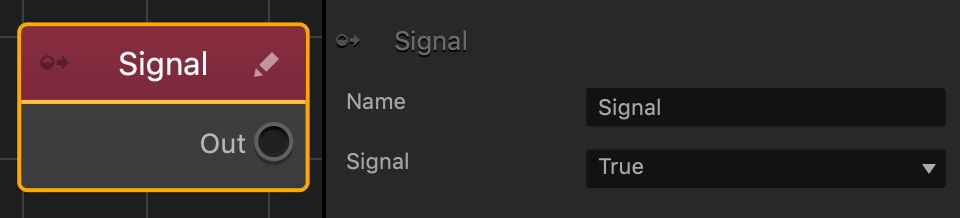
This action node sends a true or false signal through a connector to activate or deactivate any connected inputs on other nodes.

The Out output sends the signal when the asset is created or spawned in the game, much like the Object Start node.

To change the type of signal to send: in the options panel, select the Signal attribute field and choose one the following options:

  • True—activates connected inputs.
  • False—deactivate connected inputs.
This node can be used for organizing the node map by minimizing the amount of connections to the Start node.

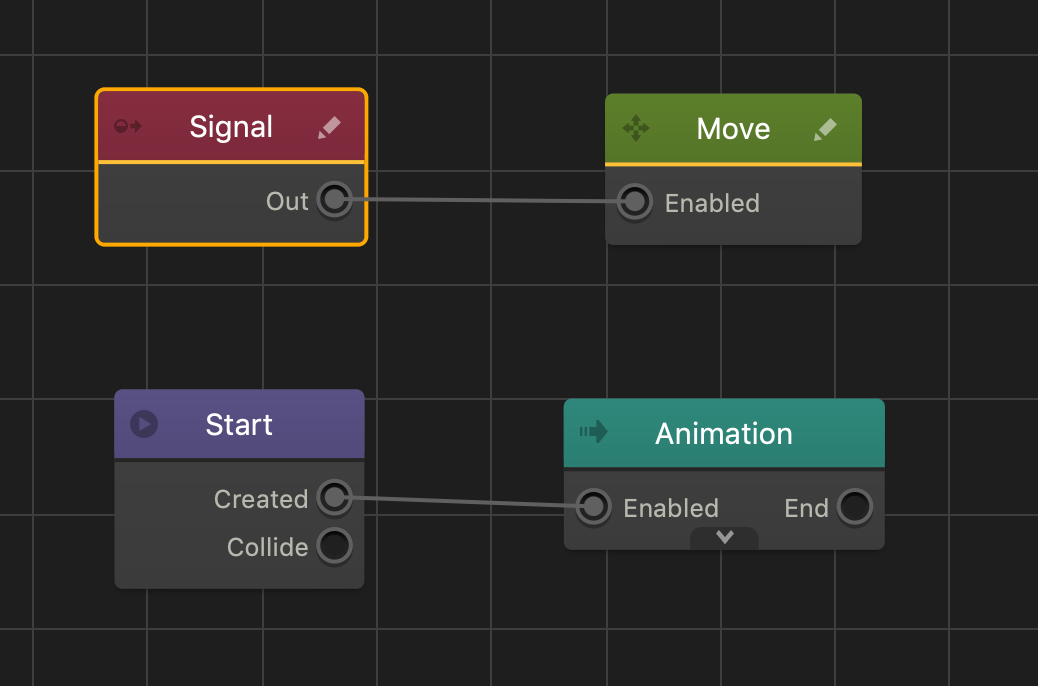
The following is an example of a Signal node connected to a Move node. A True signal will make the asset move, while a False signal will not.

If needed, you can also customize this node. For details, see Customizing Nodes.

Signal Invert Node – Buildbox 3 Manual

By |

Signal Invert Node

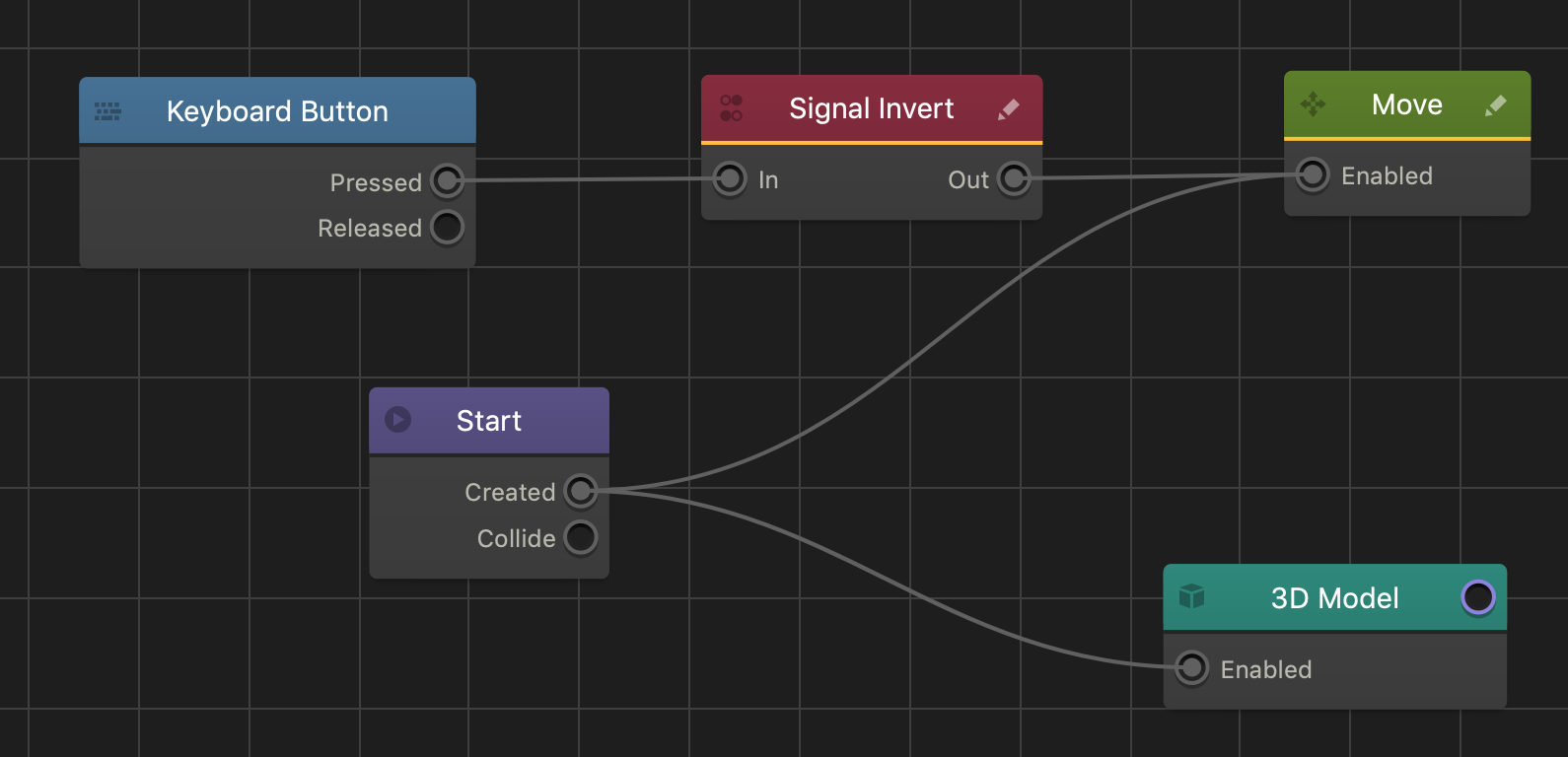
This action node inverts the signal received from a connected node. For example, if the In input receives a true signal, the Out output sends a false signal.

Each node output sends a true or false signal that node inputs receive. A true signal allows an input to enable a nodes action while a false signal disables that action. When this node’s In input receives a signal from a different node’s output, the Out output sends the opposite signal to any connected node inputs.

To change the name of the node, select it in the node map and in the Options panel, in the Name field, type a custom name, if needed.

The image below is an example a keyboard button that when pressed, stops the asset’s current movement.

If needed, you can also customize this node. For details, see Customizing Nodes.
Set Visibility Node – Buildbox 3 Manual

By |

Set Visibility Node

This action node shows or hides all of the asset’s 3D models and images.

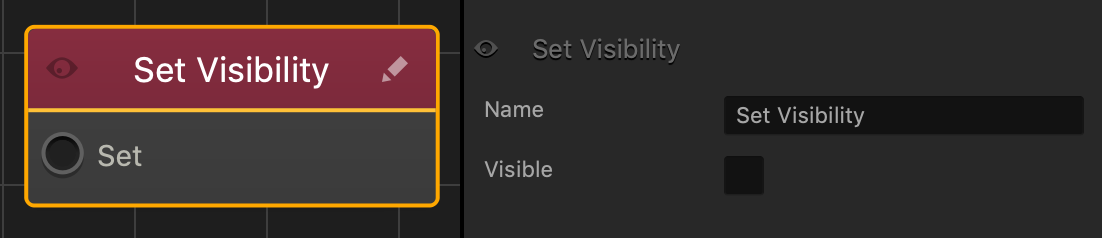
The Apply input sets the asset’s visibility as specified in the Visible attribute.

When this node makes the asset invisible, all collision shapes and other functionalities are still present in the scene.

Node Attributes

Option Description
Name Type a custom name for this node, if needed.
Visible Select to change the visibility of the asset. Clear to make the asset invisible.

If needed, you can also customize this node. For details, see Customizing Nodes.
Content Nodes – Buildbox 3 Manual

By |

Content Nodes

These nodes allow you to define the shape of the selected object or character and add special effects, such as animation, sounds, text, and so on.

For details on how to add a content node to a character or object in a game, see Adding, Editing, and Deleting Nodes.

Node  Icon Description Customizable?
3D Model Defines a 3D mesh that provides a shape to a character or object. No
Animation Creates a 2D plane that plays a PNG sequence or displays an image. No
8 Side Animation Changes an asset’s 2D animation based on the asset’s direction of movement or the direction it faces in a 3D World. Yes
Sound Plays an MP3 file. No
Label Allows you to display text inside an asset. No
Trail Creates a trail that traces along the asset’s movement path in a scene. No
Trail 3D Spawns multiple specified assets that follow behind the controlling asset in a trail. Yes
Billboard Icon Shows an image that will always face the camera. No
Sub Scene Contains a 3D mesh with a skeleton that can be animated by a Keyframe Animation node. No
Keyframe Animation Plays a 3D animation for a connected Sub Scene node. No

Velocity Drag Node – Buildbox 3 Manual

By |

Velocity Drag Node

This movement node applies physics resistance to a dynamic asset’s movement and rotation.

Before you add this node to an asset, you need to set it’s physics to Dynamic.

Node Attributes

Option Description
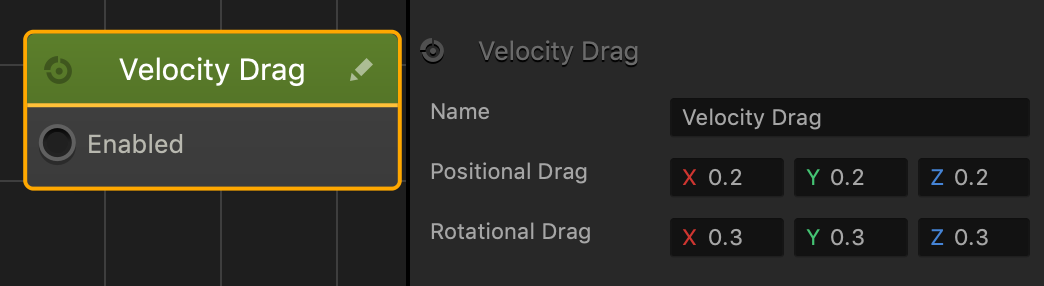
Name Type a custom name for this node, if needed.
Positional Drag Enter a decimal value between 0 and 1 in each axis field to apply resistance to an asset’s movement when affected by gravity or colliding with other objects. A value of 1 completely prevents the asset from moving with physics.
Rotational Drag Enter a decimal value between 0 and 1 in each axis field to apply resistance to an asset’s rotation when affected by gravity or colliding with other objects. A value of 1 completely prevents the asset from rotating with physics.

Circular Move Node – Buildbox 3 Manual

By |

Circular Move Node

This movement node makes an asset orbit around a specific point in a scene.

If the asset is gradually descending or falling, make sure its physics is not set to Dynamic.

Node Attributes

Option Description
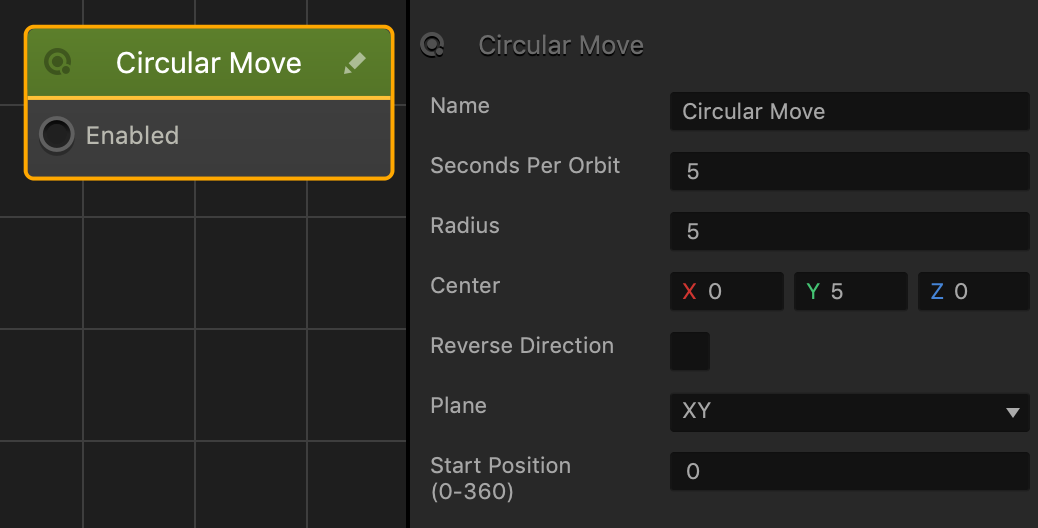
Name Type a custom name for this node, if needed.
Seconds Per Orbit Enter the number of seconds it will take for the asset to complete a full circle.
Radius Enter a numeric value to specify the radius of the orbit. The higher the number, the wider the orbit
Center Enter a numeric value in any of the axis fields to offset the center of the orbit.

For example, if the asset’s position in a scene is 0, 0, 0, and the Center is set to 0, 5, 0, then the center of the asset’s orbit will be 5 units higher than its original scene position.

Reverse Direction Select to reverse the direction of the movement.
Plane Select the plane the asset will orbit in.

  • XY—clockwise/counterclockwise along a horizontal plane.
  • XZ—forward/backward along a horizontal plane.
  • YZ—forward/backward along a vertical plane.

If needed, you can also customize this node. For details, see Customizing Nodes.

Gravitate Node – Buildbox 3 Manual

By |

Gravitate Node

This movement node allows a dynamic asset to move and gravitate toward other assets in a scene.

To make an asset gravitate toward another asset, do the following:

  1. In a World workspace and in the Asset panel, double-click the asset to open it’s Node Map.
  2. On the Node Map grid, select the Start node and in the options panel on the right, click the Physics field and select Dynamic.
  3. In the Node panel on the left and in the Search fiexld, type Gravitate and drag the name or icon to the Node Map grid.
  4. On the Gravitate node, connect the Enabled input to the Created output of the Start node.
  5. Select the Gravitate node and in the Options panel on the right, adjust the Strength attribute as needed.
  6. Preview your game. The asset will now gravitate toward another asset in the scene.

Node Attributes

Option Description
Name Type a custom name for this node, if needed.
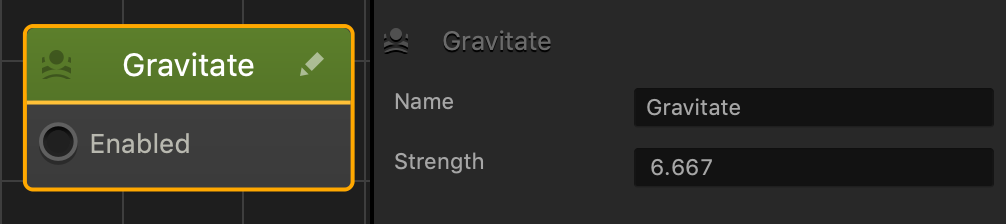
Strength Enter the amount of strength to determine how quickly the asset will gravitate toward another asset. The higher the number, the faster the asset will gravitate.

If needed, you can also customize this node. For details, see Customizing Nodes.