Color Animation Node – Buildbox 3 Manual

By |

Color Animation Node

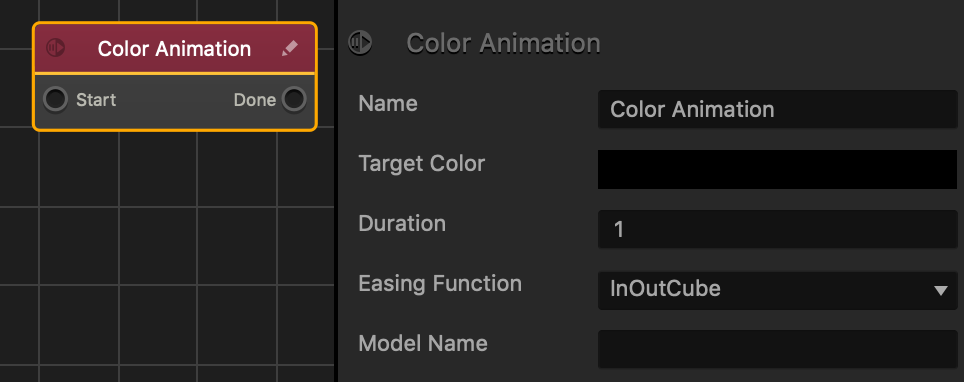
This action node changes the asset color over time.

After the Start input activates, the asset’s color changes over the amount of time specified by the Duration attribute. During this time, the current color of the asset will blend with the color specified by the Target Color attribute. After the Duration finishes, the Done output will activate all its connected nodes

Option Description
Name Type a custom name for this node, if needed.
Target Color To Click the field, and in the Colors window, select a color and click OK.
Duration Enter the amount of seconds it will take for the asset’s current color to change to the Target Color.
Easing Function Specifies the rate of change when the camera changes position.

  • For an ease in ease out pattern, select InOutCube.
  • For a straight and constant pattern, select linear.
Model Name To change the color on a specific mode, enter the name of a 3D Model node. Leave blank if you want to affect all models and images attached to the asset.

If needed, you can also customize this node. For details, see Customizing Nodes.
Level Selector Node – Buildbox 3 Manual

By |

Level Selector Node

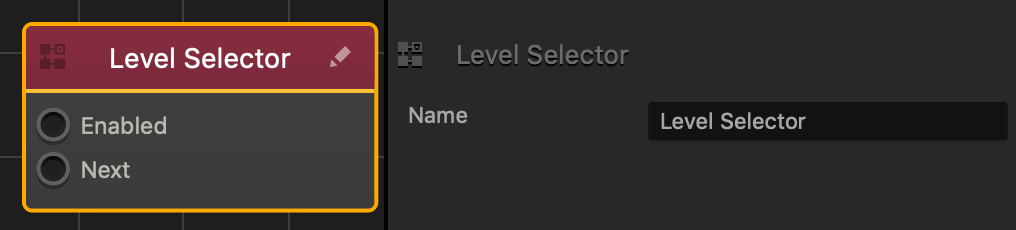
This action node allows the player to advance to the next scene after the World restarts.

This node contains two inputs:

  • The Enabled input allows this node to keep track of the current scene.
  • The Next input allows the player to advance to the next scene (after the start scene) after the World restarts.

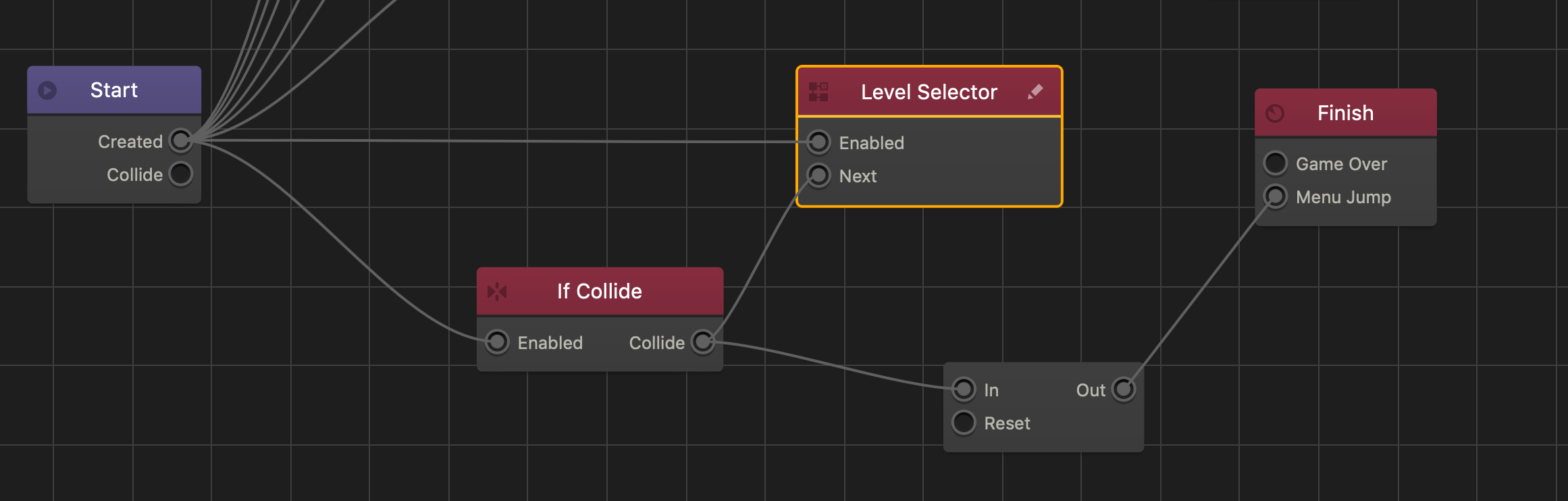
The following is an example from the Character asset in the Progression template:

The Progression template contains a single world and and utilizes scenes as game levels. The following presents how the Level Selector node advances players to the next level:

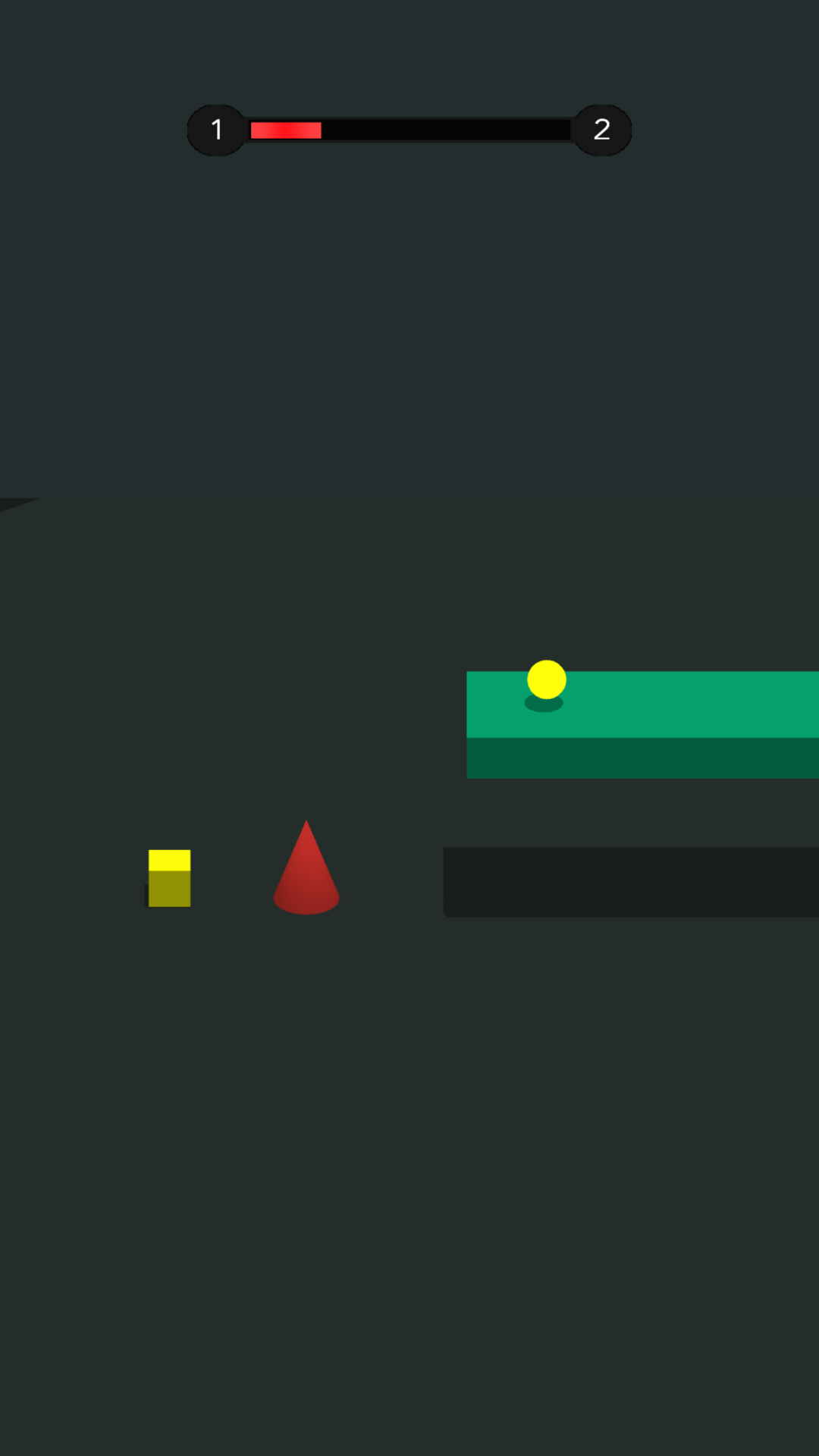
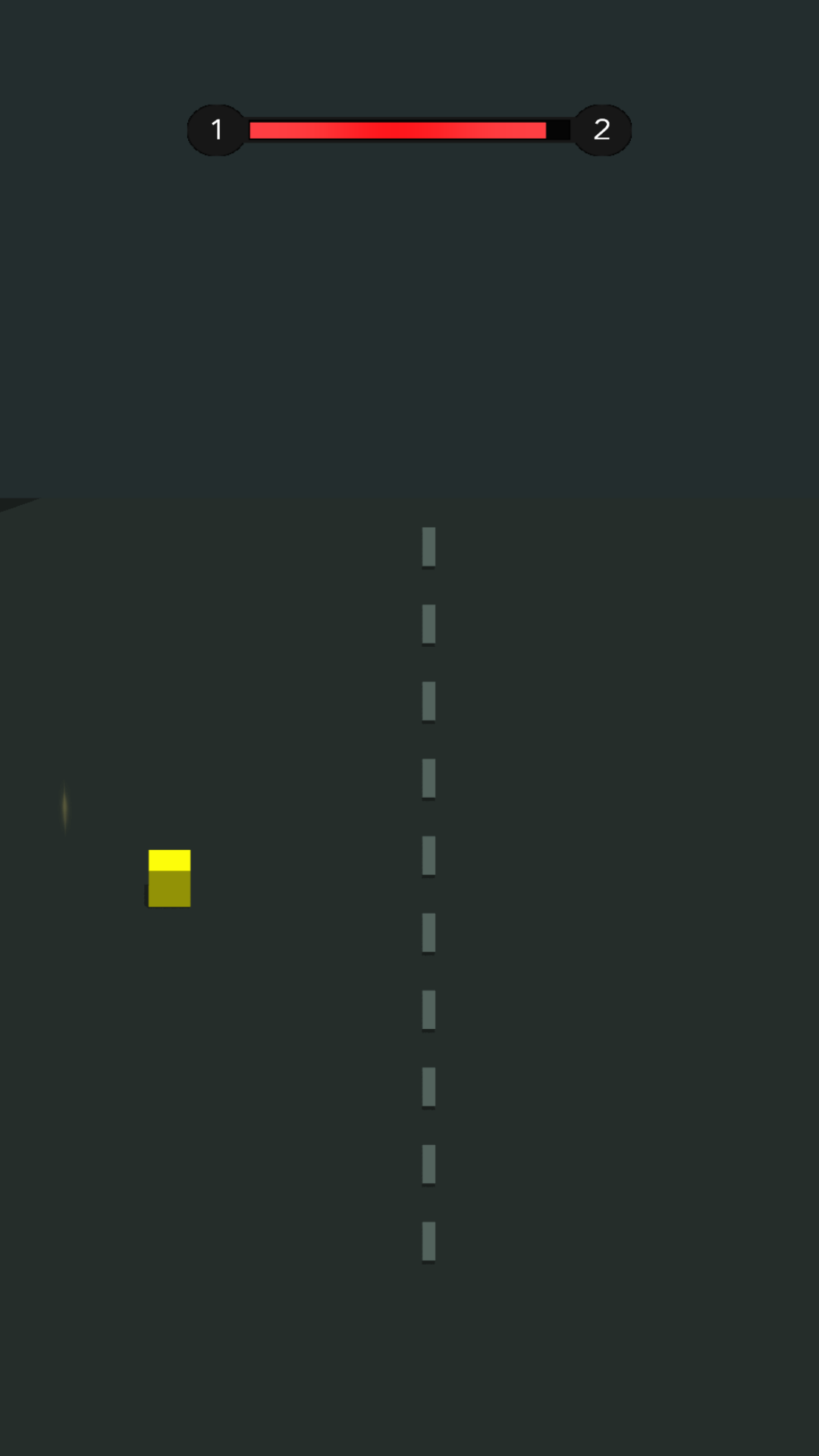
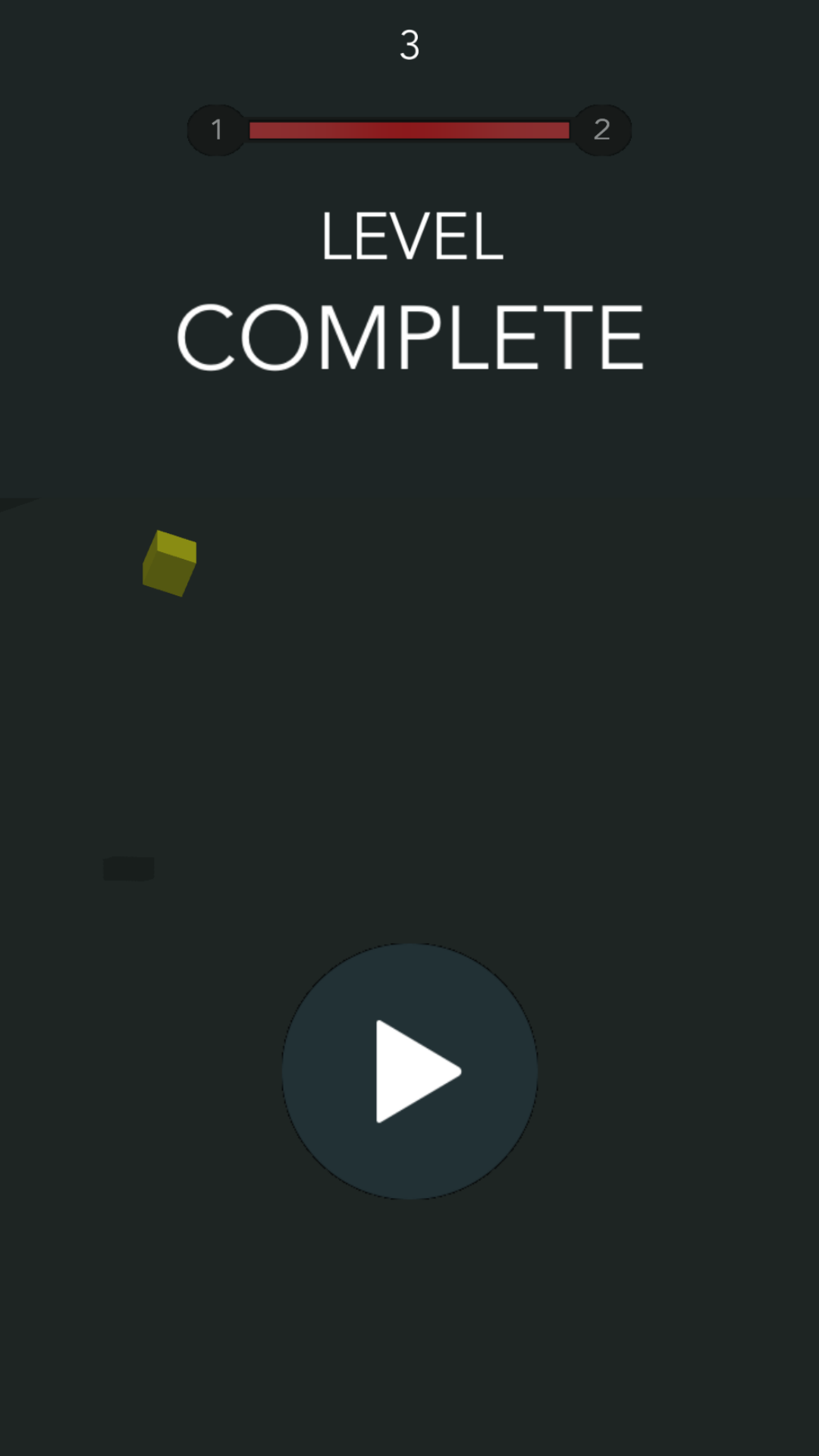
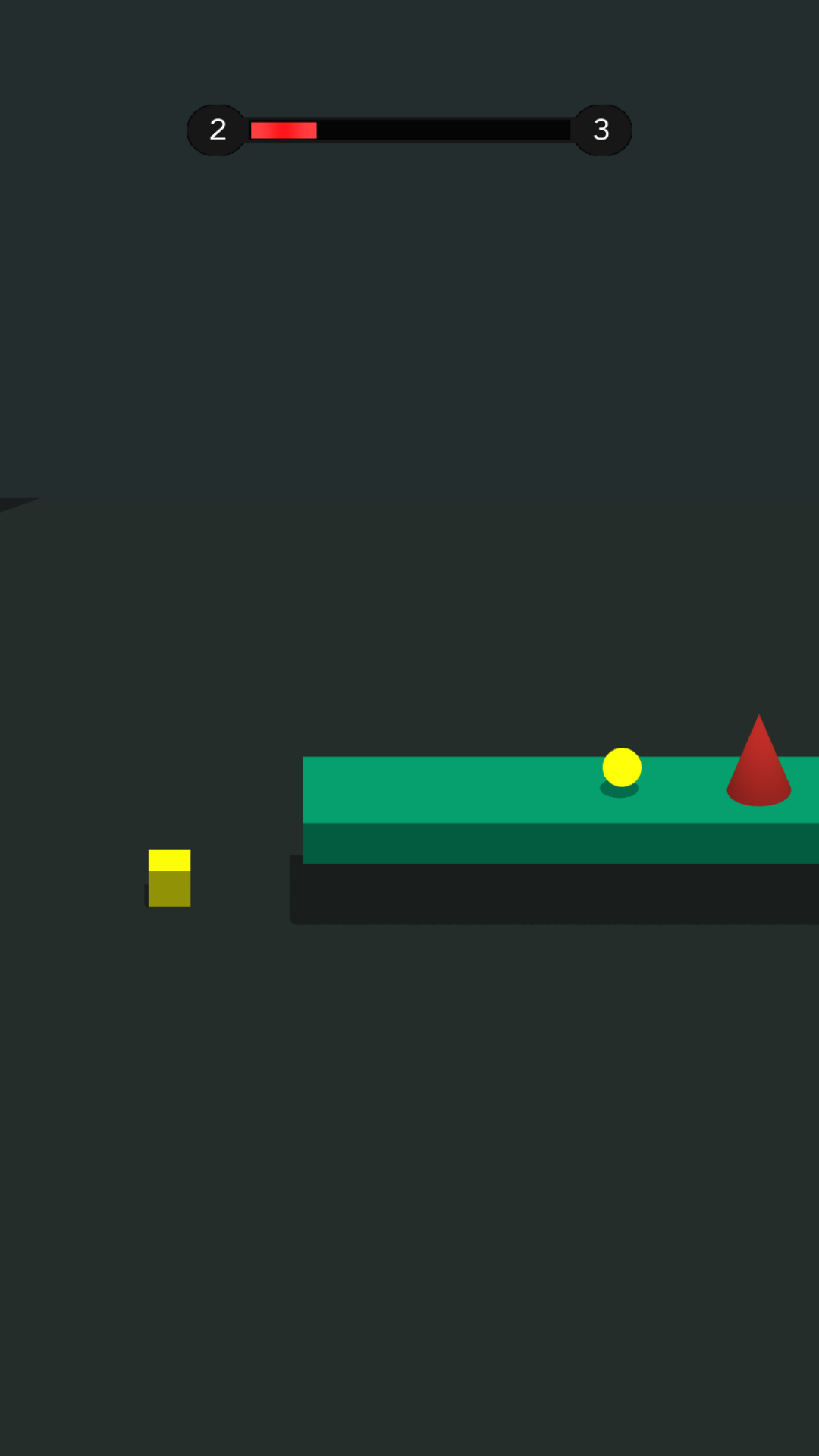
When when the game begins, the Start scene begins, followed by scene 1, as shown at the top of the screen. After the character collides with the dotted line at the end, the If Collide node activates the Next output and the Delay node. After the delay node activates the Event (Finish) node, the game moves to the complete menu where the player can advance to the next level. After players click the play button, the game restarts the world and after the start scene finishes, scene 2 now appears.

If needed, you can also customize this node. For details, see Customizing Nodes.
World Options – Buildbox 3 Manual

By |

World Node Attributes

To view World node attributes, click a World node on the Mind Map.

Option Description
Name Change the name of the selected World, for example, Level 1.

The name will be updated in the Outliner, on the Mind Map, and on the Navigation bar.

Don’t leave this field blank, as you may find it hard to identify this node or distinguish it from other items in your project.
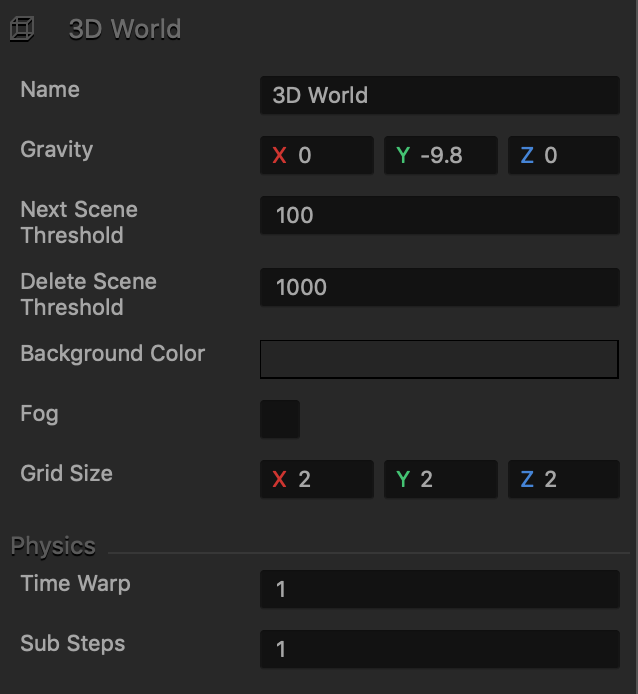
Gravity To create a continuous force that will act on everything as gravity does in the real world, enter a decimal for each axis to specify the direction of the force along that axis. For example, a negative value on the Y axis will make an object fall, whereas a positive value will pull it up.
Next Scene Threshold Enter a numeric value to specify a threshold after which the next scene should be created during a game session.
Deletion Threshold Enter a numeric value to specify a threshold at which the previous scene, which the player has passed, should be deleted during a game session.
Background Color To change the background color of the scenes in the selected game level, click this field, select the desired color from the several options provided in the Colors window, and click OK. See also Change Background Colors and Images in Scenes.

To preview the color, click the Preview button on the Navigation bar.

Fog Select to make fog appear in the distance in the game, so that objects emerge from a mist.
Fog Start Distance

Fog End Distance

These fields appear only the Fog checkbox is selected.

Enter numeric values to set the start and end distance for the fog in the selected world.

Grid Size Enter numeric values to change the size of the cells in the grid in the Scene Editor.
Time Warp Change the game speed, or how fast the object is moving in your game. Increase both default values to speed up the movement and use the Preview window to see the results.

Enter a numeric value to determine the game speed. A value of 1 is normal speed, 0.5 is half speed, 2 is double speed, and so on.

You may have to experiment a bit to find the optimal values for each game.
Sub Steps Enter the additional amount of times physics will be calculated during gameplay.

For example, the default value of 0 allows the game to calculate physics once. A value of 1 allows physics to be calculated

Edit Components Add components from the node section and add custom script nodes for master/controller logic. This is an advanced feature reserved for experienced users.

UI Screen Nodes – Buildbox 3 Manual

By |

UI Screen Nodes

Although not required, UI nodes allows you to create user interfaces for menus or in-game overlays. Here you can add buttons, text labels, and images to your game. You can also display ads on the UI screens. For details, see Ad Monetization and FAQs.


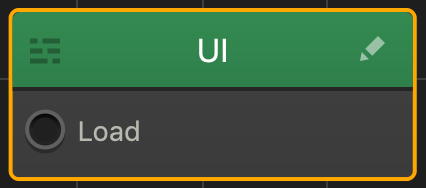
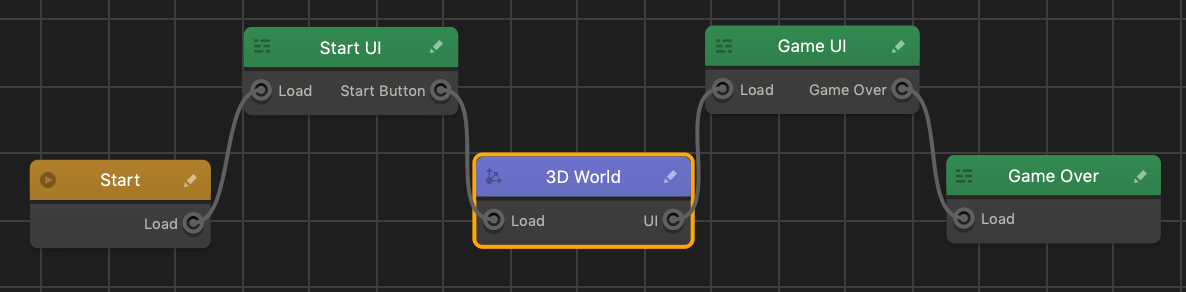
By default, a new UI node has only a Load input, which you can connect to the output of any other node on the Mind Map, a Start node, another UI node, or a 3D World node. See also Node Anatomy.

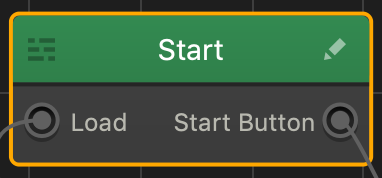
Depending on your UI design, you may add Navigation buttons, such as the Start button, which will result in additional outputs on the UI node itself.

You can connect these additional outputs to the input of either another UI node or a 3D World node. 

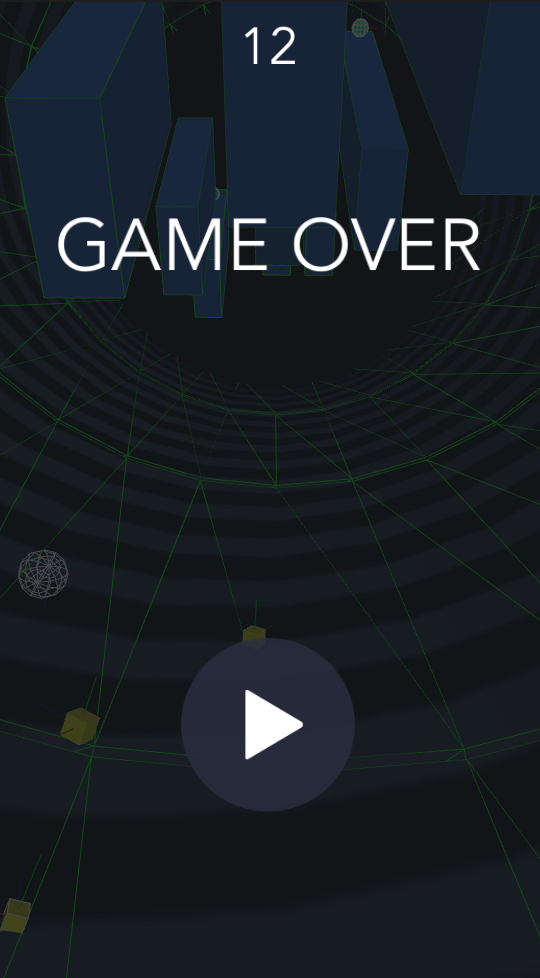
Typically, a game would have a Start UI node, a Game Over node, and a Game UI node that is an overlay that displays the player’s score during a game session. 

Here’s what a UI screen may look like for a Game Over node during a game session:

Adding, Deleting, and Editing Game UI Screens

To add a UI node, do one of the following on the Mind Map:

  • Drag the UI node from the Node panel to the Mind Map.
  • Right-click anywhere on the Mind Map grid and select Add New UI.
  • Duplicate and existing UI—select the node and press D on your keyboard.

To delete a UI, select the corresponding node and press Delete on the keyboard.

To change the UI node attributes in the Mind Map, select the node and make the appropriate changes in the Options panel on the right, where you can add music and ads to each UI screen.

To add buttons, text, player’s score counter, facebook likes, animations, event observer and unlocking logic, you need to go inside the UI node. To open the UI node workspace, do either of the following:

  • Double-click the UI node.
  • Click the Edit icon in the top right corner of the node.

See also Add Control Button.

Camera Position Animation Node – Buildbox 3 Manual

By |

Camera Position Animation Node

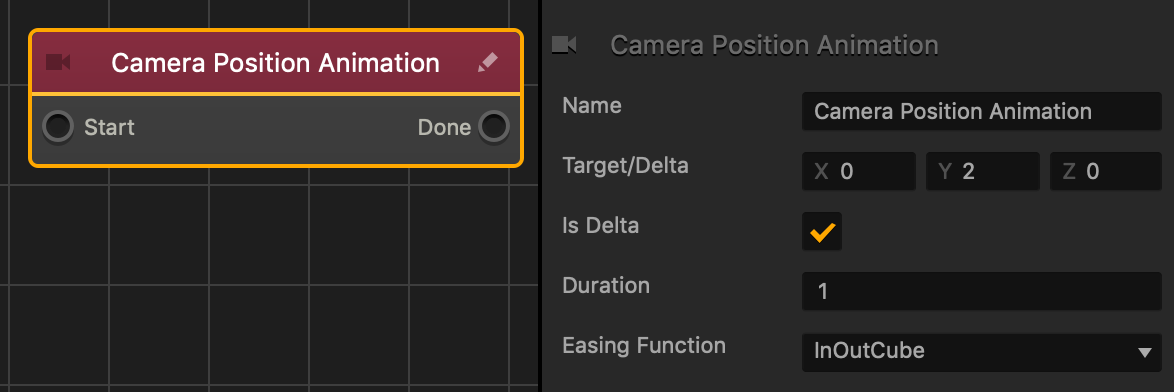
This action node moves the camera in the direction specified by the axis values.

Option Description
Name Type a custom name for this node, if needed.
Target/Delta The amount and direction the camera will change its position.
Is Delta
  • Select to make the camera move in the Target/Delta direction.
  • Deselect to make the asset move to the Target/Delta position. 
Duration The amount of time in seconds the animation will last.
Easing Function Specifies the rate of change when the camera changes position.

  • For an ease in ease out pattern, select InOutCube. 
  • For a straight and constant pattern, select linear.

If needed, you can also customize this node. For details, see Customizing Nodes.
Touch Move Node – Buildbox 3 Manual

By |

Touch Move Node

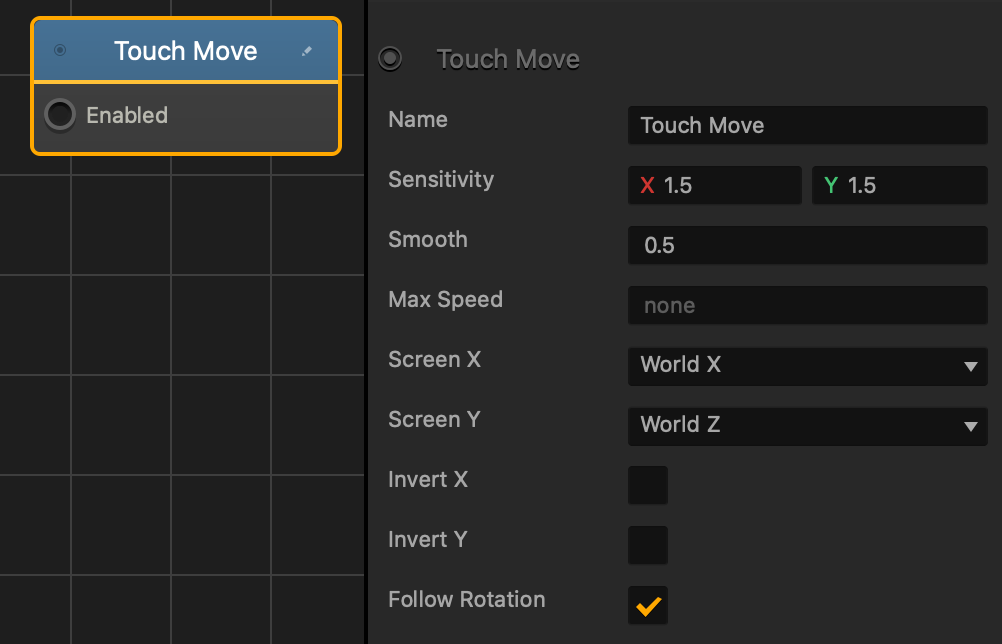
This control node allows the player to change the position of the asset by dragging it across the screen with either a finger or mouse.

Option Description
Name Type a custom name for this node, if needed.
Sensitivity How fast or slow the asset will move. The higher is the value, the faster is the movement. To affect the sensitivity along:

  • The horizontal axis, enter a value in the X axis.
  • The vertical axis, enter a value in the Y axis.
Smooth Enter a decimal from 0 to 1 to determine how smooth the movement will be, 1 being 100%.
Max Speed
  • Enter a numeric value to determine the maximum possible speed for the asset.
  • For example, if the X and Y axis fields contain values of 5 and the Max Speed is set to 3, then the asset will only move at a speed of 3.
Screen X Select an axis of the World that will be affected when the screen is dragged along the horizontal axis.
Scale Y Select an axis of the World that will be affected when the screen is dragged along the vertical axis.
Invert X Select to invert how the asset is moved along the horizontal axis.
Invert Y Select to invert how the asset is moved along the vertical axis.
Follow Rotation Select  to make the asset always move in the direction that it’s facing.

If needed, you can also customize this node. For details, see Customizing Nodes.
Motor Node – Buildbox 3 Manual

By |

Motor Node

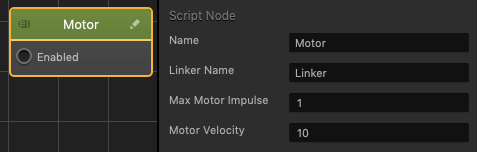
This movement node propels a hinge linker forward.

Option Description
Name Type a custom name for this node, if needed.
Linker Name Enter the name of a linker.
Max Motor Impulse Enter the amount of force you want to propel the linker.
Motor Velocity Enter the amount of speed the linker will have after it has been propelled

If needed, you can also customize this node. For details, see Customizing Nodes.
Global Counter Node – Buildbox 3 Manual

By |

Global Counter Node

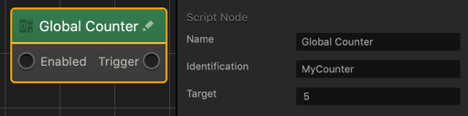
This advanced node creates a counter that can be used in multiple Global Counter nodes in multiple assets. The counter increases when this node is activated, and after it reaches the Target value, the Trigger output will activate any connected nodes.

Option Description
Name Type a custom name for this node, if needed.
Identification Type a custom name for the counter, if needed.
Target Enter the value the counter must reach before the Trigger output activates any connected nodes.

If needed, you can also customize this node. For details, see Customizing Nodes.
Position Limiter Node – Buildbox 3 Manual

By |

Position Limiter Node

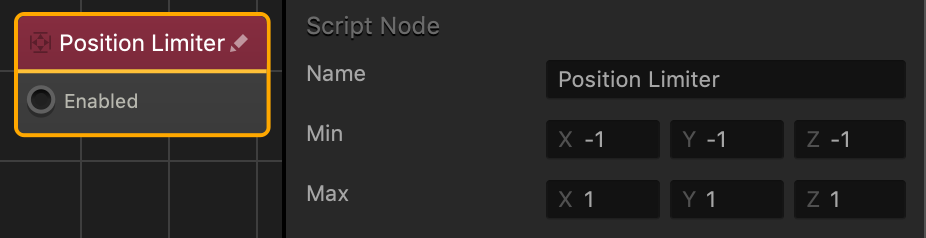
This action node keeps the asset position contained within a boundary specified by the minimum and maximum axis values.

Option Description
Name Type a custom name for this node, if needed.
Min The minimum distance this asset is allowed to move along each axis.

These values must be less than the Max values.
Max The maximum distance this asset is allowed to move along each axis.

These values must be greater than the Min values.

If needed, you can also customize this node. For details, see Customizing Nodes.
Path Jump Node – Buildbox 3 Manual

By |

Path Jump Node

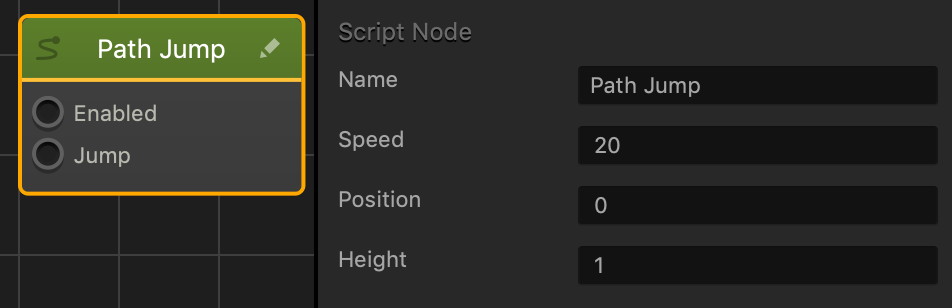
This movement node allows the asset to jump while moving forward on a continuous path in the direction of the End Point. See also Making Characters Jump and Objects Move.

Option Description
Name Type a custom name for this node, if needed.
Speed The speed or rate the object will travel forward.The higher the value, the faster the object will travel forward.
Position Changes the default horizontal position of the asset according to the path set by the Start/End Points. A value greater than 0 will shift the asset to the right, while a value less than 0 will shift the object to the left.
Height Enter a numeric value to specify the jump height of the asset.

If needed, you can also customize this node. For details, see Customizing Nodes.