Mouse Control Nodes – Buildbox 3 Manual

By |

Mouse Control Nodes

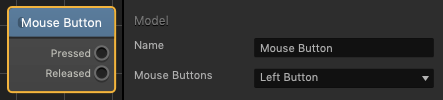
Mouse Button

This control node assigns a Mouse Button that will activate any connected nodes.

Option Description
Name Type a custom name of this node, if needed.
Mouse Buttons To Assign a mouse button, click the drop-down and select the mouse button.

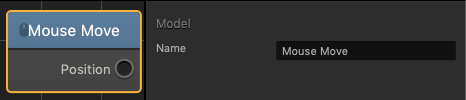
Mouse Move

This control node allows the movement of the mouse to enable any connected nodes.

Option Description
Name Type a custom name of this node, if needed.

Mouse Scroll

This control node allows the scroll wheel of the mouse to enable any connected nodes.

Option Description
Name Type a custom name of this node, if needed.

Heal Node – Buildbox 3 Manual

By |

Heal Node

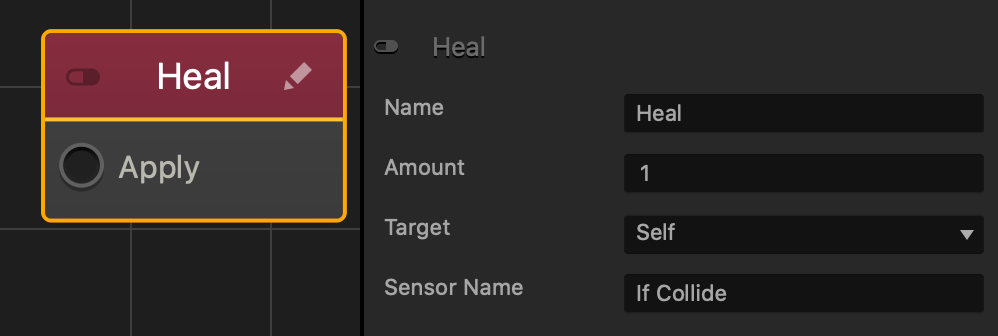
This action node increases a specified health amount of this asset or one it collides with by adding to the Health amount specified by a Health Node.

Option Description
Name Type a custom name for this node, if needed.
Amount The amount of health to increase.
Target Select where the health will be increased.

  • Self: Health will be increased to the Health node of this asset.
  • Sensor: Health that will be increased to assets specified by an If Collide node.
Sensor Name Type the name of an If Collide node to increase health to assets specified by the If Collide node.

If needed, you can also customize this node. For details, see Customizing Nodes.

Damage Node – Buildbox 3 Manual

By |

Damage Node

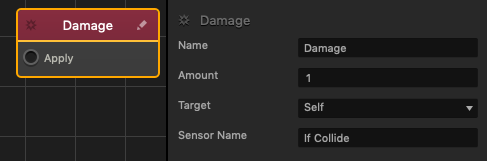
This action node applies damage to this asset or one it collides with by subtracting from the Health amount specified by a Health Node. For a use case example, see Health, Damage, and Defeat.

Option Description
Name Type a custom name for this node, if needed.
Amount The total Hit Points of an asset, and the amount of damage an asset can receive before being defeated.
Target Select where the damage will be applied.

  • Self: Damage will applied to this asset.
  • Sensor: Damage will be applied to assets specified by an If Collide node.
Sensor Name Type the name of an If Collide node to apply damage to assets specified by the If Collide node.

If needed, you can also customize this node. For details, see Customizing Nodes.

Sprite Editor – Buildbox 3 Manual

By |

Sprite Editor

The Sprite Editor allows you to view all images added to the project and edit the basic attributes of individual images.

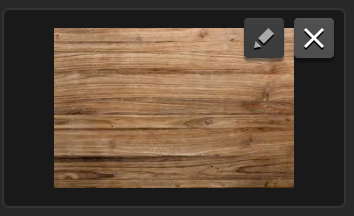
To access this editor, click the Edit icon in the top-right corner of any image field in the Options panel, for example, with asset attributes.
     

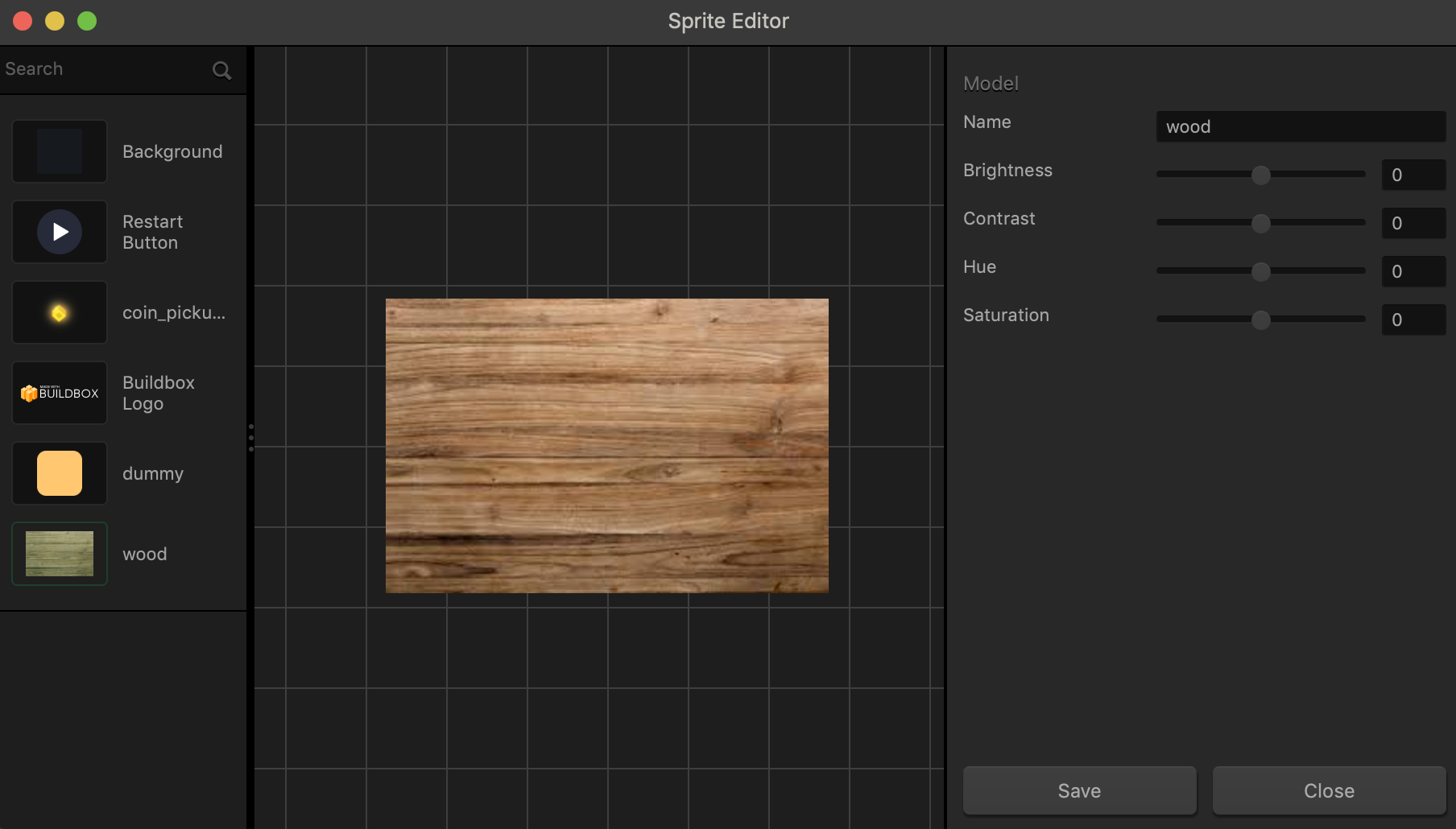
The Sprite Editor appears with all sprites added to the project listed in the panel on the left.
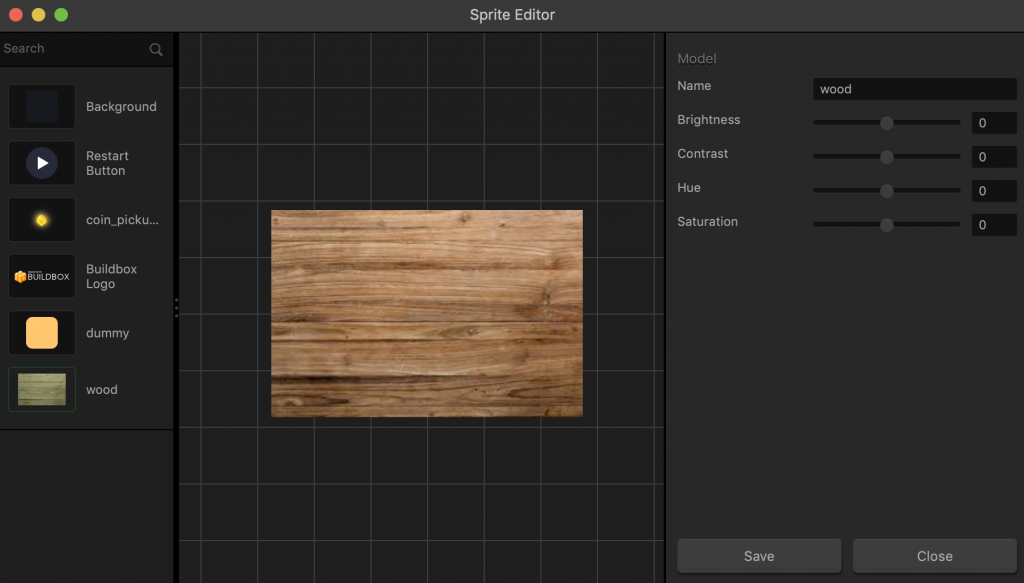
You can use the Search field at the top of the Sprite panel to find the image you want to edit. If there was an image already selected in the options panel, it will be automatically selected.

Editing Sprite Image Attributes

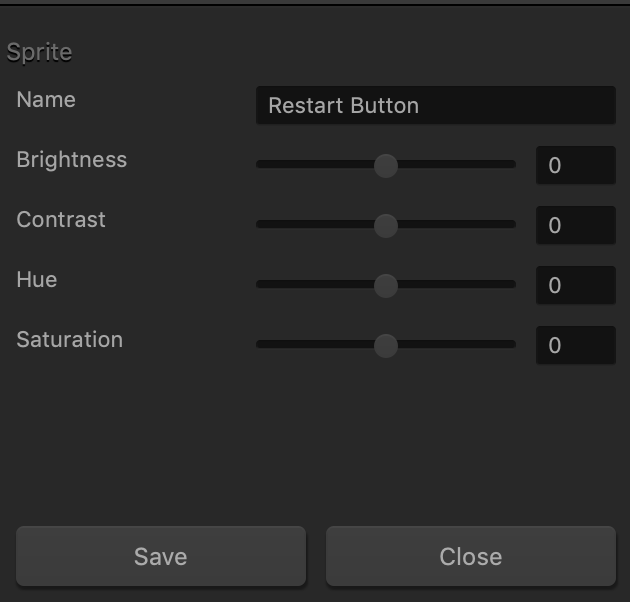
In the Sprite Editor, you can edit the image name and image properties, such as brightness, contrast, hue, and saturation. To edit the sprite file attributes, select the image in the Atlas Editor.

Select the sprite image you want to edit, update its attributes in the Options panel on the right, and click Save.
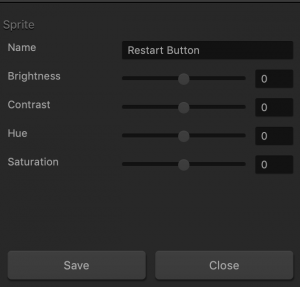
While previewing the image on in the Editor, drag each slider to achieve the desired effect or enter a numeric value on the right.

Option Description
Name Enter a custom name for the image, if needed.
Brightness How much white (or black) is mixed in the color.
Contrast The difference in luminance or color that makes the image distinguishable.
Hue The mixture of the primary colors: red, green and blue.
Saturation Indicates the amount of grey in a color.
Save Click this button to save your changes.
Close Click this button to discard your changes and close the Sprite Editor.

Deleting Sprite Images

There are several locations from which you can delete an image:

  • To delete an image from a field in the Options panel, click the x icon.
  • To delete an image from the Sprite Editor list that is no longer in use, you need to optimize the atlas. See Atlas Options.

Keyboard Control Nodes – Buildbox 3 Manual

By |

Keyboard Control Nodes

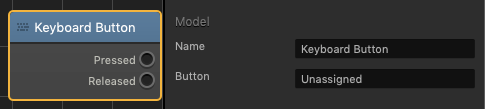
Keyboard Button

This control node assigns a button on the keyboard to activate any connected nodes.

Option Description
Name Type a custom name for this node, if needed.
Button To assign a button, click the field then press the desired button on the keyboard.

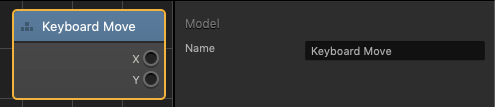
Keyboard Move

This control node allows the WASD and Arrow keyboard buttons to enable any connected nodes. The X output will be activated when A,D, Left Arrow, or Right Arrow are pressed. The Y output will be activated when W, S, Up Arrow, or Down Arrow are pressed.

Option Description
Name  Creates a custom name for this specific node.

Float Node – Buildbox 3 Manual

By |

Float Node

This movement node allows the player to keep an asset afloat before and prevent it from falling to ground level.

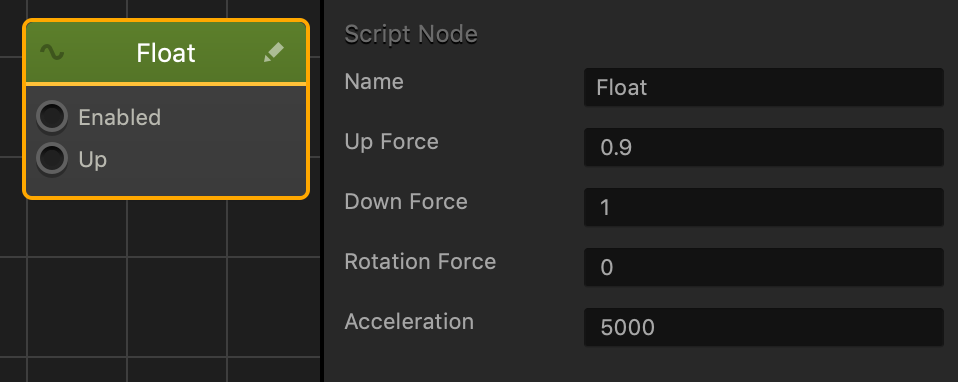
When this node is enabled, the asset will begin to fall until it reached 0 in the Y axis of the scene. To allow players to move the asset up and keep it afloat, connect the desired node to the Up input.

Option Description
Name Type a custom name for this node, if needed.
Up Force Enter a numeric value to determine how far the player can make the asset move up.
Down Force Enter a numeric value to determine how fast the asset will move down to ground level.
Rotation Force Enter the degree amount to determine how much the asset rotates when moving up and down.
Acceleration Enter a numeric value to determine how quickly the asset will move up.

If needed, you can also customize this node. For details, see Customizing Nodes.

Light Sun Options – Buildbox 3 Manual

By |

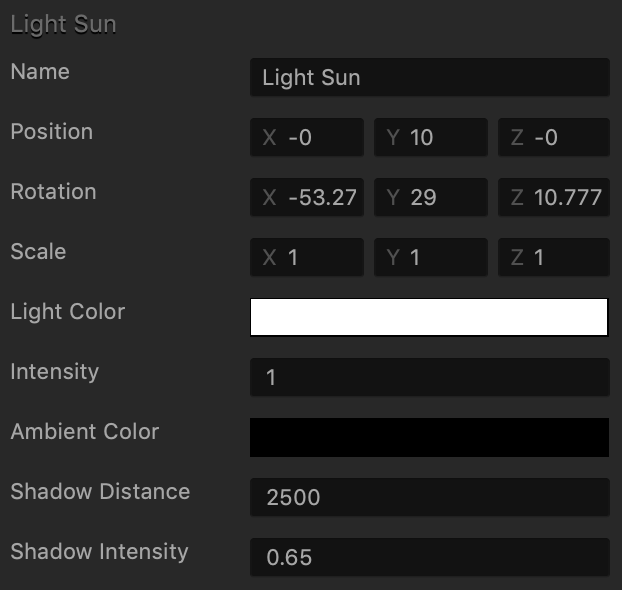
Light Sun Attributes

The Light Sun is the main source of light in every scene. To view the light sun attributes in the Options panel, inside a World, click the light sun in the Scene Editor or select it in the Outliner.

You may also watch the Light Sun video.
Option Description
Name Change the name of the light object, only if needed.
Position Enter the appropriate numeric values for each axis to define the location of the light. Alternatively, drag the arrow axis handles to the desired location in the Scene Editor. If needed, for details, see Tools.
Rotation Enter the appropriate numeric values for each axis to define the angle of the light. Alternatively, click the Rotation Tool button and drag the circle axis handles to set the desired angle for the light in the Scene Editor. If needed, for details, see Tools.
Scale Enter the appropriate numeric values for each axis to define the size of the light. Alternatively, click the Scale Tool button and drag the cube axis handles to set the desired size for the light in the Scene Editor. If needed, for details, see Tools.
Light Color Click this field, select the desired color from the several options provided in the Colors window, and click OK.
Intensity Enter a numeric to specify the strength or amount of light produced by the light source. The higher the number, the more light will be shed.
Ambient Color Click this field, select the desired color from the several options provided in the Colors window, and click OK.
Shadow Distance Enter a numeric value to specify the distance from the Path Anchor to the end of where shadows are being drawn. Beyond this distance, shadows will not show up.
Shadow Intensity Enter a decimal from 0 to 3 to specify how dark you want the shadow to be.

UI Options – Buildbox 3 Manual

By |

UI Node Attributes

To view the UI node attributes in the Options panel, click a green UI node on the Mind Map.

Option Description
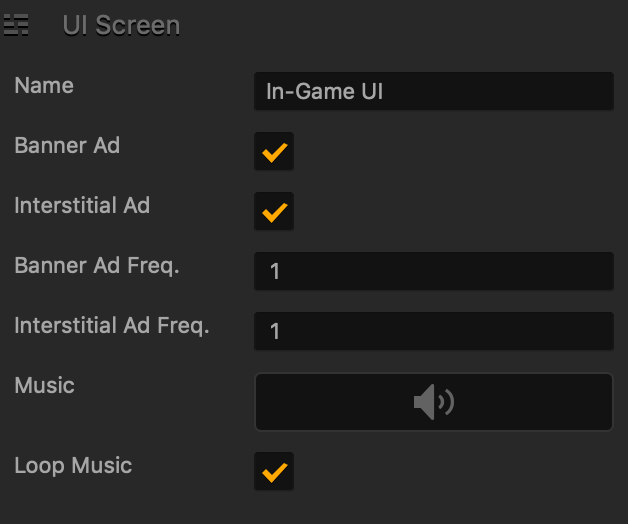
Name Change the name of the selected node that represents a UI screen, for example, Game Over. The name will be updated in the Outliner, on the Mind Map, and on the Navigation bar.

Don’t leave this field blank, as you may find it hard to identify this node or distinguish it from other items in your project.
Ad Banner Select to allow banner ads to appear at the bottom of the selected screen. For details, see Ad Monetization.
Ad Interstitial Select to allow full-screen interstitial ads to appear on the selected screen. For details, see Ad Monetization.
Ad Banner Frequency Define the frequency for the banner, if you have selected one. Enter the number of times you want the ad to appear on the screen whenever it is displayed. If you enter a 0, no ads will be displayed.
Ad Interstitial Frequency Define the frequency for the interstitial ad, if you have selected one. Enter the number of times you want the ad to appear on the screen whenever it is displayed. If you enter a 0, no ads will be displayed.
Music Drag an MP3 file that you want to play when your game starts or when this UI screen is displayed.  See also Add Music and Sound Effects.
Loop Music Select to set the music to play continuously. If you clear the checkbox, the music will play once and stop.

UI Outliner – Buildbox 3 Manual

By |

 UI Outliner

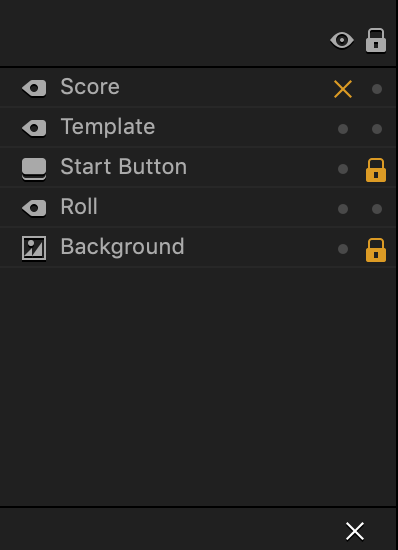
The Outliner panel in the UI workspace provides an outline of the contents of the selected UI. It lists all the assets you have in the current UI, which may include UI elements like buttons, logic, and text labels.

You can lock, hide, add, or delete items in the current UI by making the corresponding selections for each item in the Outliner.

Here’s what you can do in the Outliner:

  • To see the properties of an object, select it in the Outliner and view or edit them in the Options panel.
  • To hide an asset from the scene, click the option in the Show/Hide column.
    The asset will be marked with an x next to it. You won’t be able to see, move, or edit the asset while it’s hidden.
  • To lock an asset’s current position in the scene to avoid accidentally selecting, moving, or deleting it while you edit your scene, click the option in the Lock column.
    The asset will be marked with a lock next to it.
  • To delete an asset, select it in the Outliner and click the X button at the bottom or press the Delete key.
  • To add an asset to the Outliner, drag the asset from the Asset Panel.
  • To rename a newly added asset, for example, a text label, select it in the Outliner and enter a new name in the Options panel.

Event Observer – Buildbox 3 Manual

By |

Event Observer

Event Observer is an asset that is typically used in a Game UI overlay to watch and respond to game events and user actions by loading another World or displaying another UI screen.

It is located in the Logic section of the Asset panel in the UI node workspace. For details on adding an Event Observer to the UI, see Add Event Observer. For attribute details, see the table below.

There’s also an Event Observer node that you can add to individual assets in the game.

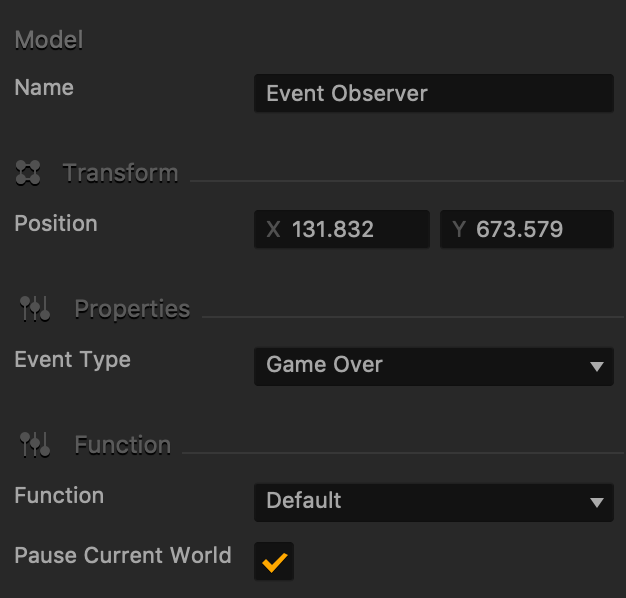
Event Observer Attributes

When you select the Event Observer in the UI Editor, its attributes appear in the Options panel on the right.

Option Description
Name Enter a custom name for the Event Observer that reflects the type of events that would trigger its response, for example, Game Over.

This name will be displayed in the Outliner and on the output in the corresponding UI node on the Mind Map.

Position Enter a numeric value for each axis to specify the location of the Event Observer icon.

Alternatively, drag the icon directly in the UI Editor and position it in the desired location, typically outside the UI screen.
Event Type Select an event that should trigger a response from the Event Observer:

Game Over The player’s game session is over.
Session Points The player has collected the required number of points during the session.
Session Coins The player has collected the required number of coins during the session.
Total Points The player has collected the required total number of points throughout the game.
Best Points The player has collected the required number of best points.
Best Coins The player has collected the required number of best coins.
Last Scene The player has reached the last scene in the current World.
Redirect Moves the user to another World or UI based after the user plays the current UI the number of times specified in the Plays Before Redirect field below.
Request Review Requests a game review on mobile devices after the user plays the current UI the number of times specified in the Plays Before Redirect field below.
Time Out The player has been inactive during a game session for a specified period of time.
Make sure to connect the Event Observer to the appropriate World or UI on the Mind Map.
Session Total This field appears if an event having to do with points or coins is selected in the Event Type field.

Enter the number of points or coins that the player must collect to trigger the Event Observer.

Plays Before Redirect Enter the number of times the player can play before being redirected to the next UI or World or presented with a game review request. See the Redirect and Request Review options in the Event Type list above.
Time Enter the time (in seconds) of inactivity during the game after which the Time Out event is triggered.
Function Select how the new World or UI screen should be loaded when the selected event occurs and the Event observer is triggered:

  • Default—load World or UI at the beginning.
  • Start Checkpoint—load World at the point where a player may restart if their character is killed or they lose the game.
Pause Current World Select to pause the current world when the selected event occurs and the Event Observer is triggered.

Make sure to provide a button or another option in the UI to let the user resume the game.