Camera Options – Buildbox 3 Manual

By |

Camera Attributes

The camera is one of the most important elements in a 3D game. It acts as the player’s eyes, letting them see the game world from different viewpoints. In Buildbox, the camera is typically located behind and above the player and rotates around the character as it turns.

There are several important Follow camera attributes, such as Follow Position, Rotation, Offset, and others, that you need to define to make the camera move around as desired in your game.

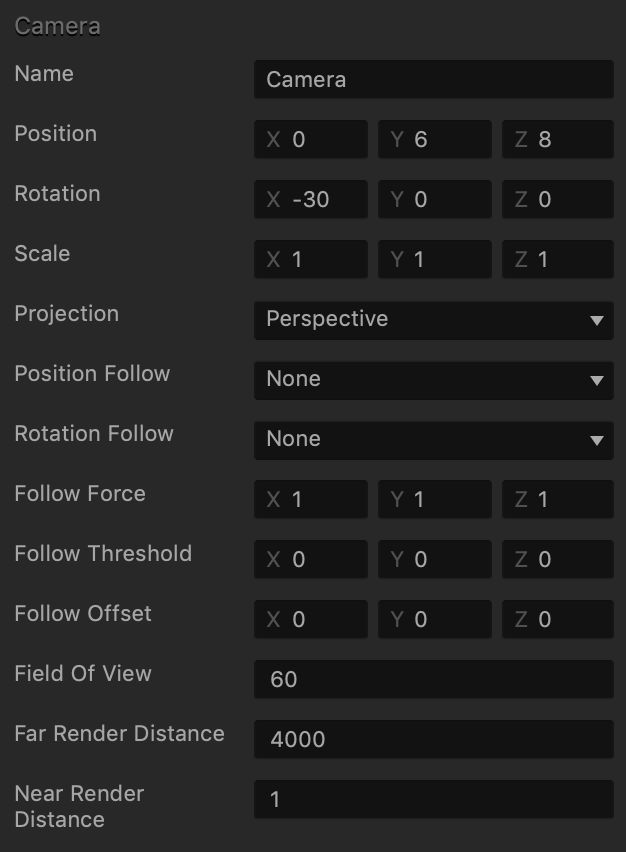
To view the camera attributes in the Options panel, inside a World, click the camera in the Scene Editor or select it in the Outliner.
Option Description
Name Change the name of the camera object, only if needed.
Position Enter the appropriate numeric values for each axis to define the location of the camera. Alternatively, drag the arrow axis handles to the desired location in the Scene Editor. If needed, for details, see Tools.
Rotation Enter the appropriate numeric values for each axis to define the angle of the camera. Alternatively, click the Rotation Tool button and drag the circle axis handles to set the desired angle for the camera in the Scene Editor. If needed, for details, see Tools.
Scale Enter the appropriate numeric values for each axis to define the size of the camera. Alternatively, click the Scale Tool button and drag the cube axis handles to set the desired size for the camera in the Scene Editor. If needed, for details, see Tools.
Projection Select the type of view you want players to see in the game.

  • Perspective (default for 3D games) projection—the camera will render objects the way they appear in the real world, that is, with far-away objects appearing smaller than those nearby.
  • Orthogonal projection—the camera will render all objects at the same scale, with no sense of depth.
Position Follow Select which object you want the camera to follow in the game:

  • None (the camera will remain stationary)
  • Game Path—the camera will follow the path specified by the Start and End Points.
  • Character—the camera will follow a character asset.
Rotation Follow Select which object’s rotation you want the camera to match in the game:

  • None
  • Game Path—the camera will match the rotation of the game path along all three axes.
  • Game Path Horizontal—the camera will match the rotation of the game path only on the X axis. In other words, the camera will not roll up and down. It will rotate sideways only (or twist).
  • Character—the camera will rotate so that it is always facing the character.
Follow Force Enter a numeric value from 0 to 1 to specify how fast you want the camera to follow its target object (selected in the Position Follow field) along each axis, with 1 indicating 100%.
Follow Threshold Follow threshold is an invisible boundary that defines a distance within which the character can move around without being followed by the camera. As soon as the character crosses the threshold, the camera will start following it again.

Enter a numeric value to specify the follow threshold for the camera.

Follow Offset Enter a numeric value for each axis to specify the distance between the camera and its target object, which should be kept during the game.
Field of View Specify the extent of the observable game world that the player can see on the screen during the game. The higher the number, the farther away is the camera, and the larger is its field of view.

This is not the same as the camera view. To see the camera view, click the Camera button on the Scene Editor toolbar and see how it changes as you enter different values in this field. See also Change the Game Camera View.
Far Render Distance

Near Render Distance

Specify the maximum and minimum distance of objects in a 3D scene that are drawn by the rendering engine to balance performance and visuals. See also the Editor settings for the project.

Touch Rotate Node – Buildbox 3 Manual

By |

Touch Rotate Node

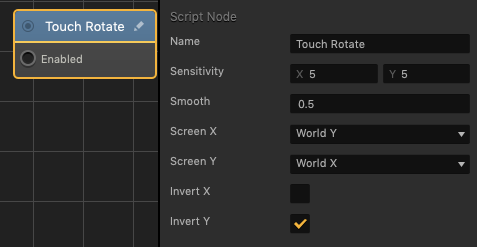
This control node allows the player to change the rotation of the asset by dragging a finger or mouse across the screen.

Option Description
Name Type a custom name for this node, if needed.
Sensitivity How fast or slow the asset will rotate. The higher is the value, the faster is the rotation. To affect the sensitivity along:

  • The horizontal axis, enter a value in the X axis.
  • The vertical axis, enter a value in the Y axis.
Smooth Enter a decimal from 0 to 1 to determine how smooth the rotation will be, 1 being 100%.
Screen X Select an axis of the World that will be affected when the screen is dragged along the horizontal axis.
Scale Y Select an axis of the World that will be affected when the screen is dragged along the vertical axis.
Invert X Select this checkbox to invert how the asset is rotated along the horizontal axis.
Invert Y Select this checkbox to invert how the asset is rotated along the vertical axis.

If needed, you can also customize this node. For details, see Customizing Nodes.

Trail Node – Buildbox 3 Manual

By |

Trail Node

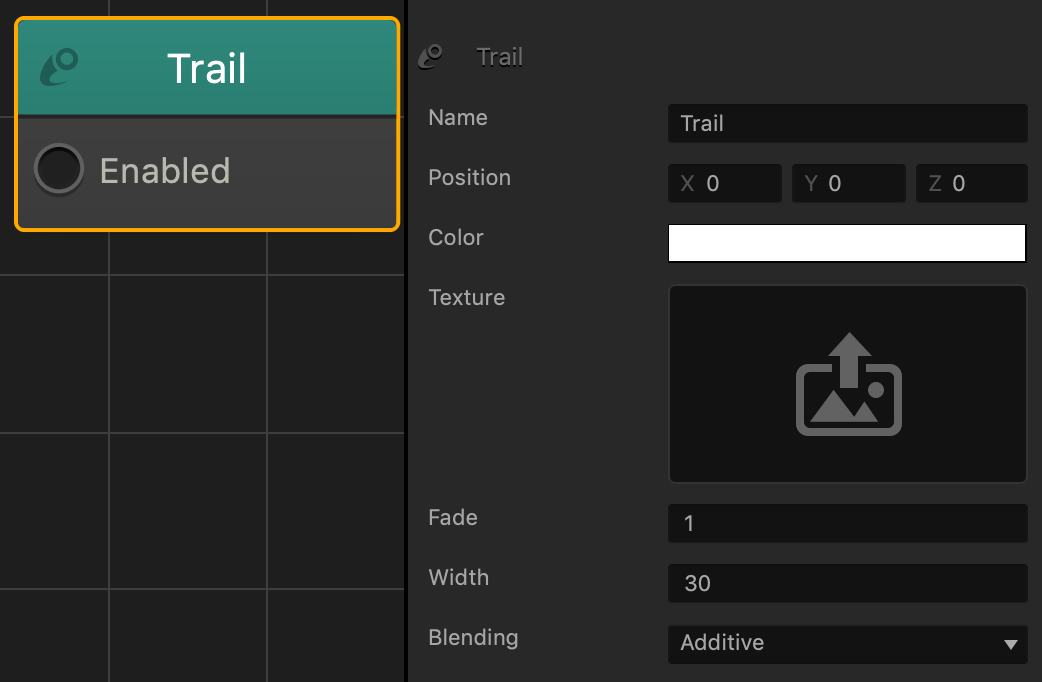
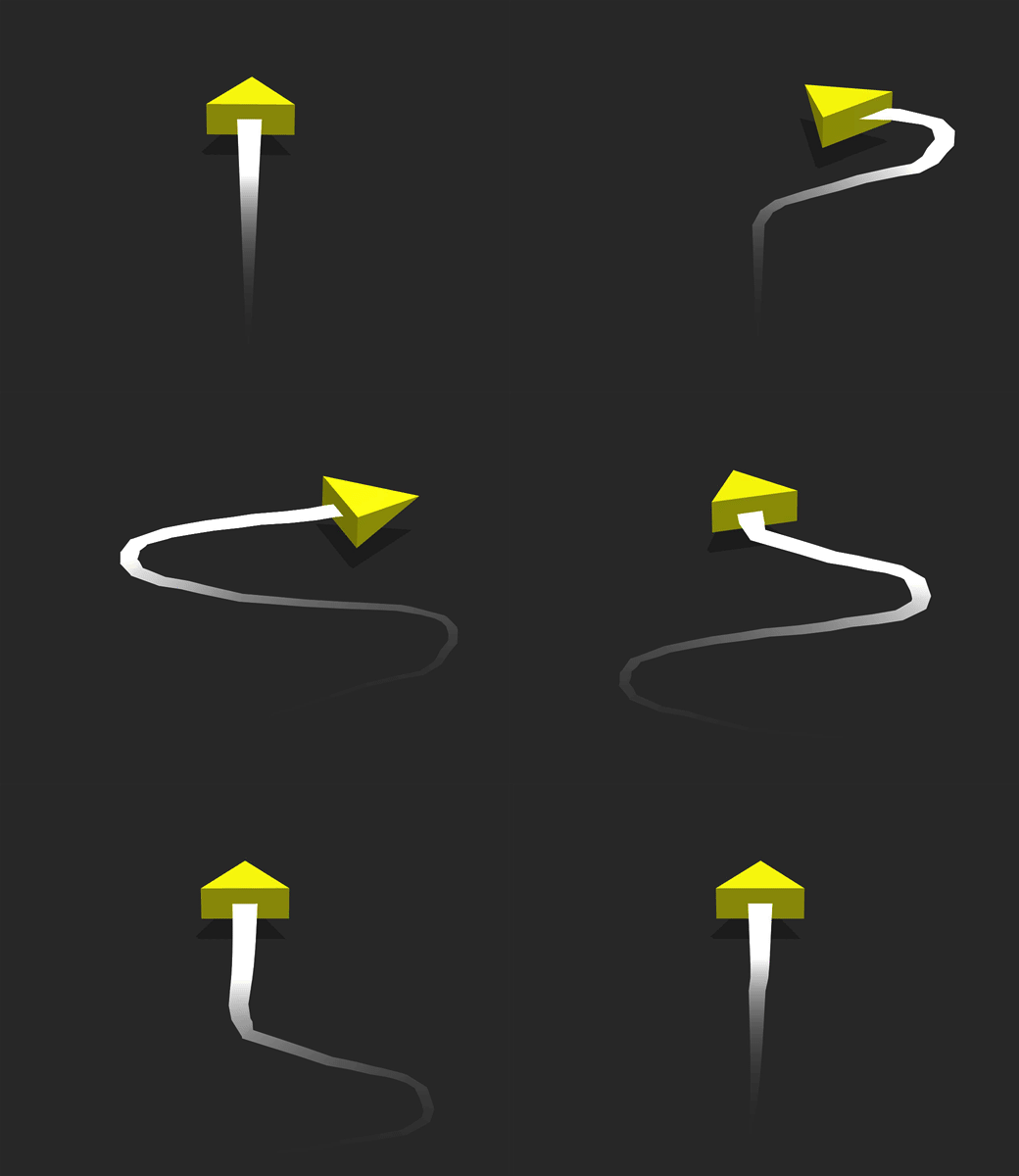
This content node creates a trail that traces along the asset’s movement path in a scene.

Option Description
Name Type a custom name for this node, if needed.
Position Enter numeric values to change the starting point location of the trail in relation to the asset that it is attached to.

For example, with the value of 4 on the Y axis, the starting point of the trail will be above the asset.

Color This attribute allows you to add a color overlay to the trail image.

To add a color overlay, click the field, and in the Colors window, select a color and click OK.

Texture To apply an image to the trail, drag a PNG file here.

You must upload an image, otherwise no trail will be shown in the game.
Fade Enter the number of seconds for the trail image to be displayed for before disappearing.
Width To change the width of the 2D sprite, enter a different value.
Blending Click the drop-down list to select the type of blending to be applied, if any.

Trail Brainbox – Buildbox 3 Manual

By |

Trail Brainbox

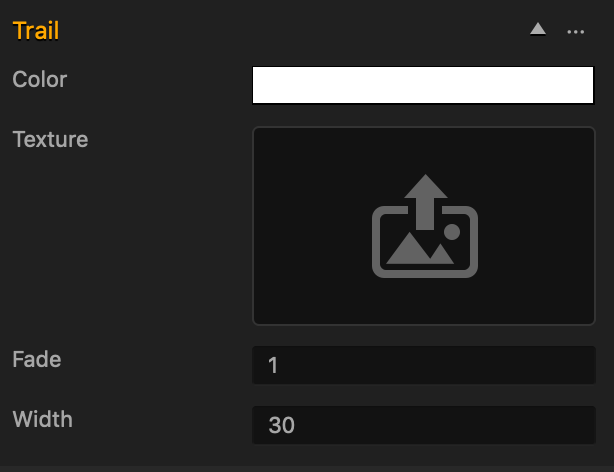
This physics Brainbox creates a trail that traces along the asset’s movement path in a scene.

Brainbox Attributes

Attribute Description
Color To change the color of the trail, click the field and in the Colors window, choose a color.
Texture
  • To add a new image to the trail, drag a JPG or PNG file from your computer into the field.
  • To add a previous uploaded image to the trail, in the field , click the Edit button, and in the Sprite Editor, choose an image and click Save.
Fade Enter the amount of seconds you want the trail to remain visible before it starts to fade.

For example, a value of 5 allows the trail to remain completely visible and grow longer for 5 seconds before fading.

Width Enter a numeric value to specify the horizontal size of the trail.

Nodes in Brainbox group

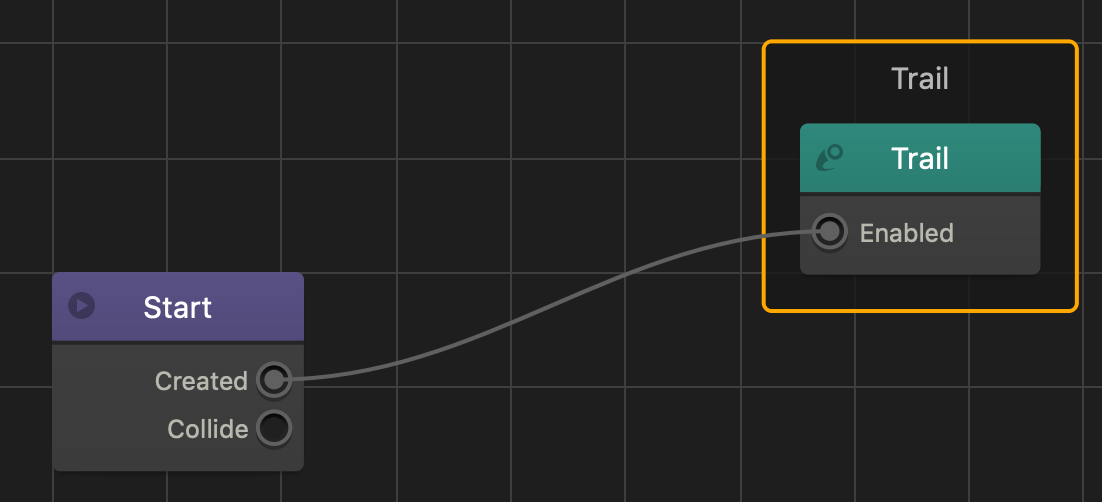
After you add this Brainbox to an asset, a Trail node is added to the Node Map.

UI Buttons – Buildbox 3 Manual

By |

UI Buttons

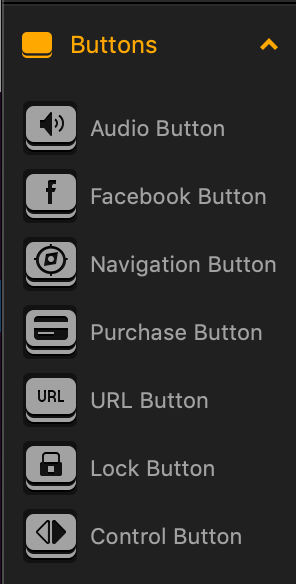
There are six buttons that you can add to a UI screen in the UI workspace.

To add a button, drag it from the Asset panel to the desired location on the screen in the UI Editor and define its properties in the Options panel on the right.

You need to have an icon image ready for each button you want to add so that it can be displayed on the screen.
Button Icon Description
Audio Turns the sound on and off in the game.
Facebook Creates a like for the logged in user, in their Facebook account.
Navigation Depending on the function you select for the button, creates a Pause, Back, Restart, Reset Settings, or any other button on the screen.
Purchase Allows the player to purchase items typically found in a game shop screen or elsewhere in your game.
URL Opens a web page specified by the URL.
Lock Appears as an inactive button that needs to be unlocked by purchase, game progress, or other player actions.
Control Allows you to create a UI button that you can use as a control node. See also Add a Control Button in the UI.

Scene Editor – Buildbox 3 Manual

By |

Scene Editor

To access the Scene Editor, double-click a purple 3D World node on the Mind Map or click the Edit icon in the top right corner of the node.

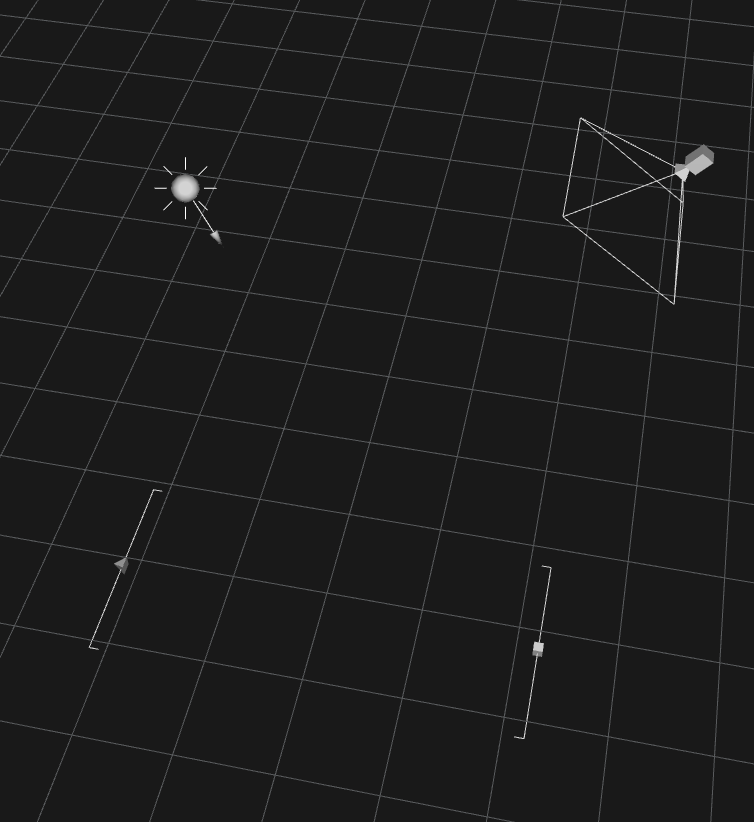
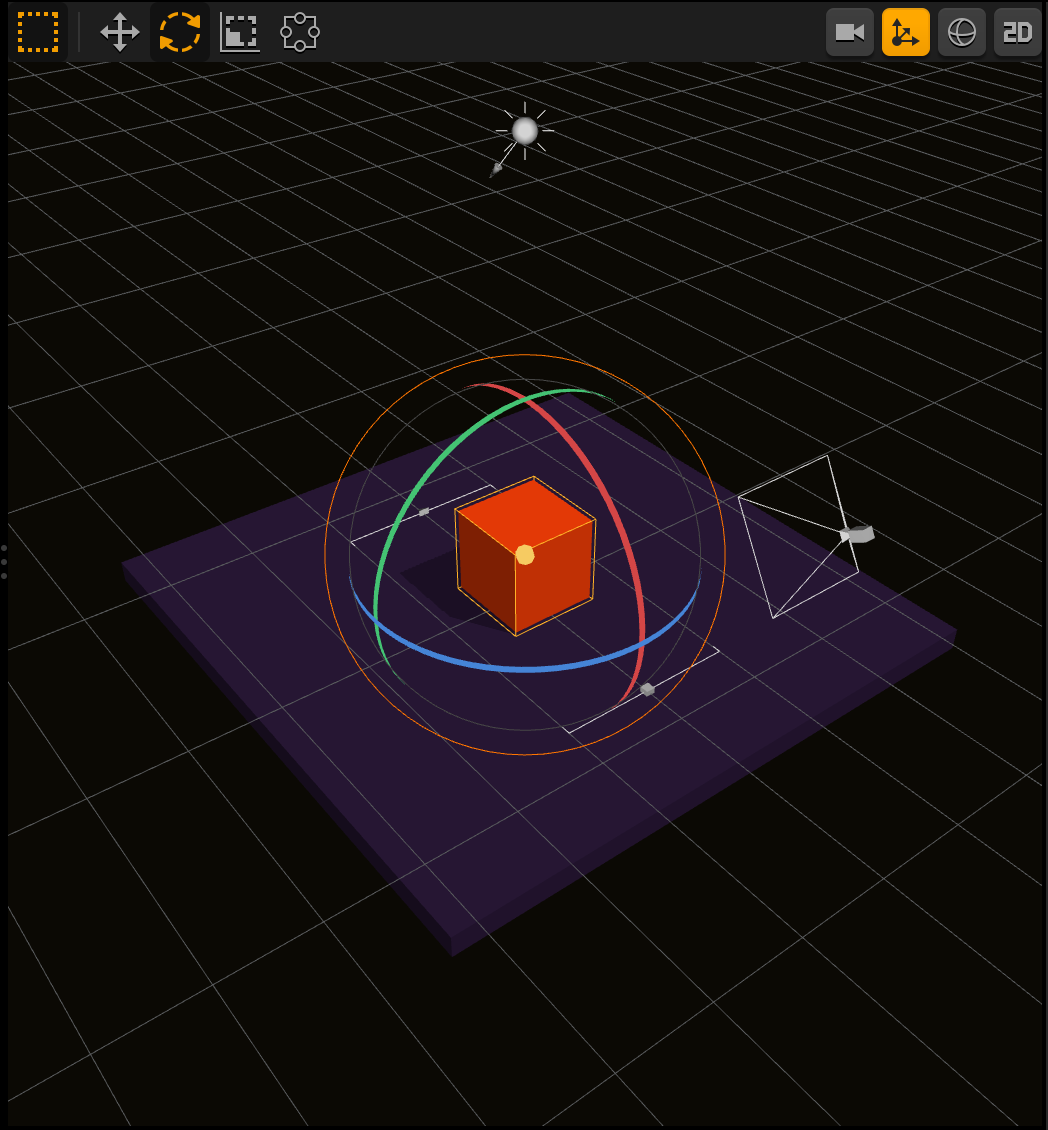
This editor allows you to add assets and lights to a scene as well as adjust the game path and camera. By default, every scene includes a camera, a source of light, and a set of start and end points of the current scene.

There are several important Follow camera attributes, such as Follow Position, Rotation, Offset, and others, that you need to define to make the camera move around as desired in your game. For details, see Camera Attributes.

You may also watch the Light Sun and the Camera View videos.

Navigating in the Scene Editor

To zoom or change the 3D view in the Scene Editor, you can use the View options on the Buildbox Menu Bar, which also include a special set of View options available only in the Scene Editor or the keyboard shortcuts below.

Standard Navigation

The controls below allow you to rotate and pan the view around the scene.

Shortcut Keys Description
Spacebar + Left-click + Drag Move your view in any direction.
Spacebar+ Right-click + Drag Rotate your view in any angle
Scroll up Zoom your view in
Scroll Down Zoom your view out.
F Center your view on the selected object
Fly Navigation

The controls below allow you to point your view in any direction, as well as control the movements of your camera with your keyboard.

Right-click + Description
+ Drag Look around the scene
+ W Move your view into the direction you are currently facing.
+ A Move your view to the left
+ S Move your view backward
+ D Move your view to the Right
+ Q Move your view Up
+ E Move your view Down

Working in the Scene Editor

  • To add scenes, click Add in the Scene Selector at the bottom or duplicate an existing ones.
  • To add assets, drag them from the Asset panel on the left.

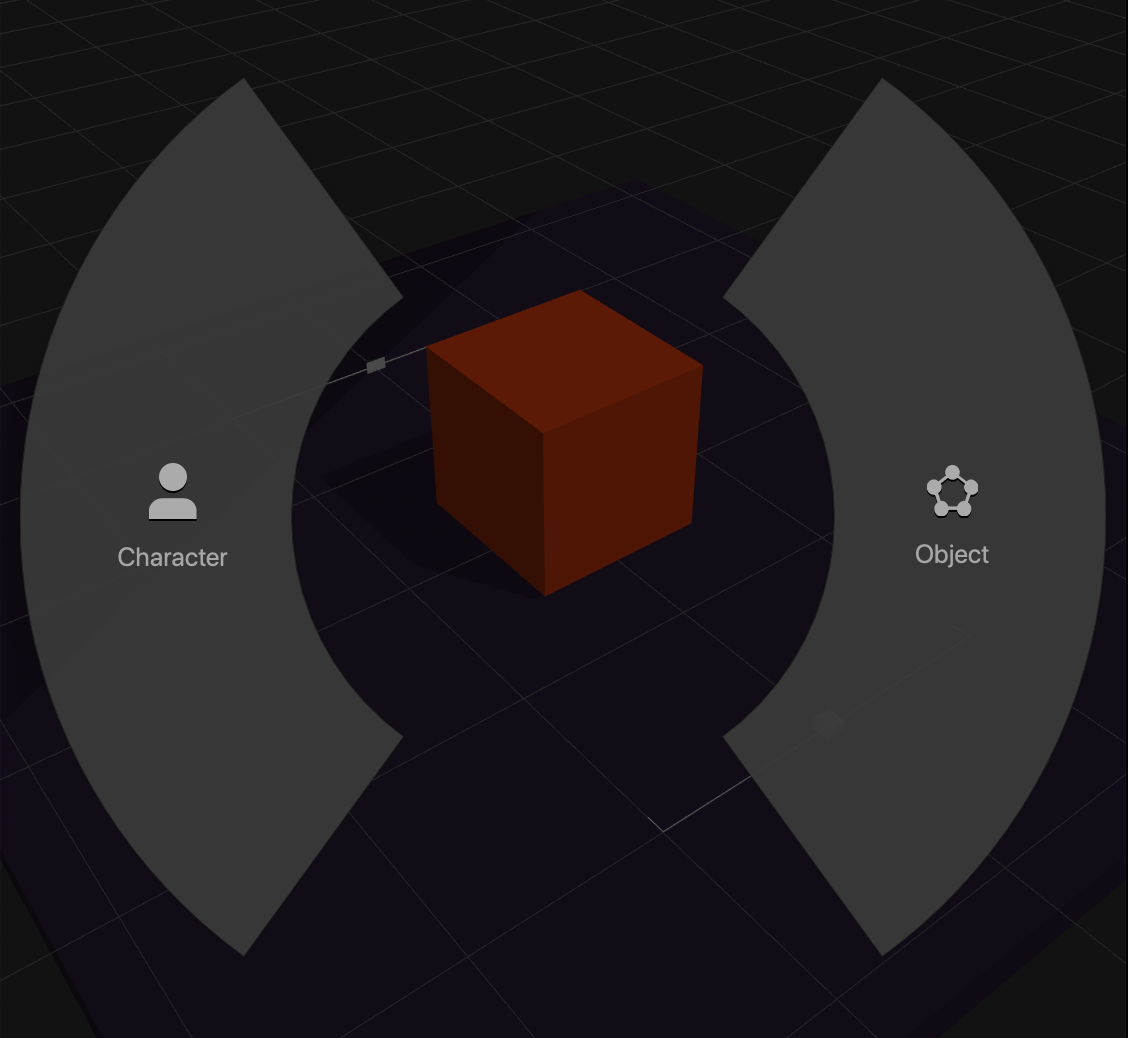
    If you drag an outside file to the Editor, for example, with an image you want to add to the scene, a Drop Wheel appears that allows you to set the new asset as a character or an object.
Depending on your zoom level and other settings, you may not always see all the objects in the scene. To check what’s added to the current scene, look at the list in the Outliner. To see more of the current scene, you may also change the Render Distance settings on the Editor tab of the Project Settings.
  • To delete an object from a scene, select and press Delete on the keyboard.
  • To duplicate an object, press D on the keyboard.
  • To modify or view the camera, light, or other object attributes, select the object and use the respective Options panel.
  • To move or resize objects, you can manipulate them directly on the grid using the axis handles or enter the appropriate numeric values in the corresponding entity attributes in the Options panel. You can also use the position, rotation, scale, and other tools at the top. For details, see Tools.
  • To change the camera view or to open the Collision Shape Editor, use the toolbar buttons at the top. For details, see Toolbar Buttons.

UI – API Reference

By |

Ui

Function Description
camera()

Returns the Ui’s Camera object. The Ui has an independent camera from the 3D world it’s attached to. It’s recommended to only use the Ui’s Camera for things like screenToWorld() (See the Camera API for more info).

create(name, parent)

Create a new Entity within the Ui based on the given asset name. A parent entity can be passed optionally.

find(name)

Returns the array of Entities, Buttons, or Images with the specified name.

playBackgroundMusic()

Plays the background music of this Ui.

stopBackgroundMusic()

Stops playing the background music of this Ui.


camera()

Returns the Ui’s Camera object. The Ui has an independent camera from the 3D world it’s attached to. It’s recommended to only use the Ui’s Camera for things like screenToWorld() (See the Camera API for more info).

Returns

Camera the Ui’s Camera object

↑ Back to top


create(name, parent)

Create a new Entity within the Ui based on the given asset name. A parent entity can be passed optionally.

Parameters

string name – the asset the new Entity should contain
Entity parent (optional) the parent of the newly created Entity

↑ Back to top


find(name)

Returns the array of Entities, Buttons, or Images with the specified name.

Parameters

string name – the name of the objects you wish to find

Returns

array the array of Ui objects with the specified name

↑ Back to top


playBackgroundMusic()

Plays the background music of this Ui.

↑ Back to top


stopBackgroundMusic()

Stops playing the background music of this Ui.

↑ Back to top

Did you find this page useful?

Please give it a rating:

Please provide some feedback!

This is very helpful to us.

Tell us how we can improve this post?

Spot Light – API Reference

By |

Spot Light

The Spot Light is a way to add additional light sources to your game.

the sp

Function Description
color()

Returns the color of the Light in RGB (Red, Green, Blue) format.

cutOffAngle()

Returns the cutoff angle of the Spot Light, in degrees.

intensity()

Returns the intensity of the Light.

isRemoved() Returns true if the Light is removed, false if not.
isVisible()

Returns true if the light is visible, false if not.

position()

Returns the Light’s position coordinates relative to its parent.

range()

Returns the range of the Light.

remove()

Remove the light from the Scene.

rotation()

Returns the rotation of the Light in degrees.

rotationQuat()

Returns the rotation of the Light in quaternion.

setColor(color)

Sets the color of the Light.

setCutOffAngle(value)

Sets the cutoff angle of the Light, in degrees. This changes how wide or narrow the Spot Light is.

setIntensity(value)

Sets the intensity of the Light.

setPosition(x, y, z)

Sets the new position relative to the Light’s parent. If the Light has no parent, this sets the world position of the Light.

setRange(value)

Sets the range of the Light.

setRotation(x, y, z)

Sets the rotation value of the Light, in degrees.

setRotationQuat(value)

Sets rotation value in Quaternion.

setVisible(value)

Sets the visibility of the Light; true if the Light is visible, false if not.

setWorldPosition()

Sets the Light’s position coordinates in the world (absolute position).

worldPosition()

Returns the Light’s position coordinates in the world (absolute position).


color()

Returns the Light’s color in RGB (Red, Green, Blue) format. The minimum value is 0 and the maximum is 1 (think of it as the 0-255 scale divided by 255). For example, {r:0, g:0, b:0} is black and {r:1, g:1, b:1} is white.

Returns

Vec3 {x, y, z} color pigment of the Light.

let light = this.scene().findFirst("Spot Light");
log(light.color().x); // result: the red component of the light's color.

↑ Back to top


cutOffAngle()

Returns the cutoff angle of the Spot Light, in degrees.

Returns

number the cutoff angle of the Spot Light


intensity()

Returns the intensity of the Light.

Returns

number The intensity of the Light. Range is 0-1000.

↑ Back to top


isRemoved()

Returns if the Light is removed.

Returns

boolean true if the Light is removed, false if the Light is not.

↑ Back to top


isVisible()

Returns if the Light is visible.

Returns

boolean true if the Light is visible, false if the Light is not.

↑ Back to top


position()

Returns the Light’s position relative to its parent. If the Light has no parent, the result of this function will be no different than worldPosition.

Returns

Vec3 {x, y, z} relative coordinates of the Light.

↑ Back to top


range()

Returns the range of the Light. The range is how far the light reaches.

Returns

Number The range of the Light.

↑ Back to top


remove()

Remove the Light from the Scene.

↑ Back to top


rotation()

Returns the rotation of the Light in degrees.

Returns

Vec3 The {x, y, z} rotation value of the Light, in degrees.

↑ Back to top


rotationQuat()

Returns the rotation of the Light in Quaternion.

Returns

Quaternion The rotation value in Quaternion.

↑ Back to top


setColor(color)

Sets the color of the Light. Expected range of {r, g, b} is 0-1.

Parameters

Vec3 color – the {r, g, b} color

↑ Back to top


setCutOffAngle(value)

Sets the cutoff angle of the Light, in degrees. This changes how wide or narrow the Spot light is.

Parameters

number value – the cutoff angle to be used

↑ Back to top


setIntensity(value)

Sets the intensity of the Light.

Parameters

Number value – the intensity of the Light, ranging from 0-1000.

↑ Back to top


setPosition(x, y, z)

Sets the new position relative to the Light’s parent. If the Light has no parent, this sets the world position of the Light.

Parameters

number x – X coordinate in 3D space
number y – Y coordinate in 3D space
number z – Z coordinate in 3D space

↑ Back to top


setRange(value)

Sets the range of the Light.

Parameters

Number value – the range of the Light

↑ Back to top


setRotation(x, y, z)

Sets the rotation value of the Light, in degrees.

Parameters

number x – the X rotation of the Light
number y – the Y rotation of the Light
number z – the Z rotation of the Light

↑ Back to top


setRotationQuat(value)

Sets rotation value in Quaternion.

Parameters

Quaternion value – The Quaternion rotation value to be set

↑ Back to top


setVisible(value)

Sets the visibility of the Light; true if the Light is visible, false if not.

Parameters

boolean value – the visibility of the Light.

↑ Back to top


setWorldPosition(value)

Sets the Light’s position coordinates in the world (absolute position).

Parameters

Vec3 value – the {x, y, z} absolute position of the Light.

↑ Back to top


worldPosition()

Returns the Light’s position coordinates in the world (absolute position).

Returns

Vec3 the {x, y, z} world coordinates of the Light

let pos = this.scene().find("Spot Light")[0].worldPosition();
log('X World Position = ' + pos.x);

↑ Back to top

Did you find this page useful?

Please give it a rating:

Please provide some feedback!

This is very helpful to us.

Tell us how we can improve this post?

Sun – API Reference

By |

Sun

The Sun is a light source that comes default in every World. It can be accessed by running this.scene().findFirst(‘Light Sun’);.

Function Description
color()

Returns the color of the Sun in RGB (Red, Green, Blue) format. The minimum value is 0 and the maximum is 1 (think of it as the 0-255 scale divided by 255). For example, {r:0, g:0, b:0} is black and {r:1, g:1, b:1} is white.

intensity()

Returns the intensity of the Sun.

rotation()

Returns the rotation of the Sun in degrees.

rotationQuat()

Returns the rotation of the Sun in Quaternion.

setColor(value)

Sets the color of the Sun. Expected range of {r, g, b} is 0-1.

setIntensity(value)

Sets the intensity of the Sun.

setRotation(value)

Sets the rotation value of the Sun, in degrees.

setRotationQuat(value)

Sets the rotation value of the Sun, in Quaternion.


color()

Returns the color of the Sun in RGB (Red, Green, Blue) format. The minimum value is 0 and the maximum is 1 (think of it as the 0-255 scale divided by 255). For example, {r:0, g:0, b:0} is black and {r:1, g:1, b:1} is white.

Returns

Vec3 the color of the Sun

↑ Back to top


intensity()

Returns the intensity of the Sun.

Returns

number the intensity of the Sun. Range is 0-1000.

↑ Back to top


rotation()

Returns the rotation of the Sun in degrees.

Returns

Vec3 the {x, y, z} rotation value of the Sun

↑ Back to top


rotationQuat()

Returns the rotation of the Sun in Quaternion.

Returns

Quaternion the Quaternion rotation value

↑ Back to top


setColor(value)

Sets the color of the Sun. Expected range of {r, g, b} is 0-1.

Parameters

Vec3 value – the {r, g, b} color

↑ Back to top


setIntensity(value)

Sets the intensity of the Sun.

Parameters

number value – the intensity of the Light, ranging from 0-1000

↑ Back to top


setRotation(value)

Sets the rotation value of the Sun, in degrees.

Parameters

Vec3 – the {x, y, z} rotation value

↑ Back to top


setRotationQuat(value)

Sets the rotation value of the Sun, in Quaternion.

Parameters

Quaternion – the Quaternion rotation value

↑ Back to top

Did you find this page useful?

Please give it a rating:

Please provide some feedback!

This is very helpful to us.

Tell us how we can improve this post?

Scene Path – API Reference

By |

Scene Path

The scene path is the path through the levels of your game. It is created using the start and end points on each level. To access your game’s Path object, use this.scene().path().

Function Description
anchorAtPosition(value)

Returns the anchor position and rotation at the given path position.

anchorPosition()

Returns the current anchor position of the path.

anchorRotationQuat()

Returns the current anchor rotation of the path in quaternion.

pathPosition()

Returns the current path position. The path position is simply how far along the path the game has moved.

pathSize()

Returns the path size.

pathTangent()

Returns the current path tangent.

positionOnPath(entity)

Takes an entity or 3D world position and returns the position along the game path.

setAutoPositionUpdate(value)

Enables/disables auto path update. If it is disabled, levels will not be created automatically along the game path.

setPathPosition(value)

Sets the current path position.


anchorAtPosition(value)

Returns the anchor position and rotation at the given path position.

Parameters

number value – the path position

Returns

Vec3 the {x, y, z} anchor position of the path at the given position

↑ Back to top


anchorPosition()

Returns the current anchor position of the path.

Returns

Vec3 the {x, y, z} anchor position of the path

↑ Back to top


anchorRotationQuat()

Returns the current anchor rotation of the path in quaternion.

Returns

quaternion the anchor rotation of the path

↑ Back to top


pathPosition()

Returns the current path position. The path position is simply how far along the path the game has moved.

Returns

number the current position along the path

↑ Back to top


pathSize()

Returns the path size.

Returns

Vec2 the {x, y} path size

↑ Back to top


pathTangent()

Returns the current path tangent.

Returns

Vec3 the {x, y, z} current path tangent

↑ Back to top


positionOnPath(entity)

Takes an entity or 3D world position and returns the position along the game path.

Parameters

Entity entity – the entity to find the game path position of or Vec3 pos a 3D world position

Returns

number the position on the game path of the given entity or 3D world position

↑ Back to top


setAutoPositionUpdate(value)

Enables/disables auto path update. If it is disabled, levels will not be created automatically along the game path.

Parameters

boolean value – true to enable auto position update, false to disable

↑ Back to top


setPathPosition(value)

Sets the current path position.

Parameters

number value – the new path position

↑ Back to top

Did you find this page useful?

Please give it a rating:

Please provide some feedback!

This is very helpful to us.

Tell us how we can improve this post?