Health Brainbox – Buildbox 3 Manual

By |

Health Brainbox

This Brainbox adds health to an asset, making it damaged when it collides with other assets. If the asset is defeated, this brainbox ends the game.
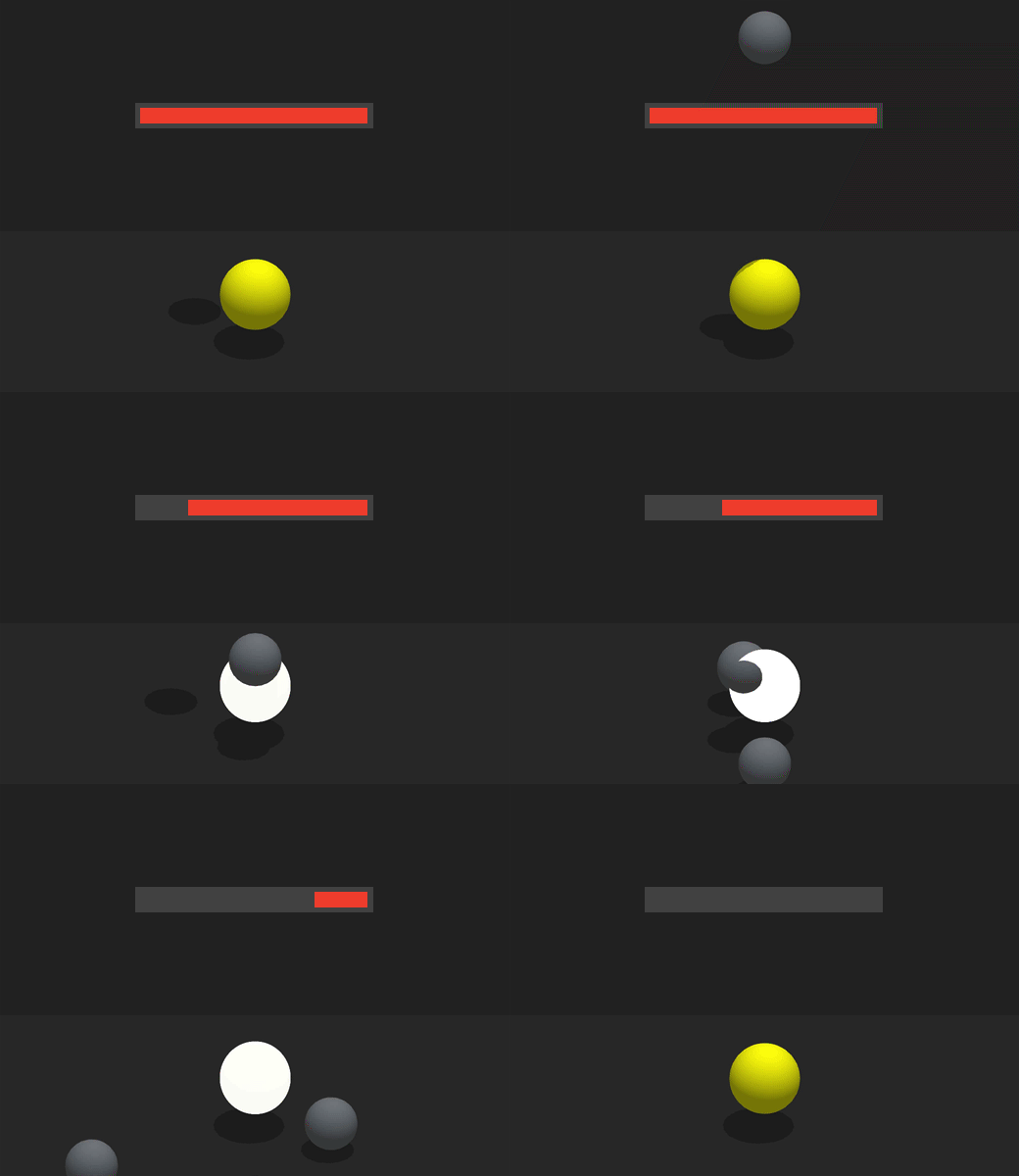
After this asset collides with another object, it subtracts 1 point from the health amount, and the damage is indicated by a white flash on its surface. After the health reaches 0, a game over event is triggered which pauses the game world. For details on creating a Game Over screen see UI Nodes.

Brainbox Attributes

After you add this Brainbox to an asset, you need to specify which asset will cause damage by changing the Affected Asset attribute.
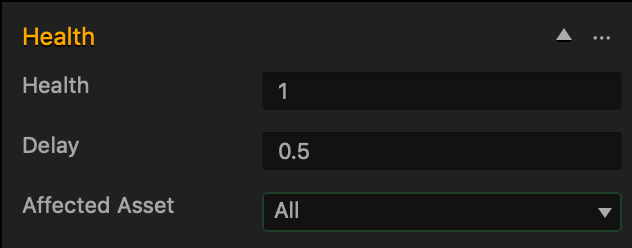
Attribute Description
Health Enter the amount of times you want this asset to take damage before it becomes defeated.
Delay Enter the amount of seconds you want to wait after the asset is defeated before the game over event is triggered.
Affected Asset Select which asset or type of asset you want to cause damage.

Nodes in Brainbox group

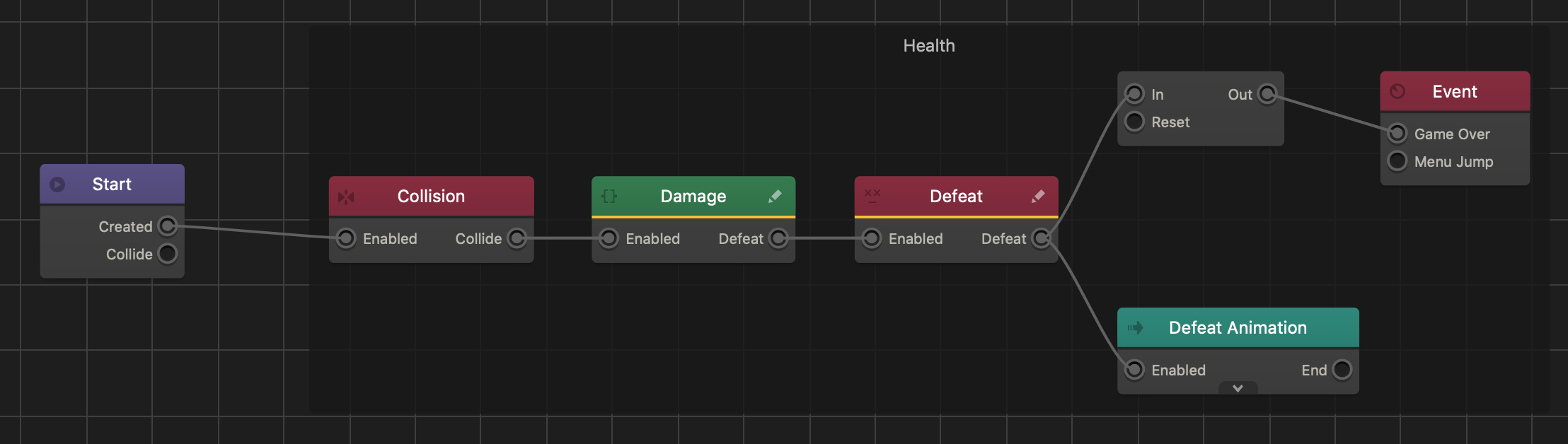
After you add this Brainbox to an asset, a Collision (If Collide) node, Custom Damage node, Defeat node, Delay Defeat Animation, and Event Observer node are added to the Node Map.
Timer Node – Buildbox 3 Manual

By |

Timer Node

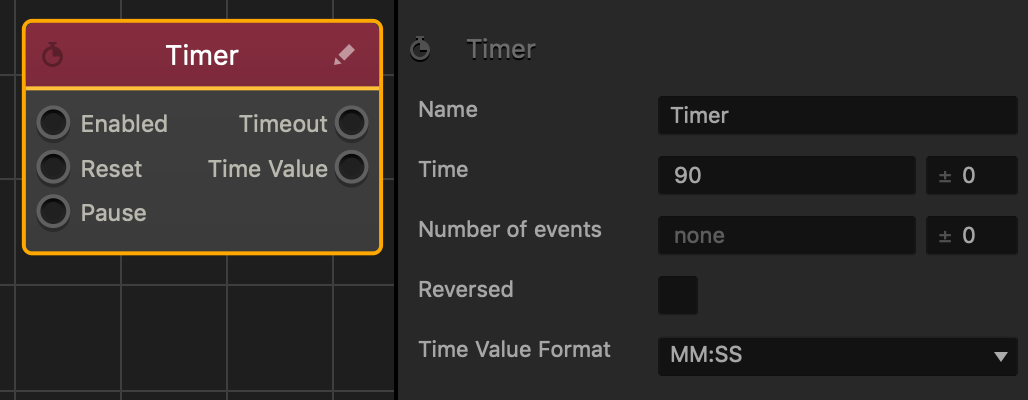
This action node sets the number of seconds to be counted down before the Timeout output activates another node.

The table below describes what happens when each node input or output is connected.

 Type Name Description
Input Enabled Starts the timer.
Reset Restarts the timer, setting it to 0 or if the Reversed checkbox is selected in the Options panel, to the specified Time value.
Pause Pauses the countdown. The timer will resume when the connected output is no longer active.
Output Timeout Activates the connected nodes when the timer reaches 0.
Time Value Sends the current time information to connected Custom nodes.

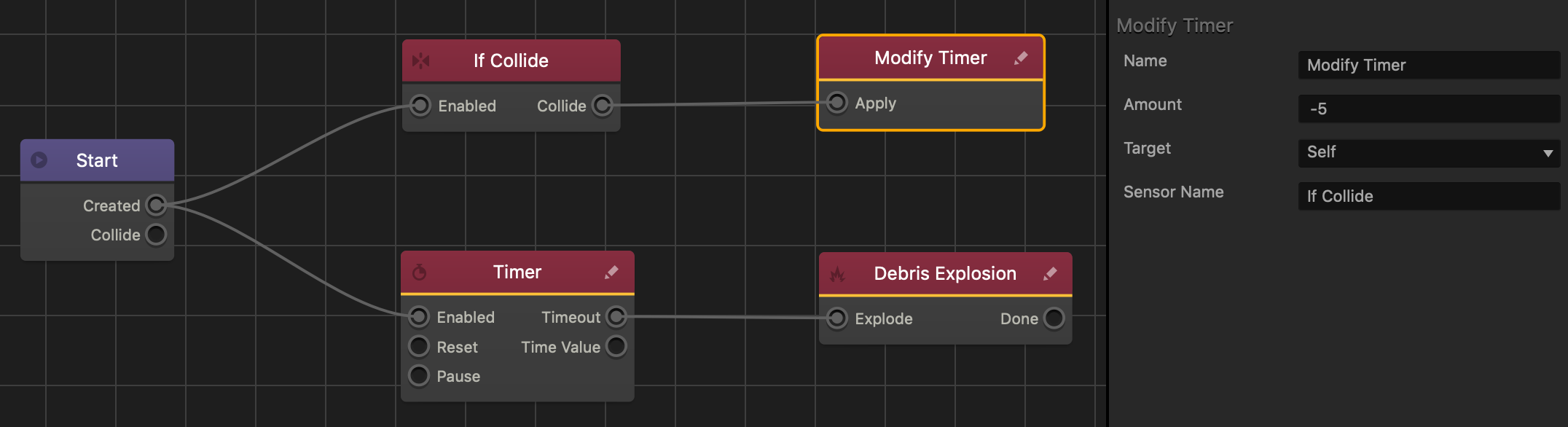
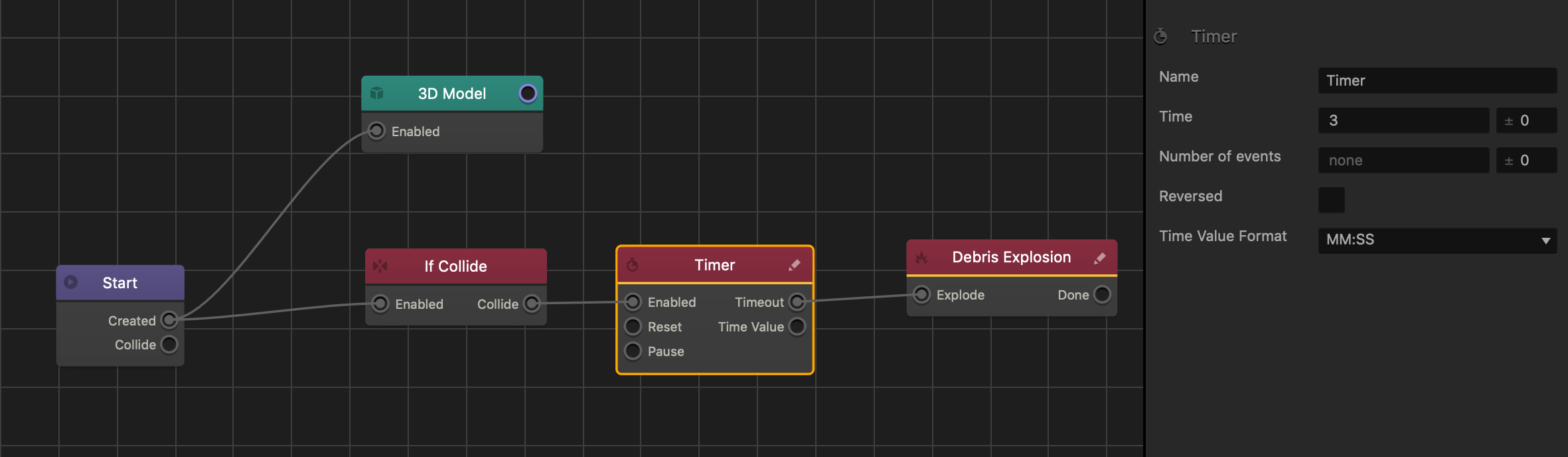
The following is an example of a timed explosion asset.

When this asset collides with another, the timer will count down to three seconds before causing a debris explosion.

To Modify the remaining time during gameplay, see Modify Timer node.

Node Attributes

Option Description
Name Type a custom name for this node, if needed.
Time Enter the number of seconds to be counted down.

You can also set a random time range for countdown when the asset is created or spawns in the game. To do this, enter a value in the field on the right instead of the default 0. The value you enter is both subtracted from and added to the number of seconds you enter for the countdown, thus setting the minimum and maximum values for the time range.

For example, if you enter a Time value of 90 and a range value of 10, you set the random countdown range between 80 and 100 seconds:
|80———90———100|

Number of Events Enter the number of times the timer will reset on its own.

You can also set a random reset range for the number of events. To do this, enter a value in the field on the right instead of the default 0. The value you enter is both subtracted from and added to the number of events you enter, thus setting the minimum and maximum values for the range.

For example, if you enter a Number of Events value of 5 and a range value of 3, you set the random range between 2 and 8 events:
|2———5———8|

Reversed Select the checkbox to make the timer count up instead of counting down , starting at 0.
Time Value Format Select an option to determine how the remaining time appears OR is displayed in a UI node.

  • Fractional Seconds—displays the milliseconds as a decimal. Example: 7.2.
  • MM:SS—displays the units as two digits. Example: 07:20.
  • Seconds—displays seconds only. Example: 7.

If needed, you can also customize this node. For details, see Customizing Nodes.

Modify Timer Node – Buildbox 3 Manual

By |

Modify Timer Node

This action node modifies the amount of time remaining in a Timer node.

This node contains an Apply input that, when activated, subtracts time from the timer in the current asset, or the one it collides with. The following example is an explosion with a countdown that decreases when the asset collides with an object.

Make sure there is only one timer in an asset. If an asset contains more than one timer, this node will modify the last activated timer.

Node Attributes

Option Description
Name Type a custom name for this node, if needed.
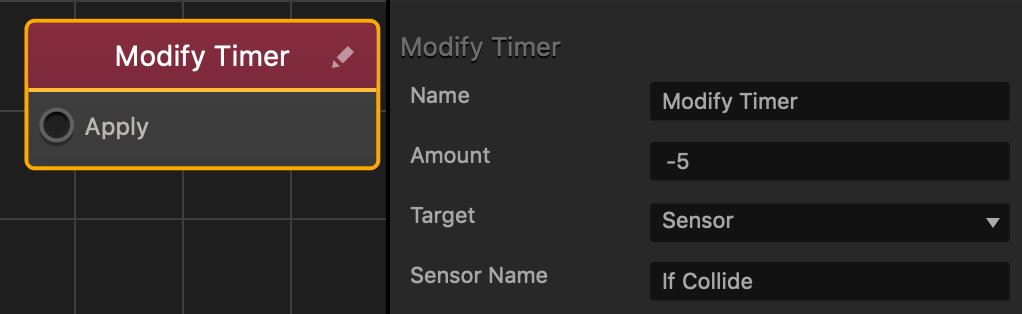
Amount Enter the amount of seconds you want to add or subtract from the timer node. A negative value subtracts from the timer’s current amount, while a positive value adds to the timer’s current amount.
Target Select an option to affect a timer in this asset, or an asset affected by an If Collide node.

  • Self—modifies the timer node in this asset.
  • Sensor—modifies the timer in an asset affected by an If Collide node.
If you want to affect a timer in another asset, select Sensor.
Sensor Name If the Target is set to Sensor type the name of the desired If Collide node.

If needed, you can also customize this node. For details, see Customizing Nodes.

Path Move Brainbox – Buildbox 3 Manual

By |

Path Move Brainbox

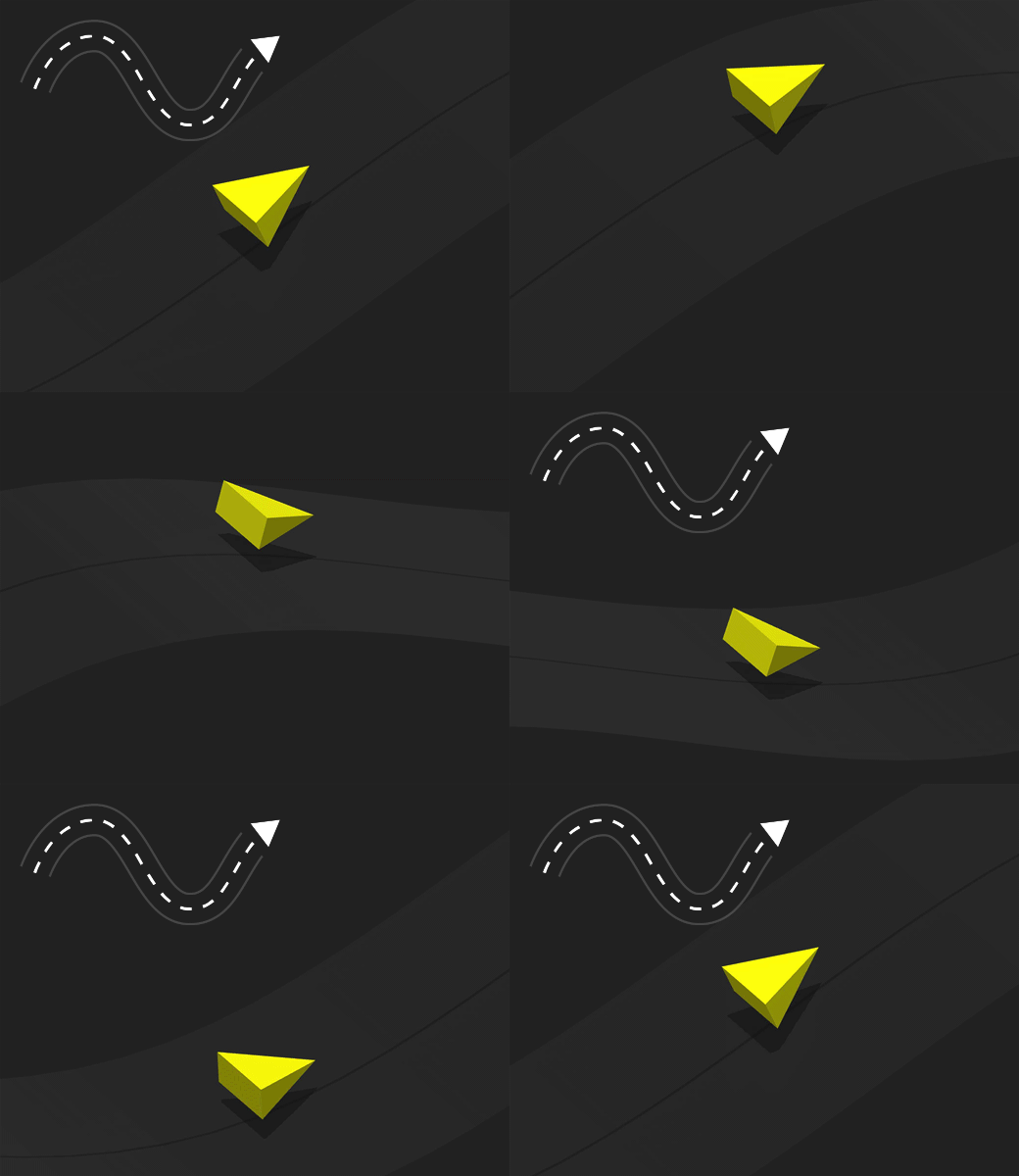
This Brainbox  allows the asset to move forward on a continuous path toward the End Point.

While the asset is moving along the path, the player can tap or click the screen to make the asset jump.

To define the path of the asset, use the Move tool in the Scene Editor and adjust the Start and End Points as desired.

Brainbox Attributes

After you add this Brainbox to an asset, set the Physics to Dynamic in the Start section of the Options panel and specify the Speed and Jump Force in the Path Move section.

Attribute Description
Speed Enter a numeric value to specify how fast the asset moves along the path.

You can also set a random speed range for when the asset is created or spawns in the game. To do this, enter a value in the field that replaces the default 0 value. The value you enter is both subtracted from and added to the Speed value that creates a minimum and maximum value for the Speed range.

For example, if you enter a Speed value of 30 and a range value of 10, a random value between 20 and 40 will set the Speed:
|20———30———40|

Jump Force Enter a positive numeric value in the field to set the jump height of the asset.

Nodes in Brainbox group

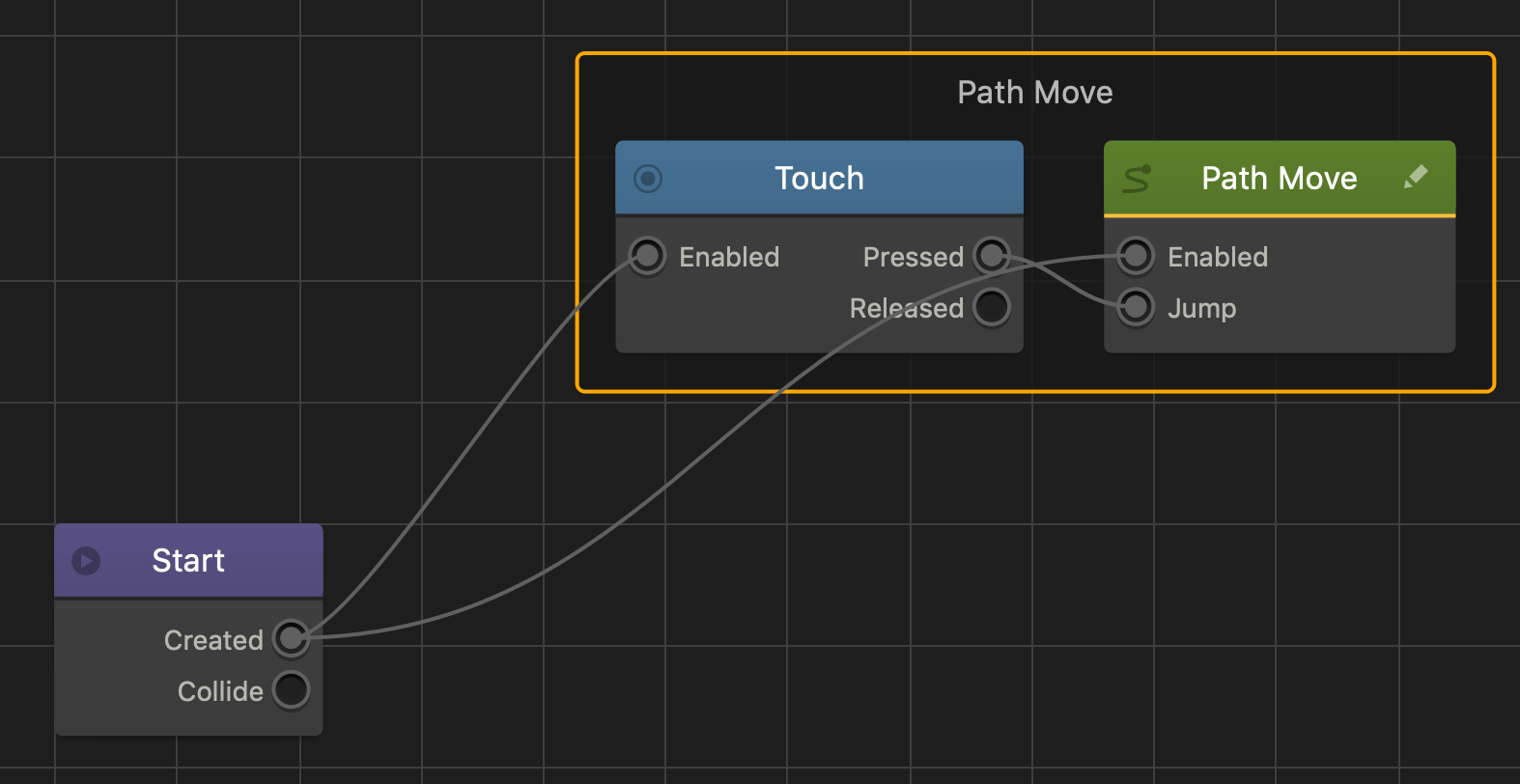
After you add this Brainbox to an asset, a Keyboard Button and Path Move node is added to the Node Map.

Set Scene Speed Node – Buildbox 3 Manual

By |

Set Scene Speed Node

This movement node changes the scene’s path speed.

When an asset follows the path defined by the Start and End points, this node can increase or decrease its current speed. To make an asset follow the scene path, see Path Move Node.

Name Type a custom name for this node, if needed.
Speed Changes the scene path speed or rate the object will travel forward along the scene path.

The higher the value, the faster the object will travel forward. As long as this node is active, this value will overwrite the Speed value specified in the Path Move node. When this node is no longer active, the asset will revert back to the speed specified in the Path Move node.

You can also set a random speed range that occurs when the asset is created or spawned in the game. To do this, enter a value in the field on the right instead of the default 0. The value you enter is both subtracted from and added to the speed rate you enter, thus setting the minimum and maximum values for the time range.

For example, if you enter a Speed value of 30 and a range value of 10, you set the random speed range between 20 and 40 seconds:
|20———30———40|

If needed, you can also customize this node. For details, see Customizing Nodes.

Rotate Brainbox – Buildbox 3 Manual

By |

Rotate Brainbox

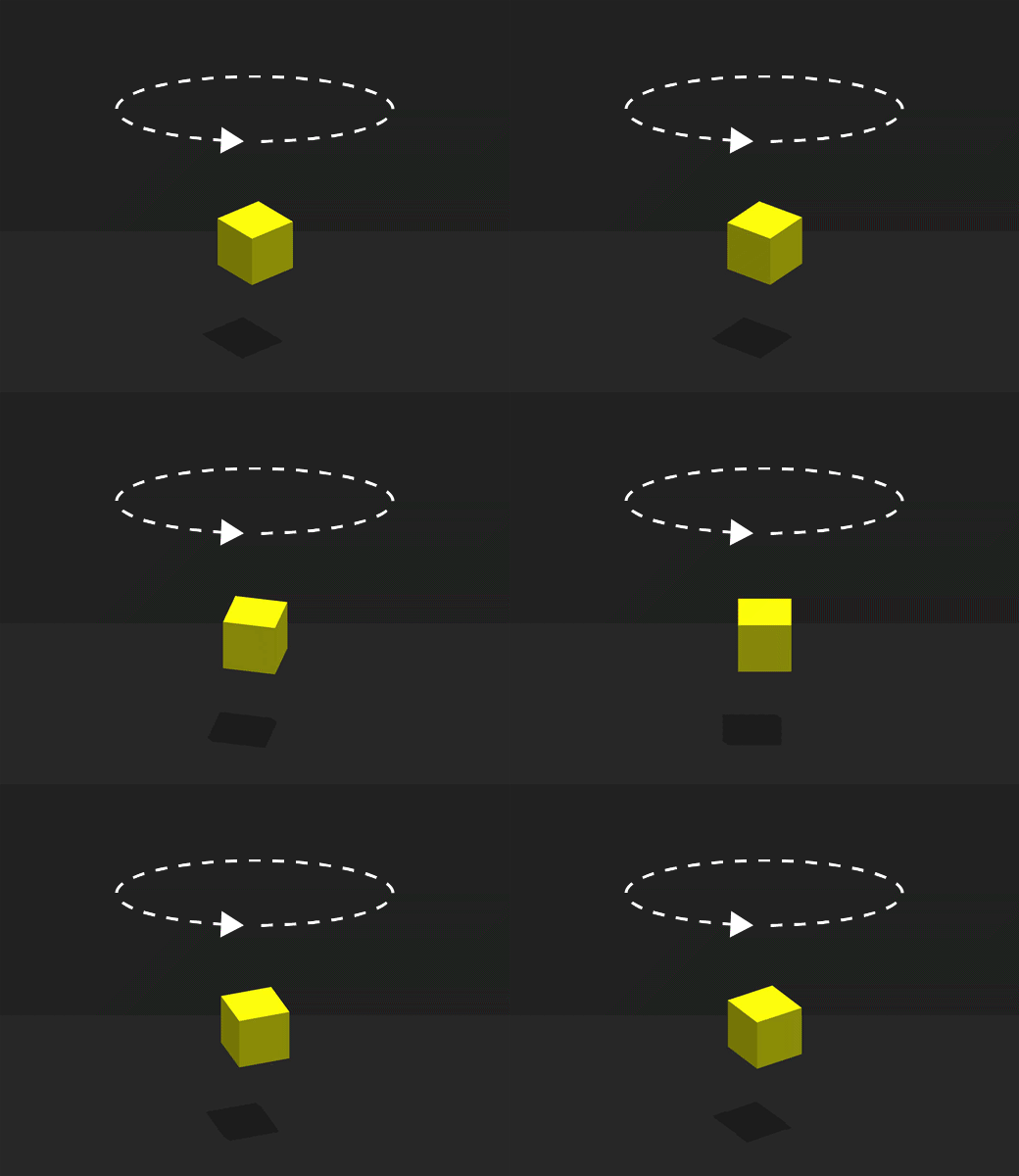
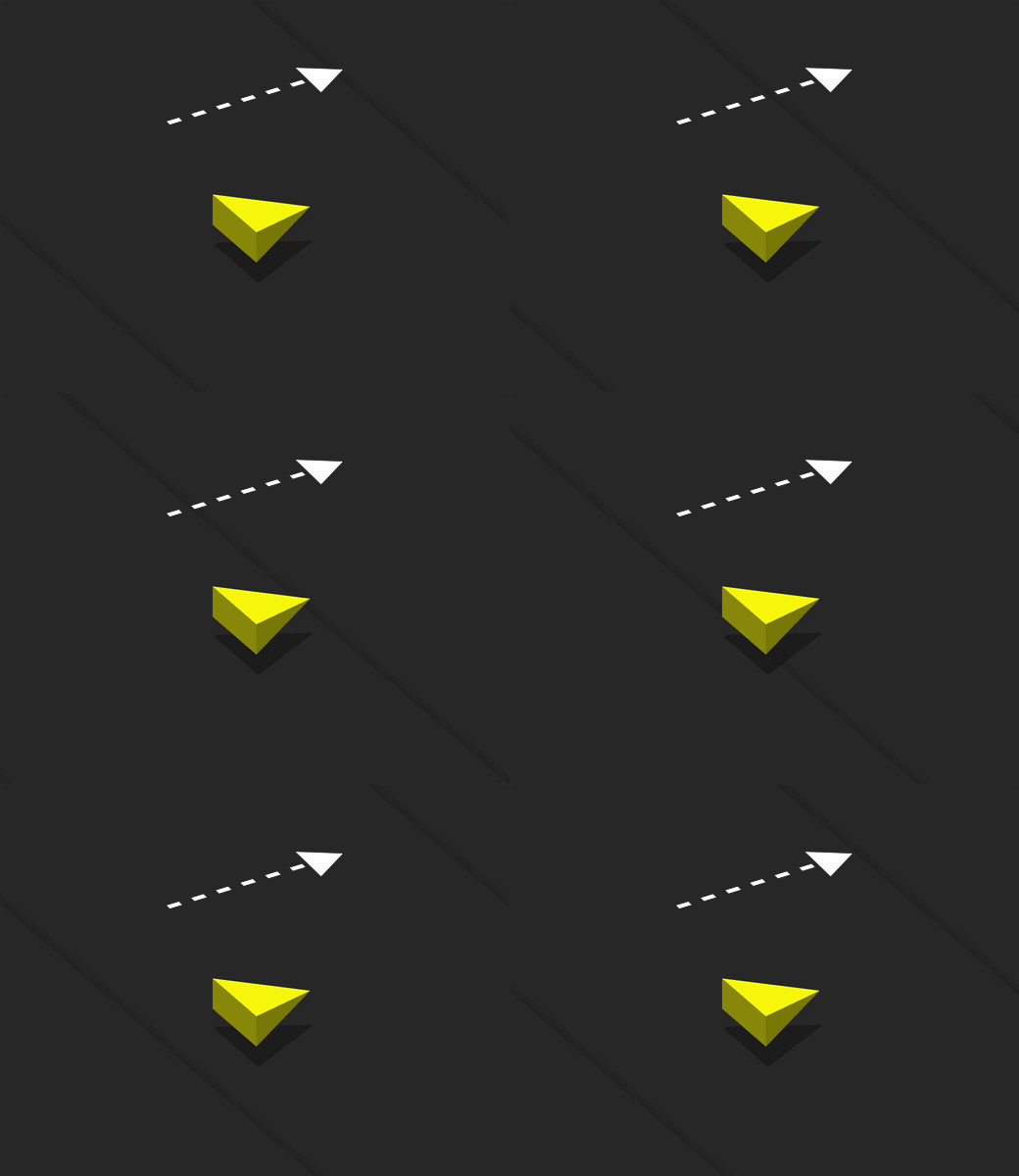
This movement Brainbox makes an asset rotate in a specified direction.

Brainbox Attributes

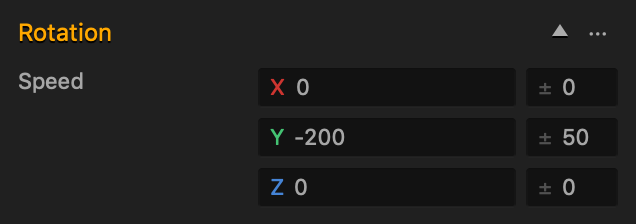
After you add this Brainbox to an asset, you need to specify the Speed and direction in which the asset should rotate.

  • Speed
    • Enter a numeric value in any of the axis fields to represent the rotation direction and speed. The greater the number, the faster the asset will rotate.
  • Direction
    • To make the asset rotate clockwise along an axis, enter a positive value in the desired Speed axis field.
    • To make the asset rotate counter clockwise along an axis, enter a negative value in the desired Speed axis field.
    • Also depends on which direction the game camera is facing.
  • The asset rotates on its center around the specified axes.
  • If you put values in more than one axis, the asset will rotate in all of the specified axis directions
    • For example, if all of the axis fields contain values, the asset will rotate like that of a mechanical bull.
  • Range
    • To make the asset pick a random axis value, enter a value in any of the range fields to the right.
    • The range value is both added and subtracted to create a minimum and maximum of possible outcomes.
    • For example, if you enter a value of 100 in the Y axis, and a value of 50 in its range field, a value between 50 and 150 will be selected during gameplay.
      |50———-100———-150|
    If you don’t want the asset to rotate in a specific direction, delete the value in any of the axis fields.

The table below shows two sample values with their speed and direction.

Positive Value Negative Value
Sample Value 100 -500
Speed Slow Fast
Direction Clockwise Counter Clockwise

Brainbox Node Group

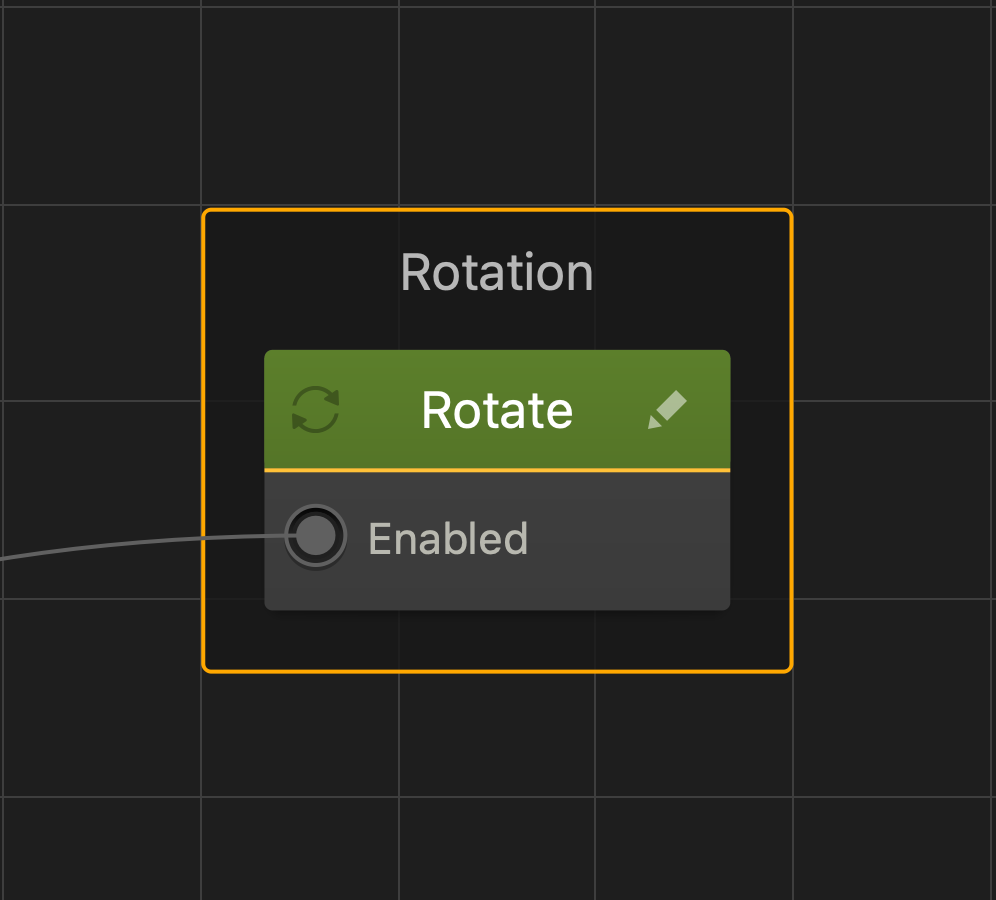
After you add this Brainbox to an asset, the Rotate node is added to the Node Map of the asset with the Speed values you’ve specified.

Friction Brainbox – Buildbox 3 Manual

By |

Friction Brainbox

This physics Brainbox applies friction or resistance against gravity to an asset, and can make the asset appear heavier  across a surface in a scene.

Brainbox Attributes

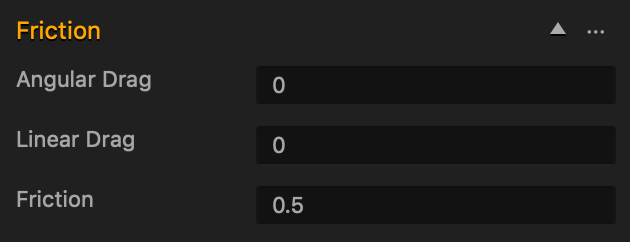
After you add this Brainbox to an asset, you need to set the asset’s physics to Dynamic, then specify the amount of resistance against the asset will have against gravity and surfaces by entering a 0-1 decimal value the attributes.

Attribute Description
Angular Drag Enter a 0-1 decimal value to specify the amount of rotation resistance when the asset is affected by gravity.
Linear Drag Enter a 0-1 decimal value to specify the amount of movement resistance when the asset is affected by gravity.
Friction Enter a 0-1 decimal value to specify the amount of movement resistance when the asset is sliding across a surface.

For example:

  • A value of 0 makes the asset slide across surfaces without any resistance.
  • A value of 1 prevents the asset from sliding across surfaces.

Nodes in Brainbox group

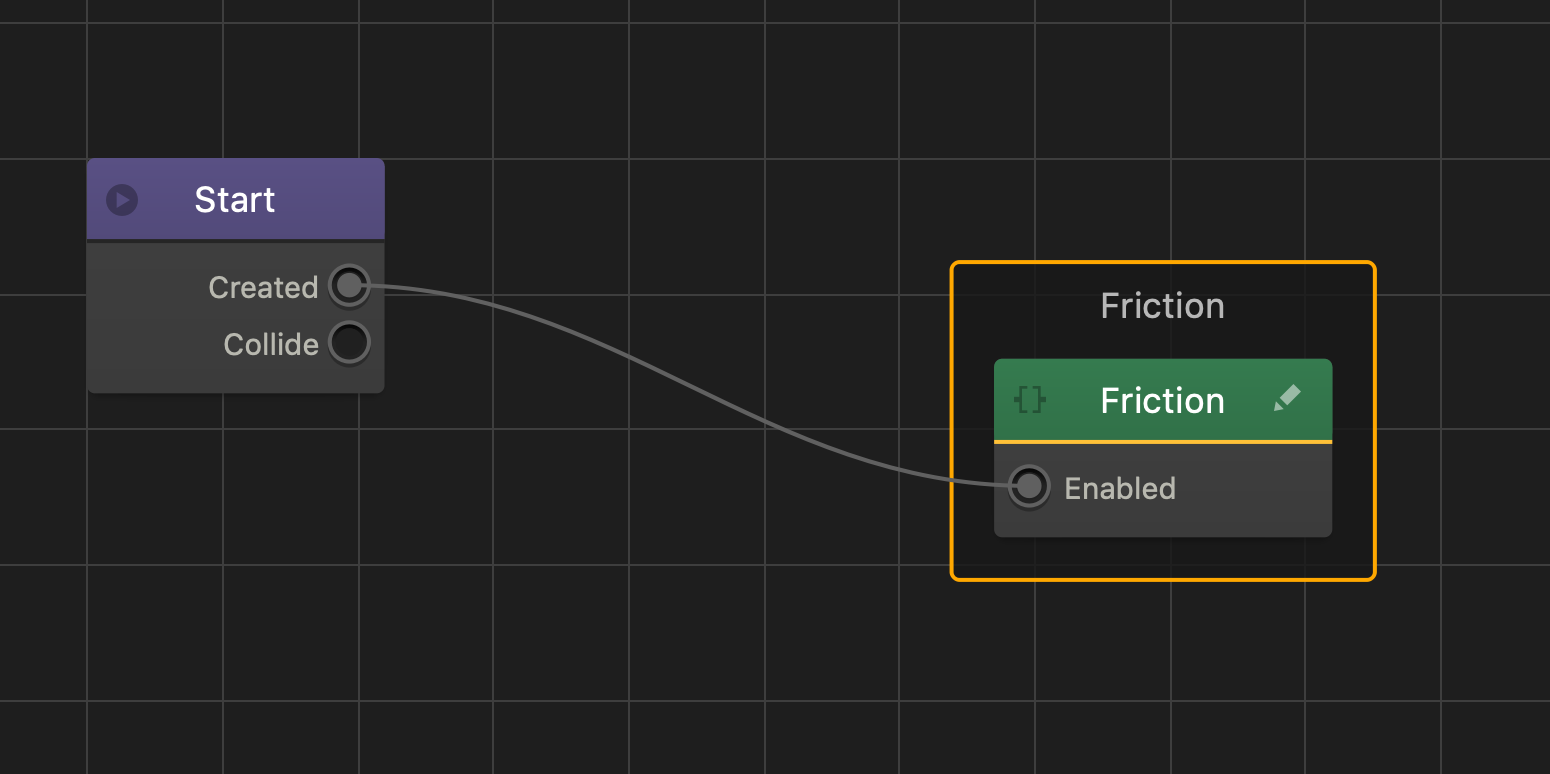
After you add this Brainbox to an asset, a custom Friction node is added to the Node Map.

Bounce Brainbox – Buildbox 3 Manual

By |

Bounce Brainbox

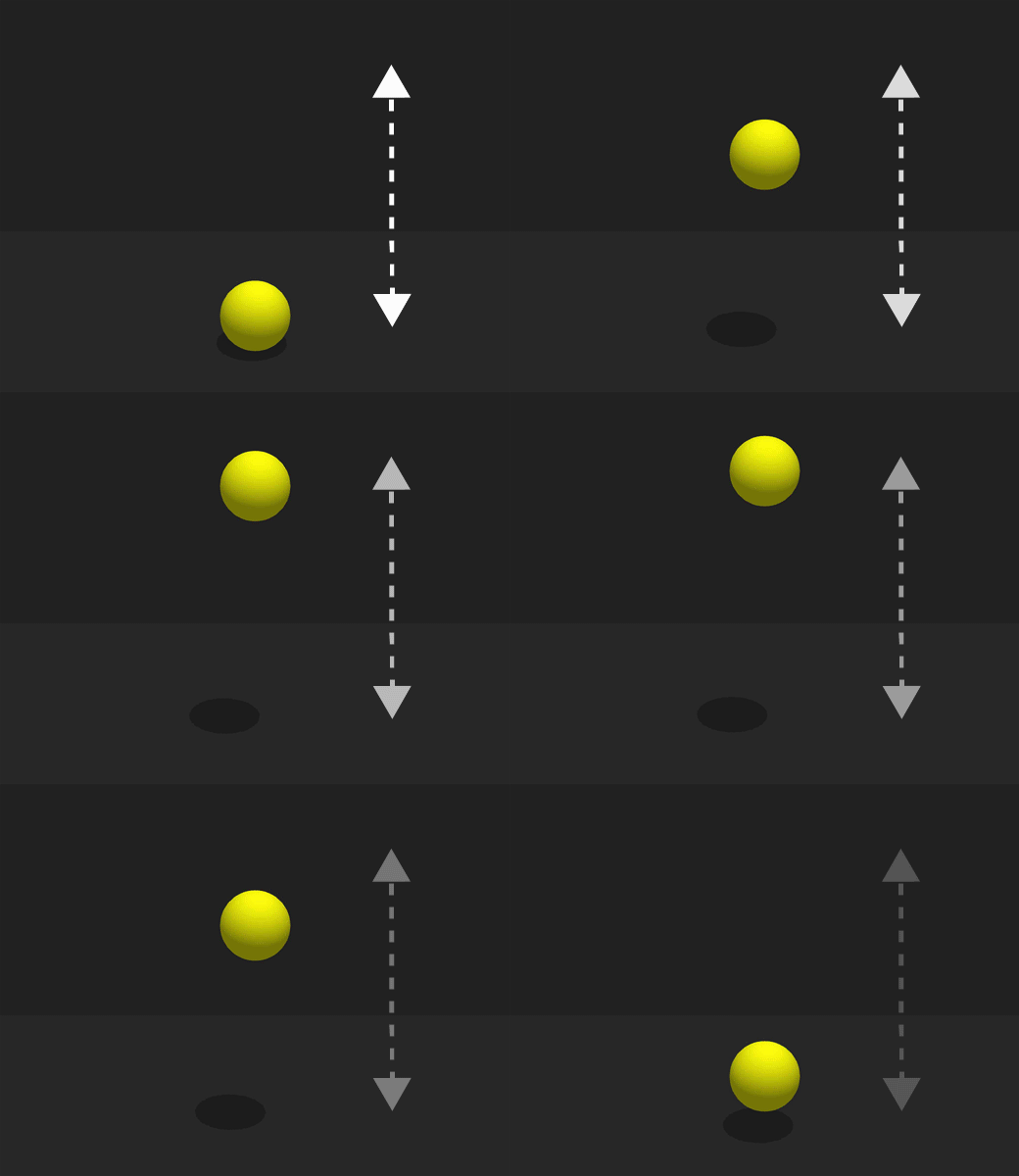
This physics Brainbox makes an asset bounce off a surface.

Brainbox Attributes

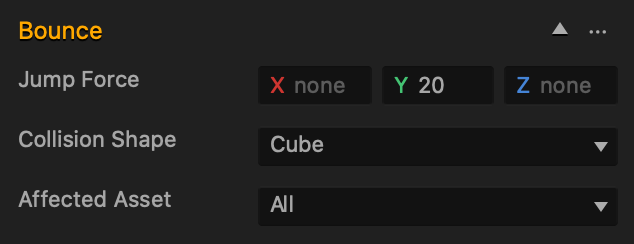
After you add this Brainbox you need to specify the Jump Force attribute.

Attribute Description
Jump Force
  • Specifies how high and in which direction the asset bounces.
  • To make an asset bounce, you must have a positive value in the Y axis field. Without it, the asset will not bounce at all.
  • To make an asset bounce:
    • Straight up—enter a positive value in the Y axis field.
    • Forward—enter a positive value in the Y and Z axis fields.
    • Backward—enter a positive value in the Y and a negative value in the Z axis fields.
    • Left—enter a positive value in the Y and a negative value in the X axis fields.
    • Right—enter a positive value in the Y and X axis fields.
    • Diagonally—enter a value in all the axis fields.
If you don’t want the asset to bounce in a specific direction, delete the value in the respective axis field.
Collision Shape If you want to change the collision shape, choose the desired option. For details, see Change Collision Shapes.
Affected Asset If you want the asset to bounce off every surface, keep the All selection. If you want the asset to bounce off only a specific surface, choose the desired option.

Brainbox Node Group

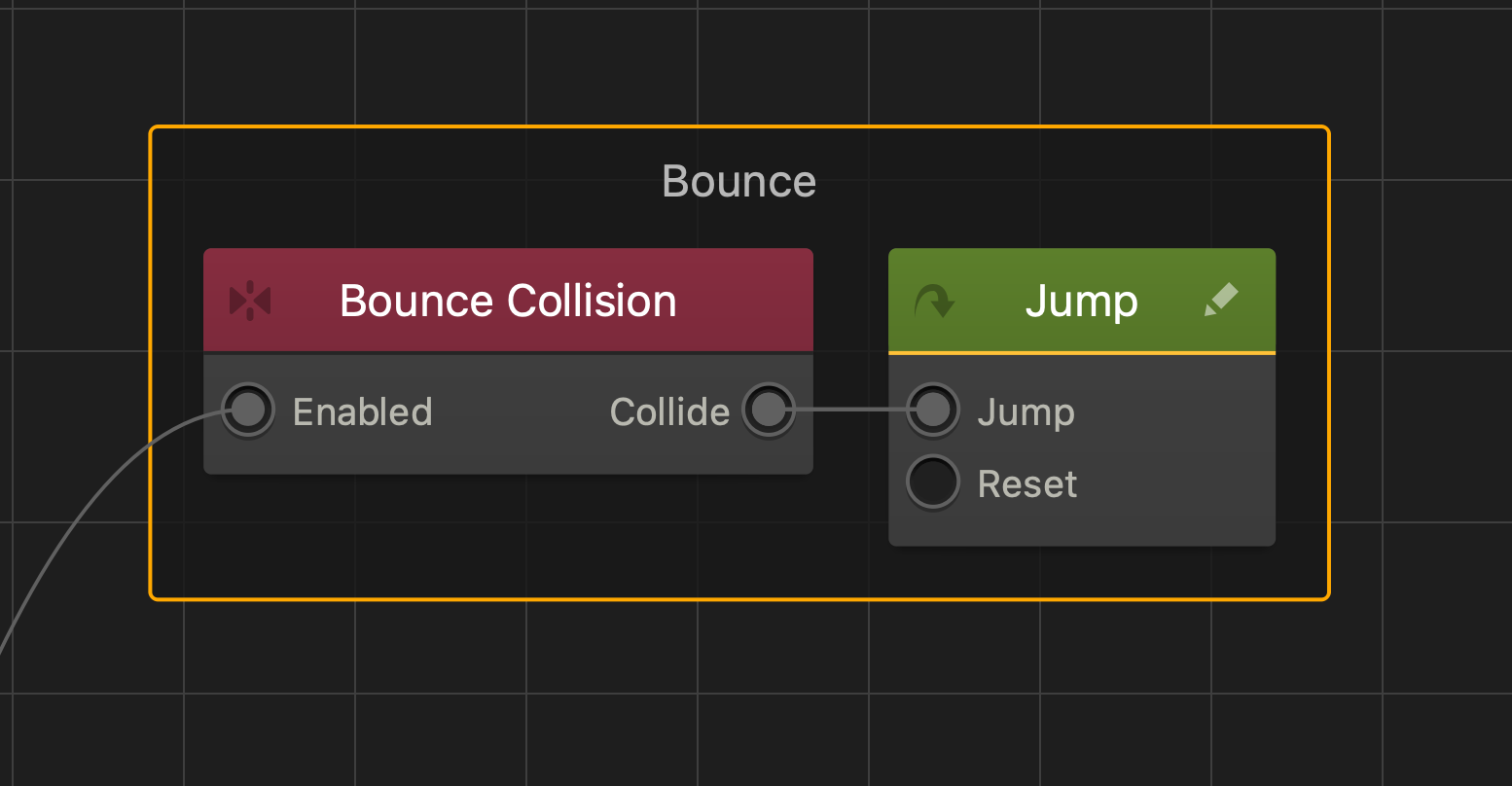
After you add this Brainbox to an asset, a group of nodes containing a Bounce Collision (If Collide) node, and Jump node is added to the Node Map of the asset.

Side Move Brainbox – Buildbox 3 Manual

By |

Side Move Brainbox

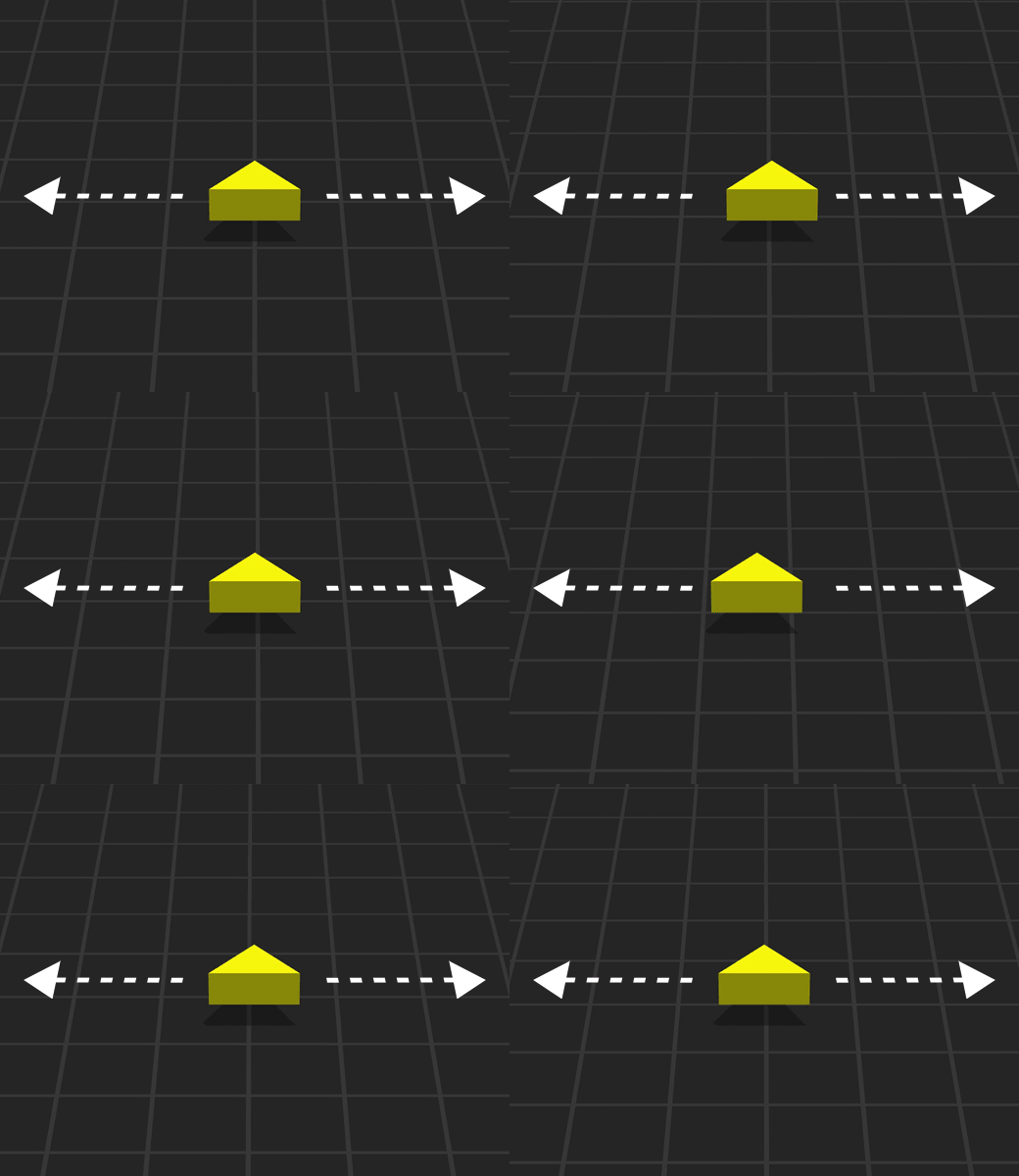
This movement Brainbox allows the player to drag a finger or mouse across the screen to move the asset.

Brainbox Attributes

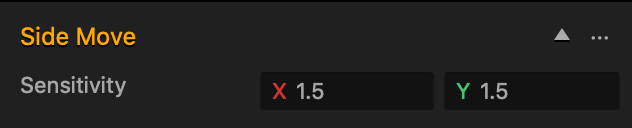
After you add this Brainbox to an asset, you need to specify the Sensitivity.

  • Sensitivity
    • Determines how fast the asset moves.
    • To change the horizontal or vertical movement sensitivity, enter a numeric value in the X or Y axis respectively.
    • The higher the value, the faster the movement when the player drags a finger or mouse across the screen.
  • By default, the player can make the asset move in the following directions:
    • Forward by dragging up with finger or mouse.
    • Backward by dragging down with a finger or mouse.
    • Left by dragging left with a finger or mouse.
    • Right by dragging right with a finger or mouse.
  • To invert the asset movement, enter a (-) negative numeric value in either of the axis fields.

Brainbox Node Group

After you add this Brainbox to an asset, the Touch Move node is added to the Node Map of the asset with the Speed values you’ve specified.