Move Brainbox – Buildbox 3 Manual

By |

Move Brainbox

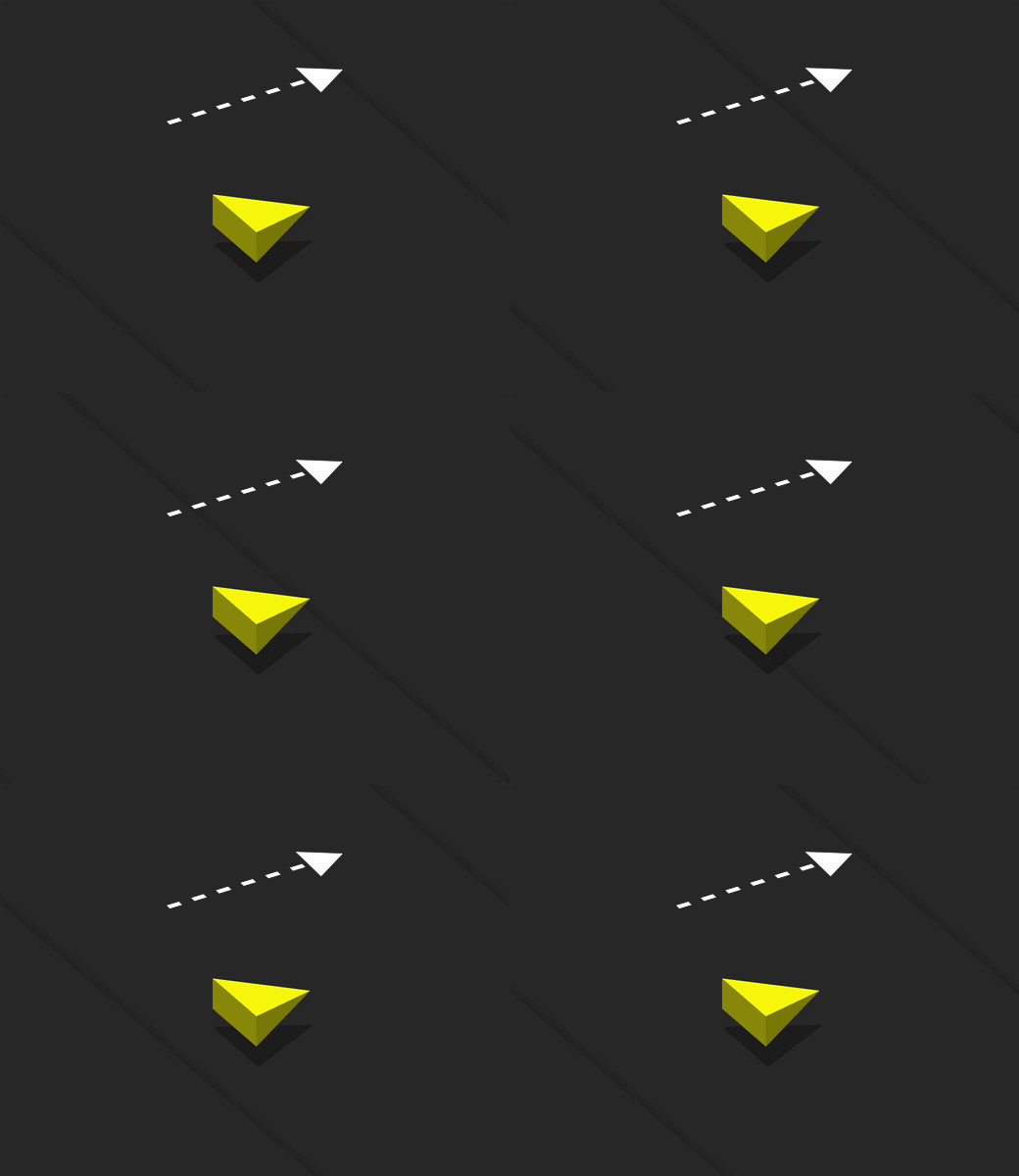
This movement Brainbox makes an asset move in the direction and speed specified by the Speed attribute.
Brainbox Attributes

After you add this Brainbox to an asset, you need to specify the Speed and direction in which the asset should move.
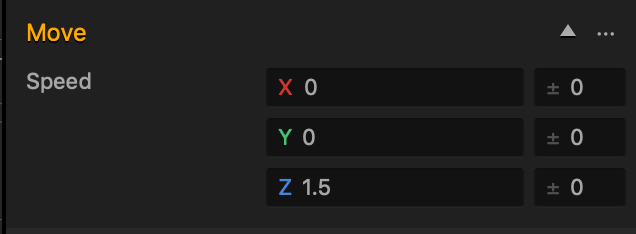
  • Speed
    • Enter a numeric value in any of the axis fields to represent the movement direction and speed.
    • The greater the number, the faster the asset will move.
  • Direction
    • To make an asset move:
      • Forward, enter a (+) positive value in the Z axis field.
      • Backward, enter a (-) negative value in the Z axis field.
      • Right, enter a (+) positive value in the X axis field.
      • left, enter a (-) negative value in the X axis field.
      • Up, enter a (+) positive value in the Y axis field.
      • Down, enter a (-) negative value in the Y axis field.
    • Also depends on which direction the game camera is facing.
  • If you put values in more than one axis, the asset will move in all specified directions.
    • For example, if the Z and X axis fields contain values, the asset will move in a diagonal direction.
  • Range
    • To make the asset pick a random axis value, enter a value in any of the range fields to the right.
    • The range value is both added and subtracted to create a minimum and maximum of possible outcomes.
    • For example, if you enter a value of 100 in the Y axis, a value between 50 and 150 will be selected during gameplay.
      |50———-100———-150|
    If you don’t want the asset to rotate in a specific direction, delete the value in any of the axis fields.

The table below shows sample values in the X, Y, and Z axis with their speed and direction.

X Y Z
Sample Value 100 -500 200
Speed Slow Fast Medium
Direction Right Down Forward

Nodes in Brainbox group

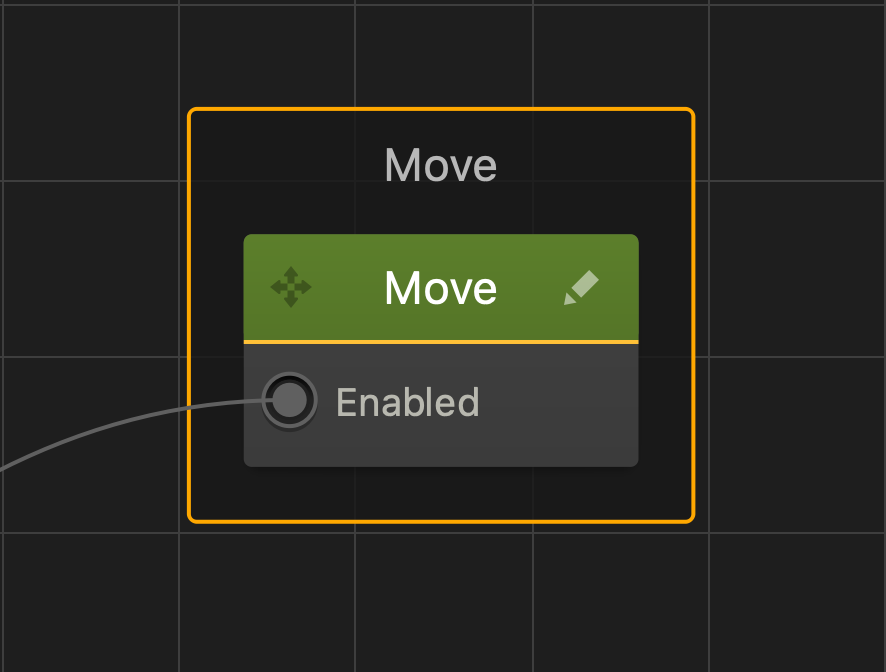
After you add this Brainbox to an asset, the Move node is added to the Node Map of the asset with the Speed values you’ve specified.
Switch Roto Move Brainbox – Buildbox 3 Manual

By |

Switch Roto Move Brainbox

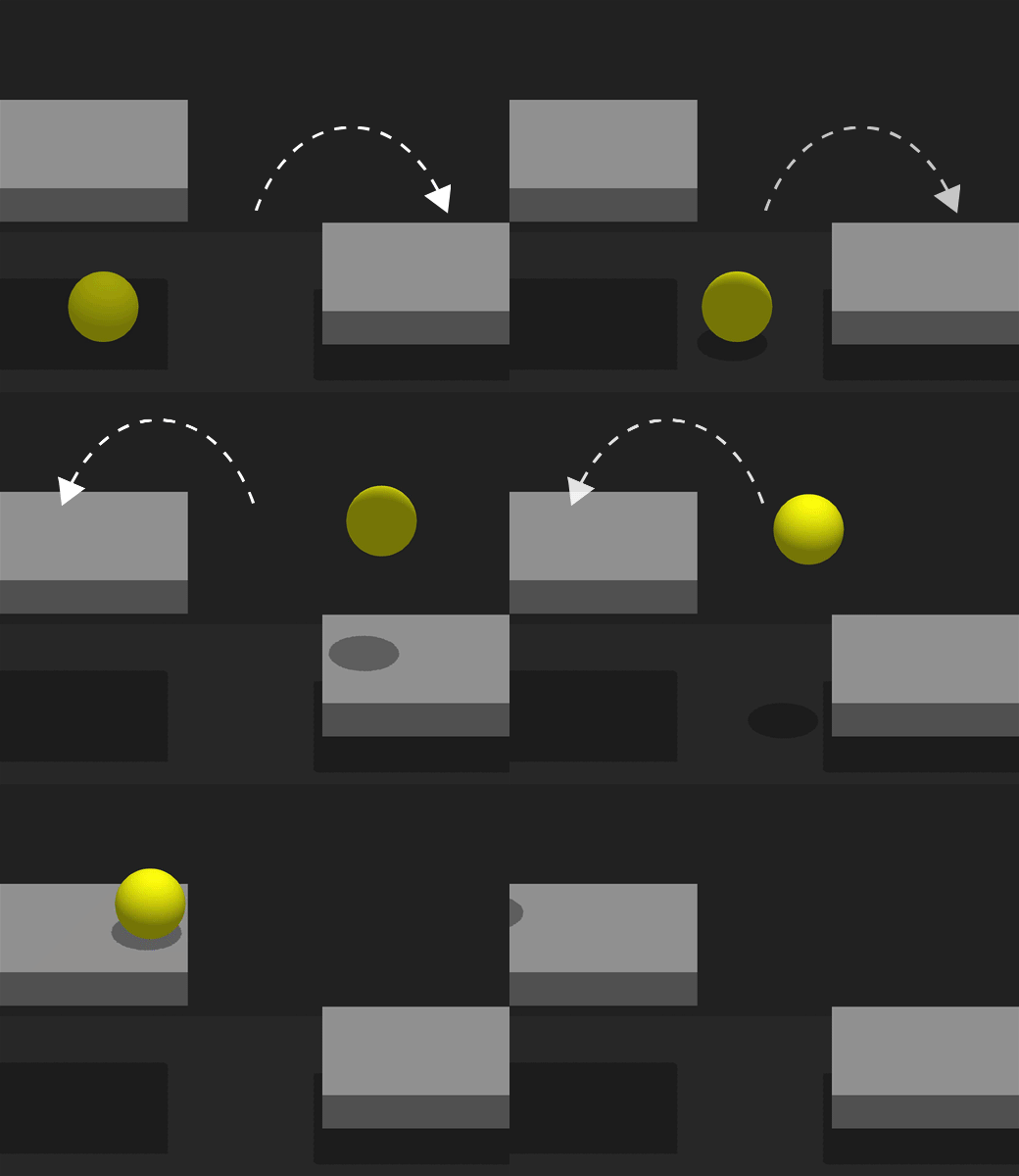
This movement Brainbox makes an asset move and change direction when the user taps or clicks the screen.

Brainbox Attributes

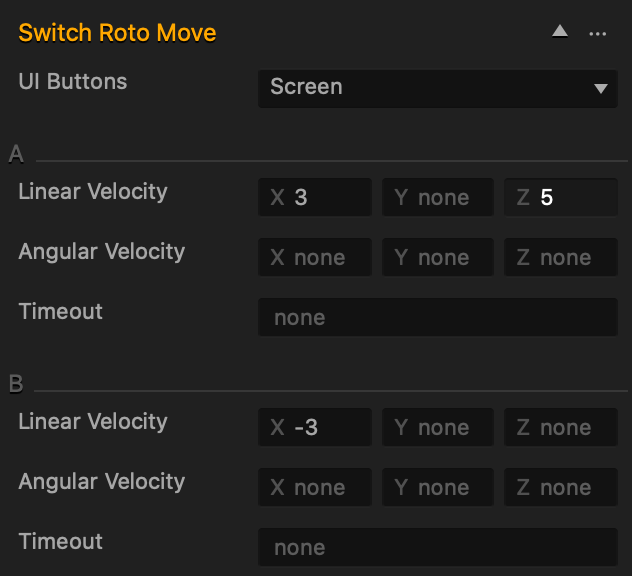
To specify the directions, use the Linear Velocity and Angular Velocity attributes.

There are two sections in the attributes: A and B.

  • When the asset is created or spawned in the game, it moves in the direction and speed of A.
  • When the player taps or clicks the screen, the asset changes its movement direction and speed to B.
Attribute Description
UI Buttons To specify where the user clicks or taps to make the asset change direction, click the drop-down list and choose an option.

  • None—the player will not be able to change the movement direction.
  • Screen—allows the player to tap or click anywhere on the screen.
  • Control Button—select the name of a UI Control button to allow the player to click or tap an area on the screen. This option only appears when there is a Control Button on a UI screen.
Linear Velocity
  • Enter a numeric value in any of the axis fields to represent the movement direction and speed.
  • The greater the number, the faster the asset will move.
  • To make an asset move:
    • Forward, enter a (+) positive value in the Z axis field.
    • Backward, enter a (-) negative value in the Z axis field.
    • Right, enter a (+) positive value in the X axis field.
    • left, enter a (-) negative value in the X axis field.
    • Up, enter a (+) positive value in the Y axis field.
    • Down, enter a (-) negative value in the Y axis field.
If you do not want to have this attribute affect an axis, delete the value in the desired axis field.
Angular Velocity
  • Enter a numeric value in any of the axis fields to represent the rotation direction and speed.
  • The greater the number, the faster the asset will rotate.
  • To make the asset rotate clockwise along an axis, enter a (+) positive value in the desired Speed axis field.
  • To make the asset rotate counter clockwise along an axis, enter a (-) negative value in the desired Speed axis field.
  • Also depends on which direction the game camera is facing.
  • If you put values in more than one axis, the asset will rotate in all of the specified axis directions
    • For example, if all of the axis fields contain values, the asset will rotate like that of a mechanical bull.
Timeout Enter a numeric value to specify how long, in seconds, the asset moves.

Brainbox Node Group

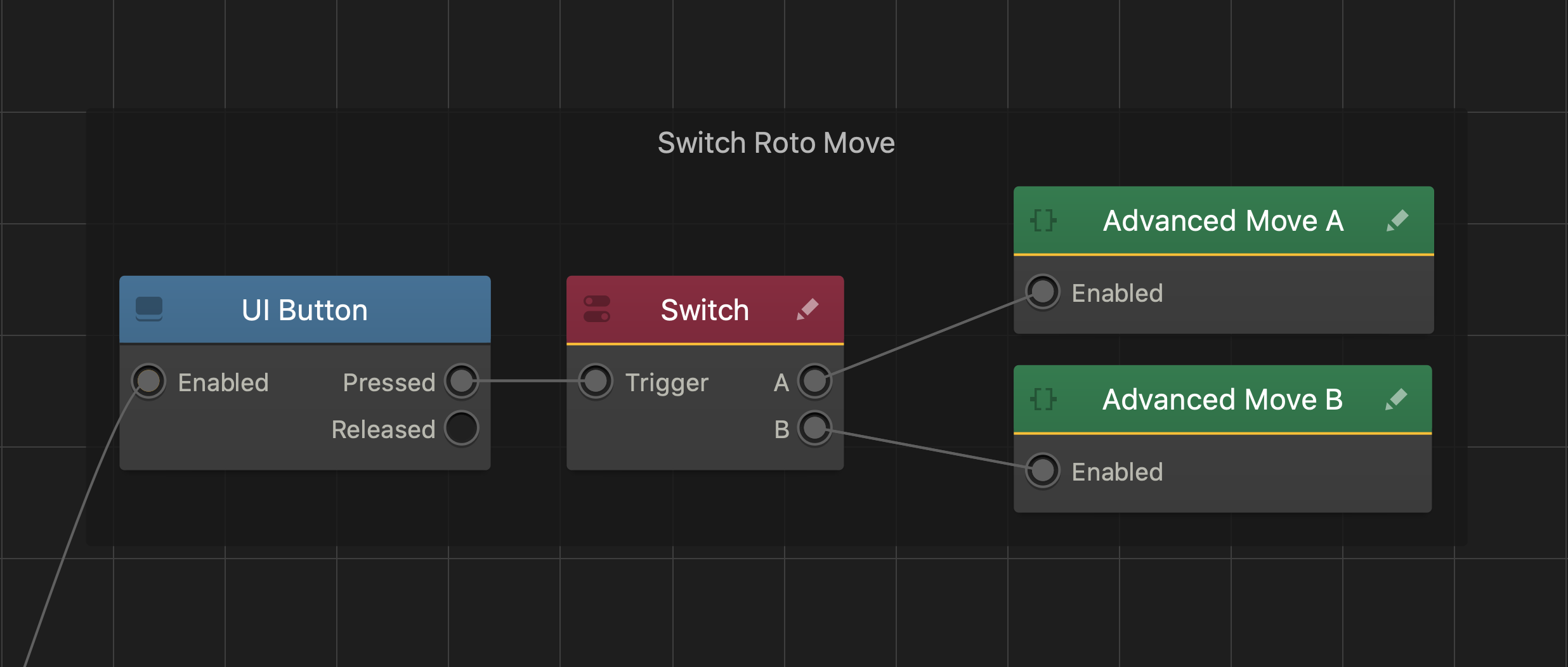
After you add this Brainbox to an asset, a group of nodes is added to the Node Map of the asset containing a UI Button, Switch, and custom Advanced Move nodes.


Platformer Brainbox – Buildbox 3 Manual

By |

Platformer Brainbox

This physics Brainbox allows the player to make the asset move and jump with their keyboard. Also provides the asset with animations that play when the asset moves and jumps.

Brainbox Attributes

  • During gameplay, the player controls the asset by pressing the following keys on their keyboard:
    • Right Arrow—makes the asset move right.
    • Left Arrow—makes the asset move left.
    • Space Bar—makes the asset jump.
Attribute Description
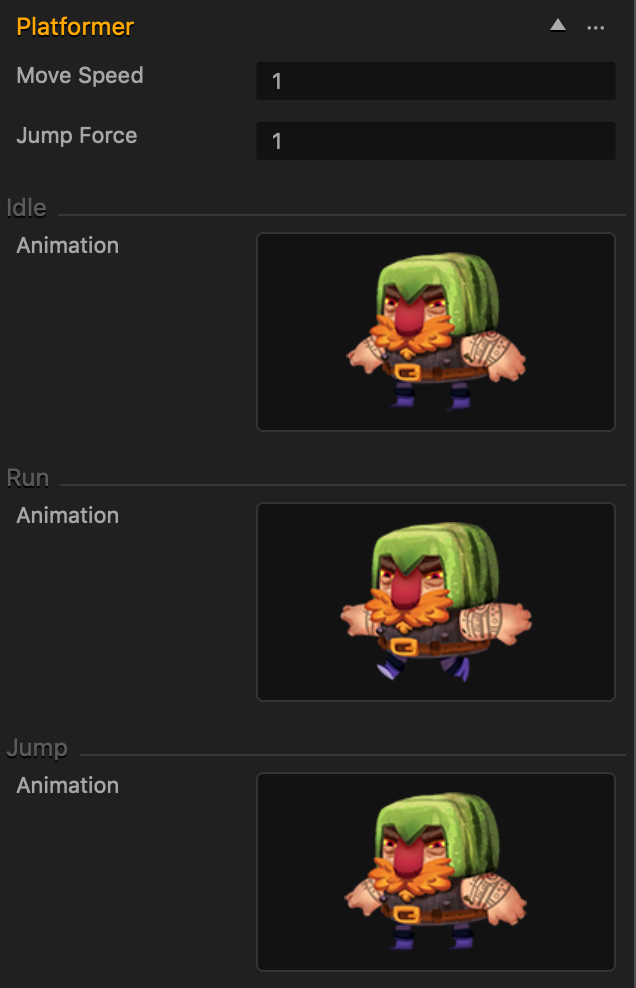
Move Speed
  • Enter a numeric value in any of the axis fields to specify the speed the asset moves in.
  • The following provides example values and how they affect the speed of an asset.
    • 0.5—very slow.
    • 1—normal speed.
    • 5—fast.
    • 10—very fast.
    • 20—asset moves like that of a bullet.
Jump Force
  • Enter a numeric value in any of the axis fields to specify how high the asset jumps.
  • The following provides example values and how they affect the jump height of an asset.
    • 0.5—low.
    • 1—normal.
    • 5—high.
    • 10—very high.
  • Also depends on the gravity settings.
Animation
  • Plays a PNG sequence depending on player actions.
    • Jump—plays when the asset jumps.
    • Idle—plays when the player does not interact with the asset.
    • Move—plays when the player makes the asset move left or right.
  • To replace an animation with a PNG sequence of your choosing, drag all of the images associated with the sequence to the animation area.

Brainbox Node Group

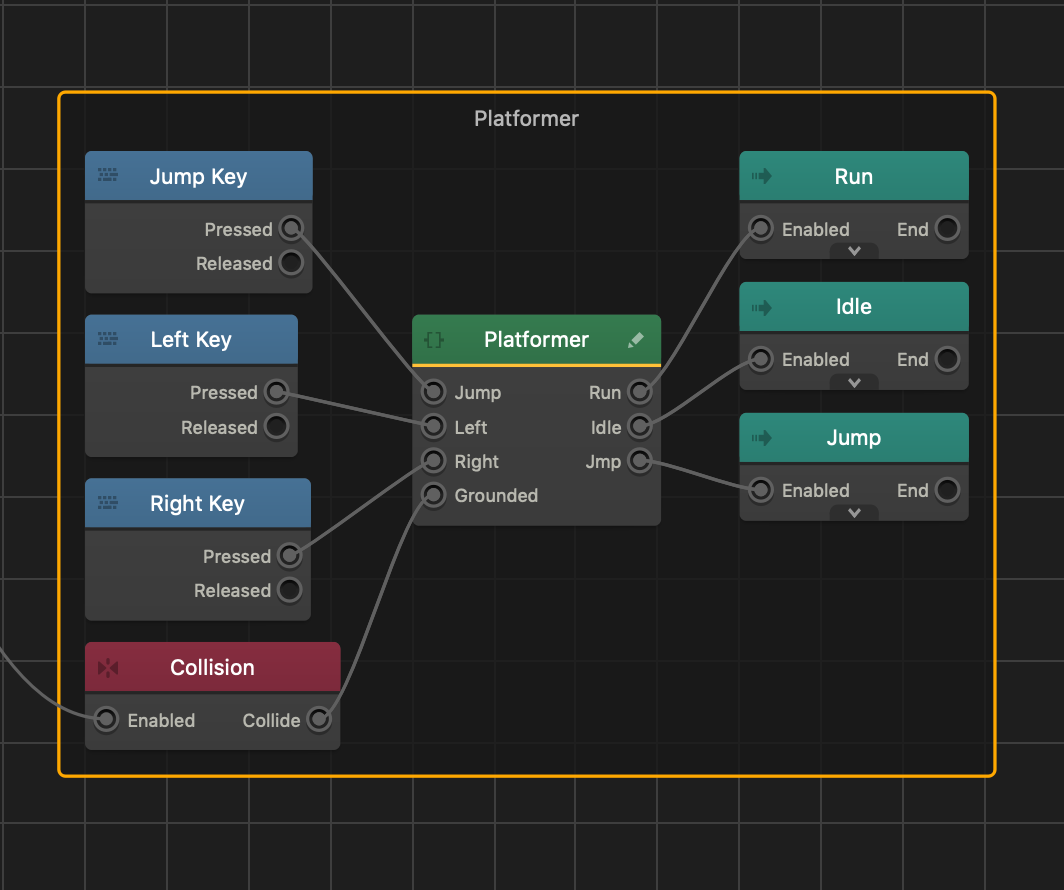
After you add this Brainbox to an asset, an If Collide node (Collision), three Keyboard Button nodes, three Animation nodes, and a custom State Machine node appear as a group in the assets node panel.

Keyboard Controls Brainbox – Buildbox 3 Manual

By |

Keyboard Controls Brainbox

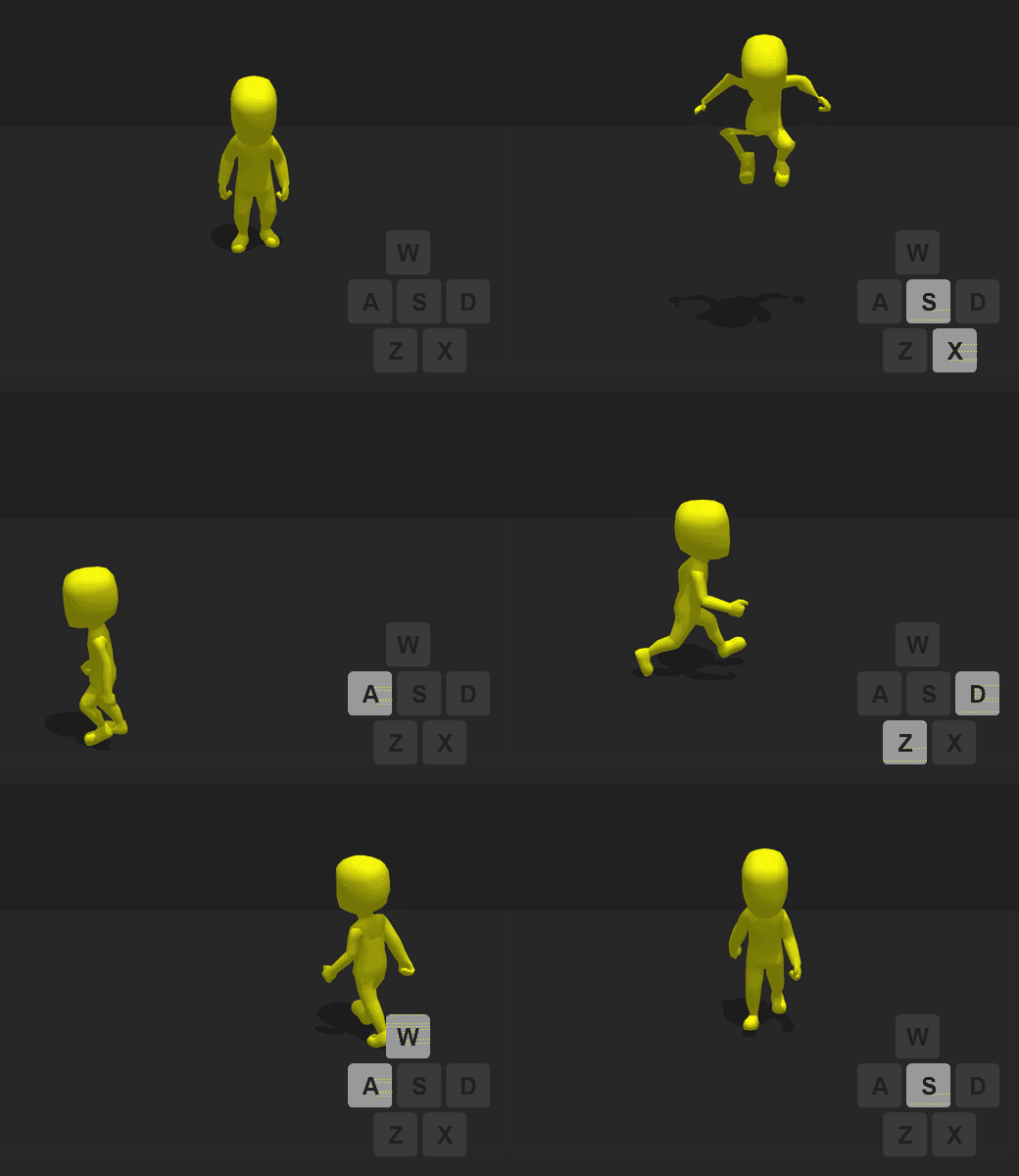
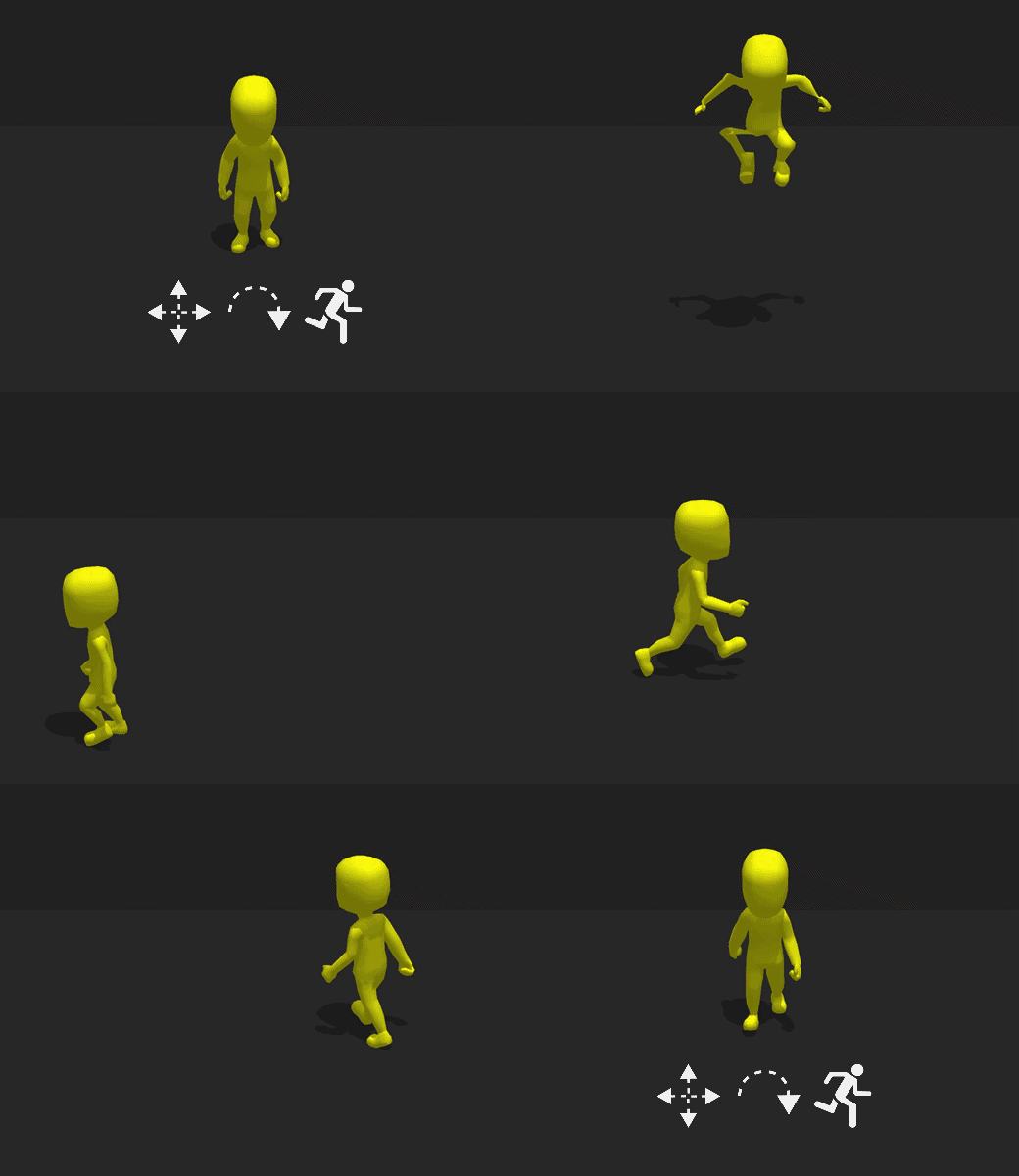
This advanced platformer Brainbox allows the player to move an Animated Platformer asset with the W, A, S, D and arrow keys on their keyboard.

This Brainbox requires the Animated Platformer Brainbox.

To move the asset across the scene in a given direction, the player needs to press and hold the following keys:

Keyboard Button Movement Direction
W, Up Arrow Forward
A, Left Arrow Left
S, Down, Arrow Backward
D, Right Arrow Right

Brainbox Attributes

This Brainbox contains two additional controls that allow the player to make the asset:

  • Run—increases the movement speed of the asset when the player presses and holds this button.
  • Jump—makes the asset ascend along the Y axis before being affected by gravity and falling.
Attribute Description
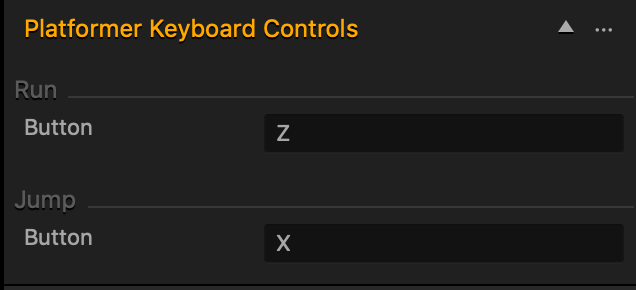
Button
  • Each Button attribute has a default key assigned to it.
  • To assign a different keyboard button, click the field and press the key you want to assign on your keyboard.
  • The following keys are not supported: Ctrl, Alt, Shift, CMD, Opt.

Brainbox Node Group

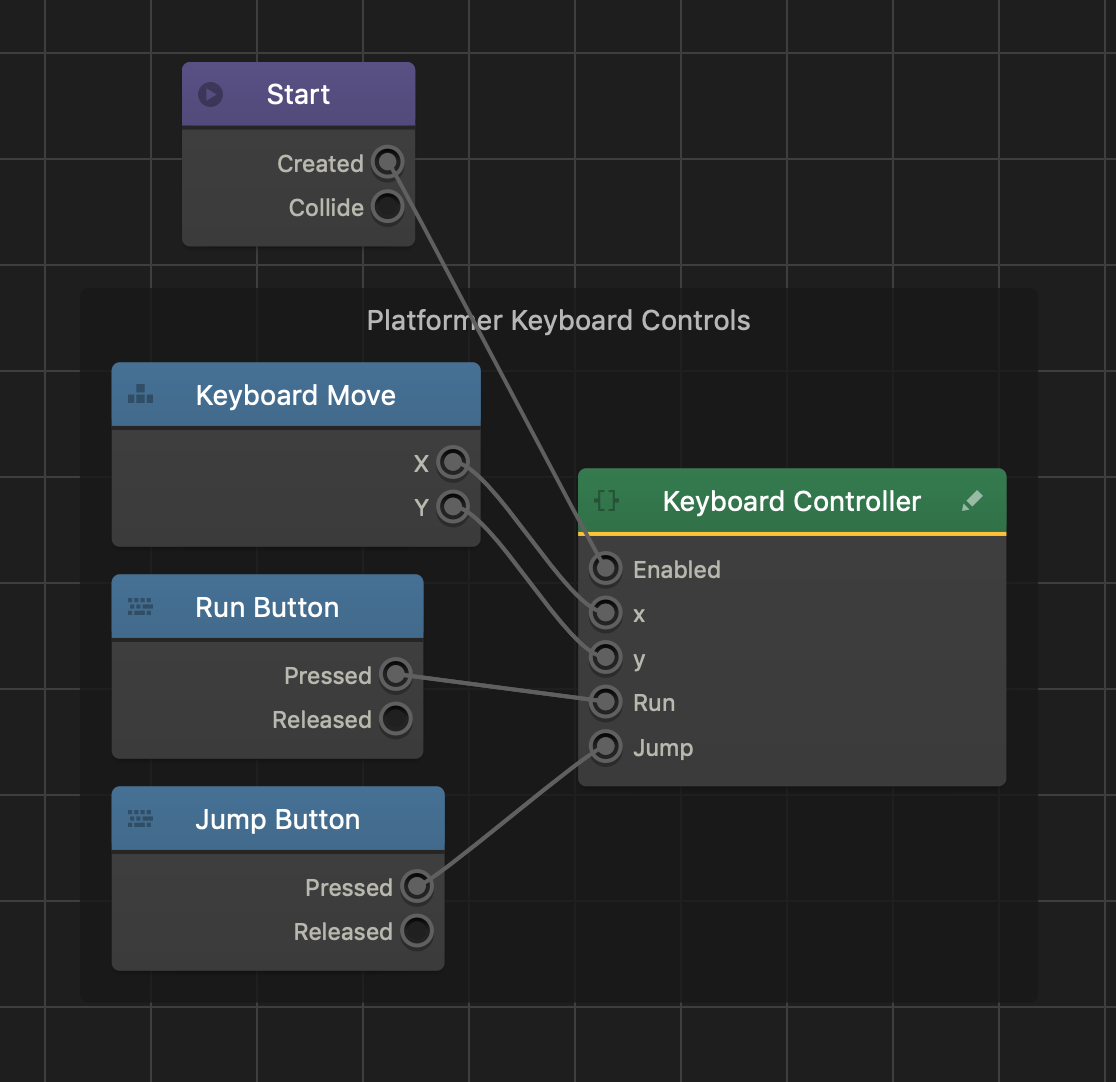
After you add this Brainbox to an asset, a custom Keyboard Controller node appears in the node map along with three Keyboard Button nodes.

Animated Platformer Brainbox – Buildbox 3 Manual

By |

Animated Platformer Brainbox

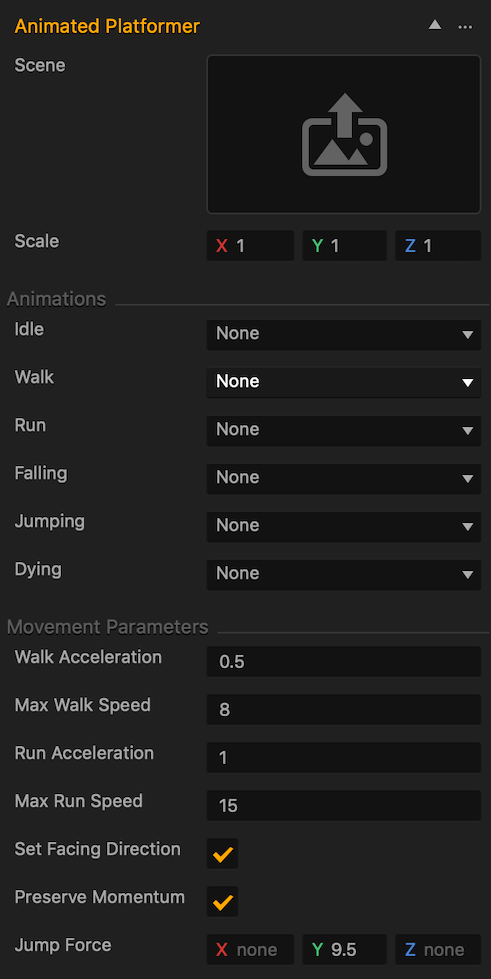
This Advanced Platformer Brainbox provides the asset with a set of 3D animations that play depending on player actions and a set of movement restrictions which include how high the asset can jump.

Before you add this Brainbox to an asset, check the asset Node Map for additional Sub Scenes.

  • If the asset contains additional Sub Scenes, all associated meshes will display.
  • If you only want the mesh associated with this Brainbox to show, delete any additional Sub Scene nodes.
  • There are some situations where having additional Sub Scenes can be useful. For example, attaching a weapon or shield mesh that requires animations.

After you add this Brainbox to an asset, you need to specify the skeleton and animations you want to play by doing the following:

  1. To assign a skeleton:
    1. In the Scene attribute, click the Edit button .
    2. In the Sub Scene Manager window, click the name of the skeleton you want to use on the right.
    3. Click Save.
  2. To add an animation to any of the animation attributes, click any of the following Animation drop-down lists and select the name of your animation:
    • Idle—plays when the asset is not moving or jumping.
    • Walk—plays when the player uses a control to make the asset run.
    • Run—plays when the player uses a control to make the asset run.
    • Falling—plays when the asset is falling along the Y axis.
    • Jumping—plays when the player uses a control to make the asset run.
    • Dying—plays when something causes the asset to become defeated. See also Manage Health, Damage, and Defeat.
    You can leave an Animation attribute as None if you do not have an animation for the respective attribute.

Brainbox Attributes

Attribute Description
Scene
  • Allows you to select a skeleton for the specified animations.
  • To select a pre-existing skeleton, click the Edit button  and in the Sub Scene Manager window, select the desired skeleton
  • To import and add a new skeleton, drag an FBX file into the field.
Scale Enter a numeric value in any of the axis fields to change the size of the mesh.
Animations Click the drop-down to assign an animation to the respective attribute.
Looped Select the checkbox to make the animation play continuously.
Max Walk Speed Enter a numeric value to determine the quickest possible walking speed for the asset.

If a joystick control is assigned to this asset, its movement speed is determined by how far the player drags the joystick. When the player drags the joystick at the maximum distance, the asset will walk at maximum speed.

Run Acceleration Enter a numeric value to determine how quickly the asset transitions from walking to running.
Max Run Speed Enter a numeric value to determine the quickest possible running speed for the asset.
Set Facing Direction Select the checkbox to make the asset rotate so that its front side is always facing the direction it’s moving in.
Preserve Momentum Select this checkbox to make the asset keep its current momentum while moving. For example, this will allow a character to stand on a moving platform without falling off.
Jump Force Enter a numeric value in any of the axis values to specify the amount of units the asset will travel before falling into the direction of gravity.

Brainbox Node Group

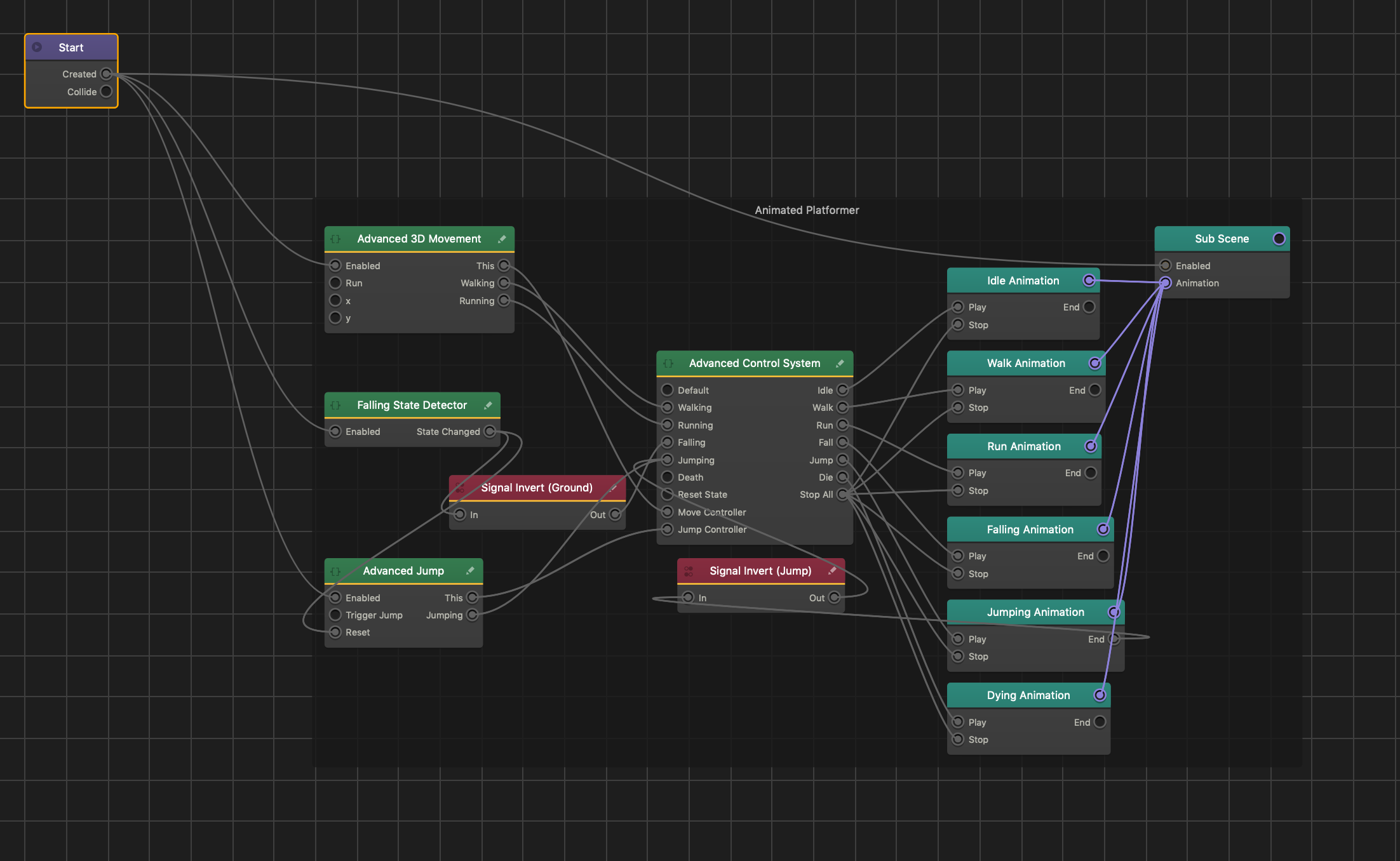
After you add this Brainbox to an asset, several custom nodes appear in the node map along with several Keyframe Animation nodes and a Sub Scene node.

Ground – Buildbox 3 Manual

By |

Ground

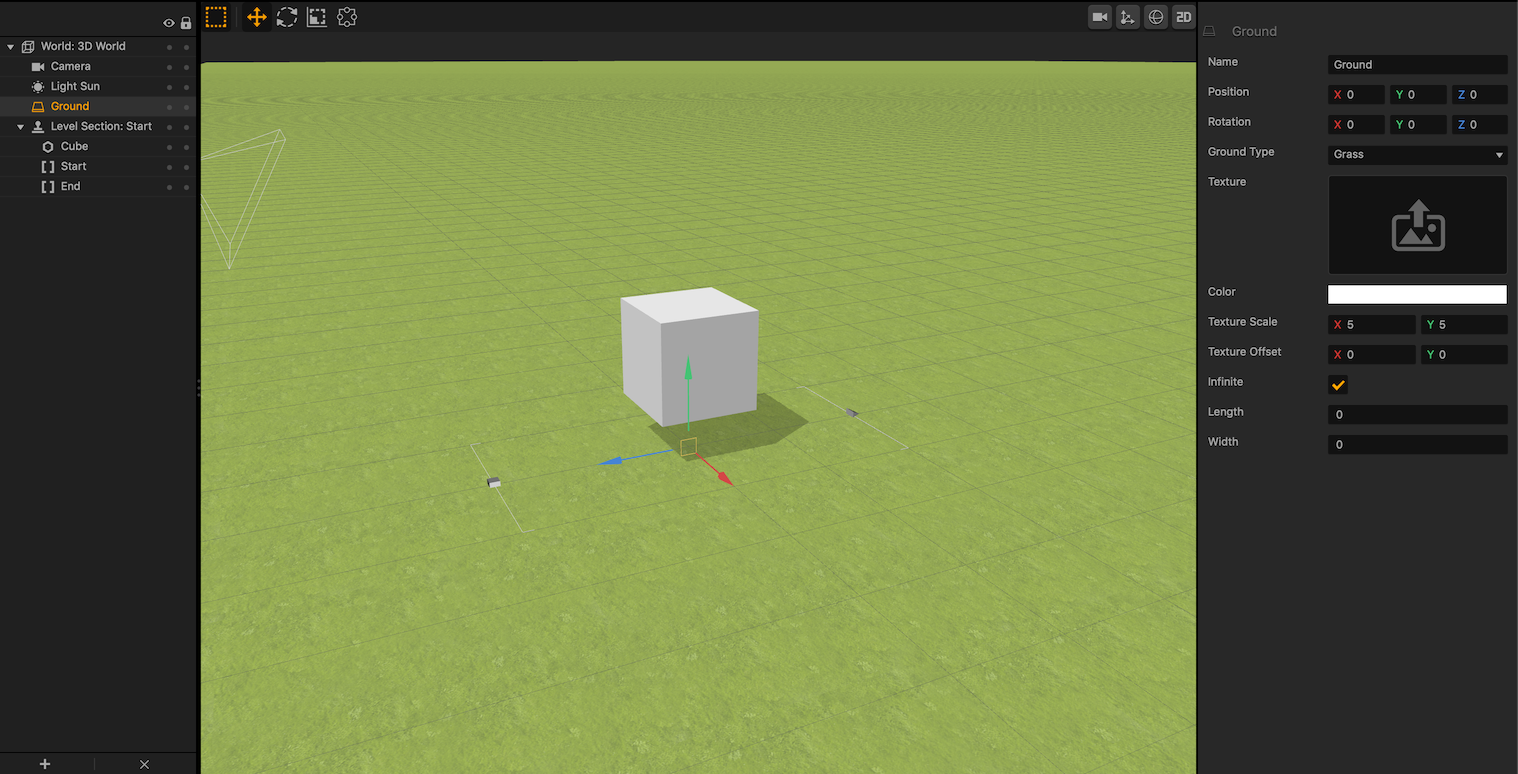
Every 3D World contains a Ground that is present in every scene, much like the Camera and the Start/End points. When an asset has physics enabled, it will not pass through the ground.

Assets with a Mesh physics shape will not collide or move across the ground properly. For more on setting collision shapes, see Changing Collision Shapes.

  • By default, the Ground covers the entire scene, and cannot be deleted.
  • To hide the ground, click the Ground Type dropdown and select No Ground.
  • You can use the tools in the toolbar to rotate and move the ground in the scene.

Ground Attributes

Attribute Description
Name Enter a different name for the ground, if desired.
Position Enter a numeric value in any of the axis fields to move the ground.
Rotation Enter a numeric value in any of the axis fields to rotate the ground.
Ground Type Click the dropdown to change the appearance of the ground.

  • Grass—applies a grass texture to the ground.
  • Road—applies a road texture to the ground.
  • No Texture—applies a color defined by the Color attribute.
  • Custom Texture—applies the texture specified by the Texture attribute.
Texture To apply a custom texture to the ground, set the Ground Type to Custom Texture and drag a PNG image into the Texture attribute field.
Color To add a color to the ground, click the color field and choose a color.

  • If the ground contains a texture, the color will overlay on top of the texture.
  • If you choose a white color, there will be no color overlay.
Texture Scale Enter a numeric value in any of the axis fields to change the size of the texture.
Texture Offset Enter a numeric value in any of the axis fields to change the position of the texture.
Infinite If checked, the ground will cover the entire view of the scene. If unchecked, the ground will change its size to a length and width of 1.
Length
  • Enter a numeric value to extend or shrink both sides that make up the length of the ground.
  • For example, a value of 2 will change the total length of the ground to be a value of 4.
  • Changing the size will uncheck Infinite.
Width
  • Enter a numeric value to extend or shrink both sides that make up the width of the ground.
  • For example, a value of 2 will change the total width of the ground to be a value of 4.
  • Changing the size will uncheck Infinite.

Analytics – Buildbox 3 Manual

By |

Analytics

Analytics provides data that keeps track of how many times players do the following actions:

  • Install your app
  • Launch your app
  • Make in-app purchases
Facebook is currently the only analytics option. More options will be available in future updates.

To integrate analytics in your game:

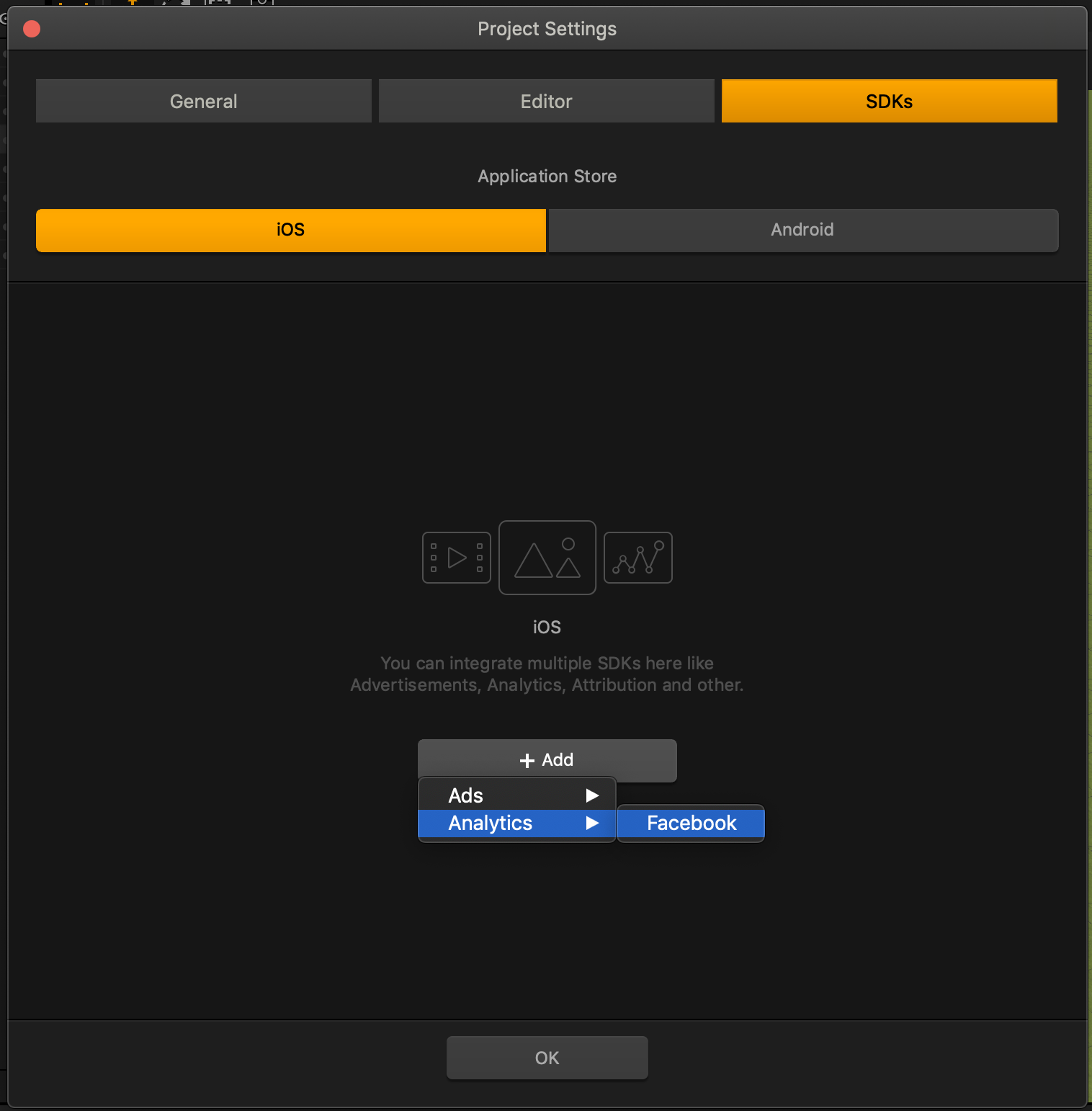
  1. On the Navigation bar, click the Settings button.
  2. In the displayed Project Settings window, click the SDKs tab.
  3. Click the appropriate App Store, for example, iOS or Android.
  4. In the middle of the screen, click Add and in the Analytics section, select the name of the analytics provider.

    The selected analytic settings appear.
  5. If needed, go to the Facebook Developers page, create an account and follow their directions to create your App ID and App Name.
  6. In the App ID and App Name field, enter the name and Id of your app as it appears on the facebook dashboard.

Game Start Node – Buildbox 3 Manual

By |

Game Start Node

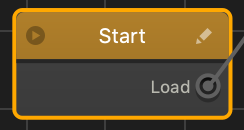
The Start node on the Mind Map is the root node of your game.

It is a special UI node that loads the game and displays a loading bar on a splash screen to your players, for example, with your logo. You may also use this node to add background music to your entire game.

  • Anything you connect to this node will load immediately after the player begins your game.
  • The Start node has only one output, Load, which you can link either to a UI node or World node. See also Node Anatomy.
  • You may not duplicate or delete the Start node.

Editing Start Node—Customizing Your Splash Screen

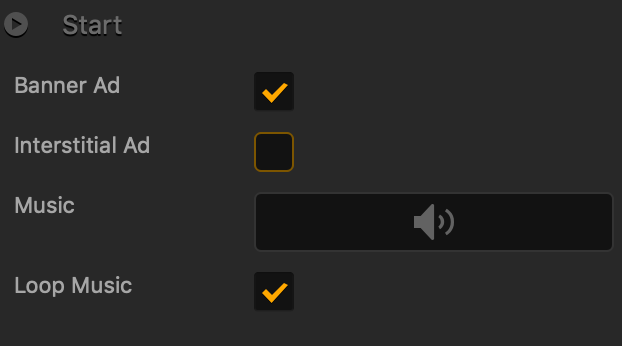
  • To add music, select the Start node on the Mind Map and in the Options panel on the far right, do the following:

    Since ads need to be preloaded when the game starts, banner and interstitial ads added to the Start node on the Mind Map will not appear on the Start UI screen when it is first loaded. They will be displayed only if the player chooses to replay the game. For details, see Ad Monetization.
    Option Description
    Ad Banner Select to allow banner ads to appear at the bottom of the screen.
    Ad Interstitial Select to allow full-screen interstitial ads to appear on the screen.
    Music Drag an MP3 file that you want to play when your game starts. See also Add Music and Sound Effects.
    Loop Music Select the checkbox to set the music to play continuously. If you clear the checkbox, the music will play once and stop.
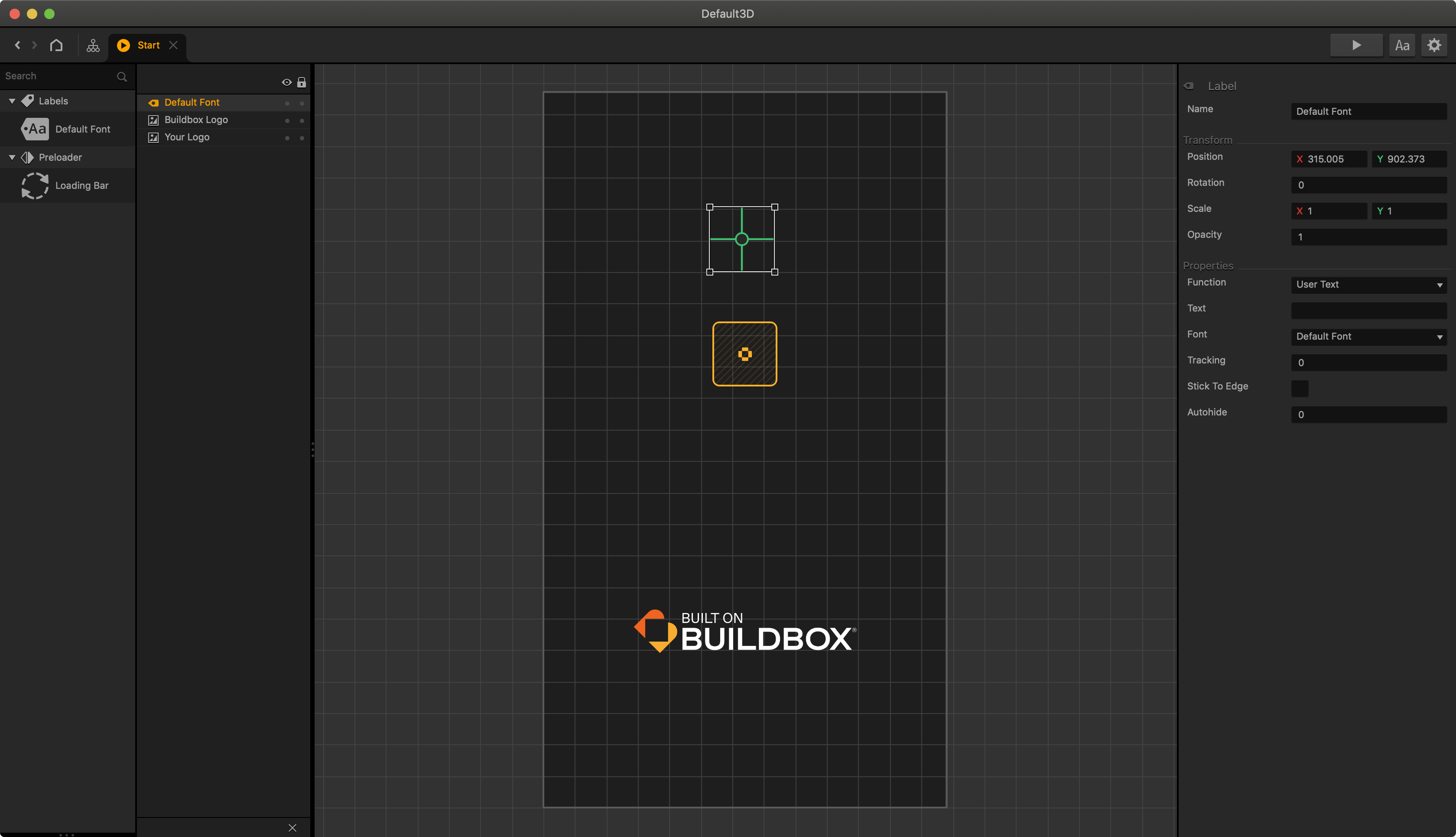
  • To add your logo, remove the Buildbox logo, add text, a loading bar, or make any other changes to the splash screen, do either of  the following to open its UI Editor:
    • Double-click the Start node.
    • Click the Edit icon in the top right corner of the node.
      The Start node UI Editor appears.

    In the Start node UI Editor, drag the appropriate assets from the Asset panel on the left or images from your computer and define their attributes in the respective Options panels, for example, Image Options for the logo.
    See also UI outliner and Sprite Editor.

Only Buildbox Plus and Buildbox Pro users can customize the Start node.

Rotate Towards Node – Buildbox 3 Manual

By |

Rotate Towards Node

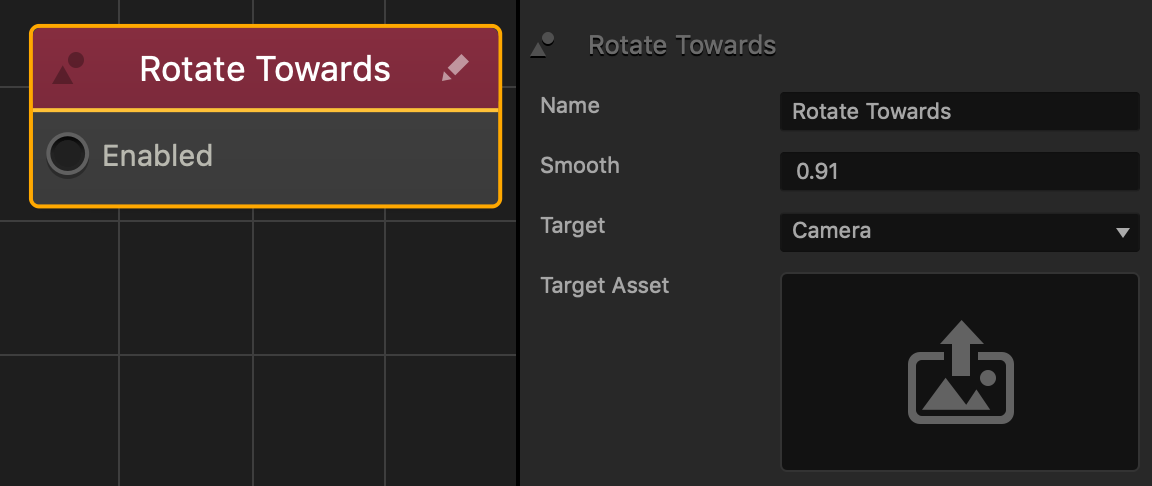
This action node rotates an asset to face the camera or another specified asset.

Option Description
Name Type a custom name for this node, if needed.
Smooth Enter a decimal from 0 to 1 to determine how smooth the rotation will be, 1 being 100%.
Target Click the dropdown and select:

  • Camera—makes the asset rotate along the Y axis until its positive Z axis aligns with the camera.
  • Target Asset—makes the asset rotate along the Y axis until its positive Z axis aligns with the asset specified by the Target Asset attribute.
Target Asset Click the Edit button and select an asset to rotate towards.

If needed, you can also customize this node. For details, see Customizing Nodes.

Attract Node – Buildbox 3 Manual

By |

Attract Node

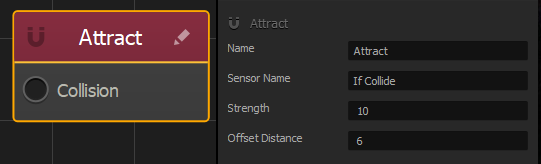
This action node is typically connected to an If Collide node that triggers it. The Attract node makes the asset move toward the asset specified in an If Collide node.

Option Description
Name Type a custom name for this node, if needed.
Sensor Name Type the name of an If Collide node that specifies which asset or assets the attached asset will move towards.
Strength Affects how fast the attached asset will move towards the specified asset.
Offset Distance
  • The distance around the specified asset that determines when the attached asset will move towards the specified asset.
  • After this node has become active, if the attached asset moves outside of this distance, it will then move towards the specified asset.

If needed, you can also customize this node. For details, see Customizing Nodes.