Mobile Controls Brainbox – Buildbox 3 Manual

By |

Mobile Controls Brainbox

This Advanced Platformer Brainbox allows the player to move the asset with a UI Joystick control.

This Brainbox requires the Animated Platformer Brainbox.
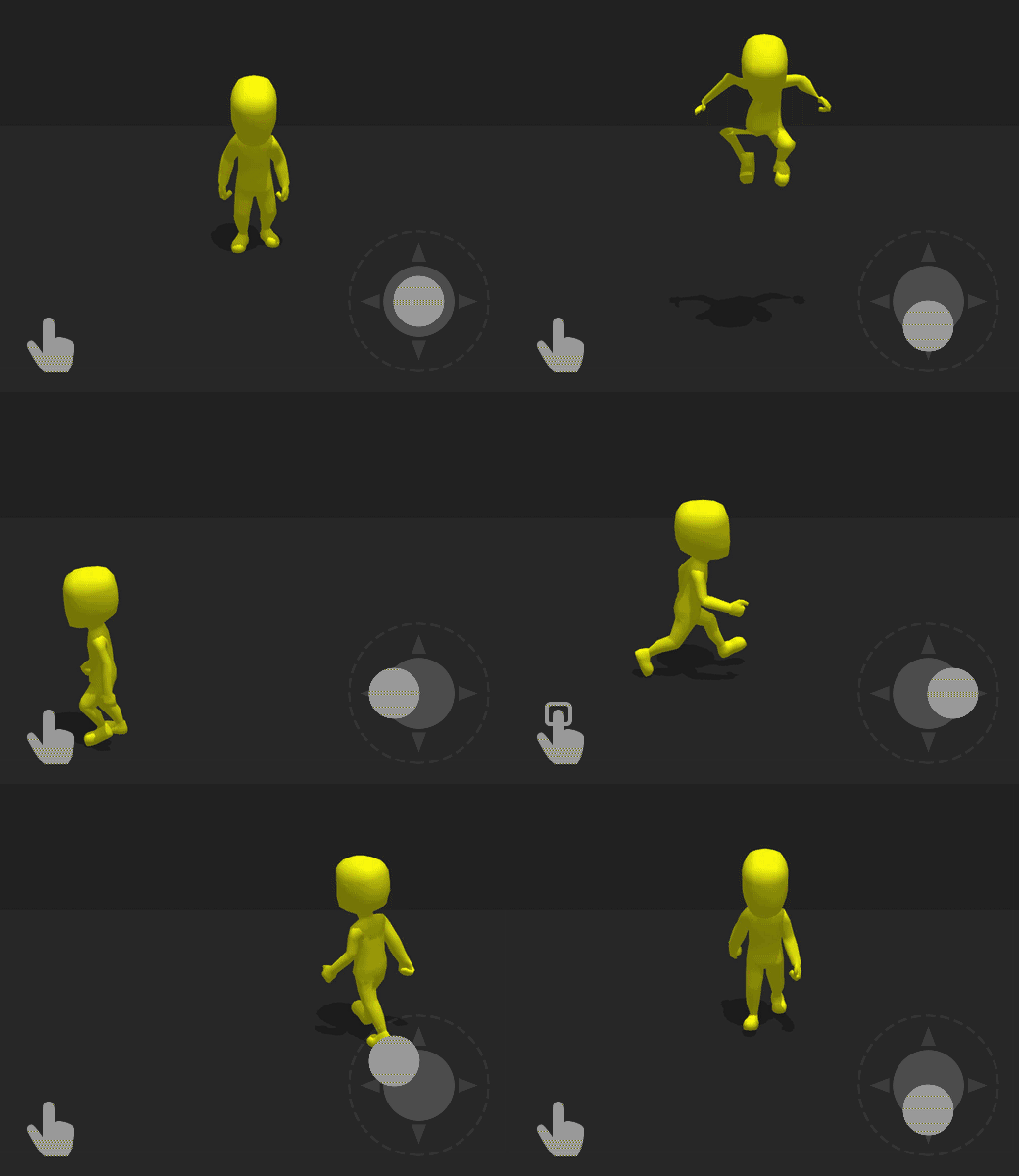
After you add this Brainbox to an asset, you need to add a Joystick asset to the UI Screen Node connected to the current 3D World.

  1. On the Mind Map and in the Node Panel, drag a UI Screen node into the grid.
  2. On the UI Screen Node connect the Load input to the UI output of the desired 3D World.
  3. Double-click the UI Screen node to open the UI Editor.
  4. In the Asset Panel on the left, click the Asset Library button.
  5. Double-click the Joystick asset to add it to the Asset Panel.
  6. From the Asset Panel, drag the Joystick asset into the UI Editor.

After you add a UI joystick asset, you need to make sure that the Event Name attribute in both the Brainbox and the Joystick have the same name.

Brainbox Attributes
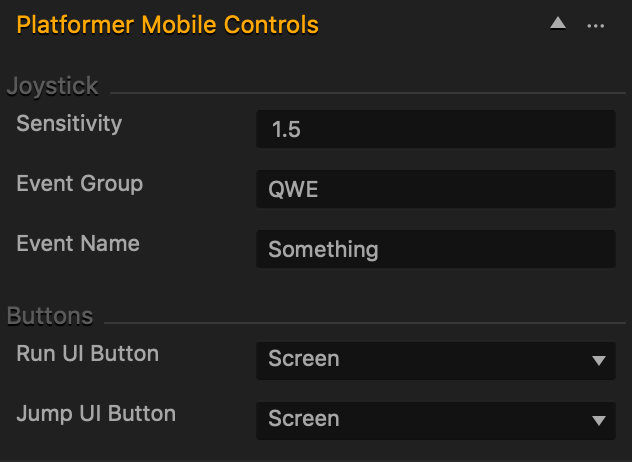
Attribute Description
Sensitivity Enter a numeric value to determine how far the player needs to drag the joystick handle in order for the asset to move at the maximum distance.
Event Group Enter the name in the field that matches the name of a Joystick asset Event Group attribute.
Event Name Enter the name in the field that matches the name of a Joystick asset Event Name attribute.
Run UI Button Click the drop down and select the following options the player can tap or click to make the asset move at the run speed specified by the Animated Platformer Brainbox.

  • Screen—allows the player to tap or click the screen.
  • UI Control Button—the space on the screen specified by a UI Control Button on a UI Screen.
Jump UI Button Click the drop down and select the following options the player can tap or click to make the asset jump.

  • Screen—allows the player to tap or click the screen.
  • UI Control Button—the space on the screen specified by a UI Control Button on a UI Screen.

Brainbox Node Group

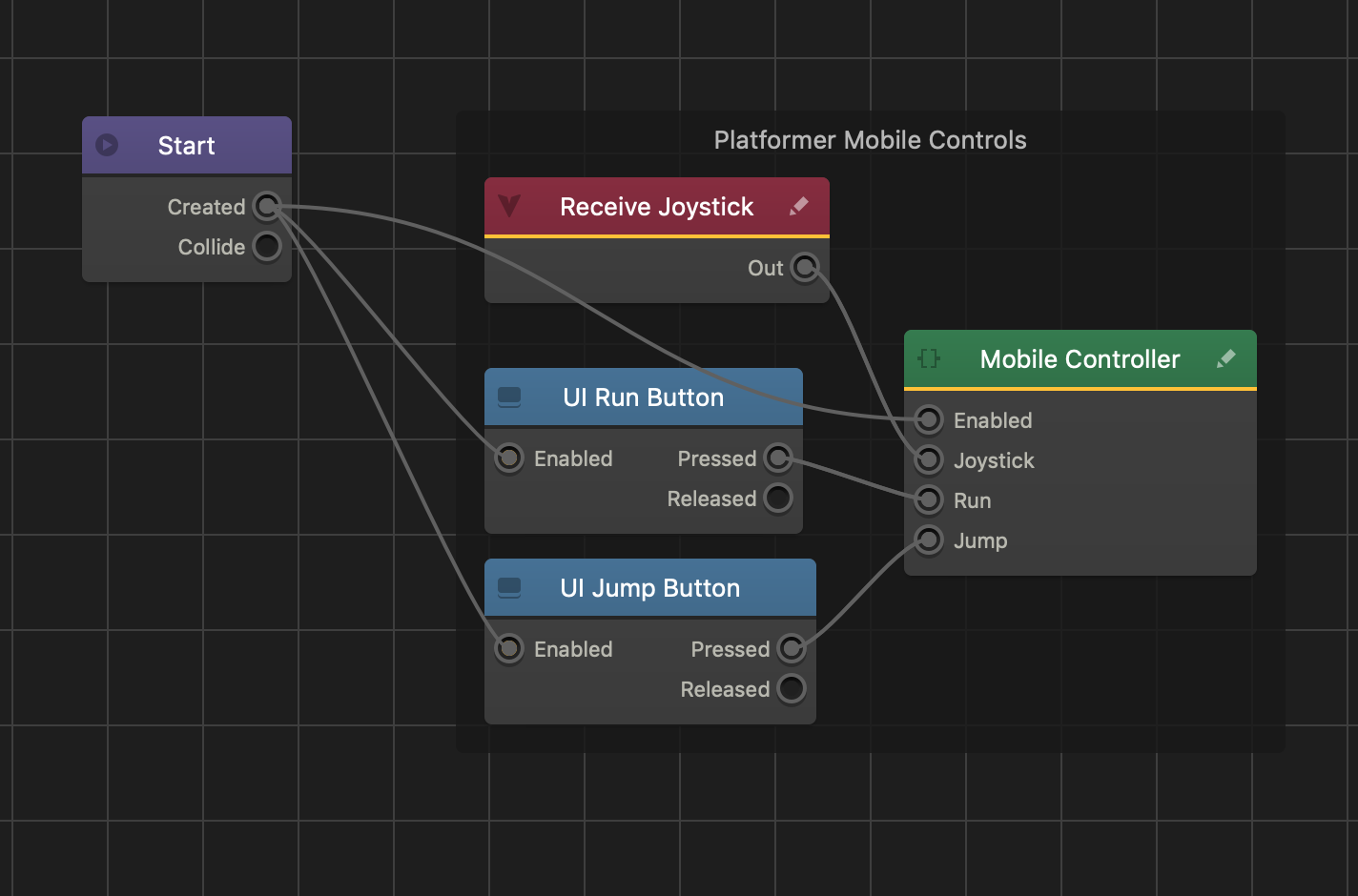
After you add this Brainbox to an asset, a custom Mobile Controller node, a Receive node, and two UI Button nodes appear in the node map.
Sub Scene Node – Buildbox 3 Manual

By |

Sub Scene Node

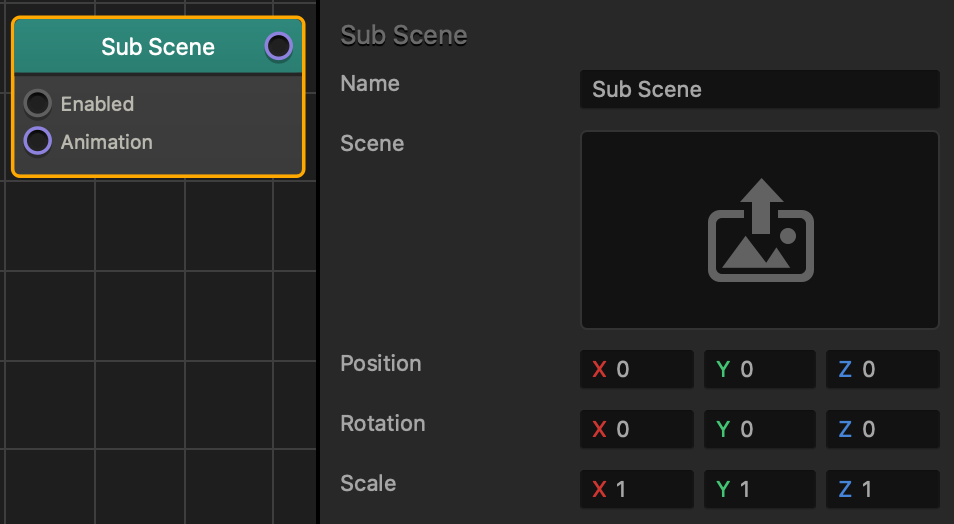
This content node contains a 3D mesh with a skeleton that can be animated by a Keyframe Animation node.

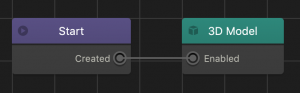
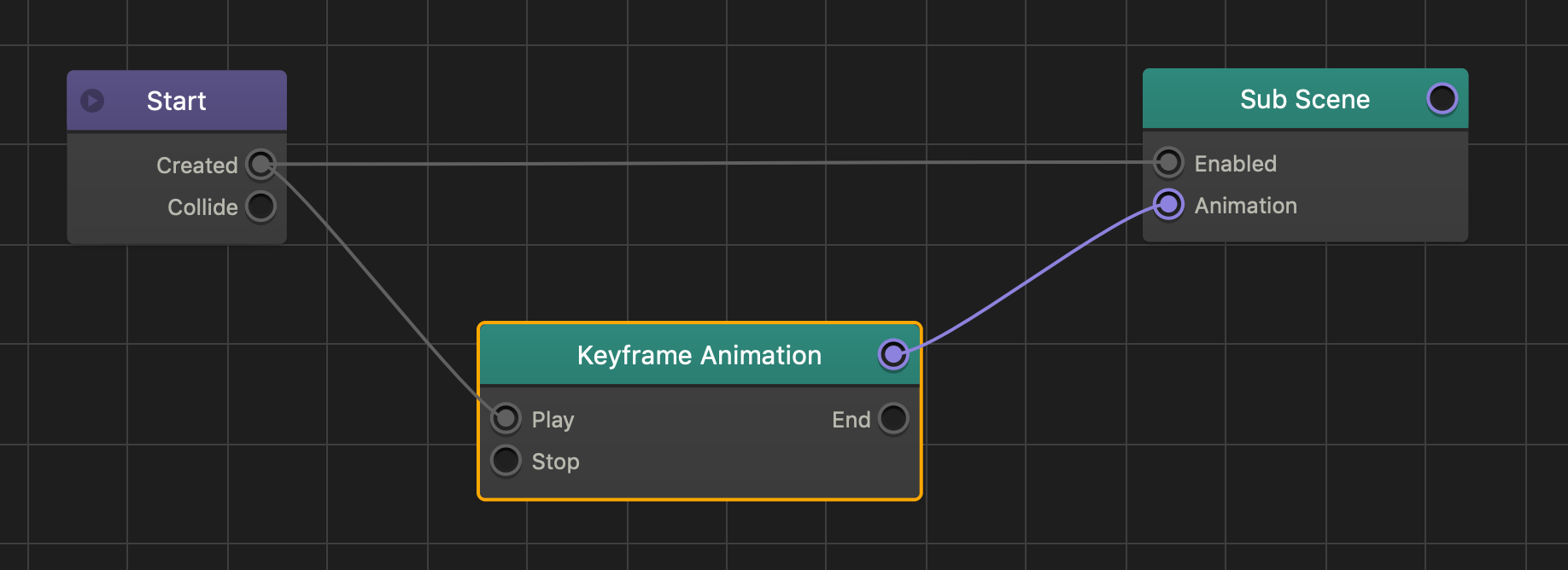
  • To apply a mesh and skeleton to an asset, connect the Enabled input to the Created output of the Start node.
  • To apply an animation to the model and skeleton, connect the Animation input of the Sub Scene to the purple reference output next to the name of a Keyframe Animation node.

Option Description
Name To create a custom name, type it here.
Scene To replace the current model and skeleton or choose a new one:

  1. Click the edit button in the field to open the Sub Scene Manager window,
  2. Select the name of the model on the left.
  3. Click Save.
Position To move and offset the 3D model from the center of the asset, enter the appropriate X, Y, or Z axis values.
Rotation To rotate the 3D model without rotating the entire asset, enter the appropriate X, Y, or Z axis values.
Scale To change the size of the 3D model, enter the appropriate X, Y, or Z axis values.

See also, Importing 3D Animations.

Keyframe Animation Node – Buildbox 3 Manual

By |

Keyframe Animation Node

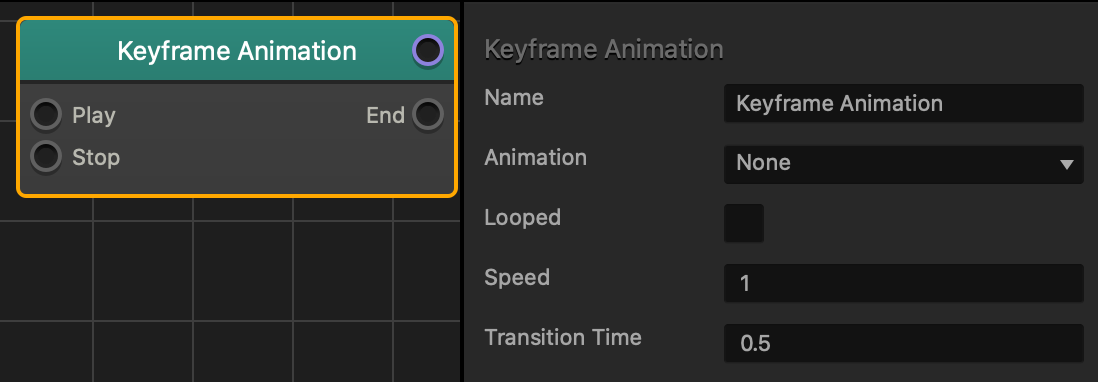
This content node plays a 3D animation for a connected Sub Scene node.

  • To apply an animation to a Sub Scene that contains a 3D model with a skeleton, connect the purple reference output on the Keyframe Animation node to the Animation input of the desired Sub Scene node.
  • To play a 3D animation, connect the Play input of the Keyframe Animation node to the output of the desired node.
    • The example below shows a 3D animation playing when the asset is created or spawned.
  • To pause an animation, connect the Stop input of the Keyframe Animation node to an output of the desired node.

Node Attributes

Option Description
Name To create a custom name, type it here.
Animation After you import the desired 3D animation, click the drop-down and select the animation that you want to play. For more on importing animations, see Importing FBX with 3D Animations.
Looped Select the checkbox to make this animation play again every time it finishes playing.
Speed Enter a numeric value to determine the playback speed. For example:

  • A value of 1—normal speed.
  • A value of 2—double the speed.
Transition Time Enter a numeric value in seconds to set the time before playing a different animation.

See also, Importing 3D Animations.

Keyboard Camera Controls Brainbox – Buildbox 3 Manual

By |

Keyboard Camera Controls Brainbox

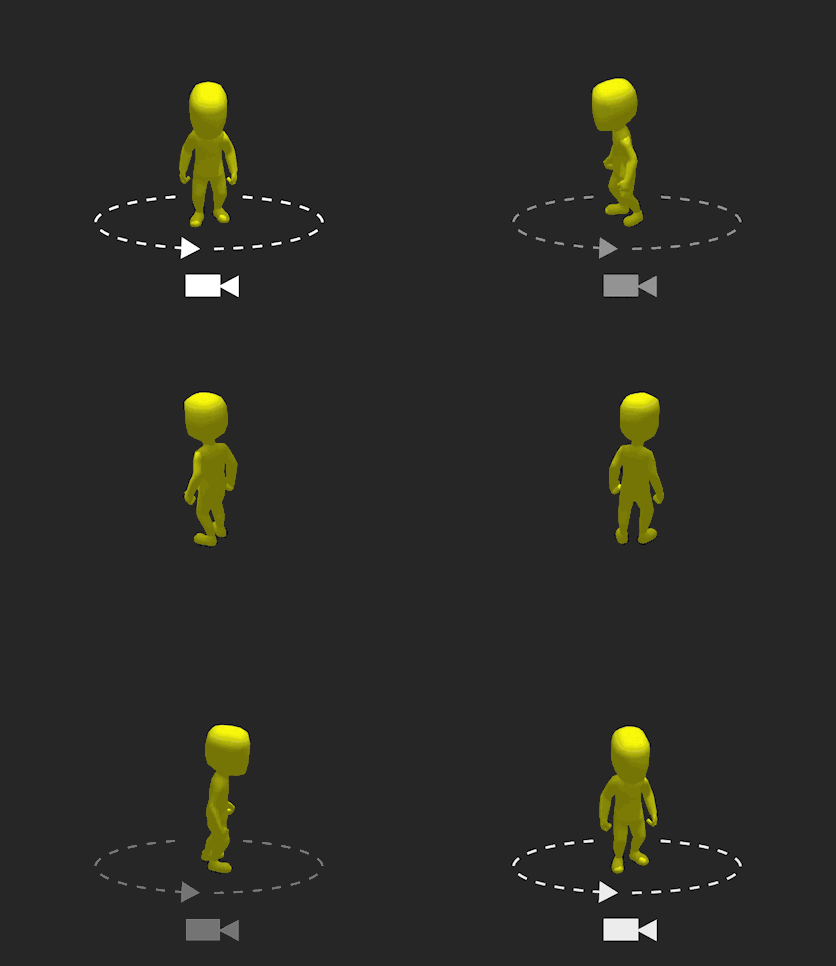
This Advanced Platformer Brainbox allows the player to rotate the camera around an Animated Platformer asset with the assigned keyboard buttons.

This Brainbox requires the Animated Platformer Brainbox.

Brainbox Attributes

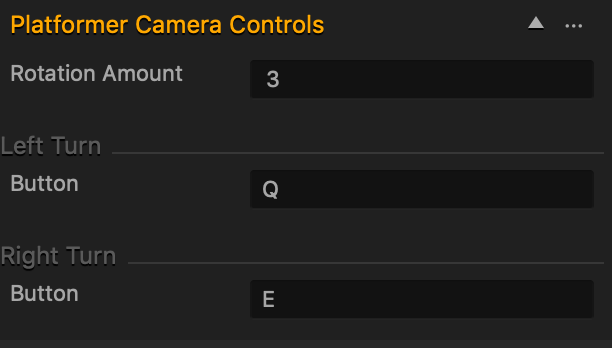
This Brainbox contains two attributes:

  • Left Turn—rotates the camera counter-clockwise.
  • Right Turn—rotates the camera clockwise.
Attribute Description
Button
  • Each Button attribute has a default key assigned to it.
  • To assign a different keyboard button, click the field and press the key you want to assign on your keyboard.
  • The following keys are not supported: Ctrl, Alt, Shift, CMD, Opt.

Brainbox Node Group

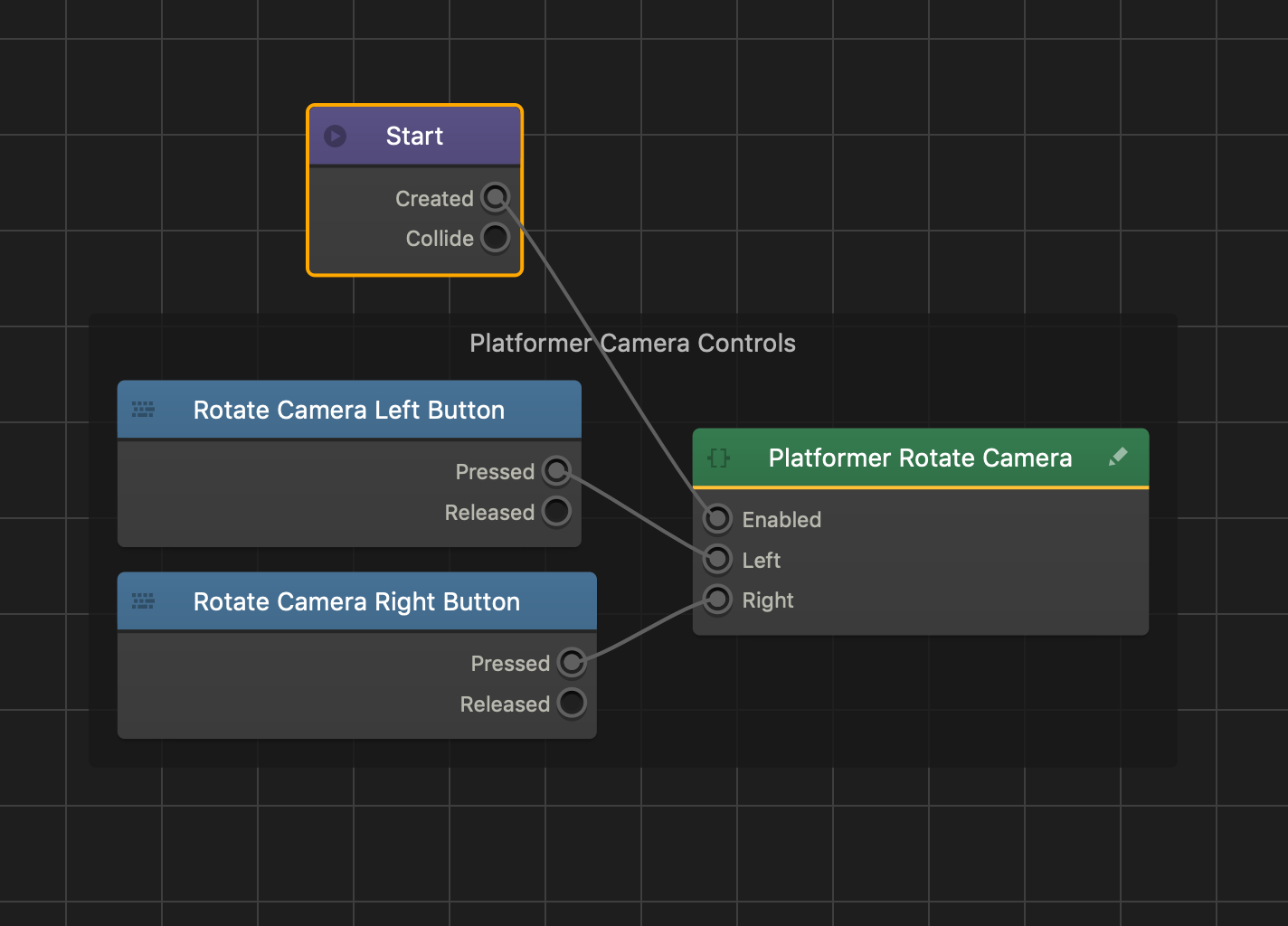
After you add this Brainbox to an asset, a custom Platformer Rotate Camera node and two Keyboard Button nodes appear in the node map.
Health Node – Buildbox 3 Manual

By |

Health Node

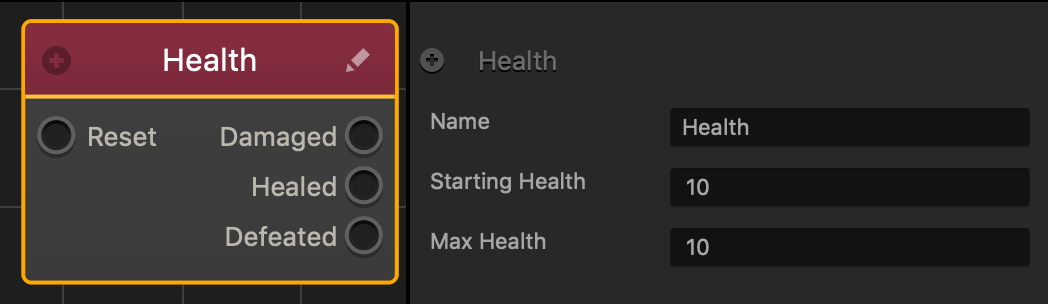
This action node gives the asset Hit Points, or a health amount that determines when an asset is defeated. Also determines what happens when an asset has been damaged and defeated.

  • Health is the amount of damage an asset can receive before being defeated.
  • There is no need to connect this node to the Start node. When this node is attached to an asset, it will already be active.
  • Connecting a node to Reset will reset the health back to the specified amount.
  • When an asset receives damage from a Damage Node, the Damage amount set by the Damage node will be subtracted from the health amount.
  • When the Health amount has increased by any number, the asset is considered to be Healed.
  • When the Health amount has decreases by any number, the asset is considered to be Damaged.
  • Once the Health amount has reached 0, the asset is considered being Defeated.

Option Description
Name Type a custom name for this node, if needed.
Starting Health Enter a numeric value to specify the total Hit Points an asset contains at the start of the game.
Max health
  • Enter a numeric value to specify the number of maximum possible hit points the asset can have.
  • The asset will not be able to earn more Health from a Heal node when it has the maximum health amount.

If needed, you can also customize this node. For details, see Customizing Nodes.

Start and End Points – Buildbox 3 Manual

By |

Start and End Points

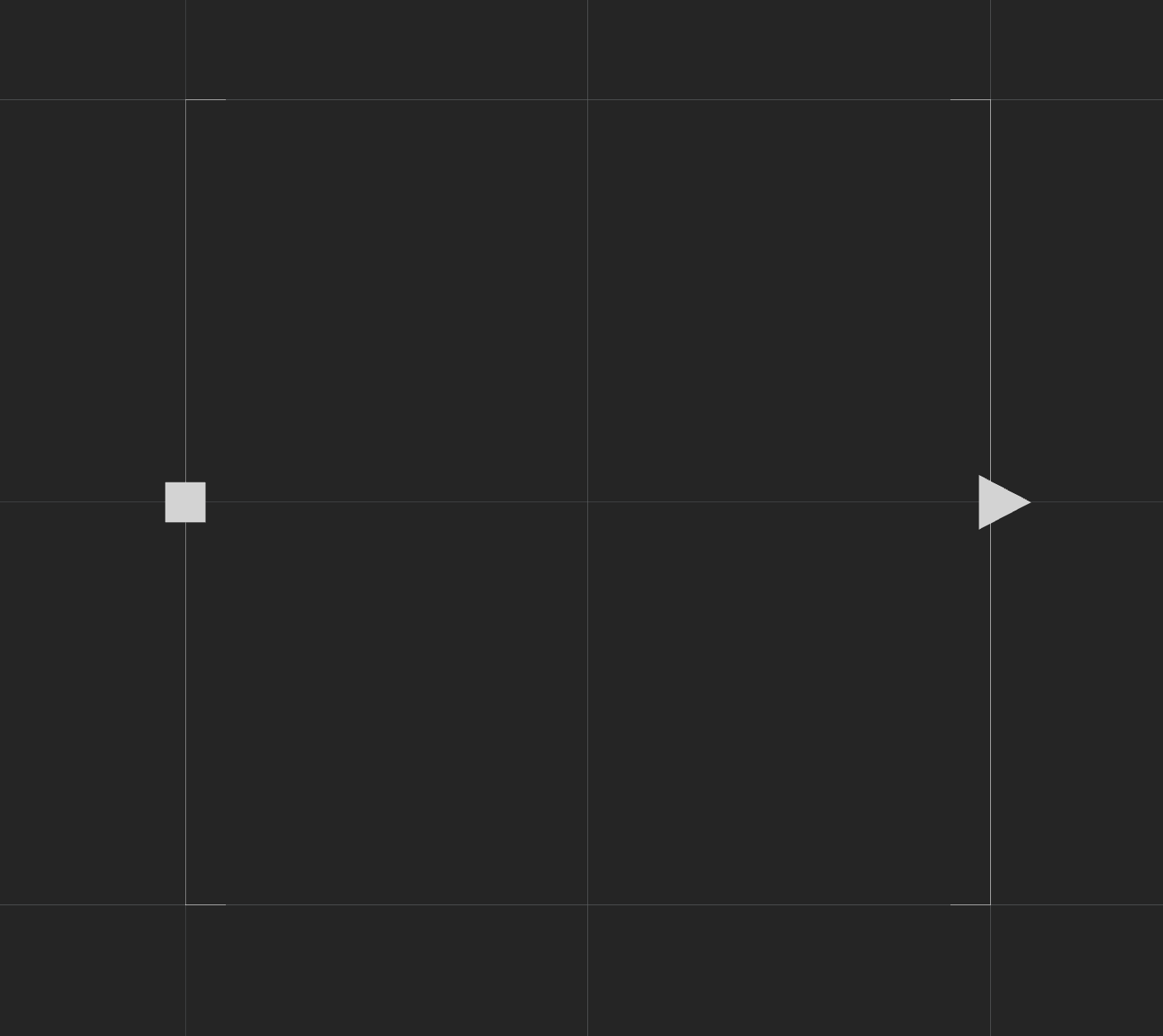
Every scene has a set of start and end points that determine the length and direction of a scene.

In the image below, the left point is the Start point, and the point on the right is the End point.

Each scene is connected through their start and end points. When a player reaches the end point of one scene, they will enter the next scene at its start point.

To extend the length of your scene, do the following:

  1. In the Outliner panel, select the End point.
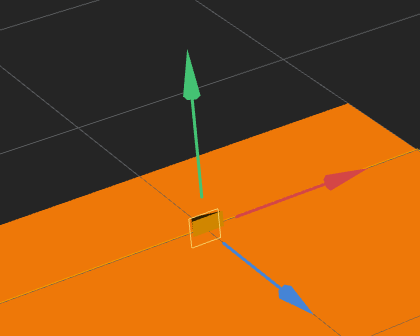
    Three colored axis arrows appear around the End point in the Scene Editor.
  2. In the Scene Editor, drag the blue arrow forward to extend the length of your scene.
  3. Repeat the above steps for the Start point. Drag the blue arrow backward.

Viewing Collision Shapes – Buildbox 3 Manual

By |

View Collision Shapes

A collision shape is the surface area around an object that gets affected when two objects from different collision groups collide.

To view collision shapes in the Scene Editor, on the toolbar, click the Collision Shape Editor button. See also Changing Collision Shapes.

If you don’t see the collision shape of an object:

  1. In the Asset panel, double-click the corresponding asset.
  2. In the displayed Node Map of the asset, click the purple Start node.
  3. In the Options panel, select the Physics checkbox.
  4. On the Navigation bar, click the 3D World to return to the Scene Editor.
    Now you should be able to see and move the collision shape of the selected object.
To preview the collision shapes in the scene, turn on the Debug Mode in the Preview window.

Customizing Nodes – Buildbox 3 Manual

By |

Customizing Nodes

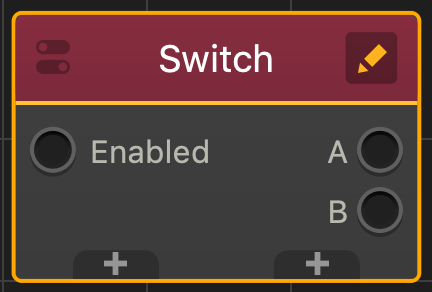
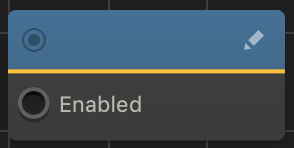
There are some types of nodes that you can customize directly on the Node Map. These nodes have an Edit icon in the top-right corner of their title.

There are several ways you can customize a node when you click the Edit icon:

Adding Inputs and Outputs

To add or remove inputs and outputs in a customizable node:

  1. On the Node Map, double-click the node you want to modify.
  2. Click the Edit icon in the top-right corner of the node.
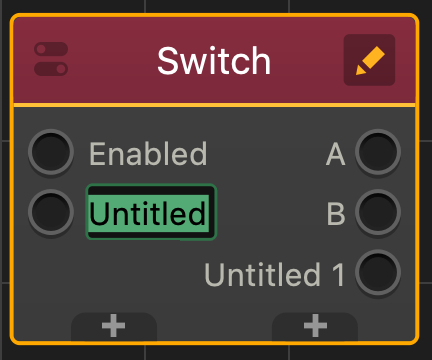
  3. Click a plus (+) sign that appears at the bottom of the node to add an input or output respectively.
  4. To rename an input or output, click Untitled and type the appropriate name.
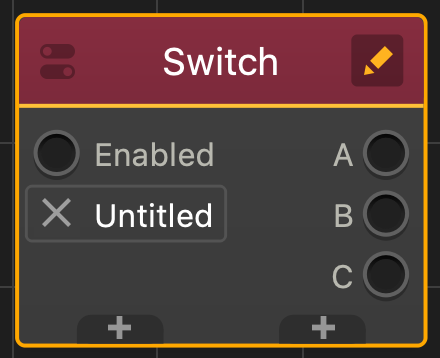
  5. To remove an input or output, mouse over its name and click the X next to it.
  6. When done, click anywhere on the Node Map to exit the edit mode.
  7. Connect the new input or output to the other nodes as needed.

Adding Images

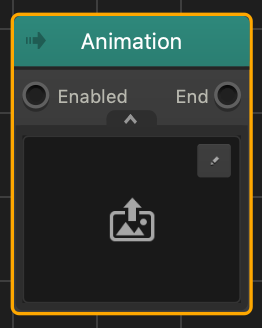
For some nodes, you can also add an image file directly to the node, for example, to the Animation node. Just click the drop-down arrow at the bottom and drag the desire file to the image area.

Adding Attributes

To add an attribute to a customizable node:

  1. On the Node Map, double-click the node you want to modify.
  2. Click the Edit icon in the top-right corner of the node.
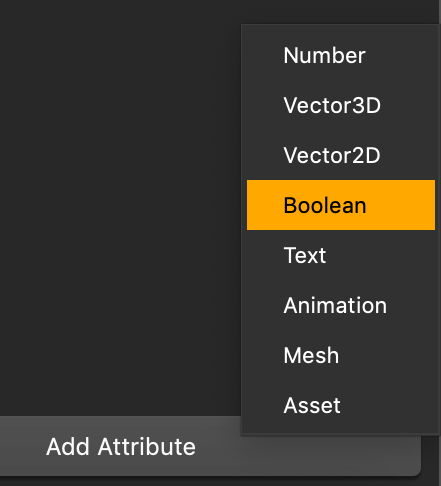
  3. In the Options panel on the right, at the bottom, click the Add Attribute button and select the desired attribute.

    A new Untitled attribute field of the selected type appears in the panel. For attribute field examples, see Attribute types below.
  4. Click the Untitled label, delete the text, and type the name for the attribute and enter the desired value for it.
  5. Click anywhere on the Node Map to close the edit mode.

Attribute Types

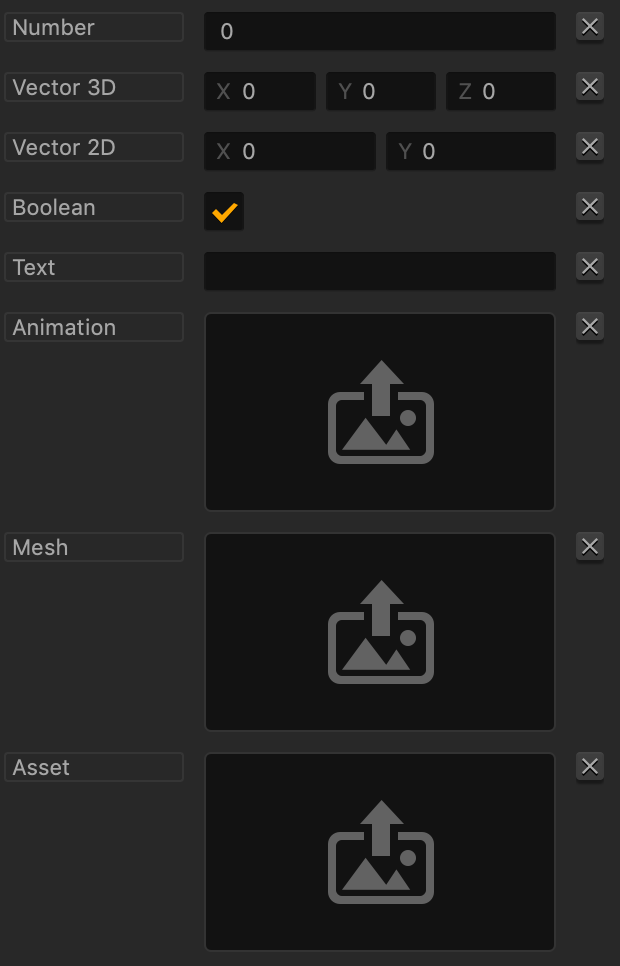
Here’s an example of all attribute fields that you can add to a customizable node.

Attribute Name Allows you to
Number Enter any numeric values.
Vector3D Enter numeric values for each of the 3D axes.
Vector2D Enter numeric values for each of the 2D axes.
Boolean Add a checkbox for boolean values.
Text Enter any alphanumeric values.
Animation Add an image file and create an animation.
Mesh Open the Mesh Manager and add a mesh to the node.
Asset Open the Asset Manager and add an asset to the node.

Removing Attributes

You can remove any attribute from a customizable node, except the Name field.

To remove an attribute from a node:

  1. On the Node Map, double-click the node you want to modify.
  2. Click the Edit icon in the top-right corner of the node.
  3. In the Options panel on the right, click the X next to the attribute that you want to delete.
  4. Click anywhere on the Node Map to close the edit mode.

Asset Nodes – Buildbox 3 Manual

By |

Object and Character Nodes

About Asset Nodes

Each asset in the game has at least two nodes on its Node Map:

  • A Start node, which creates the character or object and enables its physics.
  • A 3D Model node, which defines the shape of a 3D asset or an Animation node, which defines the appearance of a 2D asset.

By default, the attributes of these nodes are displayed in the respective Options panel of the asset.

If you wish to make an asset in the game behave in a certain way in response to the player’s actions, for example, jump when touched or explode when it collides with an obstacle, you need to add the appropriate nodes to the Node Map of the asset.

You can now easily add the desired movements and other behaviors to an asset by using the Add Brain Box button at the bottom of the Options panel of the asset. This automatically adds a predefined group of nodes to the asset based on your box selection.

Similarly, if you want to modify the game flow logic, for example, by randomizing transitions to new levels or by locking certain levels until the user unlocks them, you need to use nodes. For example, see Health, Damage, and Defeat.

Node Categories

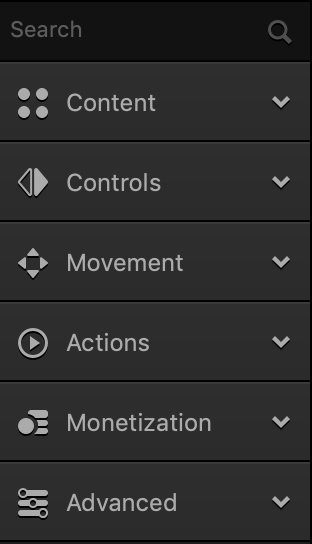
There are six node categories that include dozens of nodes that you can use to define any scenario you can imagine. These categories are located in the Node Panel to the left of the Node Map  and are listed in the table below.

For details on accessing the Node Map and adding nodes to it, see Node Map Workspace.

Node Category Icon Description Node Category Color
Content Nodes that allow you to define the appearance and shape of the selected object or character and add special effects, such as animation, sounds, text, and so on.
Controls Nodes that allow you to define the player interactions with the object during the game.
Movement Nodes that allow you to define the movements of the character or object during the game, for example, jumping, bouncing, floating, and so on.
Actions Nodes that allow you to perform actions on the character or object during the game, for example, to define how to handle collisions, health, damage, defeat, set checkpoints, control the camera, and much more.
Monetization Nodes that allow you to generate revenue from the dame, for example, by adding ads or game purchases. For details, see Ad Monetization.
Advanced Nodes that allow you to perform advanced actions, such as terminating your character, create custom script nodes, and so on.

Rotate Node – Buildbox 3 Manual

By |

Rotate Node

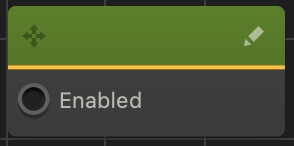
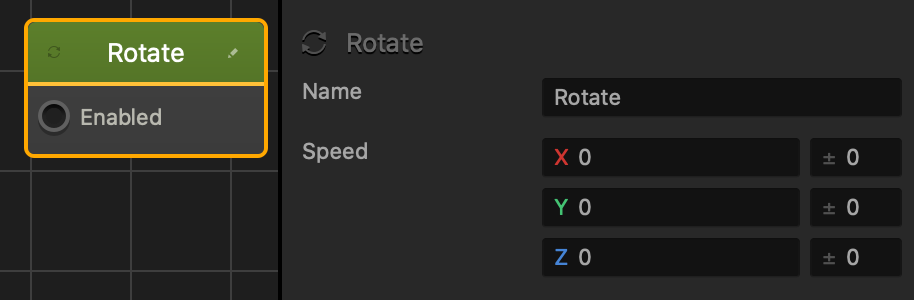
This movement node allows the asset to rotate along the specified axis.

Option Description
Name Type a custom name for this node, if needed.
Speed
  • Enter a numeric value in any of the axis fields to represent the rotation direction and speed.
  • The greater the number, the faster the asset will rotate.
  • To make the asset rotate clockwise along an axis, enter a (+) positive value in the desired Speed axis field.
  • To make the asset rotate counter clockwise along an axis, enter a (-) negative value in the desired Speed axis field.
  • Also depends on which direction the game camera is facing.
  • If you put values in more than one axis, the asset will rotate in all of the specified axis directions
    • For example, if all of the axis fields contain values, the asset will rotate like that of a mechanical bull.
  • Creating a value range:
    • To make the asset pick a random axis value, enter a value in any of the range fields to the right.
    • The range value is both added and subtracted to create a minimum and maximum of possible outcomes.
    • For example, if you enter a value of 100 in the Y axis, a value between 50 and 150 will be selected during gameplay.
      |50———-100———-150|
If there is no value in an axis field, then other nodes can affect this asset in those axes. This is useful when adding a Jump node to an asset.

If needed, you can also customize this node. For details, see Customizing Nodes.

See also, Rotate Brainbox.