UI Button Node – Buildbox 3 Manual

By |

UI Button Node

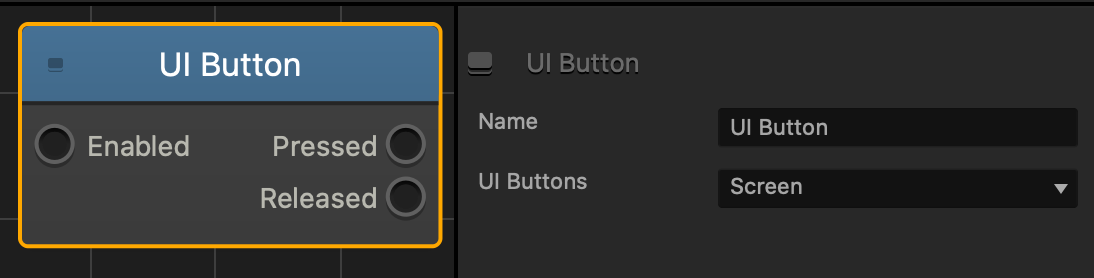
This control node allows the player to click or tap a specified area on the screen. For details, see Add a Control Button in the UI.

Option Description
Name Type a custom name for this node, if needed.
UI Buttons To Specify where the user clicks or taps to make the asset change direction, click the drop-down list and choose an option.

  • None—the player will not be able to activate this node.
  • Screen—allows the player to tap or click the entire screen.
  • Control Button—select the name of a UI Control button to allow the player to click or tap an area on the screen. This option only appears when there is a Control Button on a UI screen.

If needed, you can also customize this node. For details, see Customizing Nodes.

Making Characters Jump – Buildbox 3 Manual

By |

Make Characters Jump or Move in a Certain Way

To make a character jump, rotate, or move in a certain direction, for example, side to side, you need to add a corresponding movement node to its Node Map. You may also use the nodes to make objects bounce, float, or rotate when the player touches the screen.

You can also quickly add movement and other functionality to an asset by selecting an asset in the Asset panel, and in the Options panel, click Add Brainbox and select the desired effect. The attributes will appear in the Options panel.

For characters, you also need to make sure that they are set as dynamic in their Start node attributes as instructed below. See also, Making Objects Move Naturally

To make a character jump or move in a certain way:

  1. On the Mind Map, double-click the World node where you want to modify the character’s movement.
  2. Inside the World, on the Asset panel, double-click the character whose movement you want to change.
  3. On its Node Map, select the Start node.
  4. In the Options panel on the right, select the Physics checkbox and in the displayed Type list, select Dynamic.
  5. In the Node panel on the left, expand the Movement category and drag the movement node you need to the Node Map, for example, Jump or Path Jump.
  6. Update the node attributes in the respective Options panel on the right.
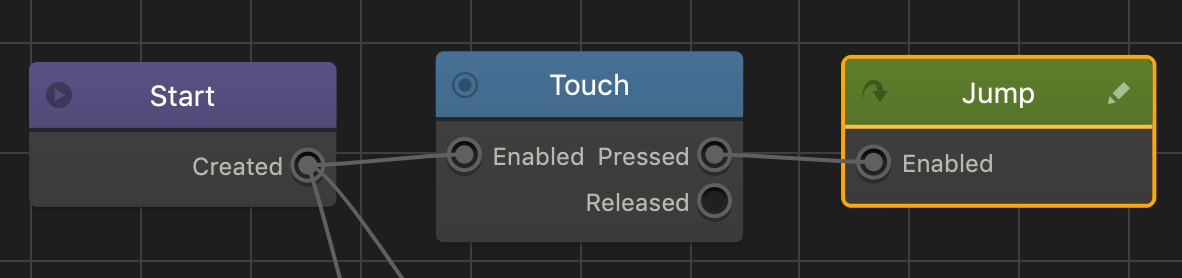
  7. Connect the new node input with the output of the node that will enable the movement, for example, when the player touches the screen:
  8. Preview and test your game.

Debris Explosion Node – Buildbox 3 Manual

By |

Debris Explosion Node

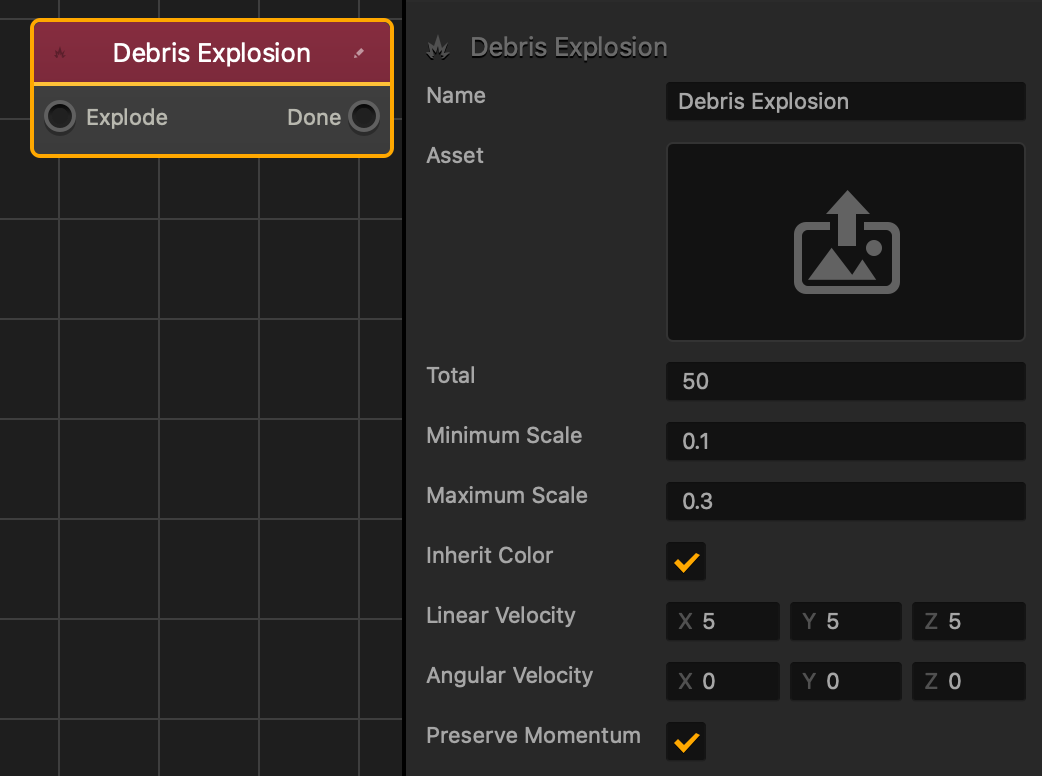
This action node spawns multiple specified assets as debris in a burst outward from the center of the attached asset.

In order to create realistic and fluid debris, it is recommended that the specified asset’s physics is set to Dynamic.

Option Description
Asset Click the edit button to open the Asset Manager window.
Total Specifies how many assets appear.
Minimum Scale The minimum size an asset appears in.
Maximum Scale The maximum size an asset appears in.
Inherit Color If checked, the assets being spawned will keep their original color.
Linear Velocity Specify the amount and direction that the assets will move towards.
Angular Velocity Specify the amount and direction the assets will rotate.
Preserve Momentum If checked, the debris will be affected by the previous assets movement, and will move in the same direction when spawned.

If needed, you can also customize this node. For details, see Customizing Nodes.

Asset Options – Buildbox 3 Manual

By |

Asset Attributes

There are two sets of attributes that you can edit for an asset:

Object Attributes

To view these attributes in the Options panel, select a character or an object in the World Asset panel.

The attributes below are always present.
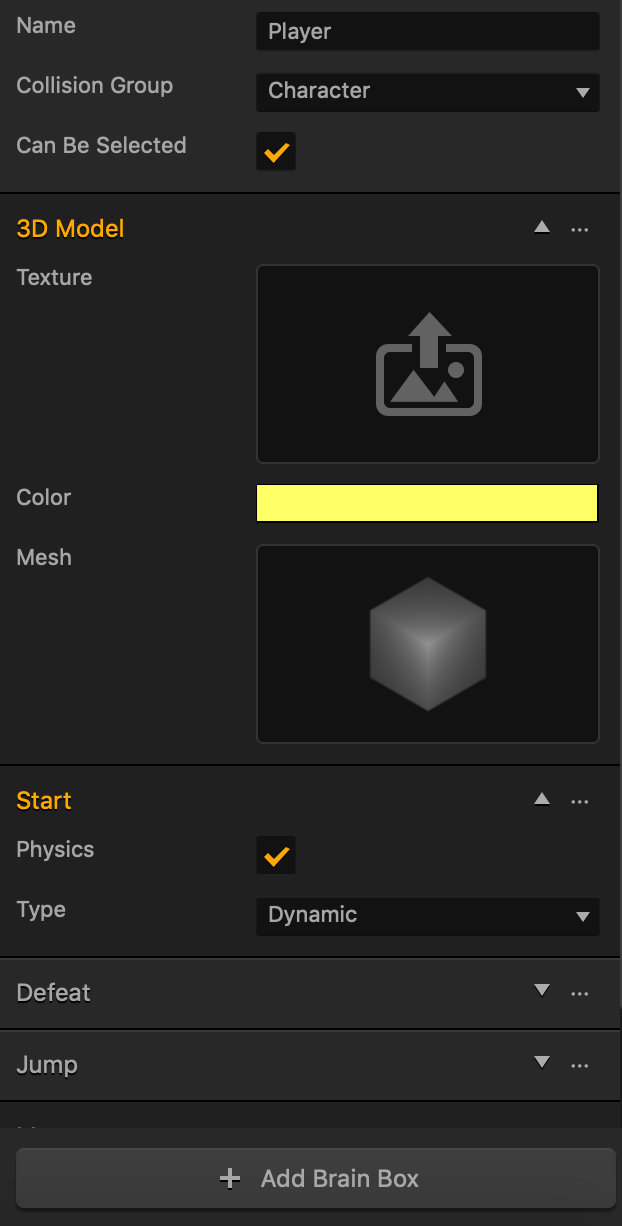
Option Description
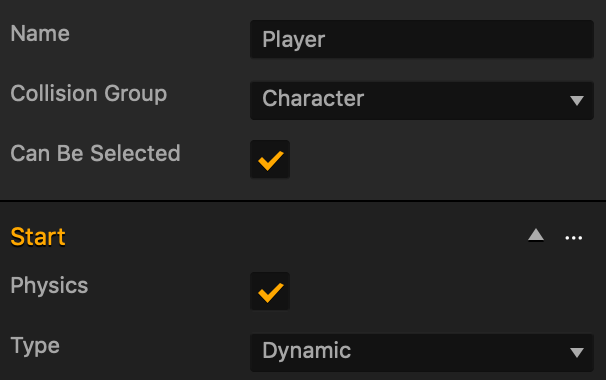
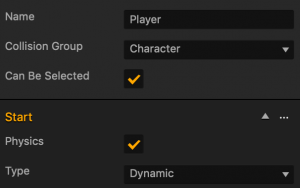
Name Change the name of the asset, if needed, for example, Enemy Cone, to indicate the collision group.

Don’t leave this field blank, as you won’t be able to tell what object it is if you hide it in the Outliner.
Collision Group Specify how this asset should be treated when this asset collides into another one during the game (see also If Collide node):

  • None
  • Character—The asset will be treated as a character, which is typically controlled by the player and is followed by the camera.
  • Enemy—The asset will be treated as an adversary of the character.
  • Platform—The asset is treated as a level surface on which the other assets stand, bounce, and so on.
  • Coin—The asset is treated as a collectible item that counts toward the player’s score.
Can Be Selected This checkbox appears only for character assets. For details, see Creating Characters.

Select this checkbox if you want to allow the player to select the character during a game session.

Physics Select this checkbox to add a collision shape to the selected asset and define its movement and other aspects of its physics.
Type Select the type of physics to define the motion of the selected asset and its collision shape in particular:

  • Static—Select to make the object or character static. It won’t move at all.
  • Dynamic—Select to make the object or character move naturally, adhering to the laws of gravity.
  • Kinematic—Select to make the object or character move around and interact with other objects but without considering the laws of gravity or any other physical forces that cause objects to move.

Additional sets of attributes may appear depending on the type of the asset and behavior added to it, for example, as shown below.
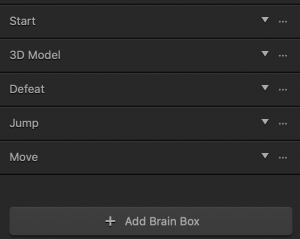
You can expand/collapse each section. The attributes inside correspond to the respective Asset nodes.
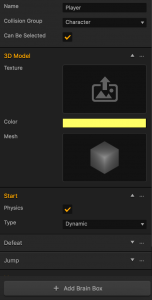
If you delete a set, the corresponding asset nodes will be removed from the asset’s Node Map.

To add the attributes, you can do either of the following:

  • Add the nodes directly on the Node Map of the asset.
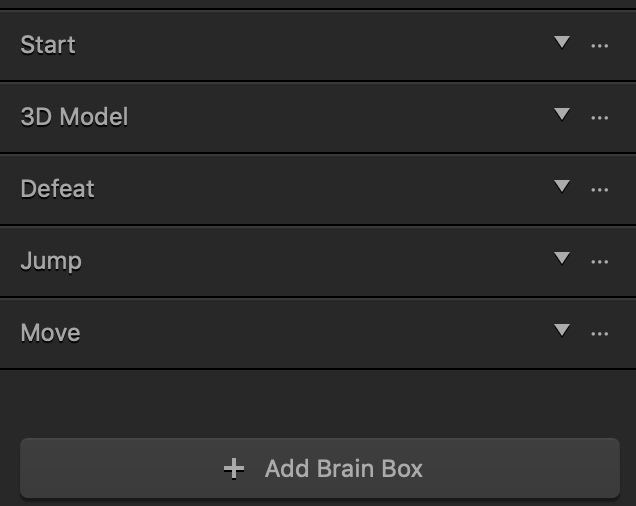
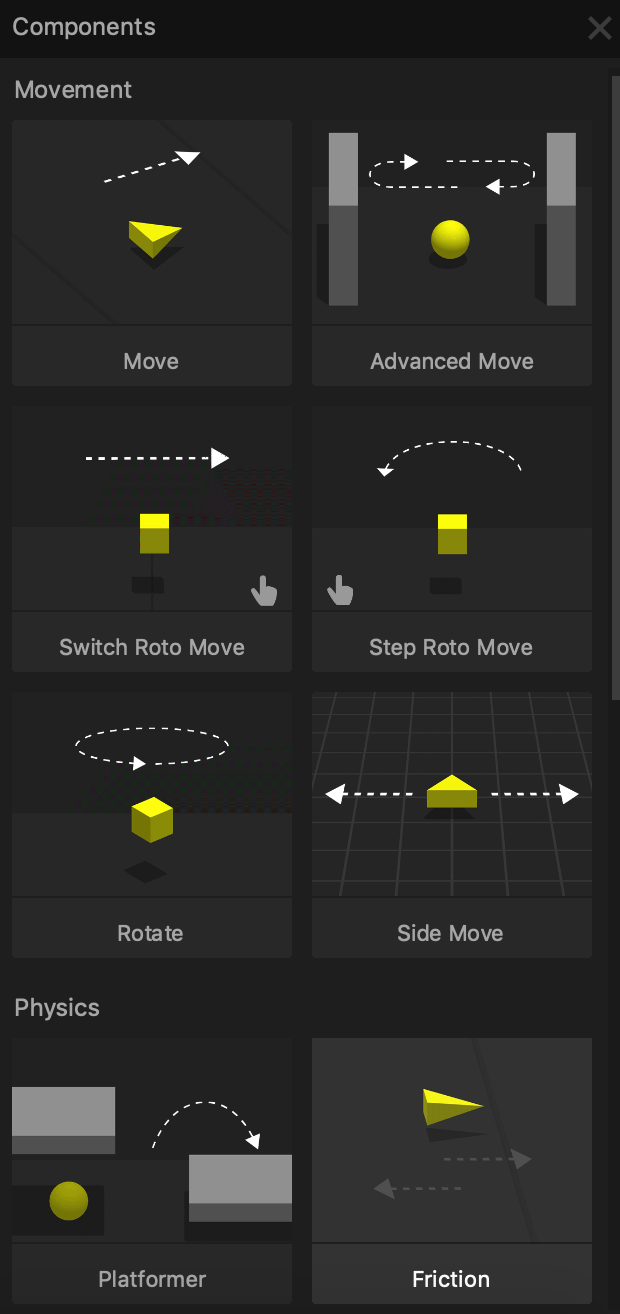
  • Use the Add Brain Box button at the bottom of the panel and select the desired movement or behavior from the list.
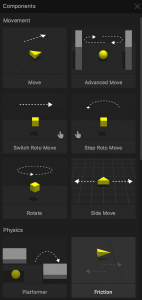
    When you add a Brain Box, a group of corresponding nodes with predefined functionality appears on the asset’s Node Map, for example:
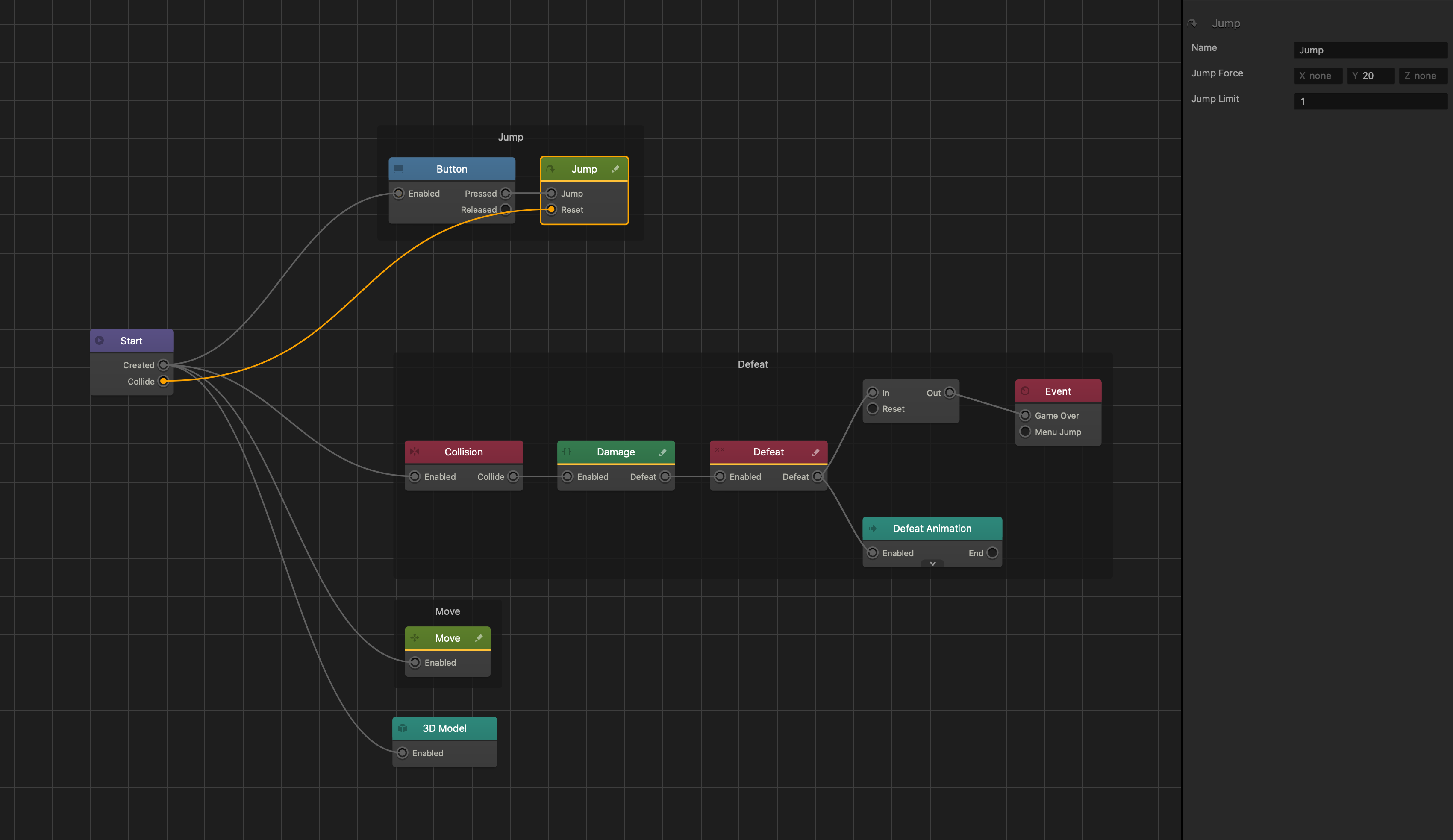
For more information about Brainboxes, see Brainboxes.

Below are the 3D model node attributes. For the rest of the node attributes, see the respective Asset nodes.

Option Description
Texture Drag an image file you want to use to add texture to the asset.

To edit the image, mouse over the field, click the Edit icon that appears, and make the necessary updates in the Sprite Editor. Click Save when done.

Color Click this field, select the desired color from the several options provided in the Colors window, and click OK.

If you have added texture to the asset, this color will be applied under the texture.

Mesh Mouse over the field, click the Edit icon that appears, and select the appropriate shape for the asset in the Mesh Manager. Click Save when done.

You may also add a new basic shape from the Asset Library to begin with.

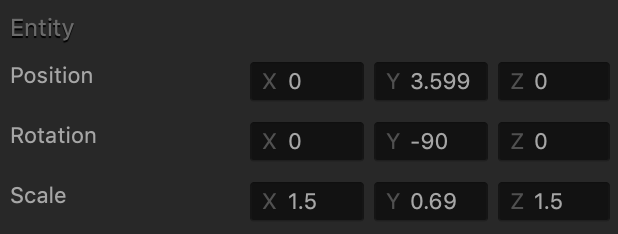
Entity Attributes

To view these attributes in the Options panel, select a character or any object in the Scene Editor.
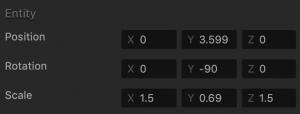
Option Description
Position Enter the appropriate numeric values for each axis to define the location of the asset. Alternatively, drag the arrow axis handles to the desired location in the Scene Editor. If needed, for details, see Tools.
Rotation Enter the appropriate numeric values for each axis to define the angle of the asset. Alternatively, click the Rotation Tool button and drag the circle axis handles to set the desired angle for the asset in the Scene Editor. If needed, for details, see Tools.
Scale Enter the appropriate numeric values for each axis to define the size of the asset. Alternatively, click the Scale Tool button and drag the cube axis handles to set the desired size for the asset in the Scene Editor. If needed, for details, see Tools.

UI Asset Panel – Buildbox 3 Manual

By |

UI Asset Panel

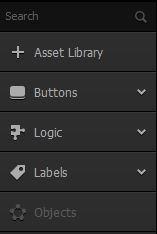
This is the panel on the far left side of the UI workspace. It lists all assets added to the selected UI.

  • To add an asset to a UI screen, drag it to the UI Editor and position it as needed.
  • To extend the panel vertically, close the Helper.
  • To search for an asset in the Asset panel, enter its name in the Search field.
Name Description
Asset Library Click to open the Asset Library where you can preview and choose assets for your screen.

Tip: To close the library, click this button again.

Buttons These are six types of buttons with predefined functionality that you can add to the UI screen. For more details, see UI Buttons.
Logic Determines whether a scene or level is ready to move to the next when something has been fulfilled.

Logic assets are not visually present on the screen.
Labels These are fonts with predefined settings that you can add using the Font Editor.

Drag a font label to the UI Editor and do one of the following in the Font Options panel on the right:

  • To create a text label, enter its text in the Text field.
  • To add a score counter, select Score in the Function field and make the appropriate selections. For more on adding a score to a game, see Adding Score.
Objects
  • These are assets added from the Asset Library.
  • To delete an object, hover your mouse over it and click x.

Tools – Buildbox 3 Manual

By |

Scene Editor Tools

The following tools are located on the Scene Editor toolbar on the left. For the buttons on the right, see Scene Editor Toolbar Buttons.

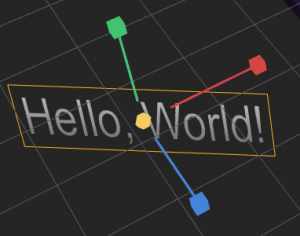
The axis handles of Move, Rotation, and Scale tools correspond to the following attributes in the Options panel, with the green handle representing the X axis, red handle representing the Y axis, and the blue handle representing the Z axis.

Depending on whether the Collision Shape Editor button is selected on the Scene Editor toolbar, you may use these tools to manipulate either the assets themselves or their collision shapes. The examples and instructions in the table below refer to objects but they also apply to their collision shapes.
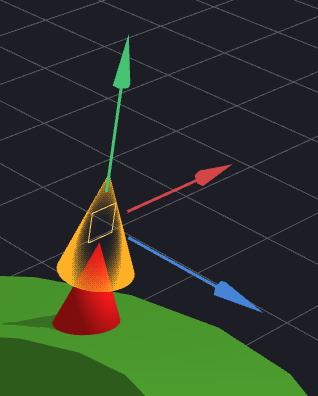
The keyboard shortcuts for selecting each tool are provided in the Icon column in parentheses. Select an object and use the keys to switch between the tools.
Tool Icon Description Selection Example
Select Tool


(`)

Select multiple objects in the Scene Editor. Just click the tool button and draw a bounding box over the objects on the grid that you want to select.

You can also hold the Shift key and click each object you want to select.

The selected objects get highlighted, with the axis handles displayed in the center of the selected group. Note that the handle shape depends on whether the Move, Rotate, or Scale Tool is currently selected.

To see how this tool can be used, watch the Select Tool video.

Move Tool


(1)

Change the position of the selected object in the scene.

Select the object, then click an arrow axis handles and drag the selected object in the desired direction along the selected axis. For example, to move the camera up, drag the green arrow.

To move the object to an entirely new position, click the square where the arrows converge and drag the object. Alternatively, enter the appropriate numeric values in the Position fields in the Options panel on the right.

To see how this tool can be used, watch the Move Tool video.

Rotate Tool


(2)

Rotate the selected object around a 3D axis.

Select the object, then click a circle axis handle and drag it in the desired direction to rotate the object. For example, to change the direction of light, drag the red handle to the left and note how the light reflection and shadows dropped on the objects in the scene change accordingly.

Alternatively, enter the appropriate numeric values in the Rotation fields in the Options panel on the right.

To see how this tool can be used, watch the Rotate Tool video.

Scale Tool


(3)

Reduce or increase the size of the selected object in proportional dimensions.

Select the object, then click an axis handle and drag the selected object in the desired direction along the selected axis. For example, to make the text label wider, drag it along the red axis. Alternatively, enter the appropriate numeric values in the Scale fields in the Options panel on the right.

To change all three dimensions at once, click the circle where the handles converge and drag it to the desired scale.

To see how this tool can be used, watch the Scale Tool video.

Multitool


(4)

Position, rotate, and scale the selected object at the same time.

Select the object, then do any of the following:

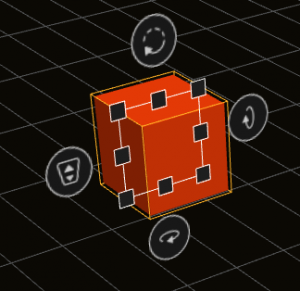
  • To change the size of the object, drag the black square handles on the corners or sides of the square box.
  • To move the object back and forth in the same plane, drag the circle handle to the left of the object.
  • To rotate the object, use any of the other three circle handles .
  • To move the object anywhere on the grid, drag it to the desired position

Alternatively, enter the appropriate numeric values in the Position, Rotation, or Scale fields in the Options panel on the right.

To see how this tool can be used, watch the Multitool video.


Camera Rotation Node – Buildbox 3 Manual

By |

Camera Rotation Node

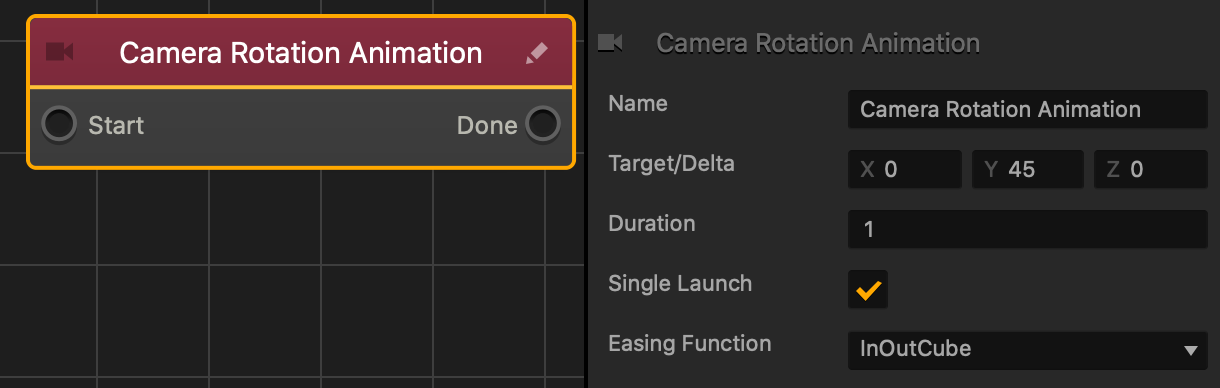
This action node rotates the camera at an angle specified by the Target/Delta axis values.

Option Description
Name Type a custom name for this node, if needed.
Target/Delta Enter a numeric value in axis fields to determine the speed and direction of the rotation.
Duration Enter a numeric value to specify how long, in seconds, the animation will last
Single Launch If checked, the animation will only happen once.
Easing Function Specifies the rate of change when the object rotates.

  • For an ease in ease out pattern, select InOutCube.
  • For a straight and constant pattern, select linear.

If needed, you can also customize this node. For details, see Customizing Nodes.

Glue Node – Buildbox 3 Manual

By |

Glue Node

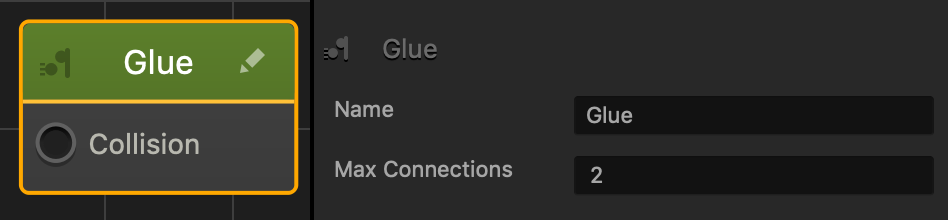
This movement node allows a dynamic asset to stick to another asset when they collide, and can only connect to the If Collide node.

Option Description
Name Type a custom name for this node, if needed.
Max Connections Enter a numeric value to specify how many objects the asset can stick to.

If needed, you can also customize this node. For details, see Customizing Nodes.

Billboard Icon Node – Buildbox 3 Manual

By |

Billboard Icon Node

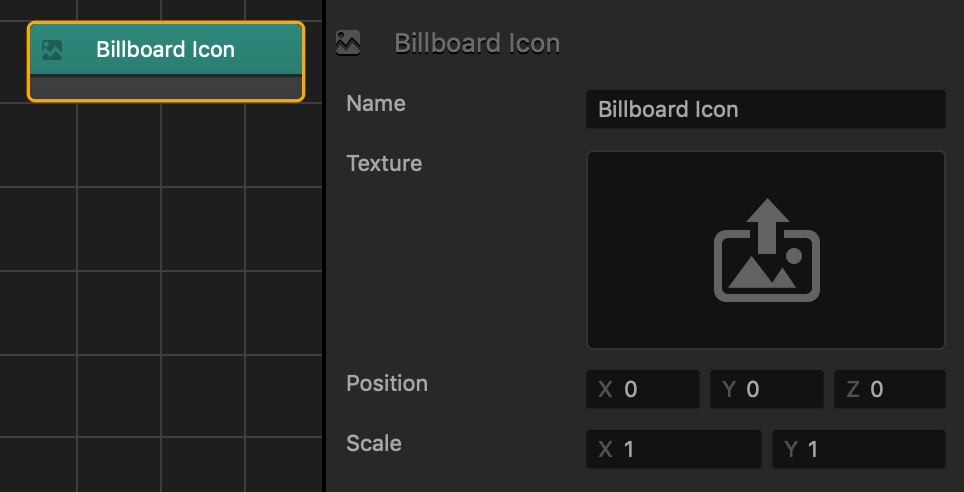
This content node shows an image that will always face the camera.

Option Description
Texture To apply an image to this node, drag an image from your computer into the field.
Position Axis values that changes the position of the image.
Scale Axis values that changes the size of the image.