Reset Node – Buildbox 3 Manual

By |

Reset Node

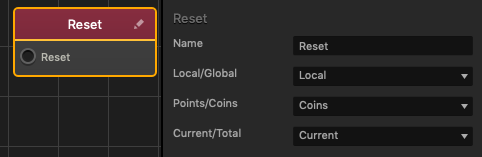
This action node resets the specified point score back to 0.

Option Description
Local/Global Choose between the local and global score types.
Points/Coins Select which score type will be reset.
Current/Total Select which point amount is reset.

  • Current: The total points that is being calculated in the world.
  • Total: The grand total points that is being calculated throughout the entire game.

If needed, you can also customize this node. For details, see Customizing Nodes.

Options Panel – Buildbox 3 Manual

By |

Options Panels

Whenever you select a node in the Mind Map, an object in the Asset panel in a World, the camera in the Scene Editor, a button in a UI node workspace, a node on the Node Map, or any other item in a Buildbox workspace, its attributes appear in the panel on the far right. You can edit these attributes to define the desired game settings like physics or object appearance and behavior as needed.

Here’s what you need to know about the Options panel attributes:

  • Most fields have default values that in most cases will create optimal game experience, especially if you are using a template to get started.
  • You can use the default values as guidelines for making minor adjustments as needed.
  • Any changes you make are automatically saved and applied throughout the entire project.

Here’s a list of the Options panels that you may need to work with:

For asset node attributes, which appear in the Options panel in the Node Map, see Node Reference.

World Nodes – Buildbox 3 Manual

By |

World Nodes

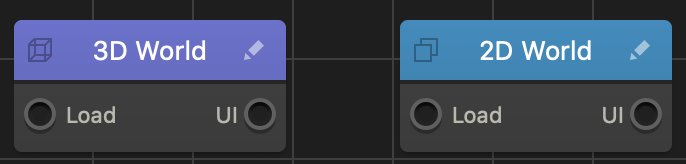
Each game typically has at least one 3D World node or 2D World Node on its Mind Map.

A World node is a 2D or 3D environment that consists of a series of scenes, which collectively represent a level in your game.

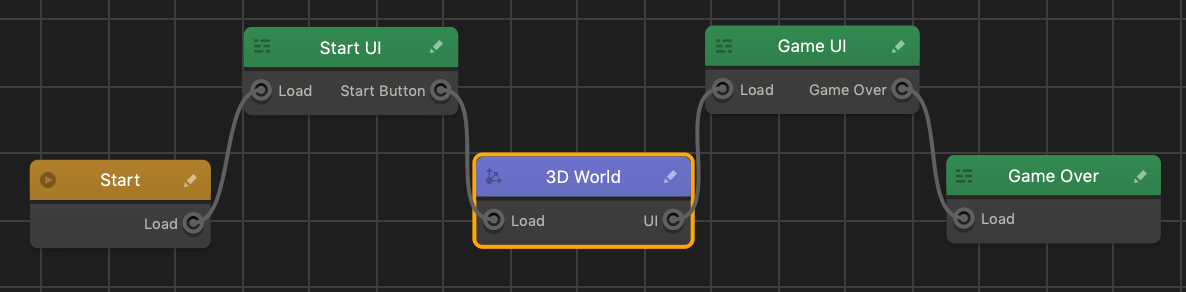
A World node has a Load input, which you can connect to the output of either a UI node or Start node on the Mind Map, and a UI output, which you must connect to the input of a UI node. The connectors between nodes indicate the overall game flow, with each preceding node activating the next node to which it is connected. See also Node Anatomy.

Depending on your game design, you may define multiple transitions and dynamic changes in the game flow based on the user actions by defining your game logic.

Adding, Deleting, and Editing Game Levels

To add more game levels, you need to add more World nodes by doing any of the following:

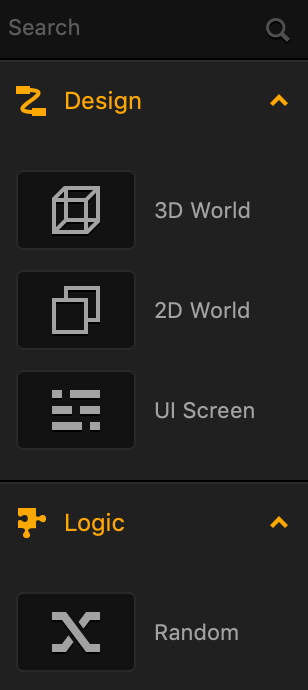
  • Drag the 2D or 3D World node from the Node panel on the left to the Mind Map.
  • Right-click anywhere on the Mind Map grid and select Add New 2D World or Add New 3D World.
  • Duplicate and existing World—select the node and press D on your keyboard.

To delete a game level, select the corresponding World node and press Delete on the keyboard.

To change the World node attributes in the Mind Map, select the node and make the appropriate changes in the Options panel on the right, which allow you to define a number of critical attributes, such as:

  • The gravity force, which helps you create natural movement of the objects in the game. By default, it is pre-set to -9.8 on the Y axis.
  • The scene background color.
  • The “game speed,” or how fast or slow the object is moving in the game, by increasing or decreasing both Time Warp and Sub Steps values respectively.

To edit scenes, add characters, enemies, obstacles, and other assets inside a game level, you need to go inside the World node and use the Scene Editor. To open the World workspace, do either of the following:

  • Double-click the World node.
  • Click the Edit icon  in the top right corner of the node.

See also How to/FAQs.

Unlock Logic – Buildbox 3 Manual

By |

Unlock Logic Asset

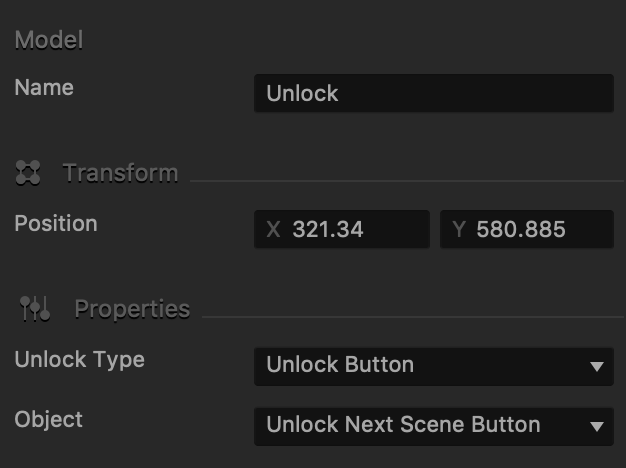
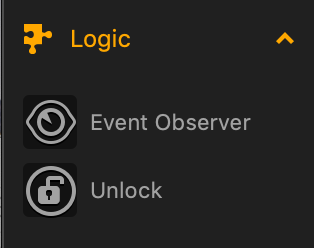
This UI node asset is used in conjunction with the Lock button that has its Unlock attribute set to Default. The Unlock asset is located in the Logic section of the Asset panel in the UI node workspace. For attribute details, see the table below.

Option Description
Name Enter a custom name for the asset if needed.
Position Enter a numeric value for each axis to specify the location of the Unlock asset.

Alternatively, drag the icon directly in the UI Editor and position it in the desired location.
Unlock Type Currently, only Unlock Button is supported.
Object Select what to unlock:

  • Unlock Next Scene Button—unlock the next scene, without having to configure an Unlock logic for each button.
  • Unlock Current Scene Button—unlock the current scene, without having to configure an Unlock logic for each button.
  • Lock Button—select which Lock button you want to unlock.

Mind Map – Buildbox 3 Manual

By |

Mind Map

The Mind Map is the very first screen you see when you open a game project or a template.

As its name suggests, the Mind Map allows you to map and organize the flow of your game. It is a graphical representation of the game with visual connections between its nodes, such as UI screens and 3D Worlds, indicating their relationships.

You may also watch the Mind Map video.

The Mind Map screen consists of the following parts:

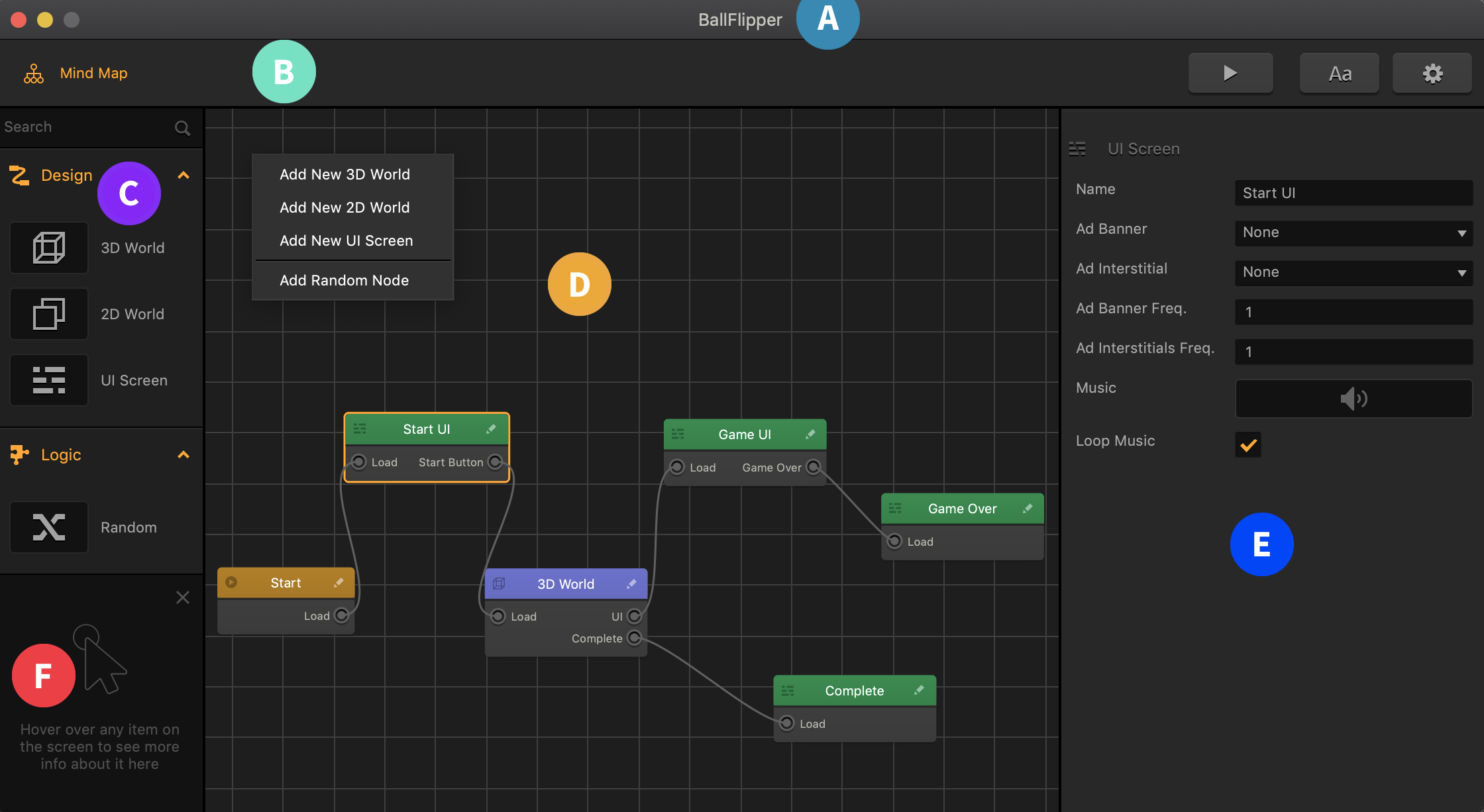
  • A The name of the selected template or your project.
  • B The Navigation bar.
  • C The Node panel from which you can drag new nodes to add to the Mind Map.
  • D The Mind Map grid with the game nodes.
  • E The Options panel on the right that displays the properties of the selected node.
  • F The Helper with context-sensitive help.
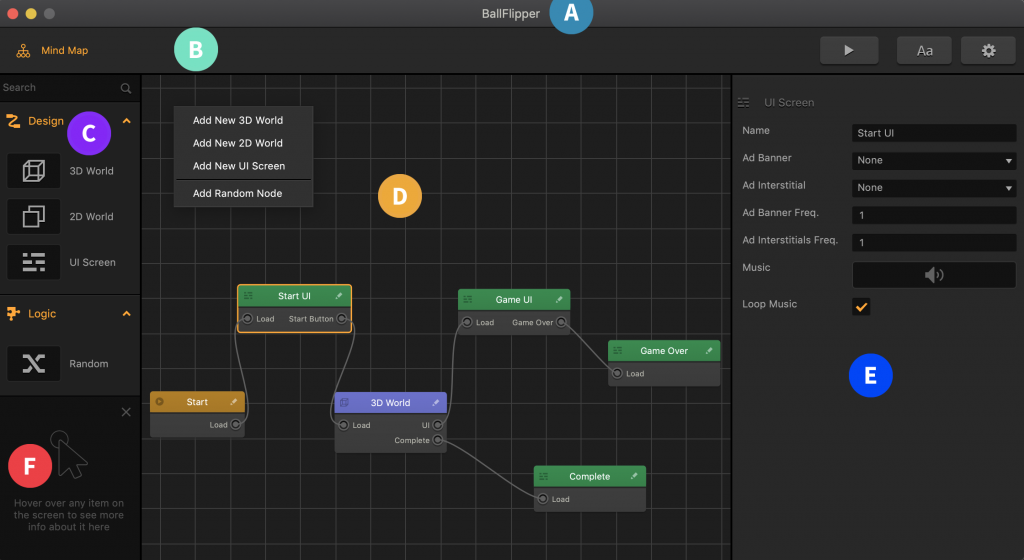
For details on individual parts and how to work with the Mind Map UI, such as zooming or dragging the grid, see General Workspace Overview.

Mind Map Nodes

At the very least, any game in Buildbox must have two nodes:

  • A Start node, which is basically the root node that will load your game.
    • You can define some of its attributes, such as background music, in its Options panel on the Mind Map. See also Add Music and Sound Effects.
    • To modify the splash screen, for example, to add your own logo or a loading bar, double-click the node make the desired changes in its UI Editor.
  • A 3D World node that consists of a series of scenes and represents a game level.
    Similarly, you can define some of the key attributes for you game level, such as gravity and game speed, in the Options panel on the Mind Map. To create scenes, however, you need to go inside the World node. For details, see World Workspace.

Optionally, you can also add and use the following types of nodes:

  • UI nodes, which allow you to add a user interface or score-keeping game screen overlays.
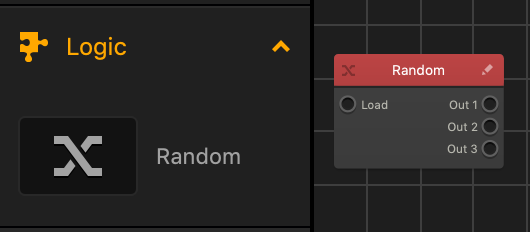
  • Random node, which you can use to randomize your game flow.

Adding, Deleting, and Editing Nodes

To add more nodes to your game on the Mind Map, do one of the following:

  • Drag the type of node you need from the Node panel to the Mind Map.
  • Right-click anywhere on the Mind Map grid and select Add New World or Add New UI respectively.
  • Duplicate and existing node—select the node and press D on your keyboard.

See also Add a Game Level.

To edit the node attributes on the Mind Map, select the node and update the values in the Options panel on the right.

To go inside a node to edit it:

  • Double-click the node.
  • Click the Edit icon in the top right corner of the node.

The corresponding node Editor is displayed, where you can make the necessary modifications.

To delete a node, select the node and press Delete on the keyboard.

After adding or deleting nodes, make sure the game flow is properly connected.

Logic – Buildbox 3 Manual

By |

Logic

The overall game flow is defined by the connections between the nodes on the Mind Map. You may also define additional logic that would allow you to control the game flow dynamically, based on player actions and other events that occur during a game session.

There are several places where you can define logic in a game:


Node Panel – Buildbox 3 Manual

By |

Mind Map Node Panel

The Node panel on the Mind Map allows you to add new World and UI nodes to your project.

Just drag the type of node you need to the Mind Map, define its attributes in the Options panel on the far right, and link to the general game flow. See also Mind Map Nodes.

If you are still new to Buildbox, consider exploring the product functionality and features before adding new nodes. Specifically, make sure you are familiar with the following types of nodes:

To learn more about the node anatomy, see Node Anatomy.

As your expertise grows, you may use this panel to add logic to your game flow, for example, to randomize the transitions to next levels of UI screens with the help of the Random node. For details, see Logic.

Steam Store Settings – Buildbox 3 Manual

By |

Steam Store Settings

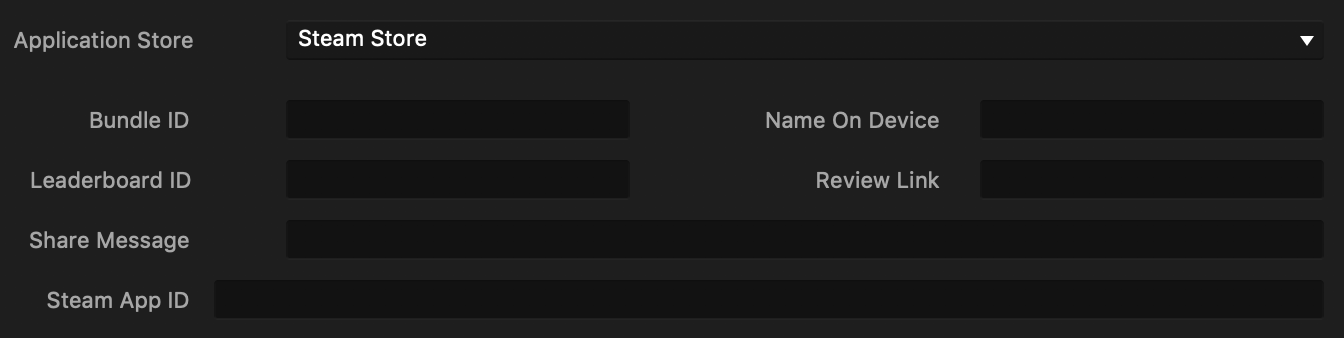
The settings below are part of the General Project Settings that you need to define when exporting your game.

Setting Description
Application Store Select Steam Store.
Bundle ID Enter a unique identifier to be embedded into the app, typically using the following format:

com.short-company-name.short-game-name.

Name on Device Enter a short name to be displayed on the device after the game is installed on it.

This name will appear under the game icon.

If it’s too long to display, the device abbreviate it by adding a trailing ellipsis (…).
Leaderboard ID Enter the code-name of the leaderboard, which you set up on the Game Admin page of the Steamworks partner site, or via the API, so the game can use it. If needed, see Steam Leaderboards.
Review Link Enter a link in the App Store that the player can use to provide a review of your game.
Share Message Enter a message to prompt the player to share the game.

Make sure to include a link to your game in the App Store or Play Store.

If you are publishing your game on multiple platforms, consider making this link open web pages instead of an App Store. This will ensure that people with whom the player is sharing the game can access your game from different kinds of devices.

If you want to show the player’s score in this message you can insert the [[SCORE]] tag into your text.

Steam App ID Enter the unique numeric App ID provided for your submission on Steam, which may look like 538728.

Mesh Manager – Buildbox 3 Manual

By |

Mesh Manager

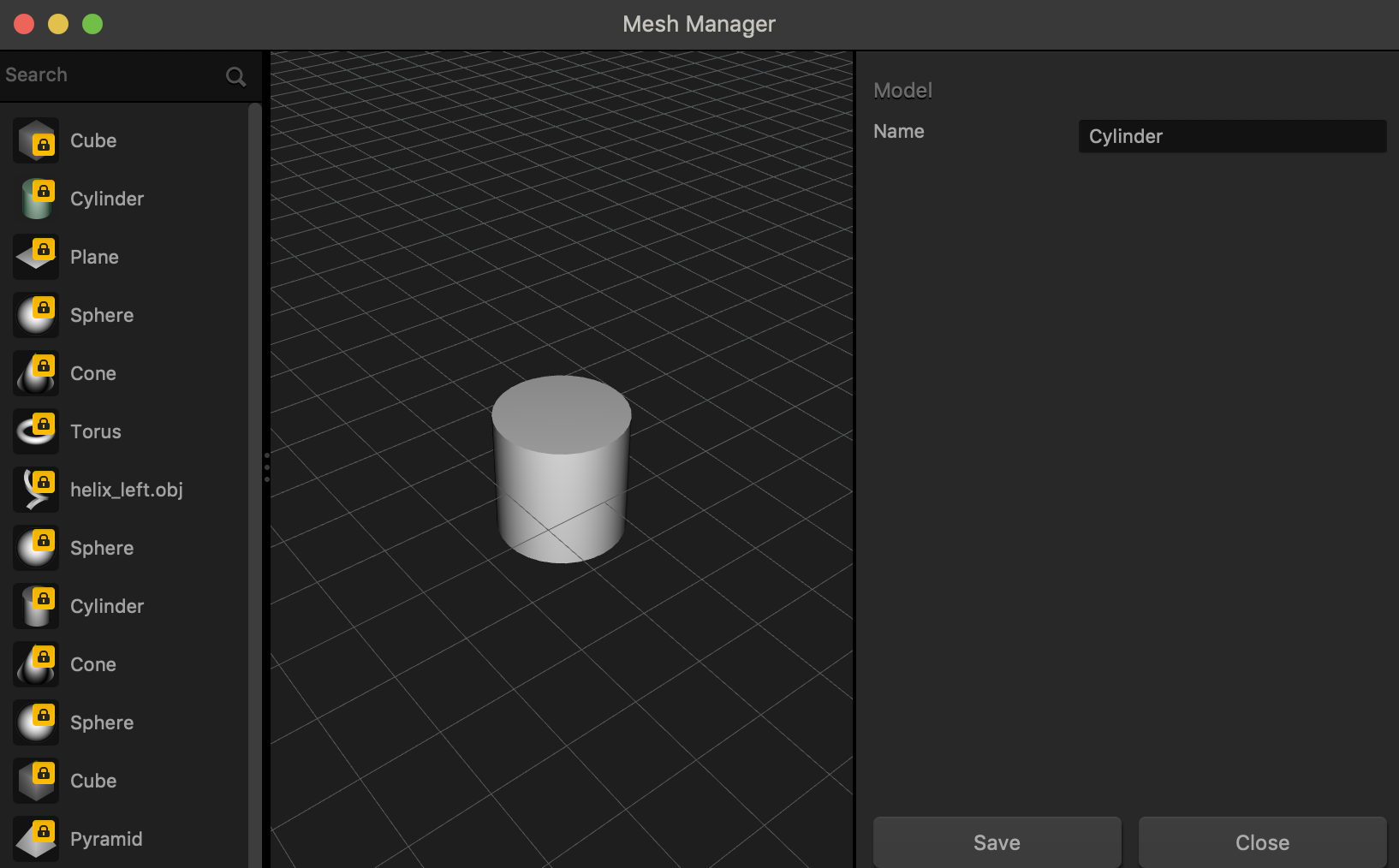
The Mesh Manager allows you to view and select desired shapes for your assets in a 3D World.

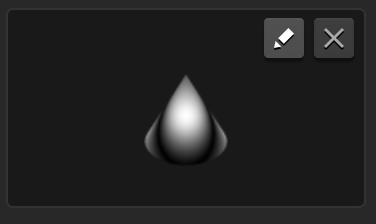
To access this editor, click the Edit icon in the top-right corner of any Mesh field in the Options panel of an asset, for example, with asset attributes.

The Mesh Manager appears with all available shapes (which are also the basic shapes from the Asset Library) listed on the left.

Changing Object Mesh

  • To select a mesh, click Save.
  • To discard your changes or simply exit the editor, click Close.
You can use the Search field at the top of the panel to find the shape you need for the selected object.