Scene Selector – Buildbox 3 Manual

By |

Scene Selector

The Scene Selector is the horizontal bar at the very bottom of the World workspace. It displays the sequence of scenes added to the World. As its name suggests, this bar allows you to select a scene for editing in the Scene Editor.

By default, all new Worlds have a Start scene added to them. If you select a template, additional scenes may be already added for you.

Here’s what you can do in the Scene Selector:

  • To view the contents of a scene or edit it, select it and use the Scene Editor.
  • To add a new scene, click Add on the right.
    New scenes are added to the end of the sequence from left to right, numbered sequentially. See also Add a scene.
  • To change the scene order, drag the scenes left or right to the desired location.
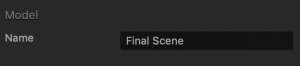
  • To rename a scene, select it and in the Options panel, type a name for the scene.
  • To delete a scene, select it and press the Delete key on your keyboard. Alternatively, right-click the scene and make the corresponding selection from the menu.
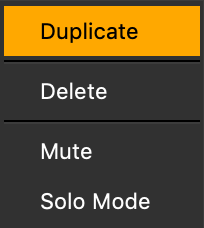
  • To duplicate a scene with its contents, press D on your keyboard.
  • To mute a scene (make it inactive), press M on your keyboard.
    A red underline appears at the bottom of the scene button to indicate that it is muted.
  • To mute all scenes, except one, press S (for “Solo”). This scene is underlined in green when highlighted or blue when it is not highlighted.
  • To preview a scene, click the Preview selected scene button on the Navigation bar. The preview will skip all UI screens and start from the current game scene. See also Preview and Testing.
Note: You can’t rename, mute, or delete the Start scene, but you can duplicate it, if needed.
General Workspace Overview – Buildbox 3 Manual

By |

General Workspace Overview

Most Buildbox workspace screens have the same predictable layout and functionality, with some parts present in all screens and others being specific to certain workspaces.

Regardless of the workspace you may have currently selected, a typical workflow starts on the left across the vertical panels.

  1. You select an asset or node in the Asset (Node) panel and drag it to the Editor or Map.
  2. All added items get listed in the Outliner, if it’s present in the selected workspace.
  3. When you select an object in the Asset (Node) panel, the Outliner, or the Editor or Map, its default attributes are displayed in the respective Options panel, where you can modify them, if needed.

Buildbox menu bar

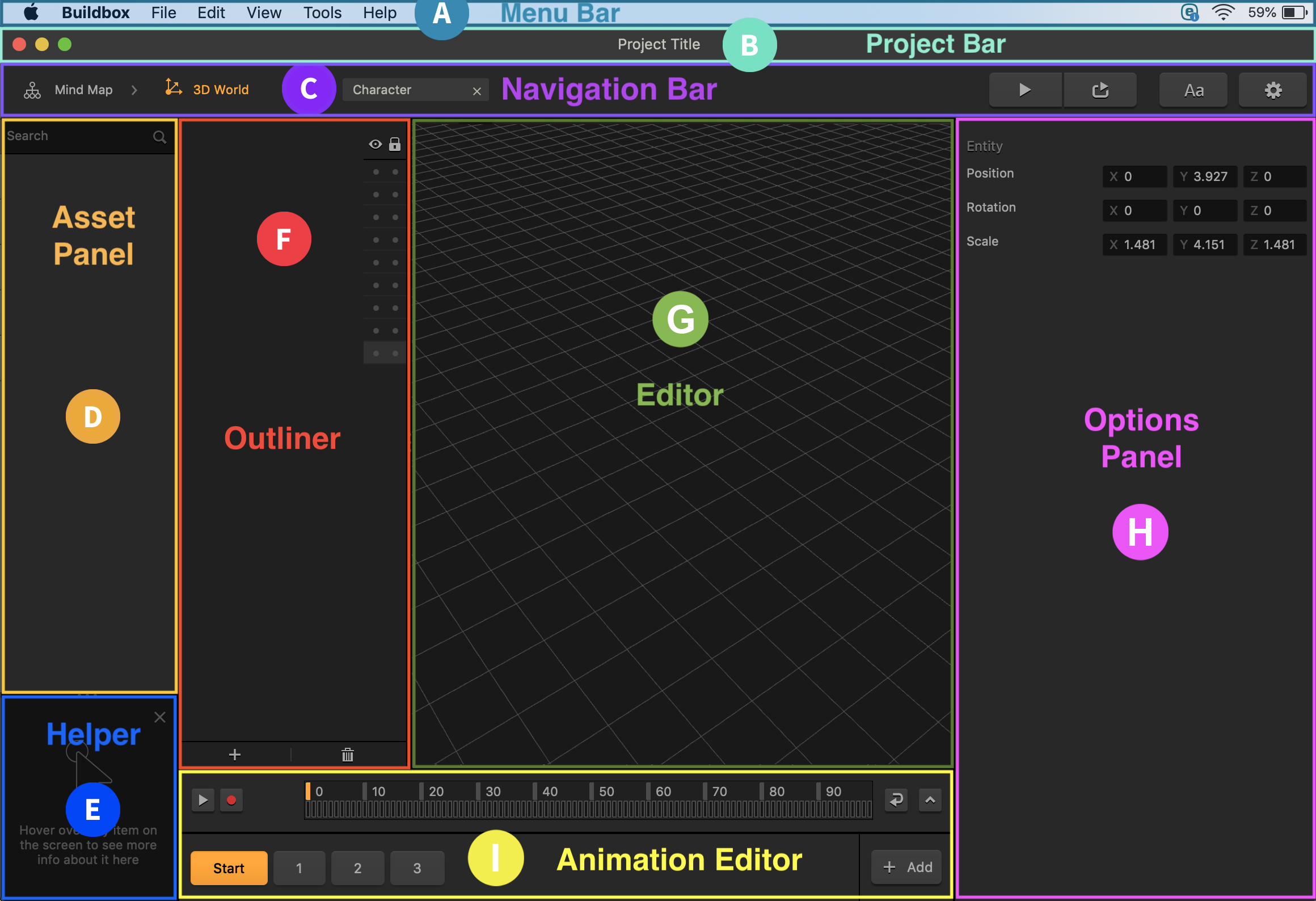
A The Buildbox menu bar allows you to save and open projects, align and randomize scenes, change your workspace display view, access the Atlas Editor, and remove unused audio objects. For individual menu descriptions, see Buildbox Menu Bar.

Project bar

B The project bar displays the name of the selected template or your project. You can change it in the Full Game Name field in the General Project Settings.

Navigation bar

C The Navigation bar allows you to do the following:

  • Navigate between different workspaces as well as know your current located highlighted in orange.
  • Preview your game.
  • Select fonts for text labels in the Font Editor.
  • Customize your project settings.
  • Return to the Mind Map from any other screen.

For details, see Navigation bar.

Asset or Node panels

D Depending on the selected workspace, the Asset panel or Node panel displays the World or UI screen assets or nodes available for selection. This can be also the Node panel in the Node Workspace.

  • This is where you’d select the assets or nodes you want to use and drag them to the main editing space, typically a Map or Editor with a grid.
  • Depending on the currently selected workspace, assets may include shapes, characters, buttons, fonts, images, text labels, and so on. They are typically organized into groups that you can collapse/expand to facilitate your navigation in the panel.
  • If needed, you can use the Search field at the top to find the necessary item in the long list of assets or nodes.
  • In the World workspace, you can select each item in the Asset panel and view its attributes in the Options panel on the right.
  • You can also double-click assets here to view their node map.
Helper

E The Helper tool displays context-sensitive help that dynamically changes based on the current location of your cursor on the screen.

  • Hover your mouse over a panel, button, or attribute field, and the Helper displays its brief description.
  • You can minimize or close this tool as needed. Just click the x in the corner or the ? when the Helper is minimized. Alternatively,  use the View > Helper menu option on the Buildbox Menu Bar.
    You may also watch the Helper Tool video, which demonstrates how you can use it to learn about the product features and their intended use.
Outliner

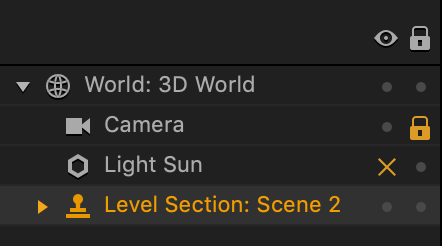
F The Outliner lists all the assets added to the selected World scene or UI screen in the respective Editor.

In the Outliner, you can do the following:

  • Lock or hide the individual items, if needed. Just click the respective option next to the item.
  • Drag the items to change their order.
  • Collapse and expand the items that are organized hierarchically.
  • Delete the added objects from the Editor, except for the camera and light source. Just click the object in the Outliner and press Delete on the keyboard.
    See also World Outliner and UI Outliner.

    You may also watch the Outliner video, which demonstrates the use and functionality of the Outliner in the World workspace.
Editor or Map grid

G This is the main editing area, such as Mind Map, Scene Editor, Font Editor, UI Editor, Node Map, and so on. Depending on the selected workspace, you can do the following on the grid:

  • Select objects and modify their attributes in their respective Options panel.
  • Position, resize, and rotate the assets or connect nodes to each other.
  • Use your trackpad or keyboard to change your view as needed, for example:
    • To zoom in or out, use the Command–Plus sign (+) or Command–Minus sign (-) shortcut keys respectively.
    • To drag the grid with all the items on it, hold Spacebar–Click and drag the grid.
    • To change the angle of the 3D view in the Scene Editor, hold Spacebar–Right-Click and drag the grid to rotate or otherwise change the view of the scene.

To set the desired display in an Editor or Map, you may also use the View options on the Buildbox Menu Bar. Most standard keyboard shortcuts, such as delete, undo, and redo operations, also work in Buildbox. For a list of all the keyboard commands, see Buildbox 3 Keyboard Commands.

Options panel

H The Options panel displays the attributes of the selected object in the Editor or Map, which you can modify to achieve the desired effects and functionality. For details, see Options panel.

Animation Editor

I The Animation Editor is present in the World and UI workspaces where you can animate the selected objects.  For details, see Animation Editor. The World workspace also includes the Scene Selector underneath.

Adding Game Levels – Buildbox 3 Manual

By |

Add a Game Level

A game level is a 2D World or 3D World in the game that contains all assets within a game and can be organized into sections called scenes. So basically to add a game level, you need to add a World. If needed, see Glossary.

To add a game level:

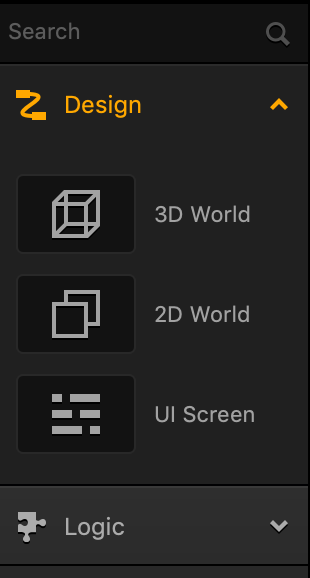
  1. On the Mind Map, from the Node panel on the left, drag the 3D World icon to the Mind Map grid.
    You can also right-click anywhere on the Mind Map grid and select Add New World or duplicate and existing World by pressing D on your keyboard. For details, see Adding, Editing, and Deleting Nodes.

    A new disconnected purple 3D World node appears on the Map.

  2. Depending on your game design, connect the node as appropriate, to the Start, UI, or Random node. For example, to ensure that the new game level is loaded at the start of the game, on the Start Node, click the Load output and drag a connector to the Load input of the newly added 3D World node.
  3. Double-click the new 3D World and add the necessary scenes and assets to it.


Camera Zoom Animation Node – Buildbox 3 Manual

By |

Camera Zoom Animation Node

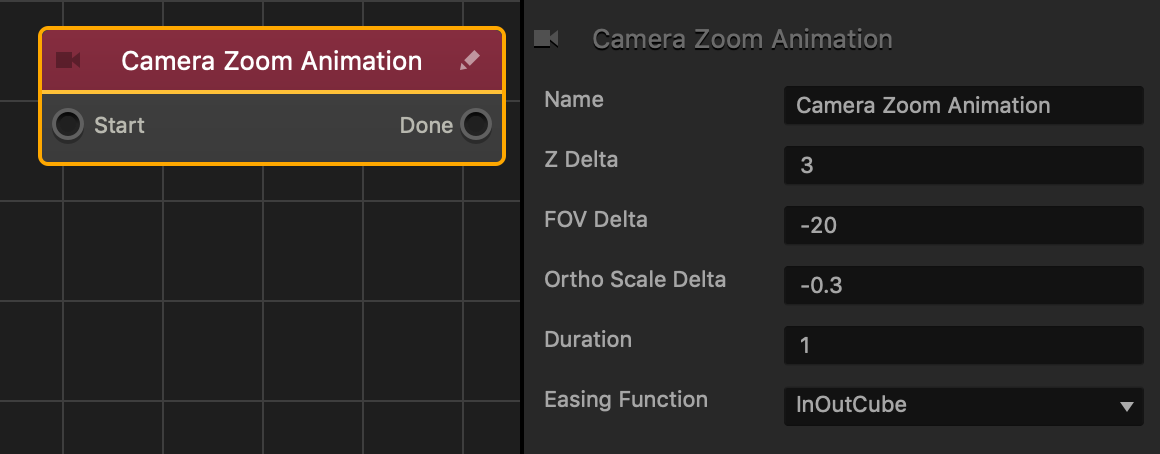
This action node sets the camera zoom amount over time.

Option Description
Name Type a custom name for this node, if needed.
Z Delta The distance along the Z axis that the camera will move over time.
FOV Delta The amount that the field of view will change over time.
Ortho Scale Delta The amount that changes the size of the camera’s view over time, if the camera’s Projection is set to Orthogonal.
Duration The amount of time in seconds the animation will last
Easing Function Specifies the rate of change when the camera rotates.

  • For an ease in ease out pattern, select InOutCube.
  • For a straight and constant pattern, select linear.

If needed, you can also customize this node. For details, see Customizing Nodes.

Camera FOV Node – Buildbox 3 Manual

By |

Camera FOV Animation Node

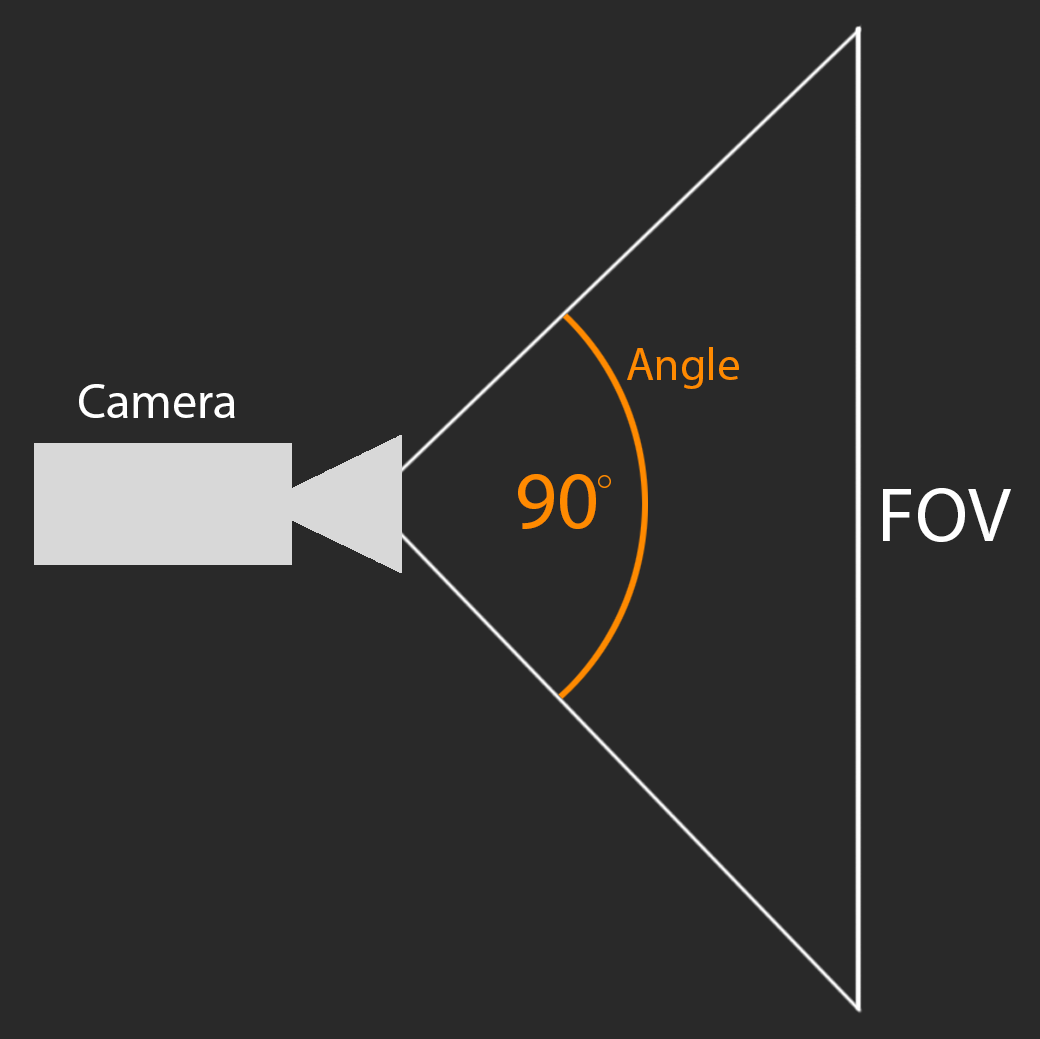
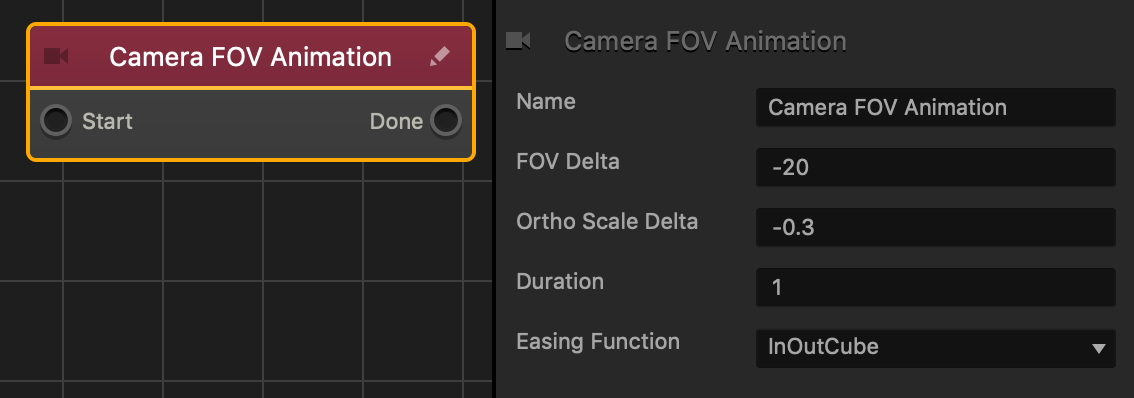
This action node changes how much of the game world the camera can see measuring by the angle.

The image below demonstrates how the angle measures the FOV:

Option Description
Name Type a custom name for this node, if needed.
FOV Delta A numeric value that is added to the camera’s current angle over a specified time.
Ortho Scale Delta A numeric value that specifies how wide of a movement or rotation the shake will have over time, if the camera’s Projection is set to Orthogonal.
Duration The amount of time, in seconds that the FOV will be changed.
Single Launch If checked, the animation will only happen one time.
Easing Function Specifies the rate of change when the camera changes position.

  • For an ease in ease out pattern, select InOutCube.
  • For a straight and constant pattern, select linear.

If needed, you can also customize this node. For details, see Customizing Nodes.

Scale Animation Node – Buildbox 3 Manual

By |

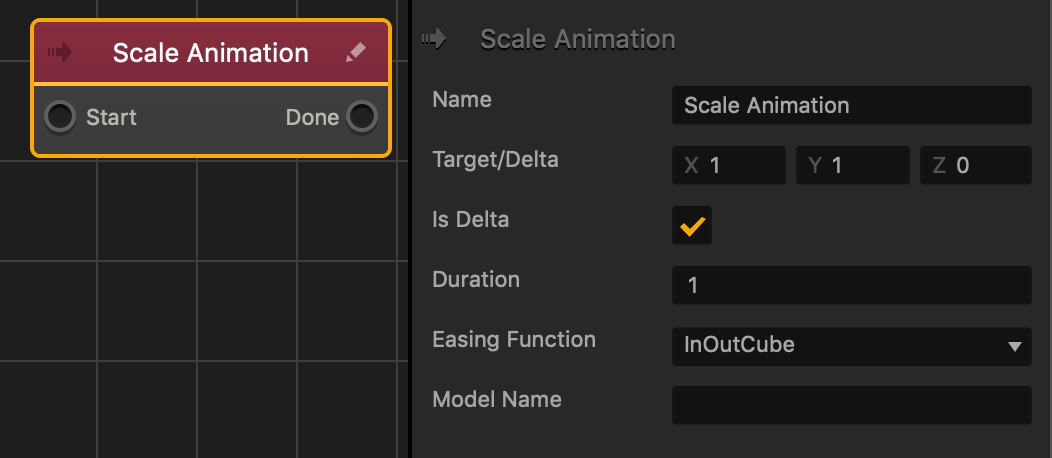
Scale Animation Node

This action node changes the asset size over time. Amount specified in the axis fields.

Option Description
Name Type a custom name for this node, if needed.
Target/Delta The length and direction the object will animate to.
Is Delta If checked, the axis values of the Target/delta attribute will change over time from the assets current size.
Duration The amount of time in seconds that the animation will last.
Easing Function Specifies the rate of change when the object rotates.

  • For an ease in ease out pattern, select InOutCube.
  • For a straight and constant pattern, select linear.
Model Name Optional: Type the name of a 3D model you want to animate.


NOTE: If left blank, this node will animate everything attached to this asset. If there are multiple models or images attached to the asset, then only the specified model or image will animate.

If needed, you can also customize this node. For details, see Customizing Nodes.

Position Animation Node – Buildbox 3 Manual

By |

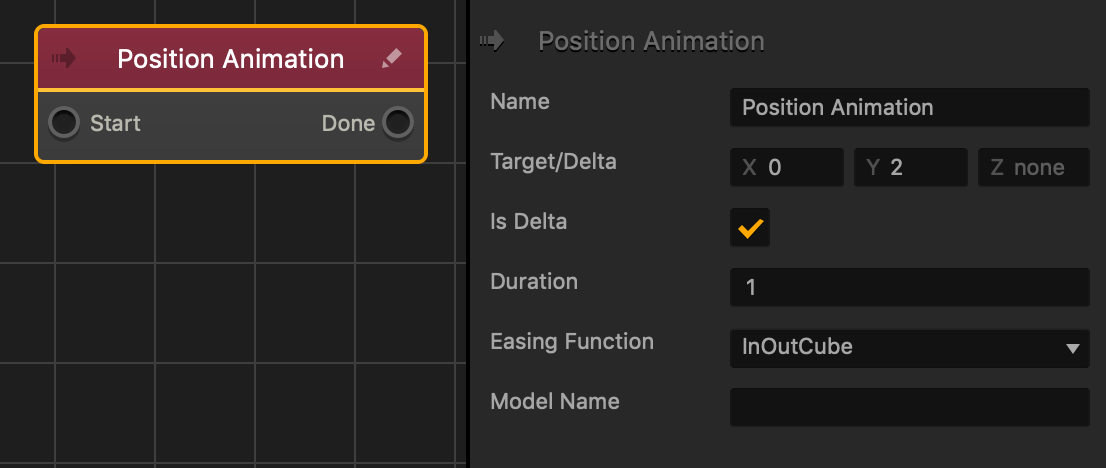
Position Animation Node

This action node changes the asset position over time. Distance is specified in the axis fields.

Option Description
Name Type a custom name for this node, if needed.
Target/Delta Set the length and direction of the object’s animation along each axis.
Is Delta If checked, the axis values of the Target/delta attribute will change over time from the assets current position.
Duration  Enter the number of seconds for the animation to last.
Easing Function Specifies the rate of change when the object moves from one position to another.

  • For an ease in ease out pattern, select InOutCube.
  • For a straight and constant pattern, select Linear.
Model Name (Optional) Type the name of a 3D model you want to animate.

If left blank, this node will animate everything attached to this asset. If there are multiple models or images attached to the asset, then only the specified model or image will animate.

If needed, you can also customize this node. For details, see Customizing Nodes.

Rotation Animation Node – Buildbox 3 Manual

By |

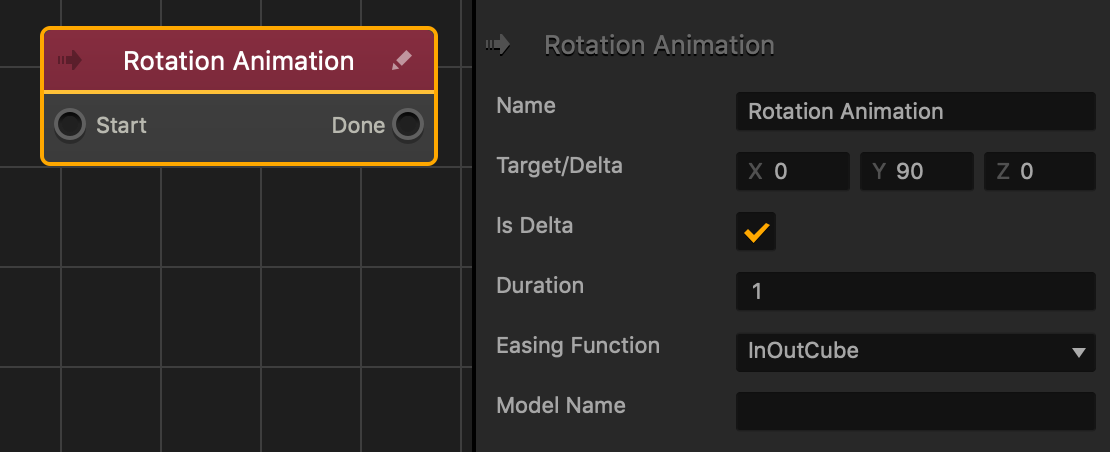
Rotation Animation Node

This action node rotates an asset over time. Amount specified in the axis fields.

Option Description
Name Type a custom name for this node, if needed.
Target/Delta The length and direction the object will animate to.
Is Delta If checked, the axis values of the Target/delta attribute will change over time from the assets current rotation.
Duration The amount of time in seconds that the animation will last.
Easing Function Specifies the rate of change when the object rotates.

  • For an ease in ease out pattern, select InOutCube.
  • For a straight and constant pattern, select linear.
Model Name Optional: Type the name of a 3D model you want to animate.


NOTE: If left blank, this node will animate everything attached to this asset. If there are multiple models or images attached to the asset, then only the specified model or image will animate.

If needed, you can also customize this node. For details, see Customizing Nodes.

Camera Rotation Animation Node – Buildbox 3 Manual

By |

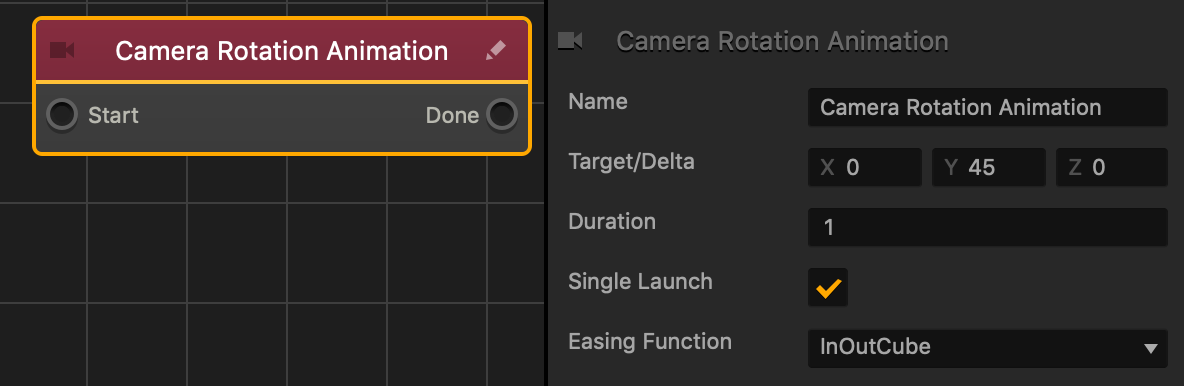
Camera Rotation Animation Node

This action node rotates the camera in the direction specified by the axis values over time.

Option Description
Name Type a custom name for this node, if needed.
Target/Delta The amount and direction the camera will change its rotation.
Duration The amount of time in seconds the animation will last
Single Launch If checked, the animation will only happen one time.
Easing Function Specifies the rate of change when the camera rotates.

  • For an ease in ease out pattern, select InOutCube. 
  • For a straight and constant pattern, select linear.

If needed, you can also customize this node. For details, see Customizing Nodes.