Changing Background in Scenes – Buildbox 3 Manual

By |

Change Background Colors or Images in Scenes

Depending on your design, you can add a background to all scenes in a World or to individual scenes. You can use simple color backgrounds or images.

Changing scene background color

To change the background color of all scenes in a World:

  1. On the Mind Map, select the World node where you want to change the background.
  2. In the Options panel on the right, click Background Color.
  3. In the Colors window, select the color you need and click OK.
  4. To preview the color, select Run > Preview on the Buildbox menu bar.

When you double-click the World node, the background in the Scene Editor will be the color you have chosen, for example, see the yellow background color shown in the image in World Workspace.

Adding background images

To add an image background to an individual scene or all scenes:

  1. On the Mind Map, double-click the World node where you want to change the background.
  2. In the Scene Selector at the bottom of the World workspace, click the scene where you want to change the background.
  3. Drag an image from your computer and hover it over the Scene Editor.
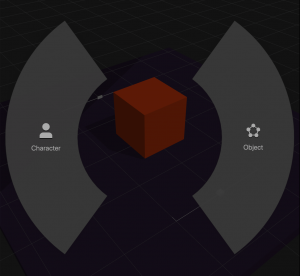
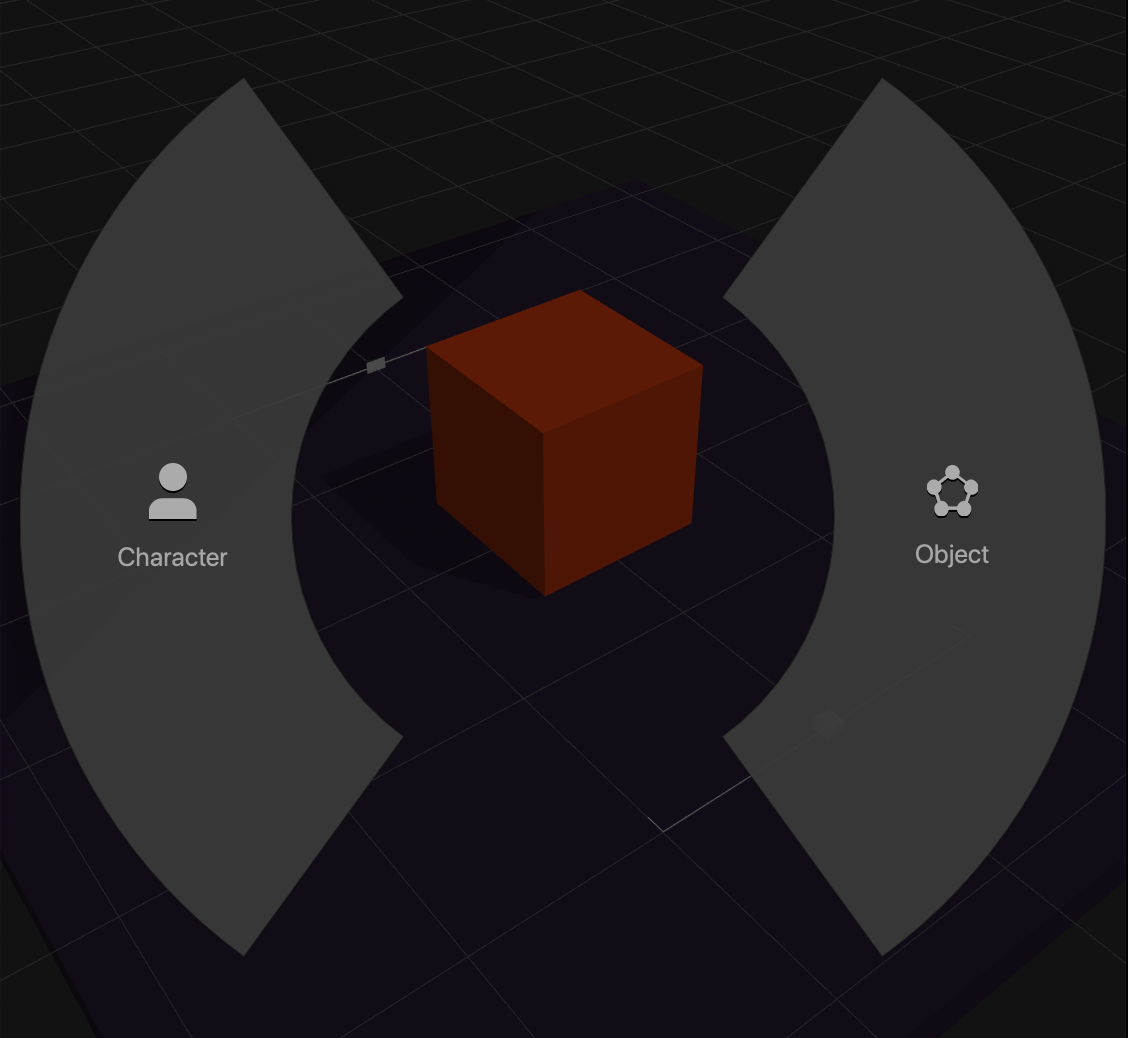
    A Drop Wheel appears with two sections for you to assign a category for the image.
  4. In the Drop Wheel, drag the image over the Object section on the right.
  5. On the Scene Editor toolbar, click the Camera button to get the camera view.
  6. On the Scene Editor toolbar, select the Move Tool and position the image in front of the camera to the desired location.
  7. Select the Scale Tool and resize the image so that if fills all or most of the screen.
    If needed, for details on using the tools, see Tools.
  8. To attach the background image to the camera so that it remains in place in all scenes, in the Outliner, find the name of your image and drag it over the Camera.
    The image now appears in the Camera drop-down list in the Outliner hierarchy.
  9. To preview the background, select Run > Preview on the Buildbox menu bar.

Create a Project – Buildbox 3 Manual

By |

Create a Game Project

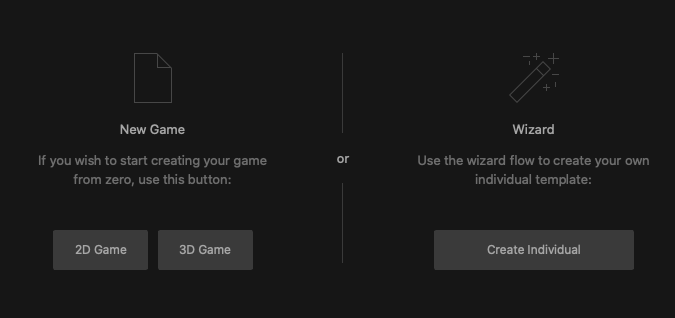
There are two ways of creating a project in Buildbox:

  • Creating a new game from scratch. For example, see Making a Simple Game.
  • Using a guided wizard that walks you through the process.

To create a project:

  1. On the Getting Started screen, click Create New at the top left.
    A page with two options is displayed.
  2. Depending on your preference, do either of the following:
    • To be guided through the process, click Create Individual and follow the on-screen instructions.
    • To create a game from scratch, click 2D Game or 3D Game.
      A new project loads with two nodes on the Mind Map: the Start node and either a 2D World or 3D world, depending on your selection.

      1. On the Buildbox menu bar, select File > Project Settings to open the Project Settings window.
      2. In the Full Game Name field, type a name for your game.
      3. In the Orientation drop-down list, choose the appropriate orientation, and click OK.
      4. Start building your game by adding levels, creating characters, enemies, UI screens, and so on.
  3. To save your project, do the following:
    1. On the Buildbox menu bar, click File and select Save As.
    2. Choose a location and type a name for your project.
    3. Click Save.

After the project is created, a BBDOC file will be created on your computer with the name of your game, and its name will also appear in the Open Recent section on the Getting Started screen.

For exporting and ad monetization, see Export a Game Project and Ad Monetization.

Preview and Testing – Buildbox 3 Manual

By |

Preview and Test

You can preview and test the entire game either from the World workspace or UI node workspace or individual scenes (from the World workspace only).

  • To preview a simulation of your entire game as it would look after export, select Run > Preview  button on the Buildbox Menu Bar.
  • To preview an individual scene, do either of the following in the Scene Selector at the bottom of the World workspace:
    • Select the scene and select Run > Preview Selected Scene on the Buildbox menu bar.
    • Solo the (select a scene and press S on the keyboard) and click the Preview button on the Navigation bar.

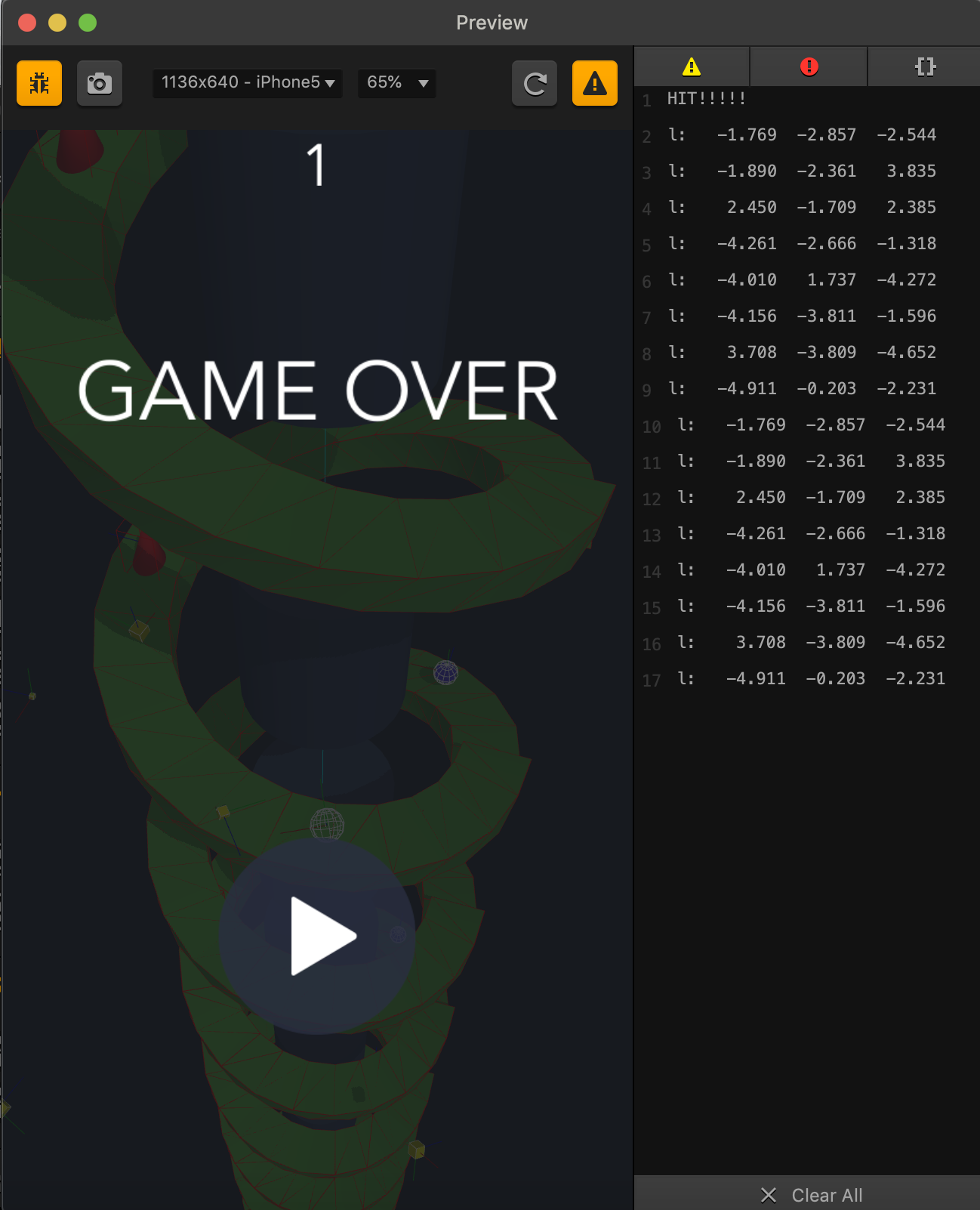
The Preview window opens with your game or scene loaded where you select the desired preview settings and play the game or preview the selected scene.

Button Icon Description
Debug Mode Highlights and shows the collision shapes of the assets in different colors during the game preview. See also Change Collision Shapes.
Take Screenshot Allows you to take a screenshot of the game and save it to your desktop as a PNG file. Just click this button while previewing the game at the frame you want an image of.
Set Screen Size N/A Choose the mobile device screen size for your preview.
Zoom N/A Select a percentage value by which to scale the selected screen size for display.
Reload Reloads the game to see the latest changes, if you’ve made any.

Leave the Preview window open, and it will update the preview as you make changes to the game.
Script Logs Opens the JavaScript logs that you can use for troubleshooting, if needed.

Custom Ads – Buildbox 3 Manual

By |

Integrating Custom Ads

If you would like to integrate a different ad network into your game, you must have the following requirements:

  • Buildbox Pro subscription.
  • Willing to edit Java text files.
  • Access to the desired Ad Network’s instructions.

The following section will walk you through how to select the custom ad option before exporting your game.

  1. Export your game with a custom SDK.
    1. On the Buildbox menu bar, select File > Project Settings
    2. In the Project Settings window click the Application Store drop-down and select the desired Application Store.
    3. In the Bundle ID field, enter a unique identifier.
    4. Click the SDKs tab.
    5. Select the desired Application Store tab.
    6. Click the Add button and select Custom.
    7. Click OK.
    8. Follow the steps in Export a Game Project to optimize and export your game.
  2. Follow the instructions from your ad provider to edit the following files located in your exported game folder.
    Android
    In your Android project folder, locate the AdIntegratorInterface.java file.
    app > java > com > buildbox > adapter > custom.
    iOS
    In your iOS project folder, locate the CustomAdIntegrator.mm file.
    ios > BBPlayer

Interval and Threshold Node – Buildbox 3 Manual

By |

Interval and Threshold Node

This action node toggles the visibility of an asset based on the Interval and Threshold values. Interval is the number of times this node is enabled. Threshold is the distance that the first-spawned Character has traveled.

  • To enable this node, connect the Enabled input to another node’s output.
  • To activate other nodes after changing the asset’s visibility, connect the Visible output to any desired node inputs.

To learn more about the Interval and Threshold attributes, click the dropdowns below:

Threshold

Threshold is the distance that the first-spawned Character has traveled in the game. After the first-spawned character travels the distance specified by the Threshold attribute, this node changes the asset’s visibility.

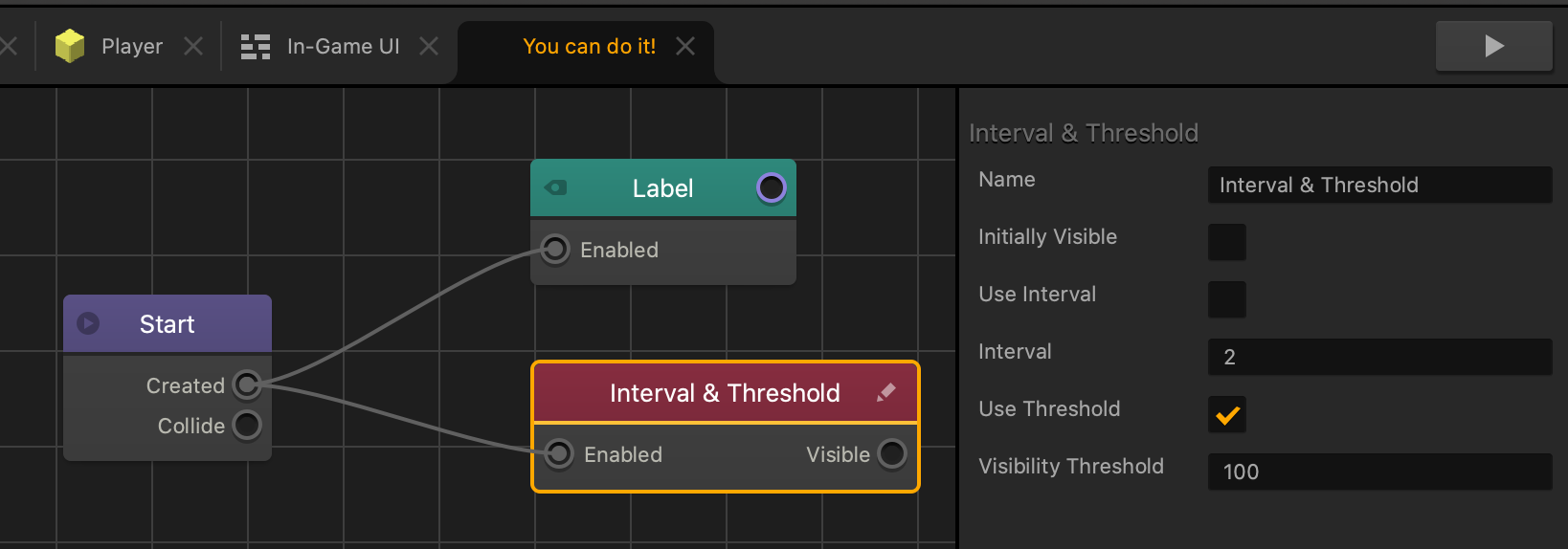
To change the asset’s visibility with the threshold, select the Use Threshold checkbox and in the Visibility Threshold field, enter a distance amount in units.

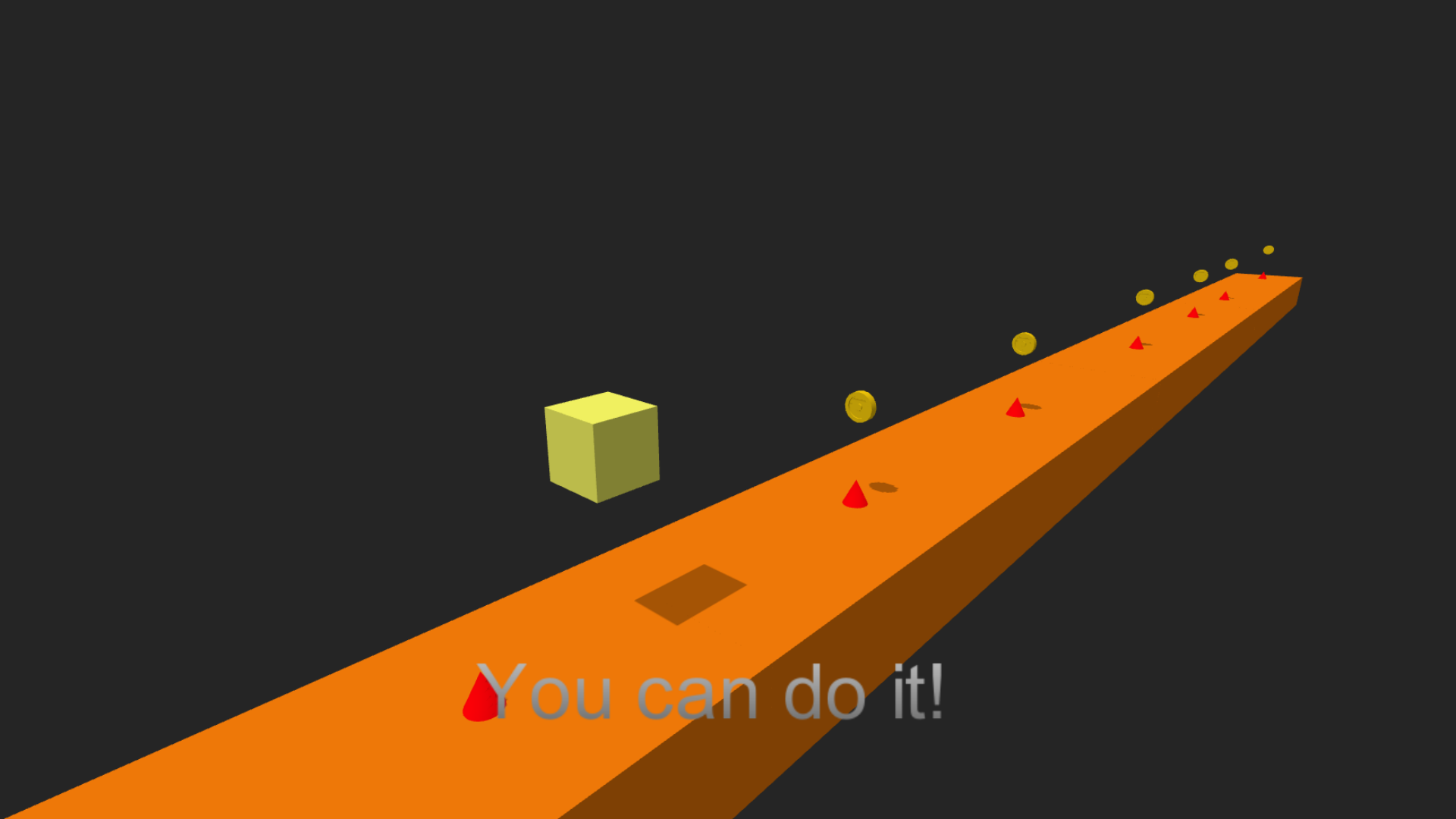
The following is an example of a UI text asset that appears on the In-game UI screen after the player restarts the level.

After the game starts, the Player character asset moves forward in the Z direction. After the Character travels 100 units, the text appears at the bottom of the screen.
Interval

Interval is the number of times this node has been enabled. After this node enables the number of times specified by the Interval attribute, this node changes the asset’s visibility.

To change the asset’s visibility with an interval, select the Use Interval checkbox and in the Interval field, enter the interval amount.

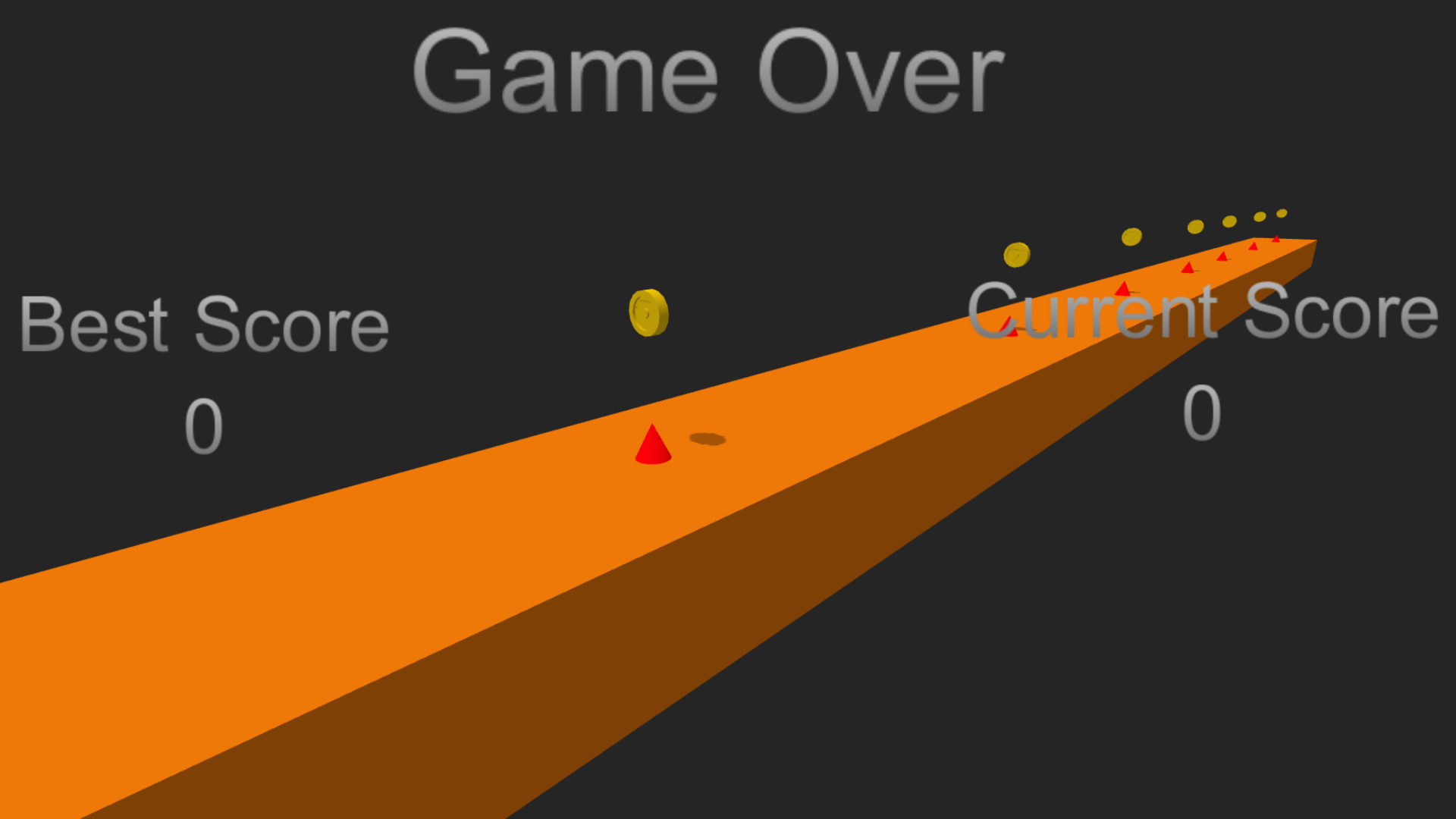
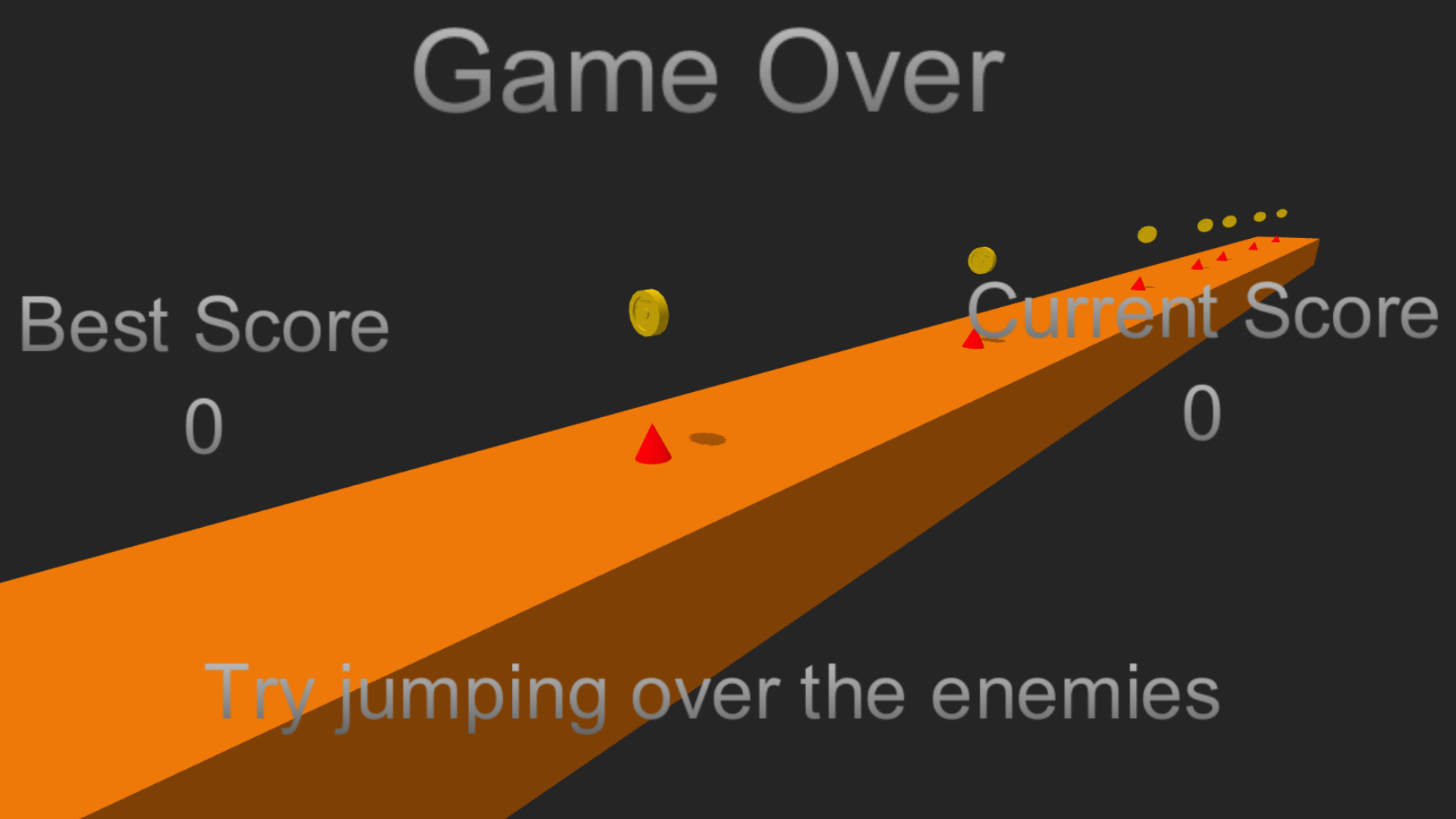
The following is an example of a UI text asset that appears on the Game Over UI screen after the player dies after the second attempt.

After the player arrives at the Game Over screen for the first time, the interval increases to 1. After arriving at the Game Over screen a second time, the interval increases to 2 and makes the text appear with a tip.

Node Attributes

Option Description
Name Type a custom name for this node, if needed.
Initially Visible Select to make the asset visible when it is created or spawned in the game. Clear to make the asset invisible.
Use Interval Select to enable Interval attribute. Clear to disable the Interval attribute.
Interval Enter the number of times you want this node to be enabled before toggling the asset’s visibility.
Use Threshold Select to enable Threshold attribute. Clear to disable the Threshold attribute.
Visibility Threshold Enter how far you want the first-spawned Character to travel before changing the asset’s visibility.

If needed, you can also customize this node. For details, see Customizing Nodes.

World Outliner – Buildbox 3 Manual

By |

World Outliner

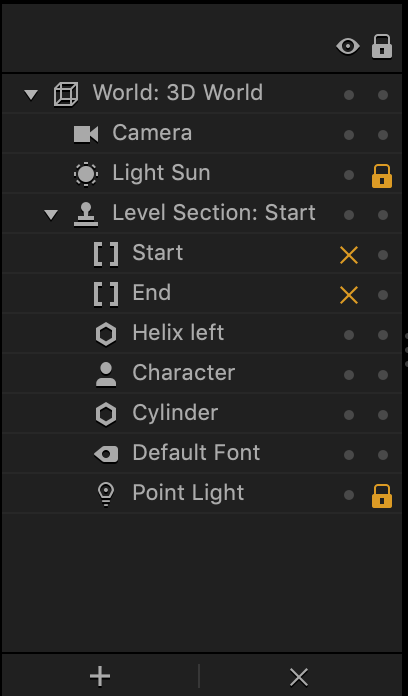
The Outliner panel in a 3D world provides a hierarchical outline of the contents of your game world. It lists all the assets you have in the current scene and the world.

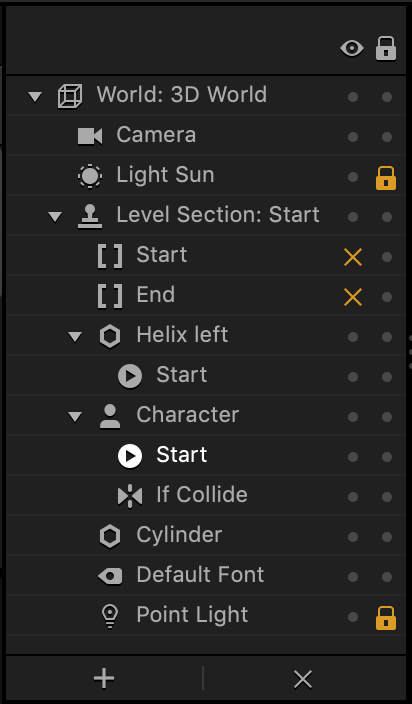
By default, each world has a camera and a light source, which you cannot delete. For each scene, a set of Start and End points is added by default (see Scene Editor). As you add assets to your world or if you select a template, all additional objects will be displayed in the Outliner, as shown in the image below on the left.

If your click the Collision Shape Editor button on the Scene Editor toolbar, the Start and If Collide nodes of the assets with the collision shapes will also appear in the Outliner, as shown int he image below on the right. See also Viewing Collision Shapes.

.     

You can lock, hide, add, or delete items in the current Scene by making the corresponding selections for each item in the Outliner.

Here’s what you can do in the Outliner:

  • To select multiple assets, hold Shift and click the names of all of the desired assets.
  • To see the properties of an object, select it in the Outliner, and view or edit them in the Options panel.
  • To hide an asset from the scene, click the option in the Show/Hide column.
    The asset will be marked with an x next to it. You won’t be able to see, move, or edit the asset while it’s hidden.
    NOTE: If you hide or lock the camera in one scene, they will be hidden or locked respectively in all scenes in the current world.
  • To lock an asset its current position in the scene to avoid accidentally selecting, moving, or deleting it while you edit your scene, click the option in the Lock column.
    The asset will be marked with a lock next to it.
  • To delete an asset, select it in the Outliner and click the x button at the bottom or press the Delete key.
    NOTE: You can’t delete the camera, light source, and hidden assets.
  • To add an asset to the Outliner, drag the asset from the Asset Panel.

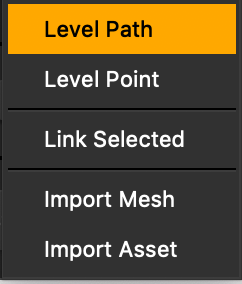
Additionally, you can click the Add button at the bottom of the Outliner and add the following to the scene:

For more details and usage example, see the Outliner video below.

Navigation Bar – Buildbox 3 Manual

By |

Navigation Bar

This bar is located at the top of the Buildbox window allows you to navigate to different editors and Node Maps. For example, you’d use this bar to go back from the current workspace to the Mind Map, 3D World, an asset’s Node Map.

After you create a project or open Buildbox, the home and Mind map are the only tabs that appear on the Navigation bar.

After you open a World editor, UI editor or an asset’s Node Map, its tab appears on the Navigation bar.

After you open an asset’s node map, you see its name and a thumbnail of its current appearance.

  • The current tab is always dark with orange text.
  • To navigate to a different editor or node map, click the tab with the matching name or icon.
  • To navigate to the Mind Map, click the tab with its icon or click the current tab.
  • To delete a tab, click the x next to its name.
  • To move and change the order of a tab click and drag it along the navigation bar.

The Navigation bar also provides a set of buttons that allow you to preview your game or test an individual scene, add fonts, and change your project settings.

Button Icon Description
Preview Allows you to preview the game or the solo scene, if selected in the Scene Selector. For details, see Preview and Testing.
Preview Scene This button is present only in the World Editor. It allow you to preview your game by skipping all UI screens and preceding scenes in the World and starting from the current game scene. See also Preview and Testing.


Animation Bar – Buildbox 3 Manual

By |

Animation Bar

The Animation Bar is the horizontal bar with a frame timeline at the bottom of the World workspace. It allows you to create a motion sequence of the selected character or object, which will be played across a timeline within a scene. The timeline is used to properly key animations for the movement, rotation, and scale values, with each selected frame highlighted in orange.

To access the Animation Bar, select View > Animation Bar.

Button Icon Allows you to
Play Play the animation of the currently selected character or object.
Record Record the animation sequence of the selected character or object.
Loop  Play your animation continuously.
Toggle Graph Editor  Expand/collapse the Graph Animation Editor.

To animate an object:

  1. Select the object that you want to animate in the Scene Editor.
  2. Click the frame number in the Animation Bar, for example 0, and position the object to the location in the scene where you want it to be at this point.
  3. Click the Record button.
  4. Click the next frame number in the Animation Bar, for example, 20, and move the object to a new location in the scene.
  5. Continue with the process until you create the desired movement on the screen.
  6. Click the Record button when done.
  7. To preview the animation, click the Play button.
To fine-tune the movement, expand and use the Graph Animation Bar.

Importing 3D Animations – Buildbox 3 Manual

By |

Importing FBX Files with 3D Animations

To add a 3D animated model to your game, drag an FBX file that contains any of the following into a scene.

  • Model—mesh or shape of the asset.
  • Skeleton—joint or bone hierarchy bound to the model and allows it to bend, twist, and change shape during an animation.
  • Animation—motion and timing of the skeleton or model.

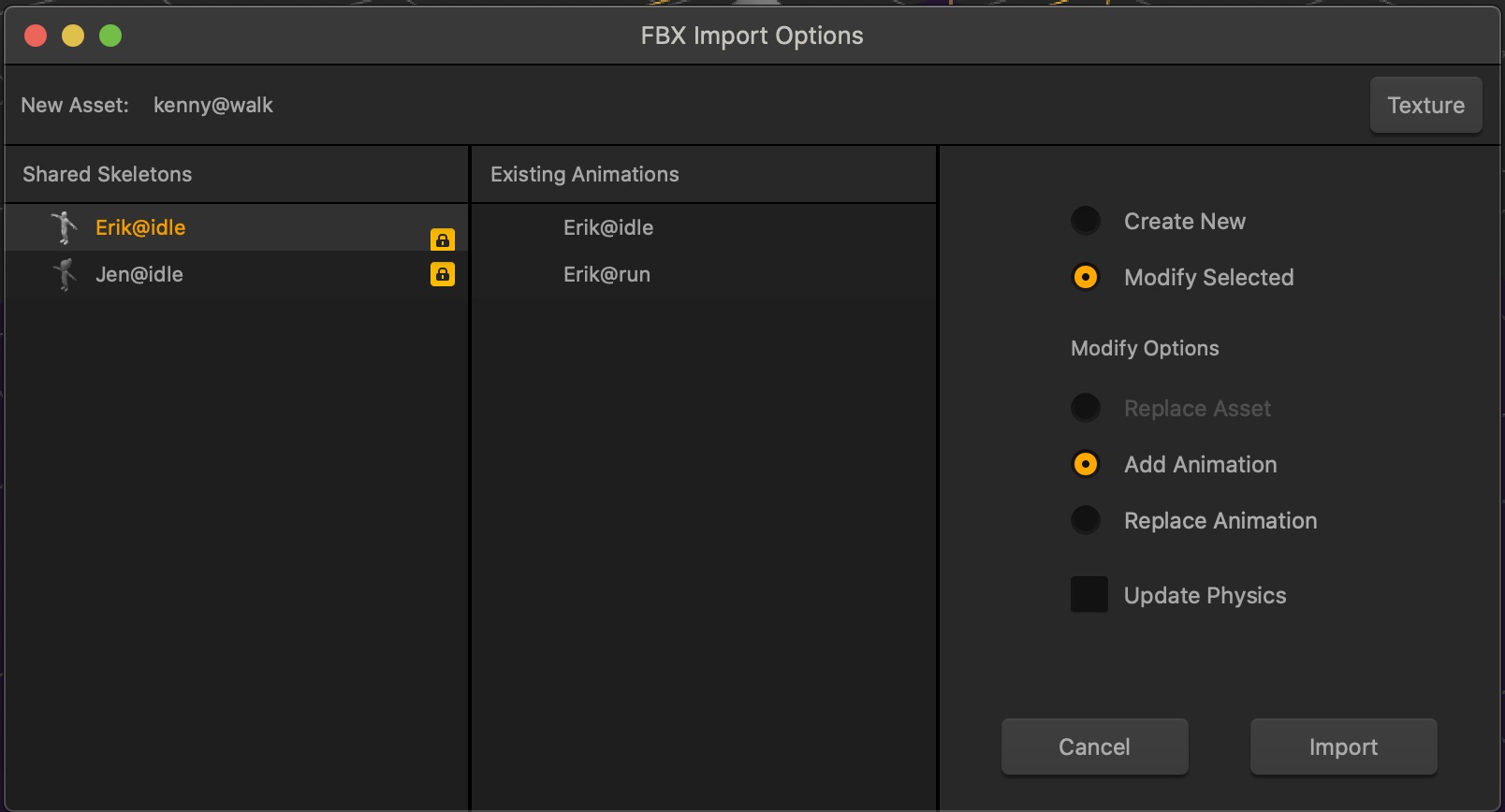
FBX Import Options Window

When you drag another animation FBX file that contains the same skeleton as another animation, you need to choose to either create a brand new asset, or apply the animation to an existing asset.

  • When you import an FBX file that has a similar skeleton as another asset, it will appear in the Shared Skeletons panel.
  • To apply a texture to the model, click the Texture button, then select the desired texture image.
    If a model that has vertex color applied to a surface, it will only show as grey. To apply a color to an FBX asset without using a texture, see Sub Scene.
  • When you select a skeleton from the Shared Skeletons panel, a list of all the animations associated with that skeleton displays in the Existing Animations panel.
  • To add the animation to a skeleton:
    • Select the skeleton in the Shared Skeletons panel.
    • Click Modify Selected and Add Animation.
    • Click Import.
  • To replace an animation:
    1. Make sure the animation FBX file has the same skeleton and file name and drag it to the scene editor.
    2. In the Shared Skeletons panel, select the skeleton associated with the original animation.
    3. In the Existing Animations panel, select the name of the animation you want to replace.
    4. Select Replace Animation and click Import.
  • To add the animation as a new asset, click Create New then Import.
  • To replace the model of an existing skeleton:
    • Import an FBX file that contains the desired model with a similar skeleton as another asset.
    • In the FBX Import Options window, select Replace Asset and click Import.
Section/Attribute Descriptions
Texture Click to choose a texture you want to apply to the asset selected in the Shared Skeletons panel.
New Asset Displays the name of your FBX animation file.
Shared Skeletons Displays a list of all the assets that contain the same skeleton as the animation.
Existing Animations Displays a list of all the animations applied to the selected skeleton.
Create New Imports the animation as a new asset.
Modify Selected Replaces an animation or add an animation to the selected skeleton in the Shared Skeletons panel.
Replace Asset Replaces the selected asset in the Shared Skeletons panel with the imported asset.
Add Animation Adds an animation to the selected skeleton in the Shared Skeletons panel.
Replace Animation Replaces an existing animation of the selected skeleton in the Shared Skeletons panel.
Update Physics
  • Updates the size of the collision shape based on the first frame of the animation.
  • Select the checkbox if you add an animation that has a larger range of motion than the previous animations.

3D Animation Nodes

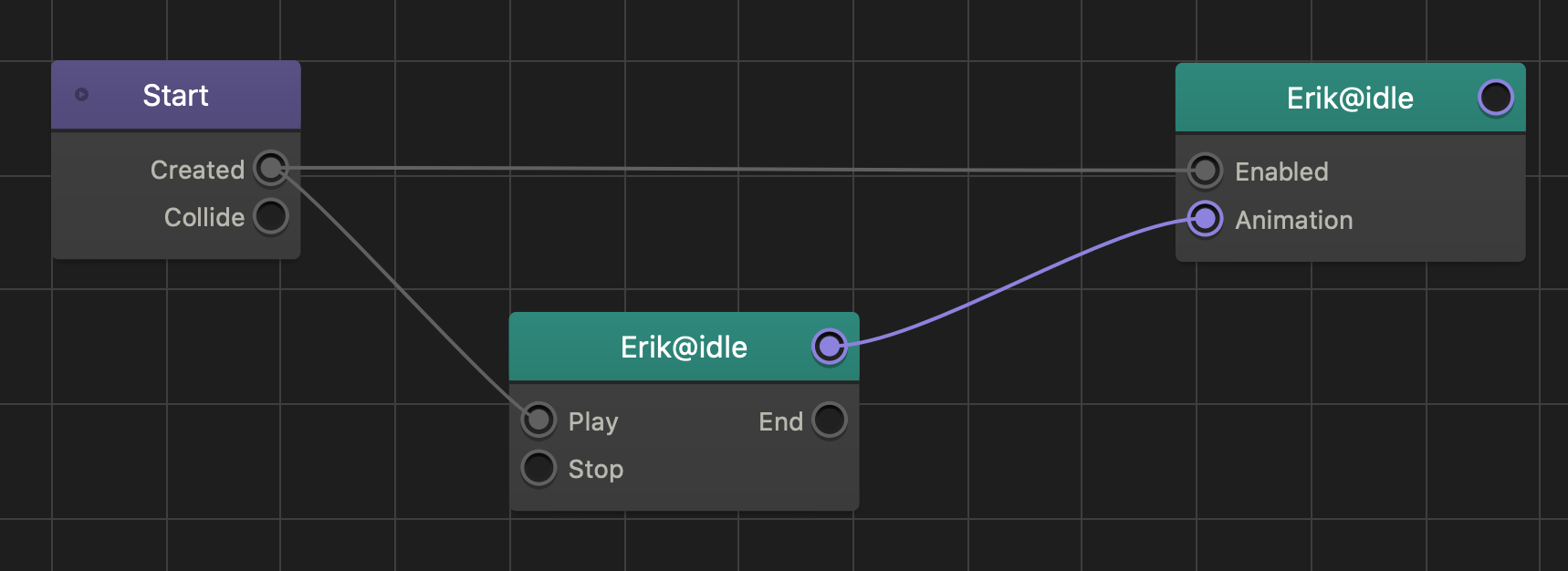
After you create an asset from an FBX file, there are two nodes inside the assets Node Map: Sub-Scene and Keyframe Animation, both with the same name as the FBX file name.

Buildbox 3 Glossary

By |

Glossary

A | B | C | D | E | F | G | H | I | J | K | L | M | N | O | P | Q | R | S | T | U | V | W | X | Y | Z

A

Asset
Any image, 3D model, or object used in game Worlds. Organized into Objects and Characters in the Asset panel.
Atlas
A collection of PNG images added to the project. Any time you add an image file to an asset or node, it is stored and referenced in an atlas. See Atlas Editor.
Attributes
The properties of an asset that you can edit in the Options panel.

B

Banner Ad
An image or video advertisement that occupies the bottom portion of a UI in a game.
Brainbox
Applies a gameplay feature or specific functionality with customizable attributes to an asset.

C

Character
An asset in a game that is followed by the camera.  See Creating Characters.
Coin
A type of collision group assigned to an asset that awards points to players when a Character collides with an object.
Collision Group
A group of assets that allows If Collide nodes to be affected by all assets sharing the same group name. Selected in the Options panel of the asset. See also FAQs.
Collision Shape
The surface area around an object that gets affected when two objects from different collision groups collide. See Changing Collision Shapes.
Components
The attributes of a World or UI node that can be edited in the Options panel.

D

Damage
A numeric value used to subtract from the Health of objects. For details, see Manage Health, Damage, and Defeat.

E

Enemy
A type of collision group assigned to an asset that can harm a Character. See Adding Enemies.
Event
Something that happens during the game or session that is used to determine when the game should advance to another level or UI.

F

Field of View (FOV)
The extent of the observable game world that the player can see on the screen during the game.

G

Gravity
The amount of constant force applied to an axis within a 3D World, which allows creating natural movement of an object. Defined in the Options panel of a World node.

H

Health
A set number of hit points that determines how often an Object or Character can receive damage before they been defeated. For details, see Manage Health, Damage, and Defeat.
Hull
A “solid” shape that reflects only the outer frame of the selected shape, without details such as a hole in a torus, for example. No objects can go through a Hull collision shape.

I

Interstitial Ad
A short video advertisement that plays after a user enters a User Interface a set number of times. Defined in the Options panel of a UI node.

L

Label
An asset that displays text on the screen. Labels listed in the Asset panels are basically fonts added to the game using the Font Editor.
Level
A World, or a series of Scenes. See also World Nodes.

M

Mesh
The surface of a 3D model that defines its shape. Selected in the Options panel of the asset.
Mind Map
A graphical representation of the game with visual connections between its nodes, such as UI screens and 3D Worlds, indicating their relationships. The Mind Map allows you to map and organize the flow of your game and includes the root Start Node that loads your game.
Mute
A muted scene is an inactive scene marked with a red line underneath the scene name in the Scene Selector. A muted scene will not show up in the preview or in the final export.

N

Node
A visual representation of a coded functionality within an asset. Each node can connect with another node through their input and output connections. See Node Anatomy.
Node Map
A graphical representation of the asset’s behavior with visual connections between its nodes. It may include individual nodes from the Node Panel or Brainboxes.
Node Connector
The line that connects the input of one node to the output of another.

O

Object
Any type of asset used in game Worlds that is not a Character. The player can control objects, but the game camera cannot follow them.
Outliner
A panel in the World and UI Node workspaces that lists the added assets in hierarchical order. See General Workspace Overview.

P

Path Anchor
The path between the end point and the starting point that an object will follow in a scene.
Physics
The checkbox in the Start Node of an asset that is used to determine if an object’s position and rotation is affected by gravity or other objects.
Platform
A type of collision group that defines an object as a platform or surface that an Object or Character can move on or land on while Gravity is active.
Point
A value that is awarded to players based on progression within the game.
Point Light
An additional source of light that you can add to a scene from the Asset panel, which emits light within a given diameter range. See also Point Light Options.
Point of Origin
The X, Y, and Z axes of an object that is placed within the scene.

R

Randomizer
A type of node that allows the user to move to a random UI or World.

S

Score
The total amount of Points the player has earned throughout the game. See Adding Score.
Skeleton
A collection of bones or joints bound to an asset and organized in a hierarchy that allows the asset to bend, twist, and change form while animating. See also Importing 3D Animations or Sub-Scene Node.
Spot Light
An additional source of light that you can add to a scene from the Asset panel, which projects light onto a surface. See also Spotlight Options.
Sprite
A two-dimensional image that is made up of small images combined into one larger image at defined X and Y coordinates.
Solo
A solo scene is the only active scene in a World marked with a blue line underneath the scene name in the Scene Selector. A solo scene will be the only scene that is shown in the preview and the final export. To solo a scene, right-click the scene name and select Solo.
Sub Steps
A numeric value that sets the amount of motion being displayed on a screen. Defined in the Options panel of a World node.

T

Template

This term may refer to either of the following:

  • Game Template: A pre-built game of a specific genre that you can use to quickly make games of the same type. See Exploring Buildbox.
  • Font Template: Creates a 2D text area with font and color properties that can be edited in the Font Editor.
Texture
An image that is applied to the entire surface of a 3D model. Selected in the Options panel of the asset.
Threshold
A numerical value that defines a limit before a specific attribute becomes active. For example, see the threshold settings for adding and deleting scene during a game session in the Options panel of a World node and the Follow Threshold in the Camera Options.
Time Step
How often physics is being calculated per second. Defined in the Options panel of a World node.
Time Warp
A numeric value that defines the speed of time in a World. Defined in the Options panel of a World node.

U

UI (User Interface)
A type of node on the Mind Map that allows you to create menus and overlays with in-game information, for example, points, health, and so on. See UI Nodes.

W

World
A special type of 3D environment node that represents a game level on the Mind Map. A world contains all Assets within a game, and is organized into sections called Scenes. See World Nodes.