Path Move Node – Buildbox 3 Manual

By |

Path Move Node

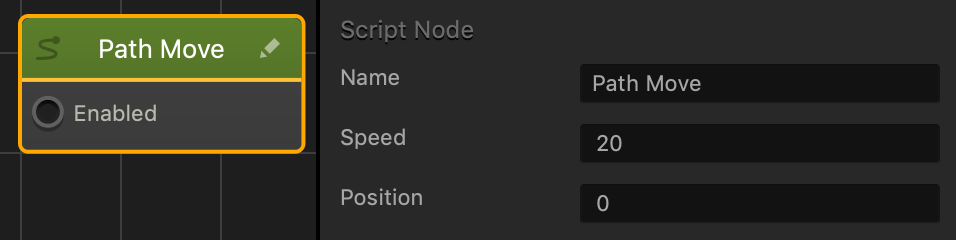
This movement node allows the asset to move forward on a continuous path in the direction of the End Point.

IMPORTANT: This node will not work on an asset with Dynamic physics enabled.
Option Description
Name Type a custom name for this node, if needed.
Speed The speed or rate the object will travel forward.The higher the value, the faster the object will travel forward.
Position Changes the default horizontal position of the asset according to the path set by the Start/End Points. A value greater than 0 will shift the asset to the right, while a value less than 0 will shift the object to the left.

If needed, you can also customize this node. For details, see Customizing Nodes.
Random Node – Buildbox 3 Manual

By |

Random Node

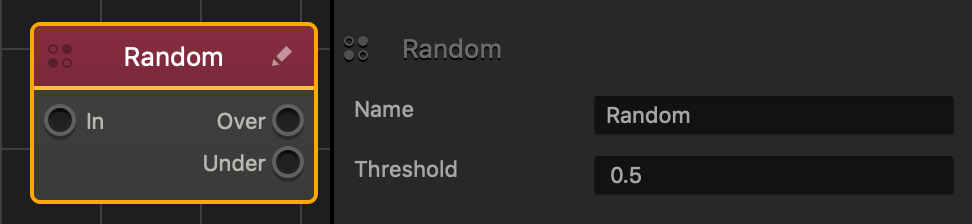
This action node activates one of its outputs at random based on a 0-1 numeric value.

Option Description
Name Type a custom name for this node, if needed.
Threshold Enter a numeric value with a minimum of 0 and a maximum of 1 to specify how often the Over and Under output activates

  • A higher value will increase the odds of the Over input activating
  • The lower value will increase the odds of the Under Input activating.

If needed, you can also customize this node. For details, see Customizing Nodes.

Play Animation Node – Buildbox 3 Manual

By |

Play Animation Node

This action node plays the scene animation of the asset.

  • If the asset has been animated in a scene via the Scene Animation Editor, then this node will play that animation.
  • If the asset has not been animated using the Scene Animation Editor, then this node will not have an animation to play.


Option Description
Name Type a custom name for this node, if needed.

If needed, you can also customize this node. For details, see Customizing Nodes.
Changing Game Camera View – Buildbox 3 Manual

By |

Change the Game Camera View

To change the view of a 3D scene in the Scene Editor, see Navigating in the Scene Editor.

To change the view of the World that the player will see while playing the game, you need to change the game camera view. To do so, on the Scene Editor toolbar, click the Camera button and use the keyboard shortcuts below.

You can also select Camera in the Outliner and enter the appropriate values for the Position, Rotation, and Scale axis attributes in the Options panel. You may want to modify other attributes as well, for example, Field of View.
Shortcut Keys Description
Command–Minus Sign (-) Zoom in/out on the objects in the camera view of the scene. You can also use the mouse wheel to zoom in/out of the scene.
Command–Plus Sign (+) 
Space bar–Left-Click Hold the shortcut keys and drag the grid to move the camera view in the Scene Editor.
Space bar–Right-Click Hold the shortcut keys and drag the grid to change the angle of the camera view in the Scene Editor, for example, to rotate it.

Adding Event Observer- Buildbox 3 Manual

By |

Add an Event Observer to the UI

To add an Event Observer to the game UI:

  1. On the Mind Map, double-click the UI node where you want to add an Event Observer.
  2. On the Asset panel, expand the Logic category and drag the Event Observer icon to the UI Editor and position it outside the UI screen.
  3. In the Options panel on the right, define its attributes.
  4. On the navigation bar, click Mind Map.
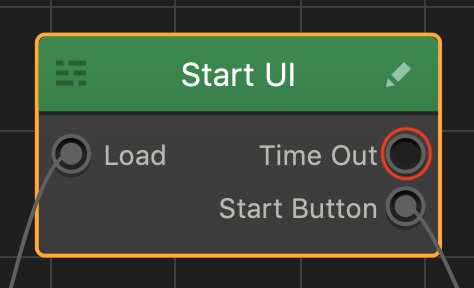
  5. On the Mind Map, on UI node where you have just added the Event Observer, click the Event Observer output (which will be labelled with the name you assigned to the Event Observer in the Options panel, for example, Time Out in the image below) and drag a connect to the appropriate World or UI screen to which the game should transition based on the event you selected in the Event Observer attributes.
  6. Preview and test your game.


Adding Scenes – Buildbox 3 Manual

By |

Add a Scene to a World

A scene is a section within a World (game level). If needed, see Glossary.

To add a scene to a 3D World:

  1. On the Mind Map, double-click the World node where you want to add a scene.
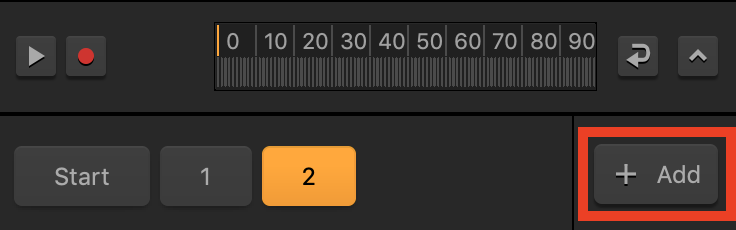
  2. In the World workspace, in the Scene Selector at the bottom, click the Add button on the far right.

    To duplicate an already existing scene, click it and press D on the keyboard. For more details on managing scenes, see Scene Selector.

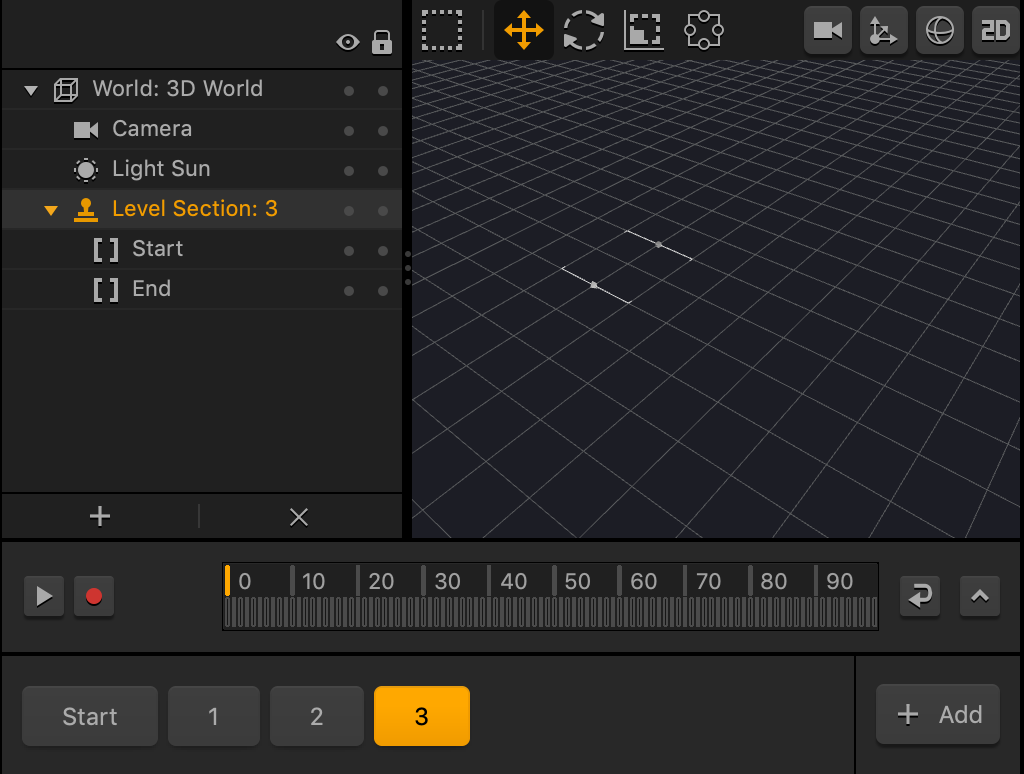
    A new scene appears highlighted as a sequentially numbered button in the Scene Selector and as a Level Section with the same number in the Outliner, with the Start and End points displayed in the Scene Editor.

  3. If needed, in the Options panel on the right, type a custom name for the scene.
  4. Add the necessary assets to the new scene, define the desired logic, and test the scene.

Adding Music and Sound Effects – Buildbox 3 Manual

By |

Add Music and Sound Effects

You can add an MP3 file from your computer to a game in one of the following ways:

  • To the Start node on the Mind Map. The selected music will be added to the entire game.
  • To individual UI nodes on the Mind Map. The music or sound will be played only when the selected UI screen is displayed.
  • To an asset by using the Sound content node in the Node Map.
  • To individual buttons when the player taps and or releases them. For details see UI Buttons.

Drag New Files

  1. Select the appropriate node.
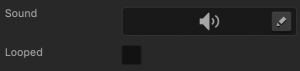
  2. In the respective Options panel, drag an MP3 file from the Finder to the Sound or Music field.
    The file will be added to the selected node or asset.
  3. If you want the music to be played continuously, select the Looped checkbox.

The file you drag will be also added to the audio assets of this project, which means you can select it anywhere else in the project as explained below.

Select Previously Added Files

  1. Select the appropriate node.
  2. In the respective Options panel, mouse over the Music or Sound field, and click the Edit icon.
  3. Select the MP3 audio file you need from the drop-down list.
  4. If you want the music to be played continuously, select the Looped checkbox.

Delay Node – Buildbox 3 Manual

By |

Delay Node

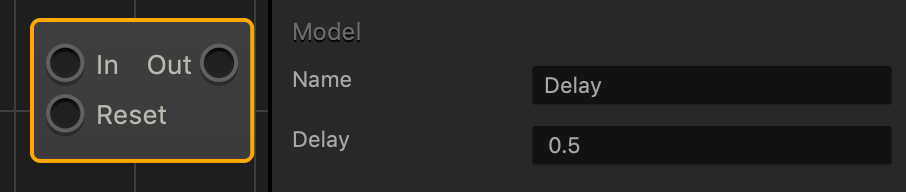
This advanced node delays the activation of the next node by the number of seconds specified.

Option Description
Name Type a custom name for this node, if needed.
Delay The amount of time in seconds that will pass before the next node is activated.

Texture Scroller Node – Buildbox 3 Manual

By |

Texture Scroller Node

Applies continuous movement to the textures on the surface of all 3D Models attached to the asset.

NOTE: This node will only work if a 3D Model Node is attached to an asset and has a texture applied, for more details see 3D Model Node.

Option Description
Name Type a custom name for this node, if needed.
Speed The direction and amount of movement the texture will constantly move in.

If needed, you can also customize this node. For details, see Customizing Nodes.