Send and Receive Nodes – Buildbox 3 Manual

By |

Send and Receive Nodes

These nodes are action nodes. The Send nodes create a special kind of event for the Receive nodes to use in order to activate any connected nodes on a different asset.

NOTE: These Events are only valid for the Send and Receive nodes, and are not associated with the Event Observer nodes or the Event Observer UI logic.
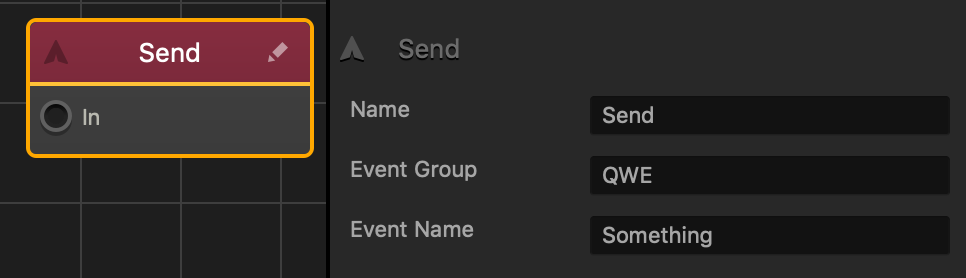
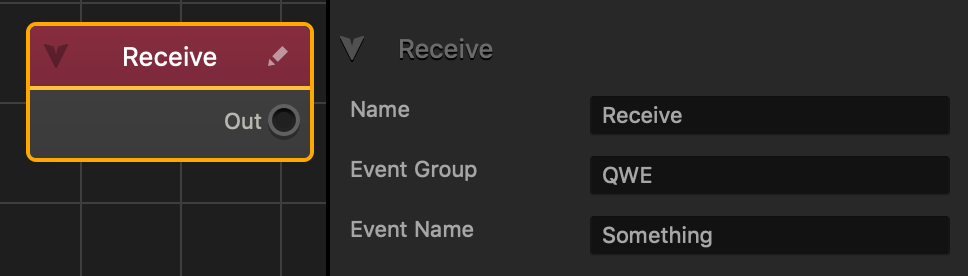
Option Description
Name Type a custom name for this node, if needed.

TIP: Type the name of the Event after Send or Receive to better keep track of what event these nodes are sending or receiving.

Event Group Groups multiple events so that events of the same name will only be received if they share the same group.
Event Name Type the name of the event that will be sent or received.

NOTE: The event name in the Send node MUST match the event name in the receive node.

If needed, you can also customize this node. For details, see Customizing Nodes.

Camera Position Node – Buildbox 3 Manual

By |

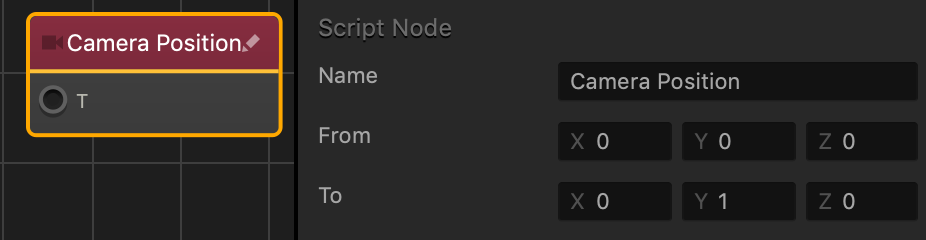
Camera Position Node

This action node Moves the camera in the direction specified by the axis values.

Option Description
Name Type a custom name for this node, if needed.
From The direction that the camera will return to when activated by certain nodes.

  • For example: If connected to an If Collide node, the camera will move in the direction of the To value once the asset has collided with an object. Once the asset leaves the collision area of the object, the camera will move in the direction of the From value.
To The angular direction the camera will rotate to once this node is activated.

If needed, you can also customize this node. For details, see Customizing Nodes.
Touch Path Node – Buildbox 3 Manual

By |

Touch Path Node

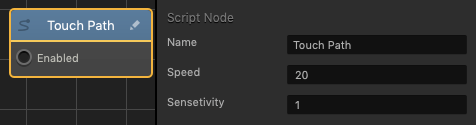
This control node puts the asset on a continuous path moving forward, and allows the asset to be moved from side to side by dragging left or right across the screen using a finger or mouse.

Option Description
Name Type a custom name for this node, if needed.
Speed The speed or rate the object will travel forward.The higher the value, the faster the object will travel forward.
Sensitivity Determines how much the user has to drag across the screen to move the object. The higher the value, the less the user has to drag across the screen to move the object.

If needed, you can also customize this node. For details, see Customizing Nodes.

4-Way Swipe Node – Buildbox 3 Manual

By |

4-Way Swipe Node

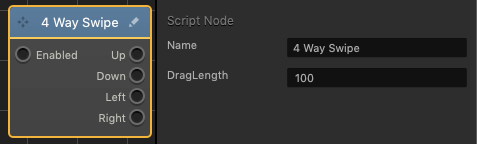
This control node allows the player to drag the screen in four directions.

Option Description
Name Type a custom name for this node, if needed.
Drag Length Enter the maximum distance across the screen that the players will be allowed to drag.

If needed, you can also customize this node. For details, see Customizing Nodes.

Touch Node – Buildbox 3 Manual

By |

Touch Node

This control node enables any connected nodes when the entire screen is activated by either the touch or release of a finger, or click or release of the mouse.

Option Description
Name Type a custom name for this node, if needed.

If needed, you can also customize this node. For details, see Customizing Nodes.

Joystick Node – Buildbox 3 Manual

By |

Joystick Node

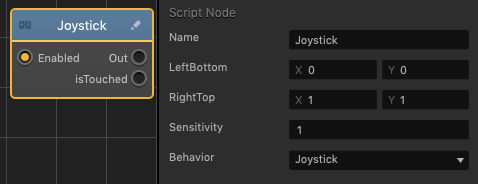
This control node enables the position of the asset to be moved by dragging across the screen with either a finger or mouse.

Option Description
Name Type a custom name for this node, if needed.
LeftBottom
RightTop
Sensitivity
Behavior

If needed, you can also customize this node. For details, see Customizing Nodes.

Move Node – Buildbox 3 Manual

By |

Move Node

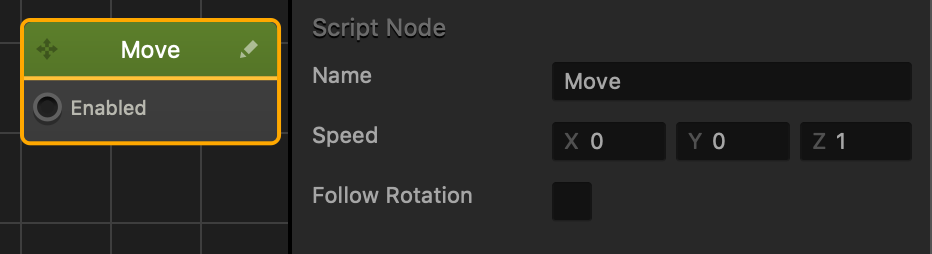
Allows the asset to travel in the direction specified in the axes values.

Name Creates a custom name for this specific node.
Speed To increase the speed or change the movement direction, enter different values in the axes fields.
NOTE: If there is no value in an axis field, then other nodes can affect this asset in those axes. Useful when also applying a Jump Node to an asset.
Follow Rotation To make the asset always face the direction it is moving, select this option.

World Workspace – Buildbox 3 Manual

By |

World Workspace

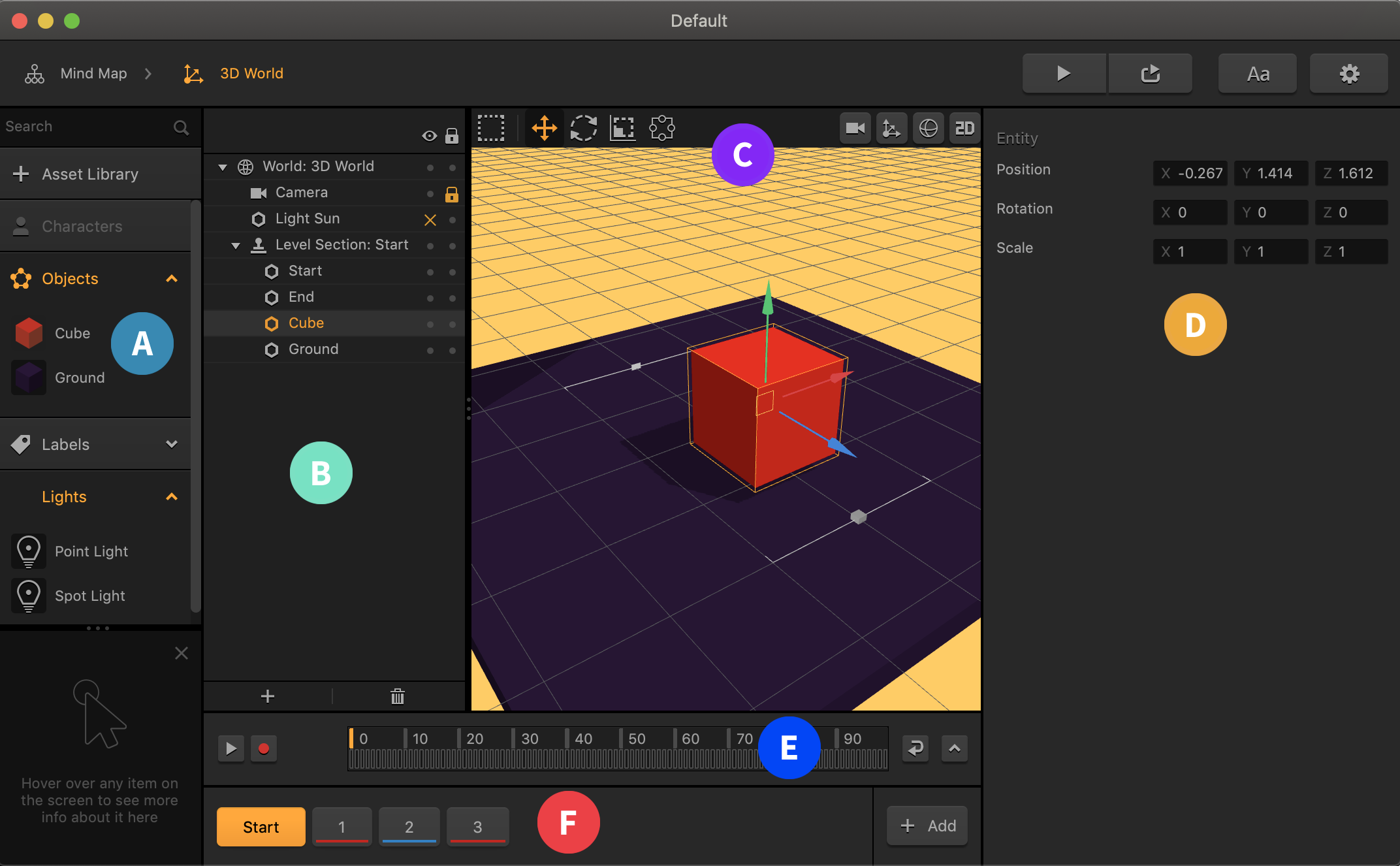
To go inside a 3D World and start building it, double-click a purple 3D World node on the Mind Map or click the Edit icon in the top right corner of the node. This opens the workspace of the selected world.

Inside a World, you can add scenes to your game level and build them, using objects, characters, and other assets.

The first default Start scene is always displayed in the Scene Selector (F) at the bottom. You may not delete, solo, or mute this scene, but you can duplicate it, if needed. For details, see Scene Selector.

The World workspace has all the parts described in detail in General Workspace Overview. For specific details on each part of the World workspace, see the links below:

Adding Score – Buildbox 3 Manual

By |

Add Game Score

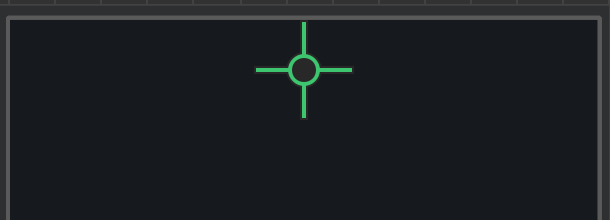
A score counter in a game is basically a text area defined to keep count of the player’s points and automatically display it in the UI. Unlike a regular text label, in the UI Editor, a score label is displayed as green crosshairs at the top of the screen:

To add a score counter to the game:

  1. On the Mind Map, double-click the UI node where you want to add a score.
    The UI Editor is displayed.
  2. In the Asset panel, expand the Labels section and drag the font label you want to use for the score to the UI Editor.
  3. Position the text area at the top of the screen or wherever you want the score to appear.
  4. In the Options panel on the right, do the following:
    1. In the Name field, enter a descriptive name, for example, Score.
    2. In the Function field, select Score.
    3. Make the rest of the selections to choose the score type, amount, and other attributes as described in Score Label.
  5. Preview the game to test the score.