
Add Control Button- Buildbox 3 Manual

By |

Add a Control Button in the UI

You can add a control button to the UI and use it as a control node for a character or an object.

  1. From the Mind Map, navigate to the UI node where you want to add a control button.
  2. In the UI node workspace, from the Asset panel, drag the Control Button to the UI Editor and define the button attributes as described in Control Button.
  3. On the Navigate bar, click Mind Map and on the Mind Map, double-click the World node where you want to use this button.
  4. Inside the World, in the Asset panel on the left, double-click the object or character where you want to use this button.
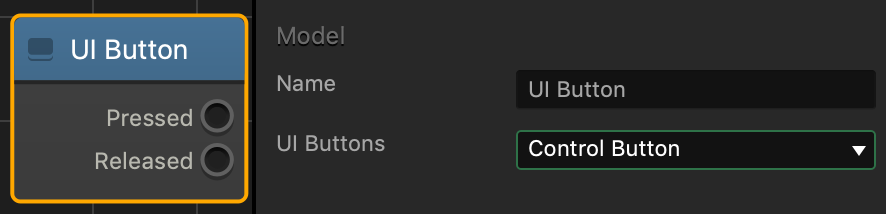
  5. Inside the Node Map of the selected asset, in the Node panel on the left, expand the Controls list and scroll down to the UI Button.
  6. Drag the UI Button node to the Map.
  7. In the Options panel on the right, in the UI Buttons list, select the name of the control button you’ve added to the UI screen.
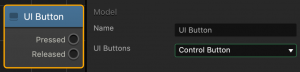
  8. Connect the node as needed. For details, see the Node Reference.
 

Adding Enemies – Buildbox 3 Manual

By |

Create Enemies

An enemy is an asset that can harm a character, typically during a collision.

To create an enemy in a game:

  1. On the Mind Map, double-click the World node where you want to add an enemy.
  2. Inside the World, click Asset Library.
  3. On the Shapes tab, double-click the shape you want to make a character in your game.
  4. Click Asset Library to close it.
  5. In the Asset panel, under Objects, select the shape you’ve just added.
  6. In the Options panel on the far right, do the following:
    1. (Optional) In the Name field, type Enemy after the shape name.
    2. In the Collision Group, select Enemy.
  7. If needed, change the collision shape of the enemy.

You’ve added an enemy to your game.

Creating Characters – Buildbox 3 Manual

By |

Create Characters

A character is an asset that the camera typically follows in the game, and which the player can control.

To create a character in a game:

  1. On the Mind Map, double-click the World node where you want to add a character.
  2. Inside the World, click Asset Library.
  3. On the Shapes tab, double-click the shape you want to make a character in your game.
  4. Click Asset Library to close it.
  5. In the Asset panel, under Objects, select the shape you’ve just added and drag it over the Characters section above (which may be grayed out, if you don’t have any other characters yet).
    The asset is now added to the Characters list.
  6. Select the shape under Characters.
  7. In the Options panel on the far right, do the following:
    1. In the Name field, type Character or any other name that would help you identify this asset as a character.
    2. In the Collision Group, select Character.
  8. If needed, change the collision shape of the character.

You’ve added a character to your game.