Buildbox Menu Bar
The Buildbox menu bar is located at the very top of the Buildbox window.

Here is a quick overview of the Buildbox menus and their options.
Each Menu option’s keyboard shortcut is displayed next to its name. See also
Keyboard Shortcuts.
Buildbox Menu (Mac)
| About |
View the About Buildbox window with the product installation and license summary. |
| Services |
Select your keyboard preferences. |
| Hide Buildbox |
Minimize the Buildbox window. |
| Hide Others |
Minimize all application windows, except Buildbox. |
| Show All |
View all active windows on the screen. |
| Quit Buildbox |
Save your work and close Buildbox. |
File Menu
| New |
Save changes to the current project file or abandon it altogether and create a new one. |
| Open |
Save changes to the current project file or abandon it altogether and load an existing project file. |
| Open Recent |
View a list of recent projects, which you can choose to open or clear the list. |
| Save |
Save the project with its current file name. |
| Save As |
Save current project with a new file name, thus creating a copy. |
| Export |
Export your project when you are ready to submit your game to the App Store. See also Export a Game Project.
Fill in all required information for the desired export option in the project Settings before exporting your project. Select the desired export platform:
- iOS
- Android
- Steam
- Windows EXE
|
Edit Menu
| Undo |
Undo the last operation. |
| Redo |
Redo the last operations. |
| Align Scenes |
Play scenes in a linear sequence in the Preview window. |
| Randomize Scenes |
Play scenes in a randomized sequence. |
Run Menu
| Preview |
Play and test your entire game as it would look after export. See also Preview and Testing. |
| Preview Selected Scene |
Play and test the current scene in the editor as it would look after export. See also Preview and Testing. |
Add Menu
| New Image |
Add an image object to a UI screen, where you can define its attributes. |
| New Button |
Add an image as a Navigation button to a UI screen. |
View Menu
| Zoom In |
Increase magnification on the grid of the currently displayed editor or map to get a closer view of the screen. |
| Zoom Out |
Decrease magnification on the grid of the currently displayed editor or map to get a wider view of the screen. |
| Show All |
Change the zoom level to show all items in the currently displayed editor or map. |
| Show Frame |
Reset the zoom level and position of the view in the currently displayed editor or map. |
| Actual Size |
Reset the zoom level to the actual view size of the currently displayed editor or map, neither zoomed in or out. |
| Helper |
Show or hide the Helper section that provides help info about the panel, button, or attribute field you are working with, in the bottom left corner of the Buildbox window. |
| Enter Full Screen (Mac) |
View the Buildbox window in the full screen mode. |
Scene View Menu Options
The following
View options are available only in the
Scene Editor in 3D World workspaces.
| Animation Bar |
Toggle the visibility of the animation bar at the bottom of the scene editor. |
|
| Snap Mode |
Allows you to snap the selected object’s position to each grid point when using the move tool. |
|
| View Persp/Orth |
Switches between perspective (3D) and orthogonal views. In orthogonal view, the camera is set at a right angle, which gives more of a 2D look to the game. |
|
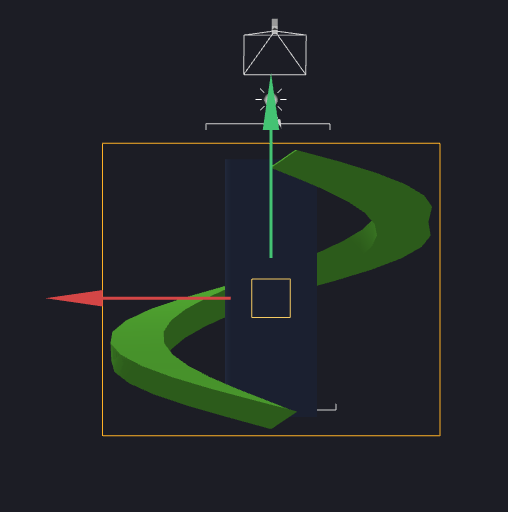
| View Align by X |
View the scene from the side, aligned along the X axis. |
 |
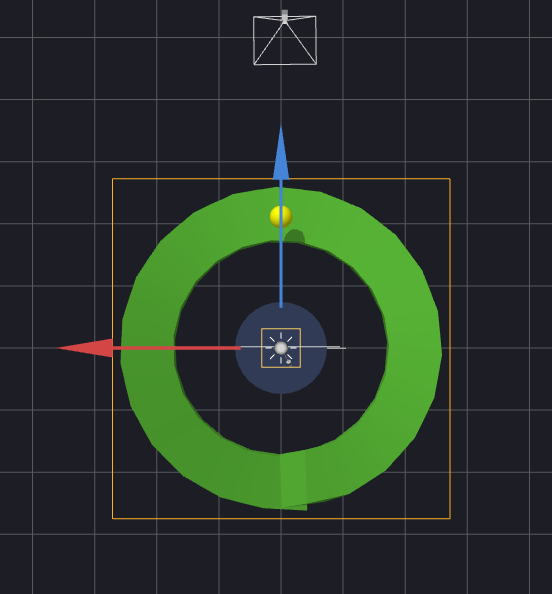
| View Align by Y |
View the scene from the top, aligned along the Y axis. |
 |
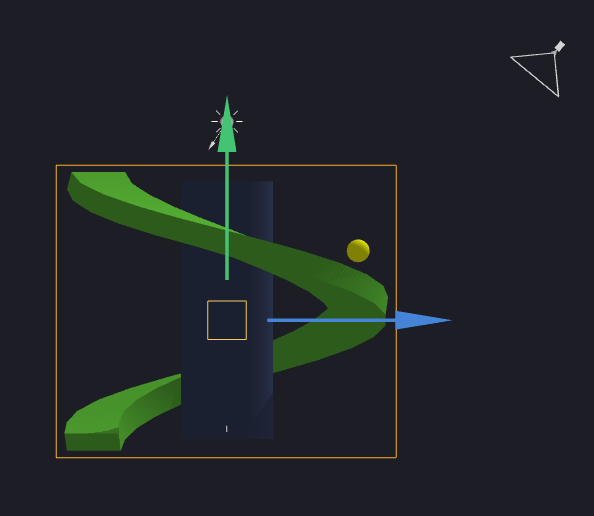
| View Align by Z |
View the scene from the other side, aligned along the Z axis. |
 |
| View Rotate Left |
Rotate the current view slightly to the left. |
|
| View Rotate Right |
Rotate the current view slightly to the right. |
|
| View Rotate Up |
Rotate the current view slightly up. |
|
| View Rotate Down |
Rotate the current view slightly down. |
|
| View Rotate 180 |
Flip the view horizontally, by rotating it 180 degrees. |
|
| View Move to Ground |
Move the view to the default vertical position. |
|
| Reset View |
Reset the current view to the default rotation and position. |
|
Tools Menu
| Font Editor |
Open the Font editor to create a
custom font. |
| Atlases |
Open the Atlas Editor. |
| Remove Unused Sound Objects |
Remove any MP3 sound files that were uploaded to Buildbox and
not used in the game. |
| Select |
Select any of these tools to use in a 3D World. |
| Move |
| Rotate |
| Scale |
| Multitool |
Help Menu
| Report an Issue |
Access an online form to report a bug or issue to the Buildbox team. |
| Report a Feature |
Access an online form to report a feature idea or suggestion to the Buildbox team. |
| Buildbox Documentation |
Access product documentation online. |
| JS API Reference |
Access the Buildbox JavaScript API reference online. |
| Check for Updates |
Check if there is a new version of Buildbox available for download. |
| Get Logs |
Save a log file on your desktop. Provide this to the Buildbox Support team for troubleshooting purposes. |
| Activate License |
Switch from a demo version of the software into a fully licensed product. |
| Tutorial |
View a quick walkthrough to familiarize yourself with the Buildbox basics. |
Account
There is currently only one option, Sign Out(Your email) that logs you out of Buildbox and
takes you back to the Login screen.