
Animation Node
This content node creates a 2D plane that plays a PNG sequence or displays an image.
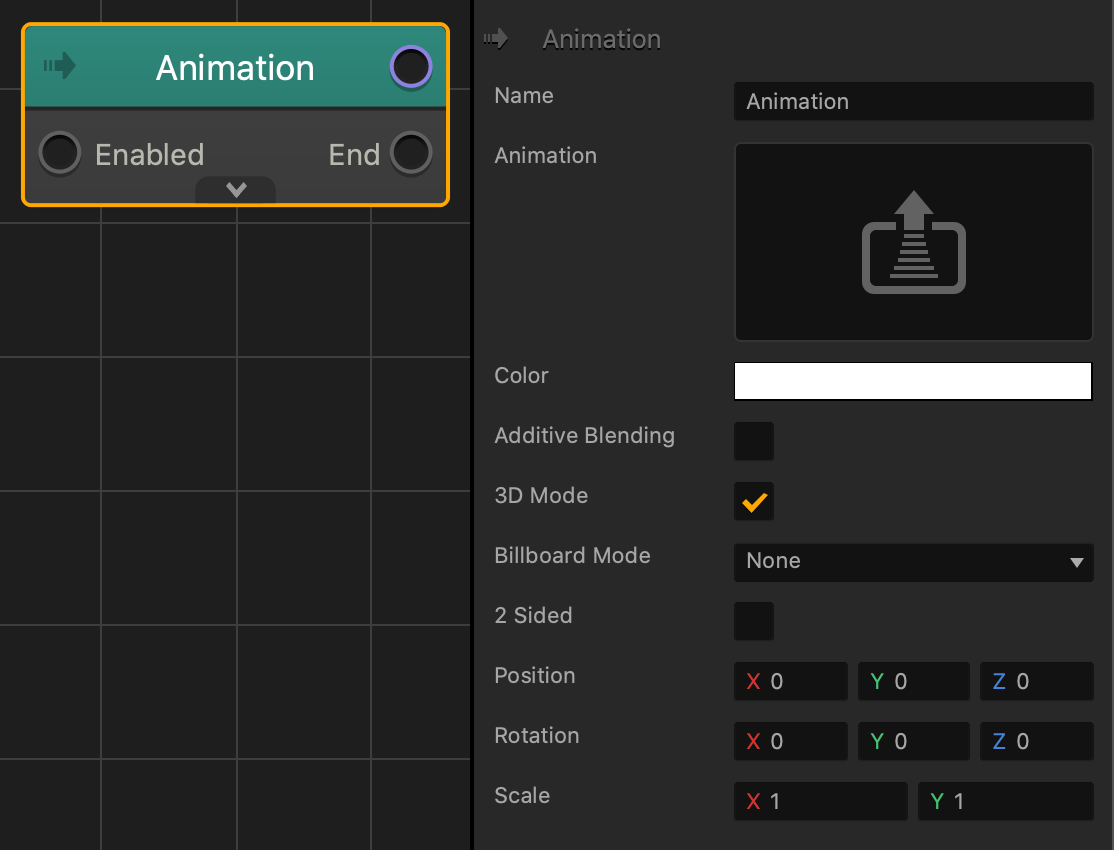
| Option | Description |
| Name | Type a custom name for this node, if you have many of the same types of nodes. |
| Animation | To add a PNG sequence, drag all PNG images associated with that sequence to this area.
To edit the properties of a PNG sequence, click the Edit icon in the top-right corner to open the Animation Editor. |
| Color | Click the color field to change the color of the asset.
If the Animation attribute as an image attached, this attribute will apply a color overlay on top that image. |
| Additive Blending | Select to make the image (or animation) add a glow effect to any graphics or 3D models objects underneath it. |
| 3D Mode | Select to show the Billboard Mode attribute. Clear to hide the Billboard Mode attribute |
| Depth Order | Enter a numeric value to determine which animation node will be placed on top if there are multiple animation nodes in this asset’s node map. |
| Billboard Mode | Select an option to determine how the image automatically faces the camera in the game:
|
| 2 Sided | Select to show the image on both sides of the plane. |
| Position | To offset the position of the 3D model, enter the appropriate X, Y, or Z axis values. |
| Position | To move the 2D plane without moving the entire asset, enter the appropriate X, Y, or Z axis values. |
| Rotation | To rotate of the 2D plane without rotating the entire asset, enter the appropriate X, Y, or Z axis values. |
| Scale | Enter a numeric value in the X and Y axis fields to change the size of the image. |


